

The four roles in Setaflow (Super Admin, Owner, Admin and Staff), what each can do by default, and how technicians work without a login.
Everyone who signs in to Setaflow has one of four roles. The role decides which screens appear in their sidebar and which buttons they can use. Technicians are different: they don’t sign in at all, and work on WhatsApp.
| Role | Who it is | By default |
|---|---|---|
| Super Admin | The Setaflow team | Sets up and supports every business on Setaflow |
| Owner | The business owner | Full access to their own business |
| Admin | A trusted manager | Every action on every screen, except billing |
| Staff | Sales, office and accounts staff | View only, until the Owner gives them more |
See your team
Section titled “See your team”Open Settings from your profile menu and go to Teams. You see every member with their role and status, and a separate list of No-login task collaborators (your technicians).
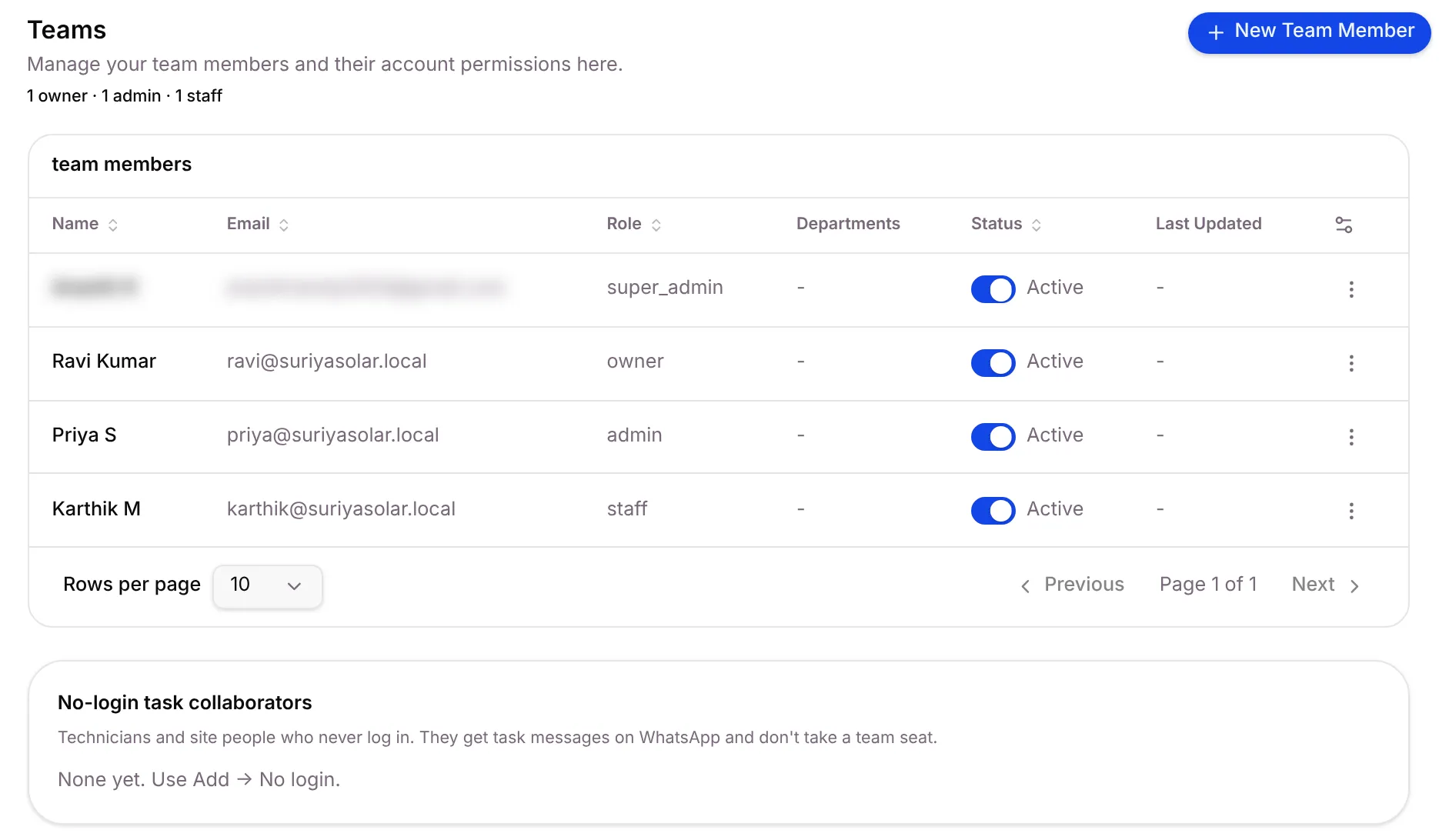
- New Team Member adds someone who signs in. Only the Owner (and the Setaflow team) can add members.
- The Status switch turns a member’s access on or off without deleting them.
- No-login task collaborators are technicians. They don’t take a team seat.
Super Admin
Section titled “Super Admin”The Super Admin is the Setaflow team, not someone in your business.
- Creates your organization and sets your plan (Pilot, Core or Multi-branch).
- Installs your trade’s starter pack and switches modules on. Owners can’t install packs; they send a setup request instead. See Starter packs.
- Sees an extra Administration group in the sidebar, for organizations, plans and subscriptions. See Administration.
The Owner has full access to their own business. Nothing is hidden from the Owner by permissions.
Only the Owner can:
- Override the advance lock with a reason. Every override is listed in the Monday review.
- Buy plans, add-ons and AI credits.
- Add team members and open Roles and permissions and Audit log in Settings.
- Send Tell us (the setup request) to the Setaflow team.
The Owner also gets the Monday review every Monday on WhatsApp, by email and in the app.
An Admin runs the business day to day. By default an Admin can do every action on every screen except billing. That includes:
- Confirming payments in Advances to confirm and on Today.
- Seeing the Lead to cash, Service and Money sections of the Monday review, using Send now, and changing the review settings.
- Changing Settings such as check questions, record types, task types and messages.
The Owner can take any of these away in Roles and permissions.
Staff start with view only on every screen. They can’t see billing, plan or admin settings. The Owner decides what else Staff can do.
| By default, Staff… | Notes |
|---|---|
| See every desk, but can’t create, edit or delete | Give Create or Edit per screen in Roles and permissions |
| Can’t confirm a payment | Only the Owner and Admins confirm. Staff see Waiting for the owner or an admin to confirm |
| See only the enquiry part of the Monday review | The Lead to cash, Service and Money sections are for the Owner and Admins |
| Can’t override the advance lock | Only the Owner can |
Change what a role can do
Section titled “Change what a role can do”- Open Settings from your profile menu.
- Go to Team › Roles and permissions. Only the Owner sees this tab.
- Click Edit next to Admin or Staff.
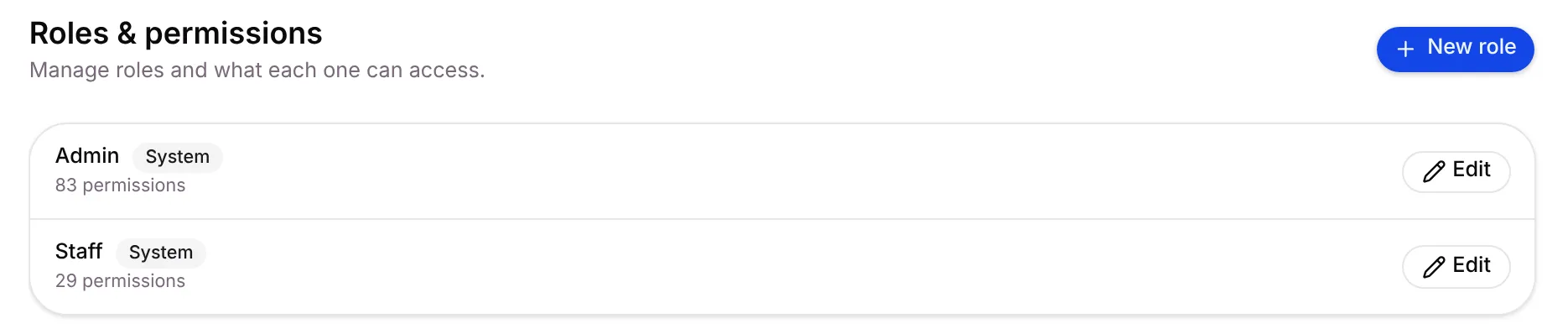
- Tick the actions the role may take on each screen, such as View, View all, Create, Edit, Assign and Delete. Full ticks every action in a row.
- Save your changes.
Technicians
Section titled “Technicians”Technicians never sign in. To add one, go to Settings › Teams, click New Team Member and choose No login under Access. Enter his First Name and WhatsApp number with the country code, for example 919876543210. They get jobs on their own WhatsApp.
| What happens | How it works |
|---|---|
| A job is assigned | He gets a WhatsApp message with the job, place and time, and Done and Can’t do buttons |
| He starts | A reply like reached or on the way moves the job to In progress |
| The job is done | He replies DONE (or taps Done). Photos he sends attach to the job |
| He can’t do it | Can’t do marks the job Blocked with his reason |
| An AMC visit | The visit closes only after the required photos arrive, then the certificate goes to the customer |
If he has several open jobs, Setaflow asks him Which job is done? with a list to pick from.
Your plan also matters
Section titled “Your plan also matters”Your role decides what you can do. Your plan decides which screens your business has. A screen that isn’t in your plan doesn’t appear for anyone, whatever their role.
| Plan | What it is |
|---|---|
| Pilot | 45 days on your real business, all three desks, set up for your trade |
| Core | All three desks for one business, billed yearly |
| Multi-branch | For businesses with several branches, priced on request |
Good to know
Section titled “Good to know”- Your role shows in your profile menu, next to your plan name.
- Someone in two businesses gets Switch Organization in their profile menu.
- A screen in these docs is missing from my sidebar. Either your plan doesn’t include it or your role can’t view it. Ask your Owner first.
What’s next?
Section titled “What’s next?”Related articles
Section titled “Related articles”Was this article helpful?
Thanks for letting us know.