

Set what a booking can be, how long it takes, whether it needs a location, and whether customers may book it themselves.
Appointment types are what a booking can be, such as a site visit, with its default length and whether a customer may book it from their link. Every booking on the Calendar has one.
Go to Settings › Appointment types.
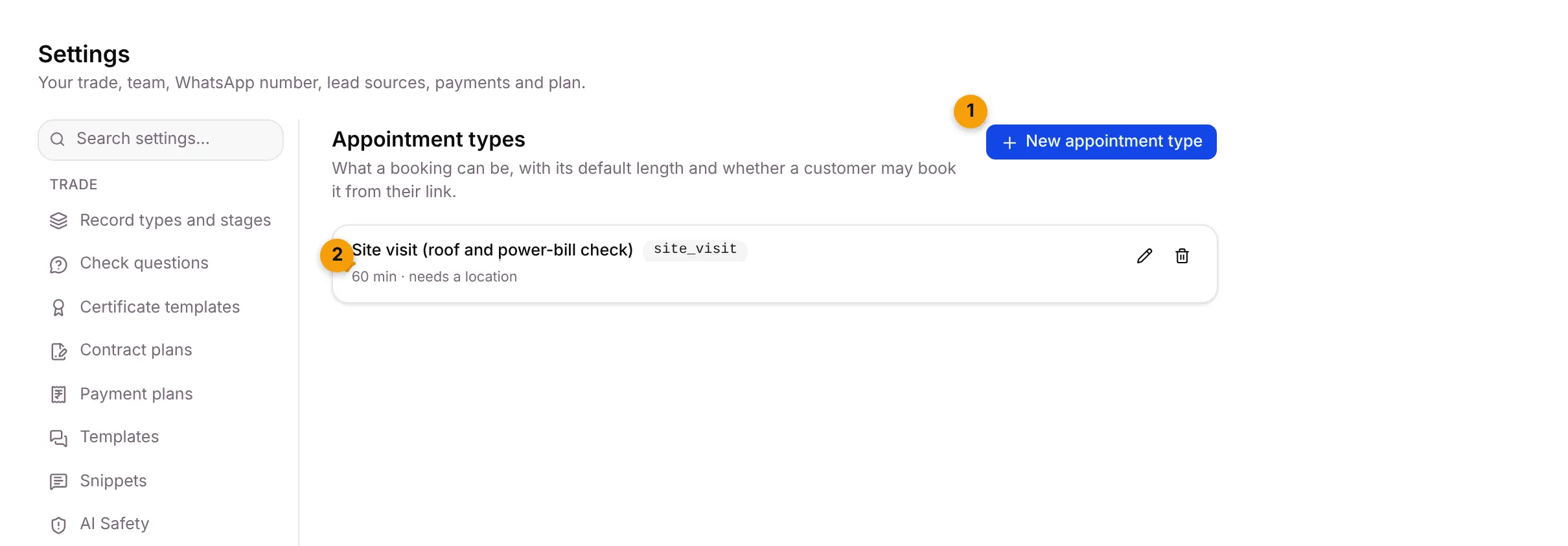
- New appointment type: add a kind of booking.
- Defaults: the length, and whether it needs a location. Suriya Solar has one type, Site visit (roof and power-bill check).
Add an appointment type
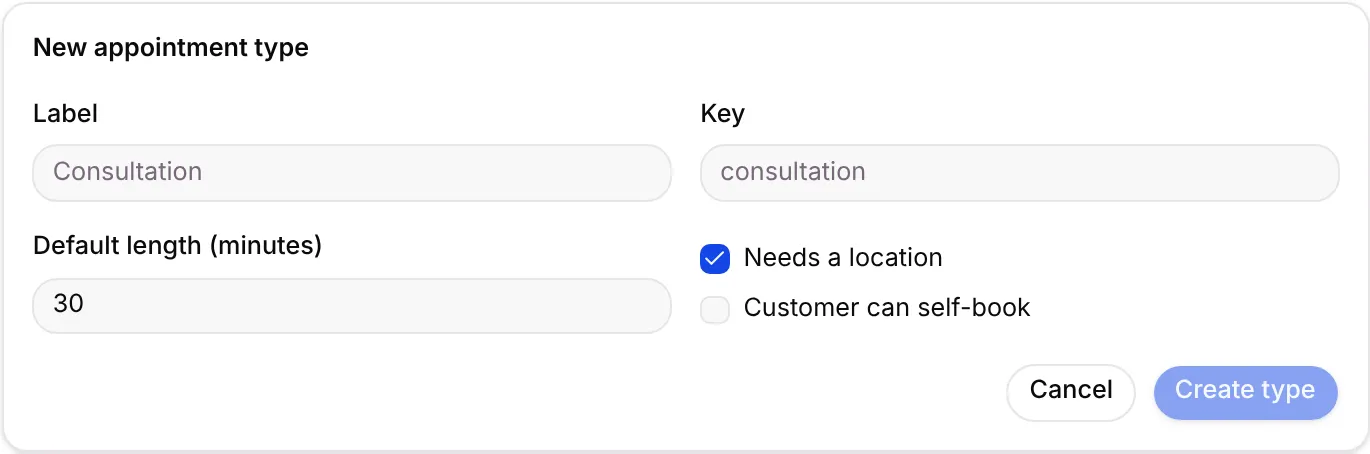
Section titled “Add an appointment type”- Click New appointment type.
- Fill in:
- Label: for example Consultation.
- Key: a short internal name. The key can’t change once created.
- Default length (minutes): starts at 30. At most 1440 minutes (24 h).
- Needs a location: on at first. Turn off for phone or video calls.
- Customer can self-book: off at first. Turn on to let customers book it from their link. The type then shows Self-bookable.
- Click Create type, or Cancel.
To change a type, click its pencil and then Save changes. To remove one, click the bin and confirm Remove appointment type.
Where it shows up
Section titled “Where it shows up”- Every booking in the Calendar has an appointment type and takes its default length.
- Self-bookable types can be booked by customers from their link.
- Fields set to describe An appointment in Custom fields are asked when a visit is marked done.
Good to know
Section titled “Good to know”- Owners and Admins can open this tab, if your plan includes appointments.
- No appointment types yet? Add one, or install a Starter Pack to seed a set.
- Working hours are set in Settings › Working hours and holidays.
What’s next?
Section titled “What’s next?”Related articles
Section titled “Related articles”Was this article helpful?
Thanks for letting us know.