

Alerts about new leads, payments, jobs, complaints, contracts, your WhatsApp connection and billing, with filters and read or unread controls.
Notifications tells you what just happened: a lead nobody contacted, a payment received, a job assigned to you, a contract about to expire. Open it from Today › Notifications in the sidebar. The red bubble on the menu item shows how many are unread.
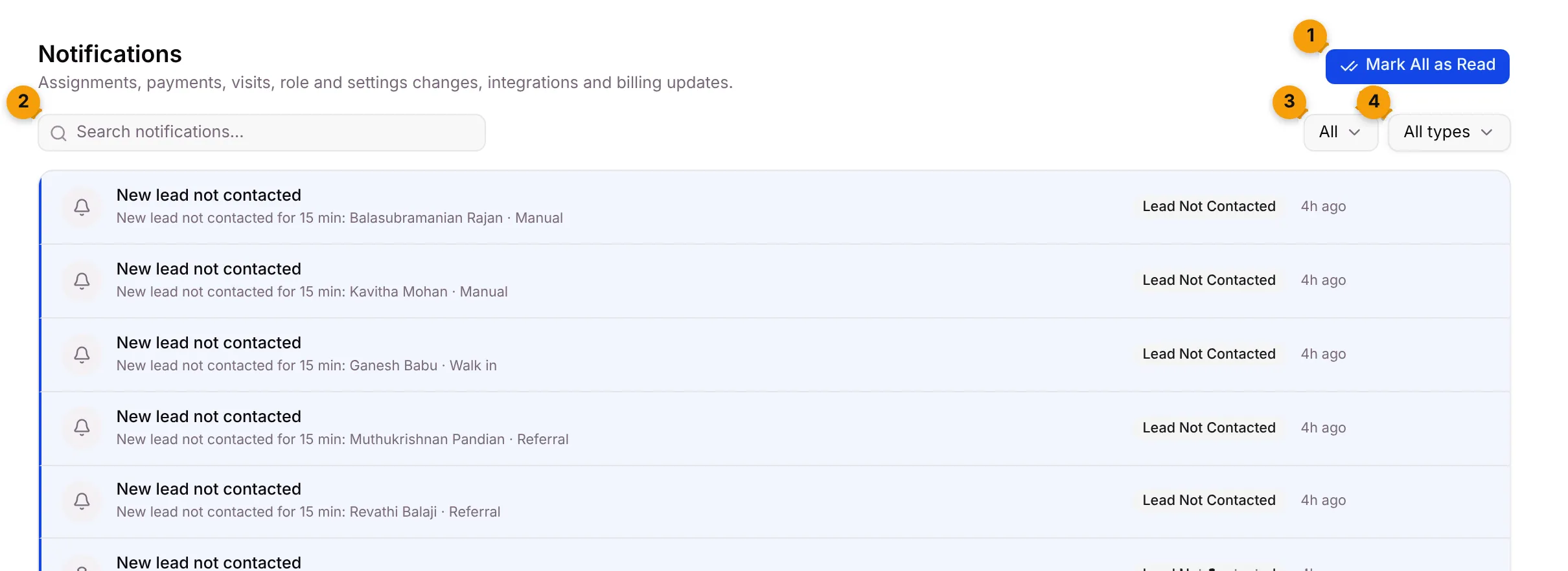
- Mark All as Read: clears every unread notification at once.
- Search notifications…: find a notification by its words, such as a customer’s name.
- Status: All, Unread or Read.
- Type: narrow the list to one kind of notification.
Unread notifications have a blue bar on the left. The newest are at the top.
Read a notification
Section titled “Read a notification”Each row shows:
- Title, for example New lead not contacted.
- Details, for example New lead not contacted for 15 min: Lakshmi Narayanan · Whatsapp.
- Type badge, for example Lead Not Contacted.
- When, for example 4h ago. Hover it for the exact time.
Mark one as read or unread
Section titled “Mark one as read or unread”Point at a row. A button appears on the right.

- On an unread row, click Mark read.
- On a read row, click Mark unread to keep it as a reminder.
Filter the list
Section titled “Filter the list”Use the Type filter to see one kind of notification.
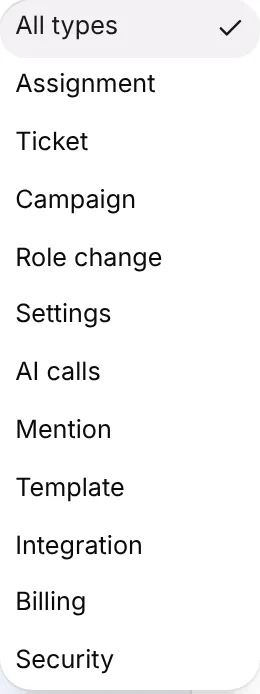
| Type | What it covers |
|---|---|
| Assignment | Conversations and work assigned to you |
| Ticket | Support and ticket updates |
| Campaign | Campaign sent or failed |
| Role change | Changes to roles and permissions |
| Settings | Changes to your business’s settings |
| AI calls | AI voice call updates |
| Mention | Mentions |
| Template | WhatsApp template approved or rejected by Meta |
| Integration | A connection, such as WhatsApp, that needs attention |
| Billing | Invoices, payments and plan updates |
| Security | Security alerts |
Use Status › Unread to see only what you haven’t dealt with. If nothing matches, you’ll see No matching notifications. Try another search or filter.
What you’ll be notified about
Section titled “What you’ll be notified about”| Area | Notifications |
|---|---|
| Leads | New Lead Not Contacted (nobody replied within your alert time), Monday review |
| Conversations | Conversation assigned to me, Unread customer message |
| Jobs | Task Assigned to Me, Task Due Soon, Task Overdue, Complaint raised |
| Calendar | Appointment Reminder |
| Contracts | Contract Expiring, Licence / NOC expiring |
| Money | Payment Received, Customer opened a quote |
| Records | Document Pending |
| WhatsApp and connections | WhatsApp number disconnected or chat sync failed, Integration Sync Degraded, Template Creation Completed, Template Creation Rejected |
| Billing (Owner) | Invoice Generated, Payment Failed, Plan Activated, Plan Expiry Reminder, Usage Limit Warning |
| AI credits | AI credits running low (20%), AI credits almost gone (5%), AI budget reached - AI paused |
Choose which notifications you get
Section titled “Choose which notifications you get”- Open Settings from your profile menu.
- Go to Team › Notifications.
- Under My Preferences, switch each notification on or off for In-App and Email.
The Owner also has Team Permissions, which decides which notifications each role may receive.
Good to know
Section titled “Good to know”- No bell at the top. Notifications live in the sidebar under Today.
- New notifications arrive live with a sound. Turn the sound off in Settings › General › Notification sound.
- Rows per page at the bottom shows 10, 25, 50 or 100 at a time.
- Notifications are for your team. Customers get their own WhatsApp messages, such as quotes and reminders.
What’s next?
Section titled “What’s next?”Related articles
Section titled “Related articles”Was this article helpful?
Thanks for letting us know.