

Keep a record of every customer sign-off, with who said yes, to what, how and when, so it holds up if there's a dispute later.
Approvals is where you keep customer sign-offs: a design approved, a scope change agreed, a NOC copy accepted. Each approval records who decided, when, how, and a frozen copy of what they were looking at, so the yes holds up if there’s a dispute later.
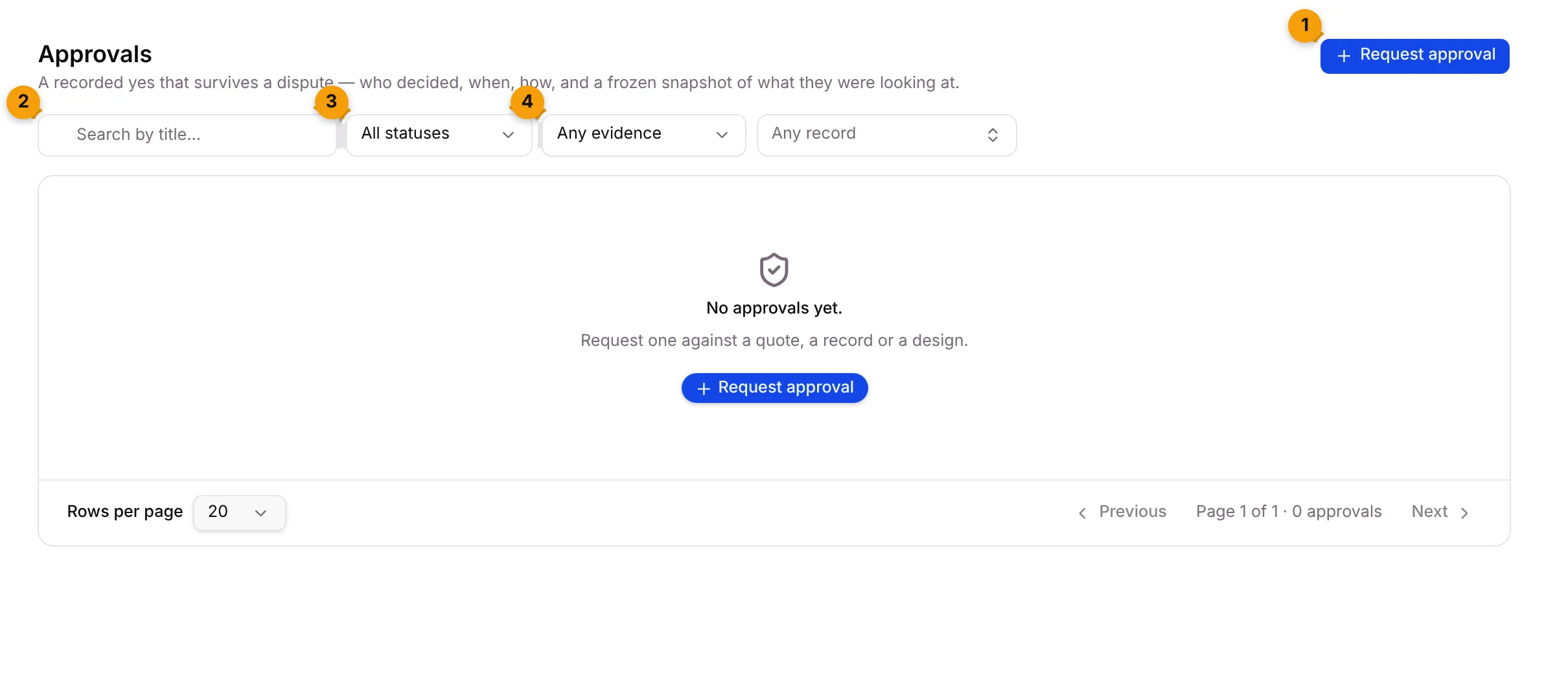
- Request approval: record a new question for a customer.
- Search by title…: find an approval by its title.
- Status: All statuses, Pending, Approved, Rejected or Expired.
- Evidence: Any evidence, Evidence frozen or Not yet frozen. Next to it, Any record shows only the approvals for one enquiry.
What each column shows
Section titled “What each column shows”| Column | What it shows |
|---|---|
| Approval | The title, with the approval type under it. |
| Contact | Who is being asked. |
| Against | The quote (for example Q-2026-2 v1), the record or the document it is about. |
| Decision | Pending, Approved, Rejected or Expired. |
| Decided | When the decision came in. |
| How | WhatsApp Flow, WhatsApp reply, Email, Decision link or Recorded by hand. |
| Evidence | Frozen once decided, Open before that. |
| Actions | View, approve, reject and delete. |
Request an approval
Section titled “Request an approval”- Go to Approvals and click Request approval.
- Under What kind of approval, pick a type, such as Scope change, or choose No type — I will write the question myself.
- Type a Title, for example Kitchen elevation — final sign-off. A type fills this in for you.
- Under Who is being asked, pick the contact. This is required: an approval is always somebody’s yes.
- Optionally pick Against which record and Against which quote.
- Optionally set Decide by. After that date the approval moves itself to Expired.
- Under The document being approved, pick the file, if there is one. Some approval types need a document; the dialog tells you when it’s required.
- Click Request approval.
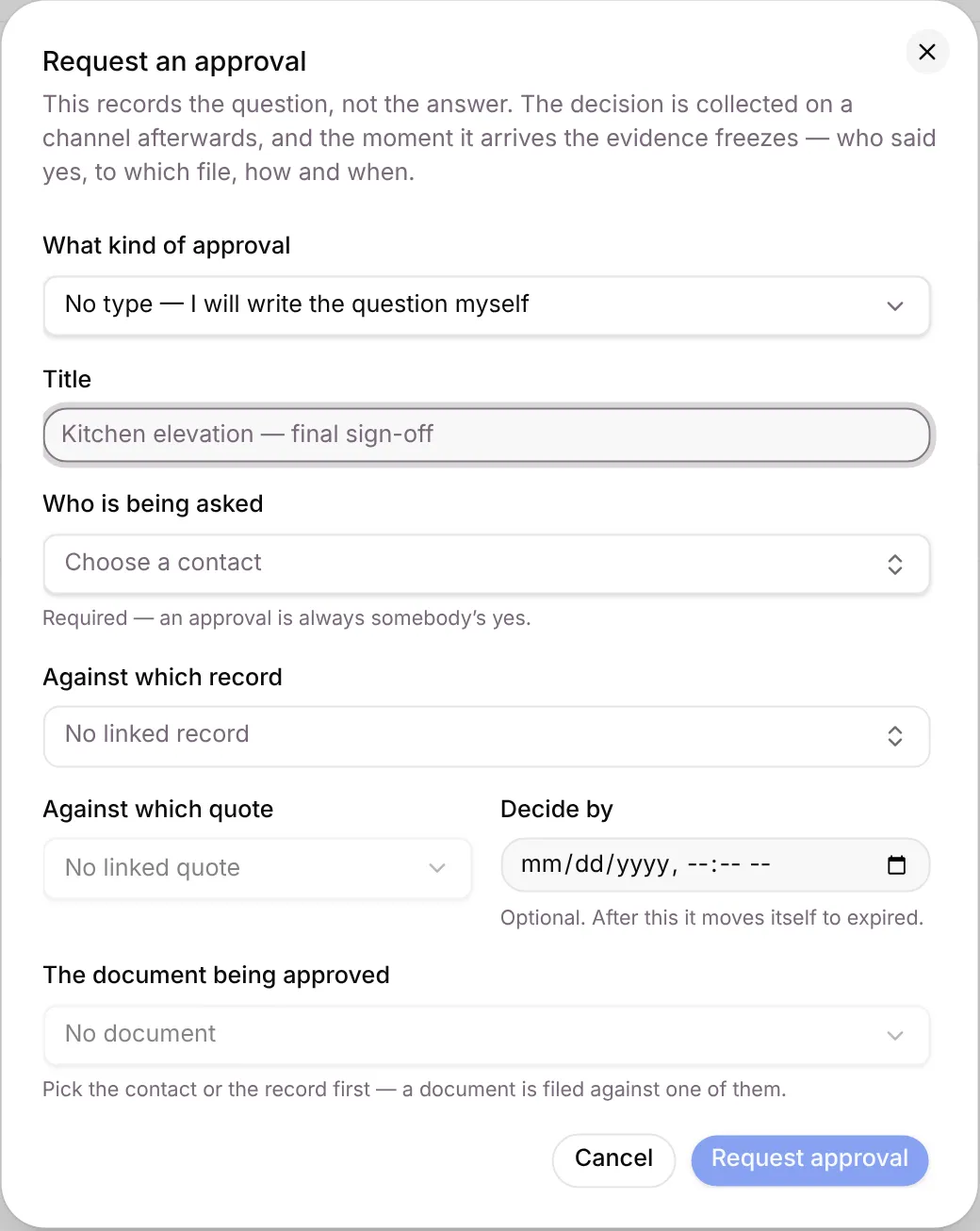
The request records the question, not the answer. The decision is collected on a channel afterwards, and the moment it arrives the evidence freezes.
Record a decision by hand
Section titled “Record a decision by hand”When the customer says yes or no off-channel, for example in person:
- Find the approval in the list. It must be Pending.
- Click the tick icon (Record approval) or the cross icon (Record rejection).
- Confirm with Approve or Reject.
See the frozen evidence
Section titled “See the frozen evidence”Click View (or the title) to open an approval. You see the Decision, when it was Decided, How it was collected, the Message id carrying the yes, any Note from the customer, and when it was Requested.
For a decided approval you also see what was frozen: the file that was approved (name, size and a fingerprint of its contents), WhatsApp read details, and the timestamps for requested, sent, decided and frozen. Nothing on this panel can be edited.
Good to know
Section titled “Good to know”- Only pending approvals can be deleted. The bin is greyed out on a frozen one.
- A quote with a frozen approval can’t be deleted either.
- Approval types are set up in Approval types. Trade packs add some, such as Scope change.
- If you don’t see Approvals, your plan or your role doesn’t include it.
What’s next?
Section titled “What’s next?”Related articles
Section titled “Related articles”Was this article helpful?
Thanks for letting us know.