

Set how customers pay you, by Razorpay link or by UPI and bank transfer, and who confirms a payment by hand.
Collect payments sets how your customers pay you. You can connect your own Razorpay account so customers pay by link, or give your UPI and bank details so customers pay you directly and your team confirms each payment. Whatever you set here goes into the quote message next to the advance. Open it from Settings › Collect payments.
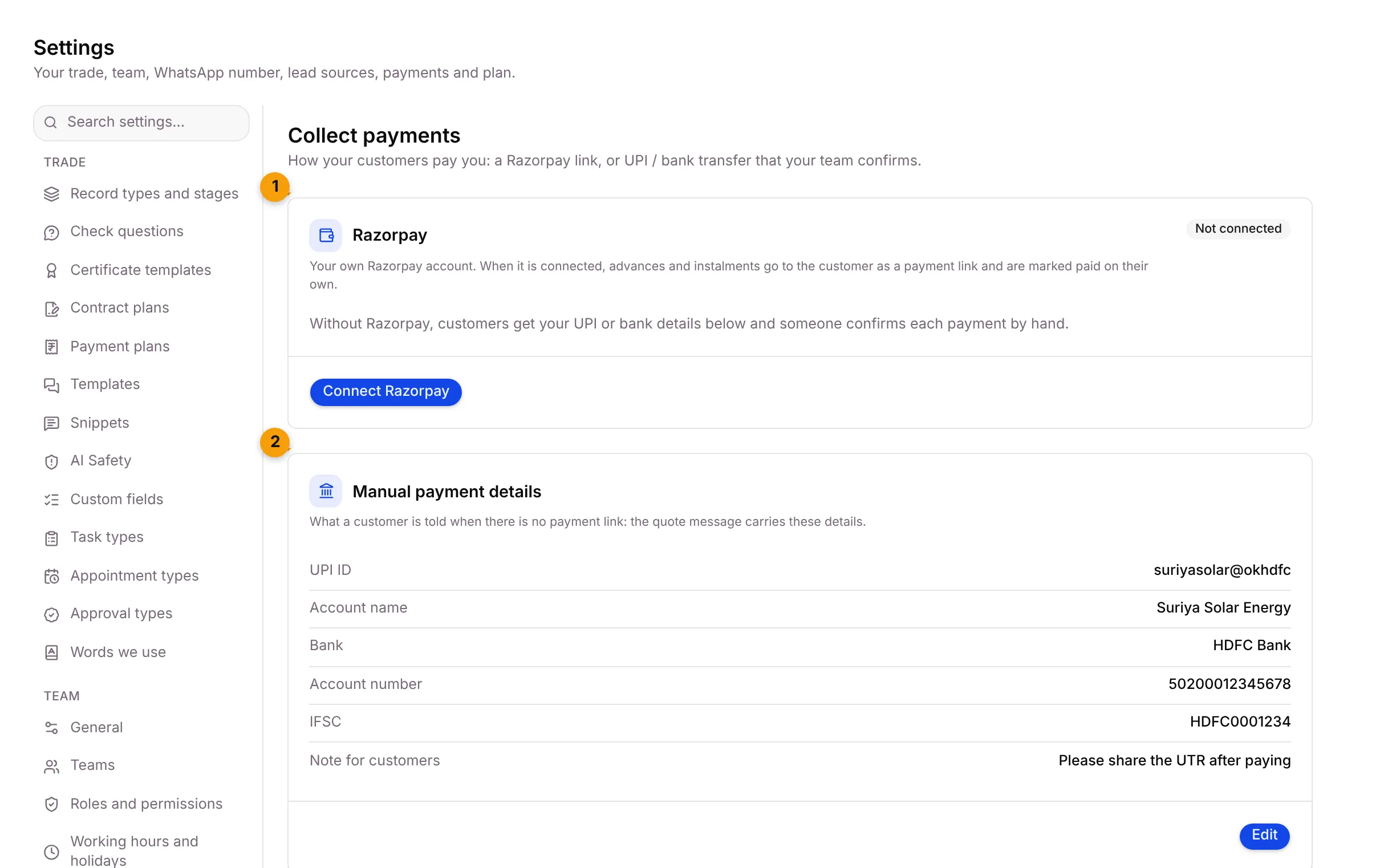
- Razorpay: your own Razorpay account. Shows Not connected until you connect it.
- Manual payment details: the UPI ID and bank account a customer is told to pay into when there is no payment link.
Connect Razorpay
Section titled “Connect Razorpay”When Razorpay is connected, advances and instalments go to the customer as a payment link and are marked paid on their own.
- Go to Settings › Collect payments.
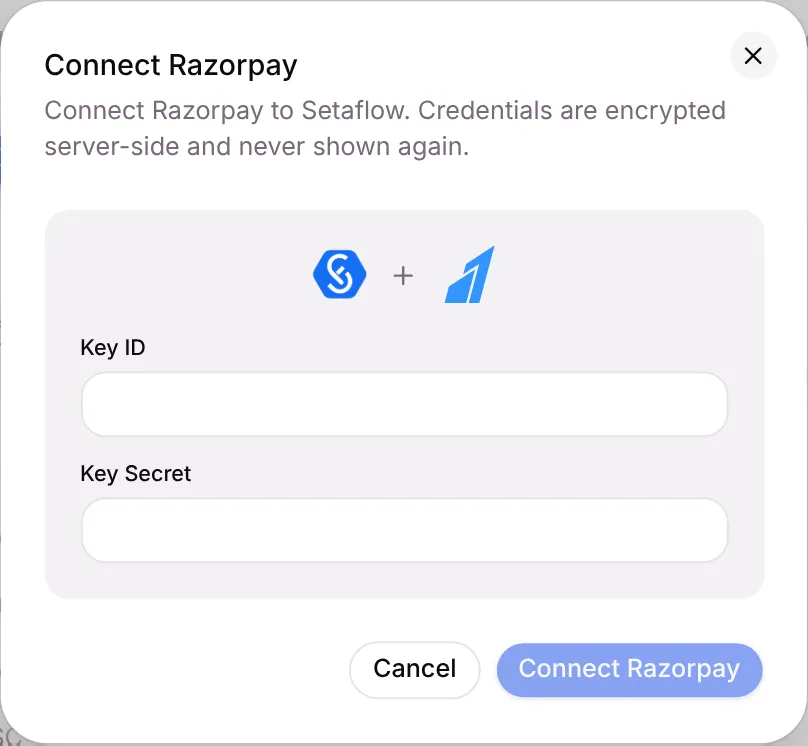
- On the Razorpay card, click Connect Razorpay.
- Paste your Key ID and Key Secret from your Razorpay dashboard.
- Click Connect Razorpay.
Once connected, the card shows the account, the masked Key ID and the date it was connected. Click Manage to see whether the connection is working or to disconnect it.
Add your UPI and bank details
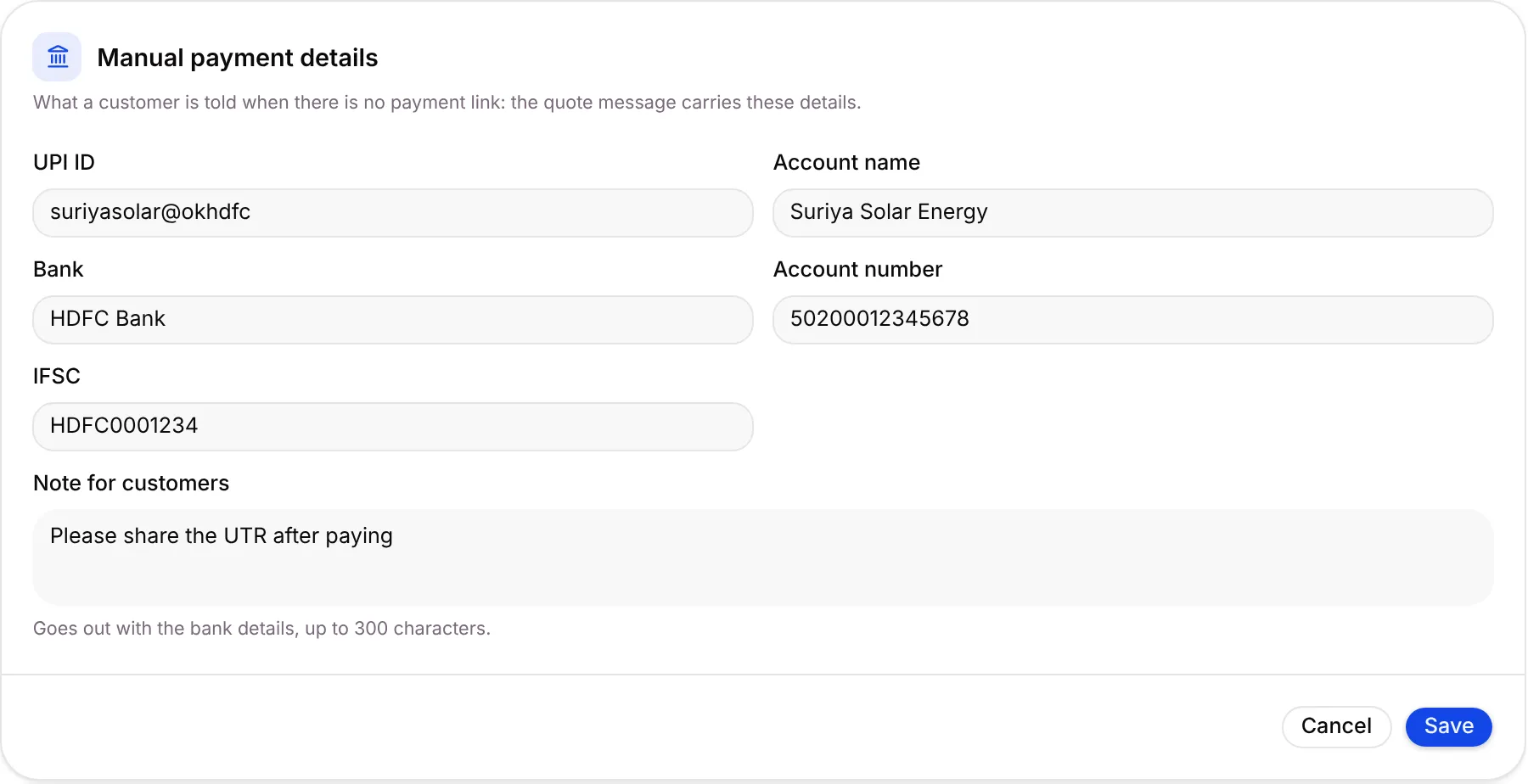
Section titled “Add your UPI and bank details”- On the Manual payment details card, click Edit.
- Fill in UPI ID, Account name, Bank, Account number and IFSC.
- Add a Note for customers, for example Please share the UTR after paying. It goes out with the bank details, up to 300 characters.
- Click Save, or Cancel to leave things as they were.
Who confirms a payment
Section titled “Who confirms a payment”A UPI or bank transfer waits in Money › Advances to confirm until someone checks the UTR against the bank statement. Only then does a locked stage open.
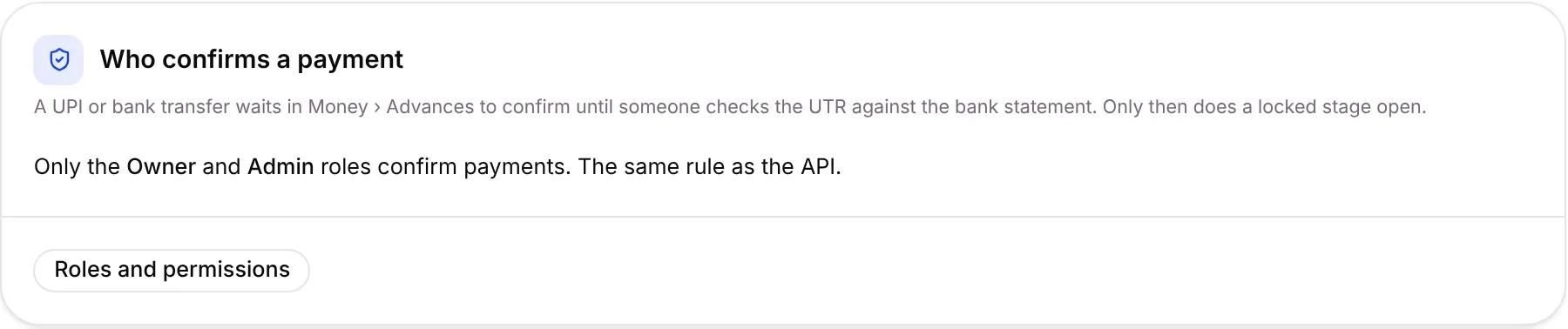
Only the Owner and Admin roles confirm payments. Click Roles and permissions to see what each role can do.
More ways to collect
Section titled “More ways to collect”Your plan may include more cards below the first two. Each one has a checklist under Before you switch these on, because Razorpay or Meta has to switch something on for your business first.
| Card | What it does |
|---|---|
| Auto-pay (UPI AutoPay and e-NACH) | The customer approves a mandate once on WhatsApp. Each instalment or renewal is then debited two days before its due date. |
| Virtual bank accounts | Each customer gets their own account number, and a bank transfer lands on the record by itself. |
| WhatsApp Pay | Inside the 24-hour window, the advance goes as a Review and pay message and the customer pays in the chat. |
| Accounting names | The ledger names in your Tally, used when you export collections for Tally. |
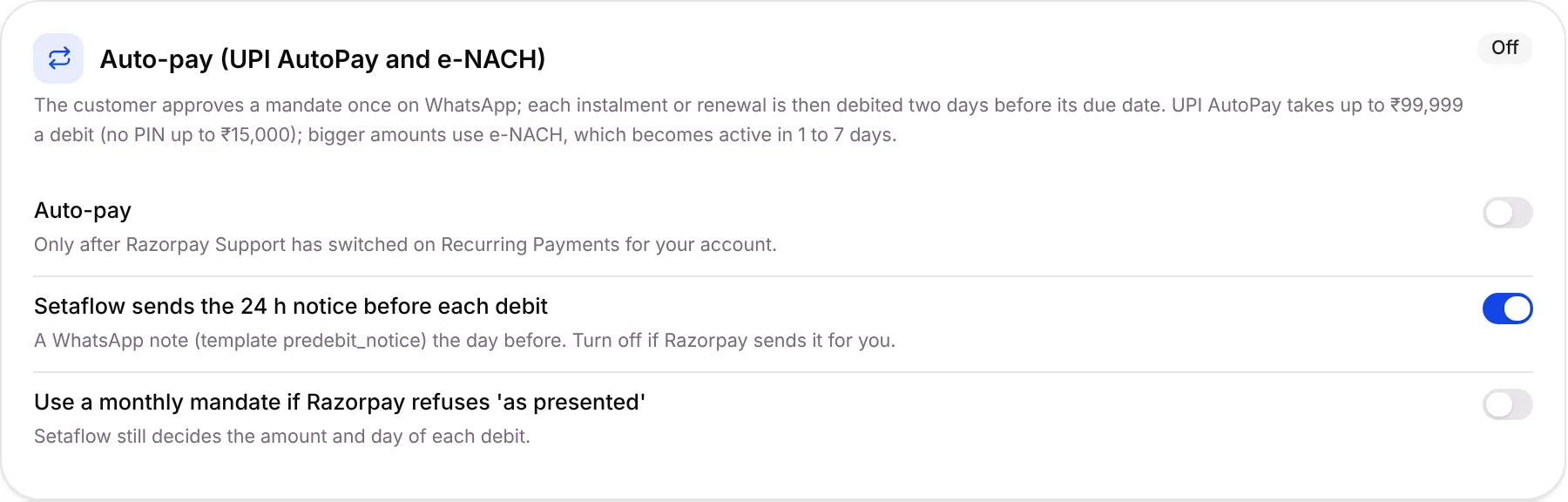
On Auto-pay, Setaflow sends the 24 h notice before each debit is on by default. Turn it off only if Razorpay sends the notice for you.
Good to know
Section titled “Good to know”- Who sees this tab: people whose role can see billing, and only if your plan includes customer payments.
- Without Razorpay, customers get your UPI or bank details and someone confirms each payment by hand.
- The same details appear in every quote, instalment and reminder message.
What’s next?
Section titled “What’s next?”Related articles
Section titled “Related articles”Was this article helpful?
Thanks for letting us know.