

Your customer list. Every person or business you've talked to, with their phone number, lists, tags and records, in one place.
Contacts is your customer list. Every enquiry from WhatsApp, Meta ads, IndiaMART, Justdial or your website creates a contact on its own, and your team can add more by hand or import them from Excel. One contact can have many records, for example a rooftop installation this year and an AMC renewal next year.
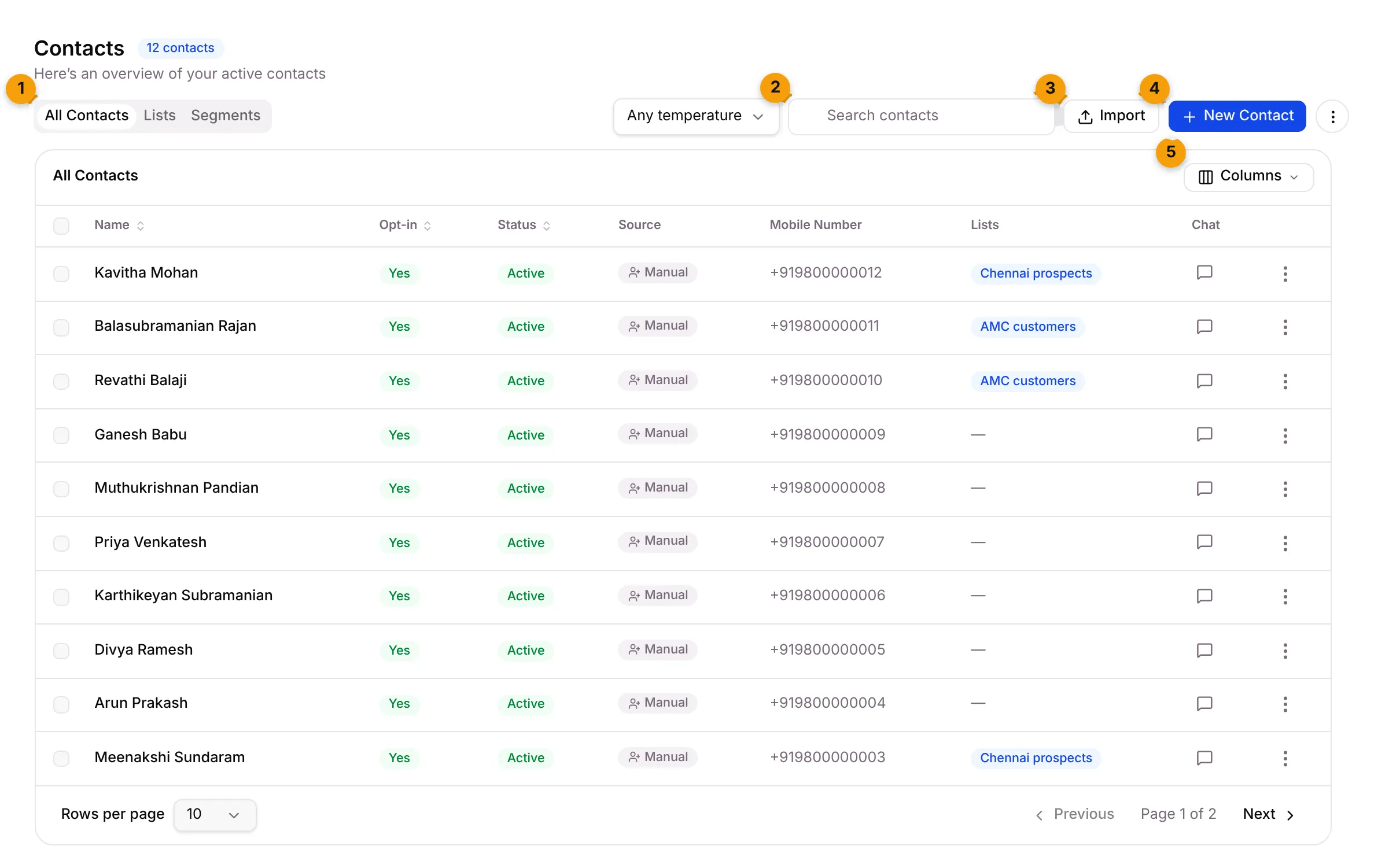
- Tabs: switch between All Contacts, Lists and Segments.
- Search: find a contact by name, phone or email. Press / to jump to the search box.
- Import: bring in contacts from an Excel sheet.
- New Contact: add one contact by hand.
- Columns: choose which columns you see. Your choice is saved for you.
The three tabs
Section titled “The three tabs”| Tab | What it holds | Use it to… |
|---|---|---|
| All Contacts | Every contact in your business | Find, add, import, edit, tag and merge customers |
| Lists | Groups you pick by hand | Keep a fixed group, such as Diwali offer 2026 or Solar expo visitors |
| Segments | Groups that fill themselves from filters | Keep a live group, such as AMC customers in Chennai, that updates on its own |
Lists and segments are how you choose who receives a campaign. See Lists and Segments.
What each column shows
Section titled “What each column shows”| Column | What it shows |
|---|---|
| Name | The contact’s name. Click the arrows to sort. |
| Opt-in | Whether the contact agreed to WhatsApp messages: Yes, Partial or No. |
| Status | Active, or Blocked if your team blocked the contact. |
| Source | Where the contact first came from, such as Manual, WhatsApp or IndiaMART. |
| Mobile Number | The phone number, with the country code. |
| Lists | The lists this contact belongs to. |
| Chat | Opens this contact’s conversation in the Inbox. |
Email and Tags are hidden at first. Turn them on from Columns.
Act on one contact
Section titled “Act on one contact”Click the ⋮ menu at the end of a row.
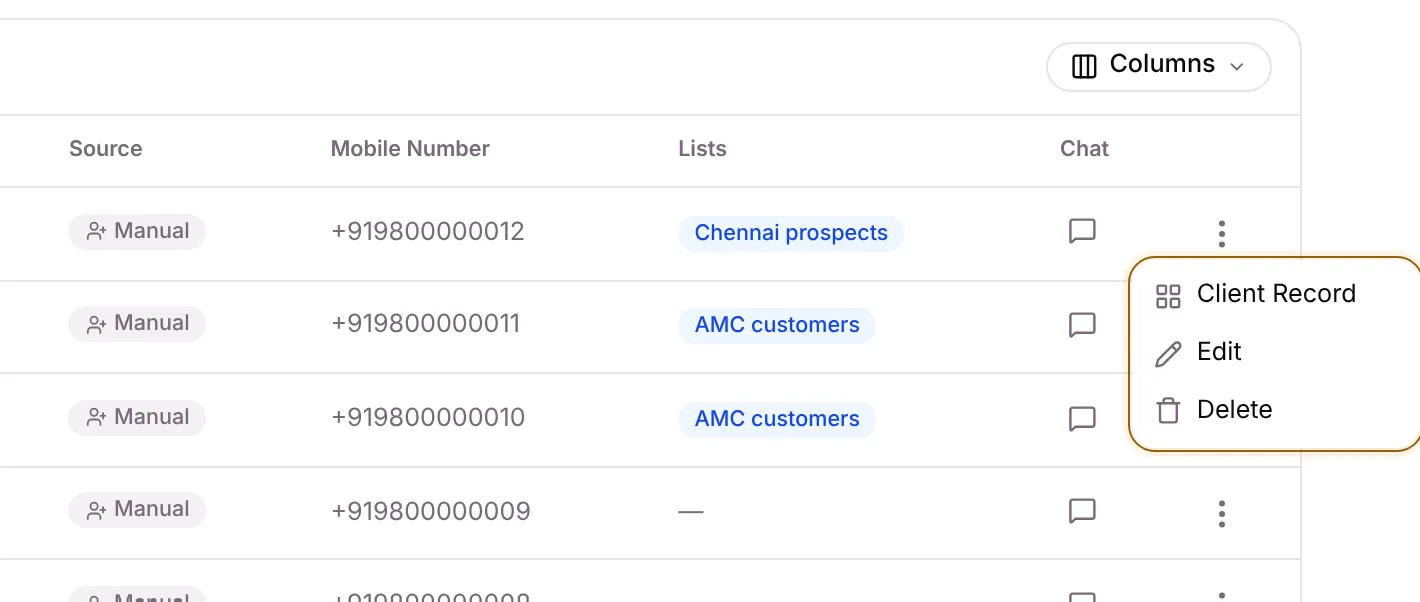
- Client Record opens everything about this customer: lead details, records, documents, payments and notes. See Client record.
- Edit opens the contact form.
- Delete removes the contact.
Act on many contacts at once
Section titled “Act on many contacts at once”Tick the box at the start of two or more rows. A bar appears above the list.
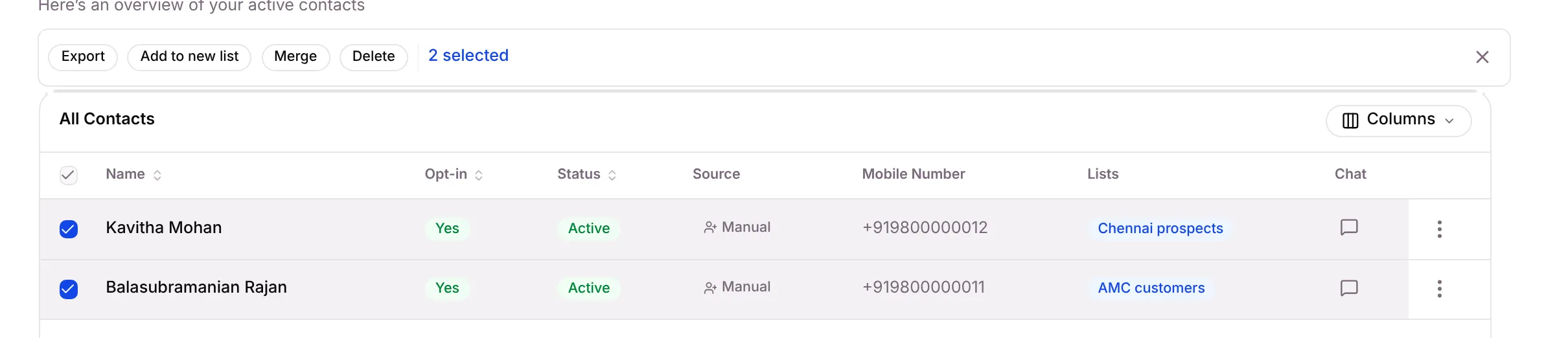
- Export downloads the selected contacts.
- Add to new list creates a list from the selected contacts.
- Merge combines duplicates into one contact. Choose the one to keep; its empty fields are filled from the others.
- Delete removes them.
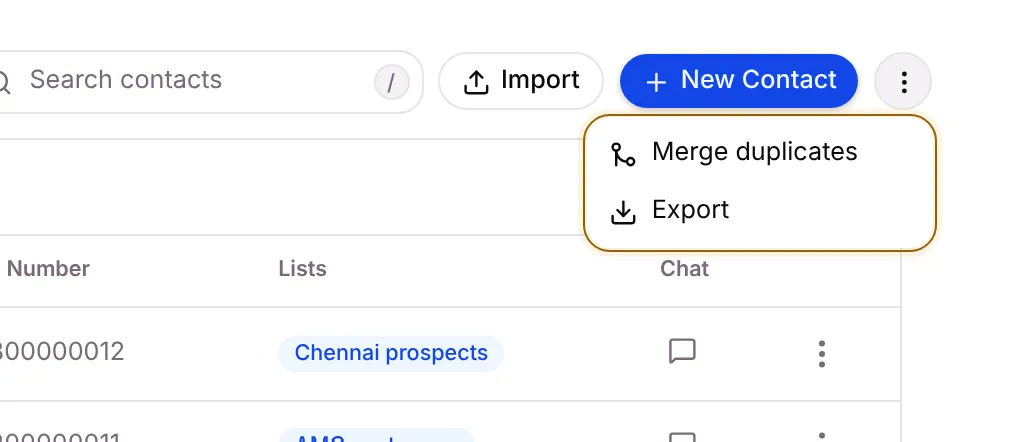
The ⋮ menu next to New Contact has Merge duplicates, which finds contacts that share a phone number (in any format) or an email address, and Export, which downloads the whole list.
Good to know
Section titled “Good to know”- Buttons depend on your role. Staff who can’t edit or delete contacts don’t see the tick boxes or the Delete action. See Roles and access.
- Lists and Segments depend on your plan. If you don’t see those tabs, your plan doesn’t include them.
- The temperature filter (Any temperature) narrows the list to Hot, Warm or Cold leads.
What’s next?
Section titled “What’s next?”Was this article helpful?
Thanks for letting us know.