

Build live groups of contacts from filters, such as "AMC customers" or "Hot leads from IndiaMART", and message them in one go.
A segment is a group of contacts that matches the filters you set. You never add people to it by hand. Every contact who matches is included, now and later, and anyone who stops matching drops out on their own.
For example, a segment with the filter List is in AMC customers always holds your current AMC customers, ready for a renewal campaign.
Create a segment
Section titled “Create a segment”1. Start a new segment
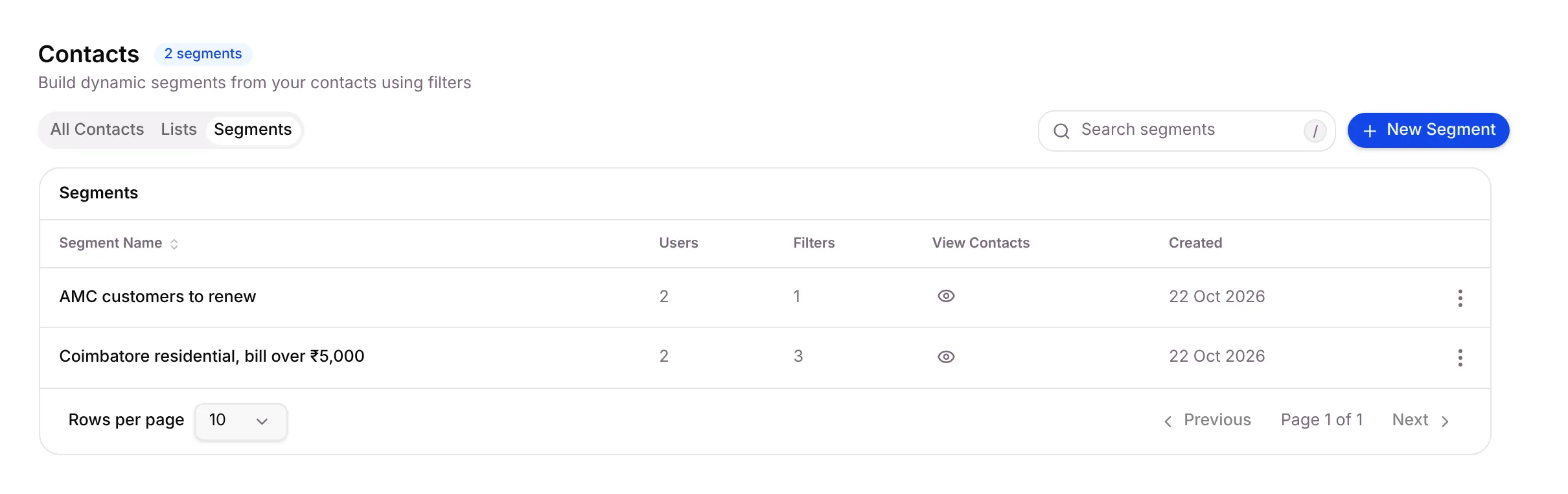
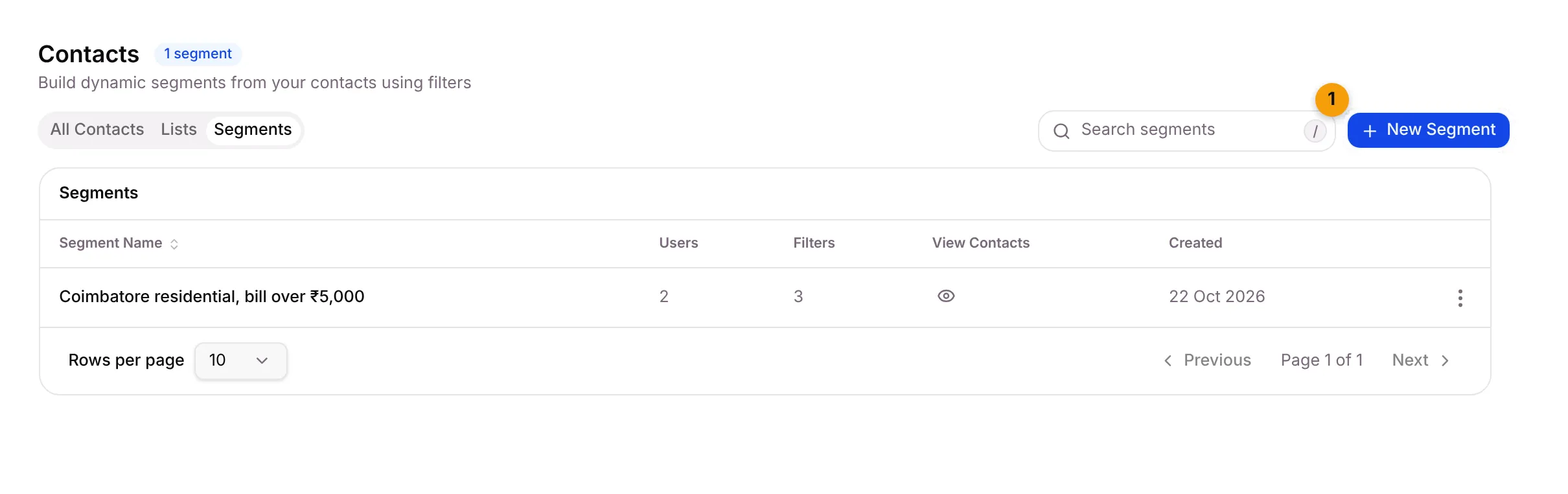
Section titled “1. Start a new segment”Go to Contacts, open the Segments tab and click New Segment.
2. Name it
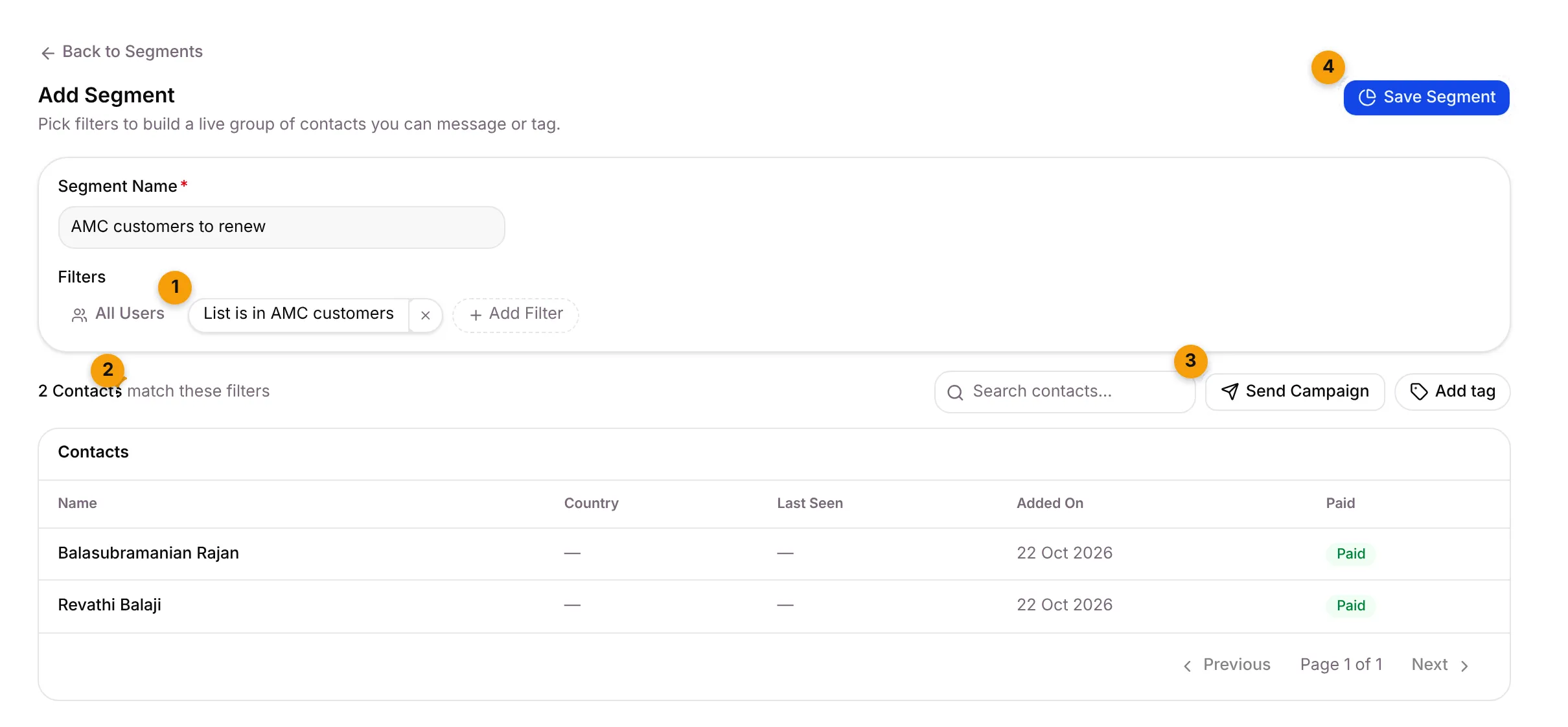
Section titled “2. Name it”Type a Segment Name that says who’s in it, for example AMC customers to renew. Up to 100 characters.
3. Add a filter
Section titled “3. Add a filter”Click Add Filter, then click Select field… to choose what to filter by. Type to search the list of fields.
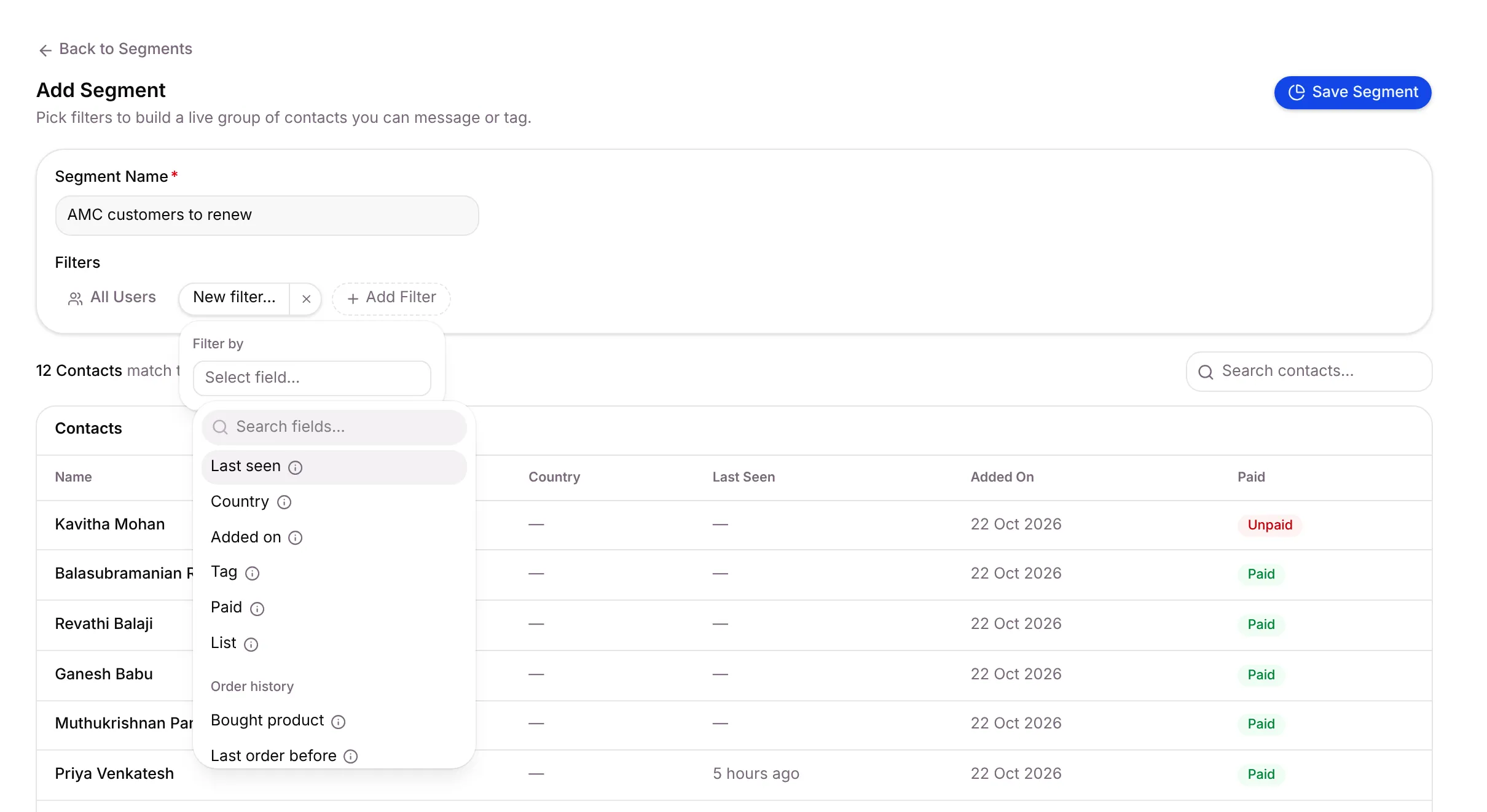
Pick a Condition and a Value. In this example: List · is in · AMC customers.
4. Check the preview and save
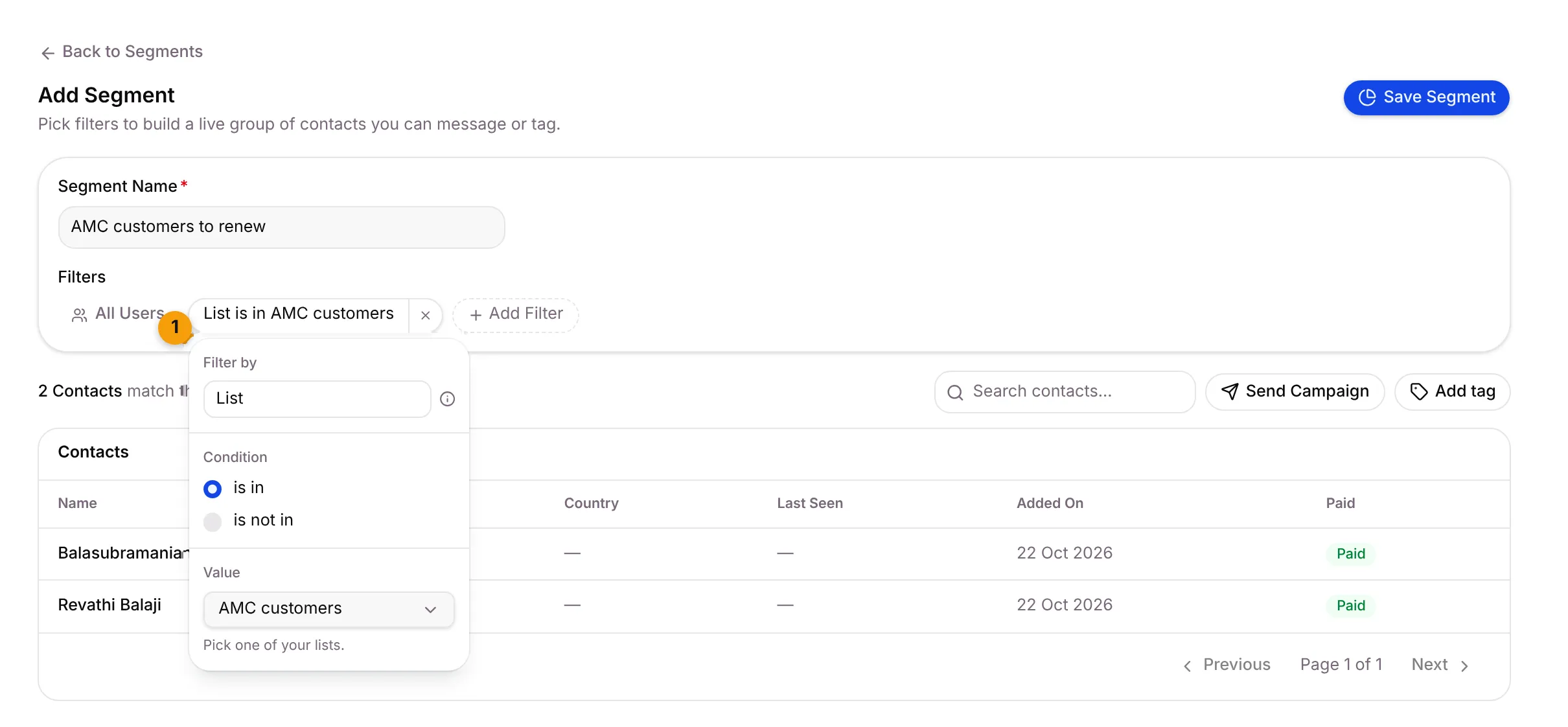
Section titled “4. Check the preview and save”The list below the filters updates straight away and shows how many contacts match.
- The filter you added.
- How many contacts match it right now.
- Send Campaign saves the segment and opens a new campaign for it.
- Save Segment saves it.
Your segment now appears on the Segments tab (shown at the top of this article), with how many contacts it holds (Users) and how many Filters it uses.
Combine filters
Section titled “Combine filters”Add more filters with Add Filter. Join them with and (a contact must match every filter) or or (a contact can match any filter).
Example: Coimbatore residential, bill over ₹5,000 uses three filters joined with and: District is Coimbatore, Tag contains Residential, and Monthly bill (₹) is greater than 5000.
Filters you can use
Section titled “Filters you can use”| Group | Fields |
|---|---|
| Basic | Last seen · Country · Added on · Tag · Paid · List |
| Order history | Bought product · Last order before · Last order after · Number of orders |
| Contact | Department tag · Owner · Contact stage · Client status · Source channel · Do not call · Voice consent · WhatsApp opt-in · Deal value · Next follow-up · Last contacted · Lead temperature |
| Records, tasks & more | Has record · Has open task · Has quote · Has open ticket |
| Custom fields | Every custom field your business added, such as District or Monthly bill |
Conditions depend on the field. Text fields offer is, contains, starts with; numbers offer greater than and less than; dates offer before and after.
Edit or delete a segment
Section titled “Edit or delete a segment”On the Segments tab, click ⋮ on the segment’s row.
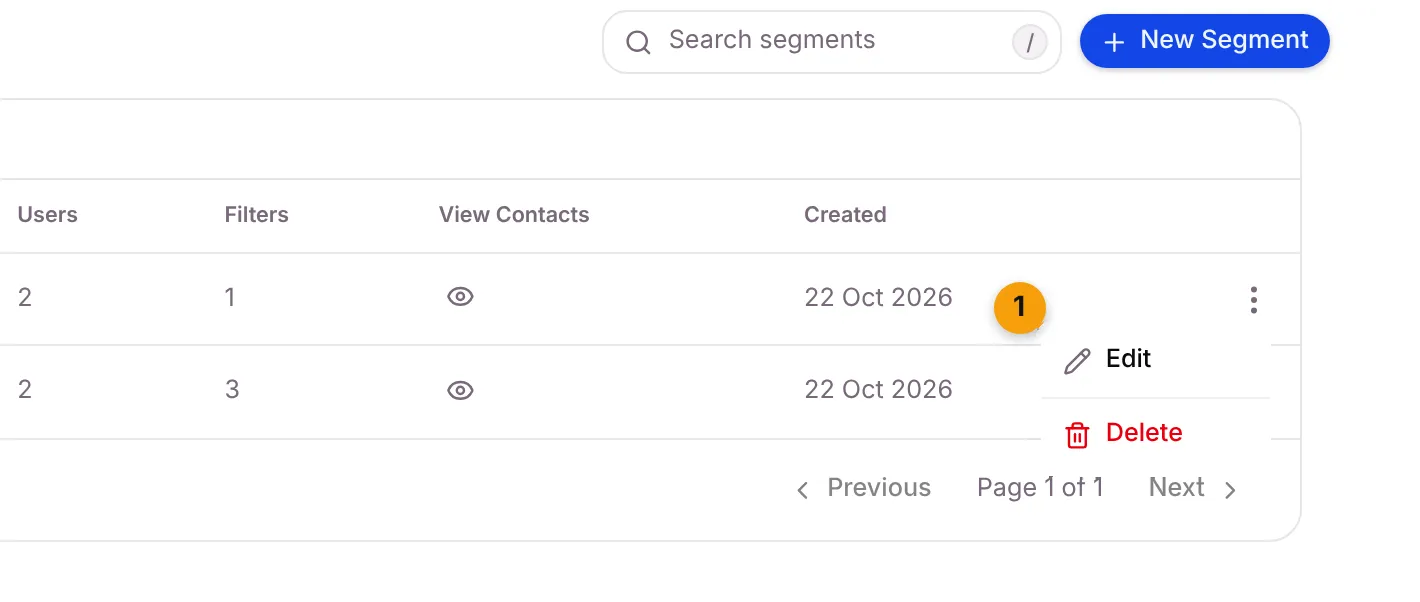
- Edit opens the filters. Change them and click Save Segment.
- Delete asks you to confirm. Deleting a segment can’t be undone, but the contacts in it aren’t touched.
Useful segments to create
Section titled “Useful segments to create”| Segment | Filters |
|---|---|
| Hot leads with no next step | Lead temperature is Hot · and · Next follow-up is empty |
| Quotes viewed, not accepted | Has quote is Viewed |
| AMC customers | List is in AMC customers (or Has record is your AMC record type) |
| Not opted in to WhatsApp | WhatsApp opt-in is Opted out |
Related articles
Section titled “Related articles”Was this article helpful?
Thanks for letting us know.