

Send one approved template to a list, tag or segment, now or at a time you choose, and see who received, read and replied.
A one-time campaign sends one approved template to a group of contacts once. Send it straight away or schedule it, for example Diwali offer: 10% off rooftop solar to everyone in your Chennai prospects list.
This is the Campaigns tab on the Campaigns page.
Create a campaign
Section titled “Create a campaign”Click New Campaign and choose Campaign. The page has one card per part of the campaign, with a live preview on the right.
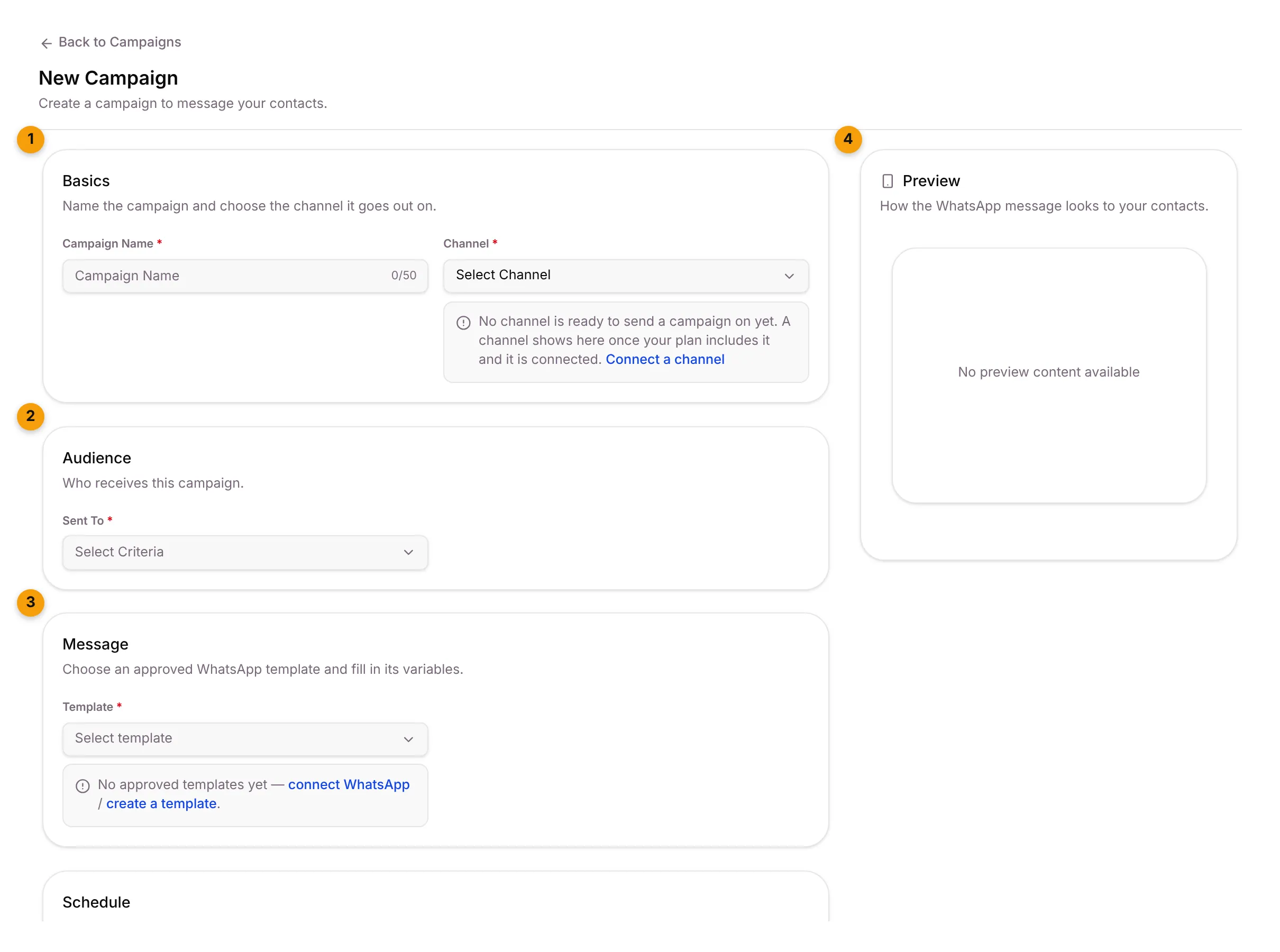
- Basics: type a Campaign Name (up to 50 characters) and pick the Channel. If both WhatsApp and email are connected, choose one under Send by.
- Audience: under Sent To, choose Lists, Tags, Segments or All Contacts, then pick which ones. Setaflow shows how many contacts each one holds.
- Message: pick an approved Template and fill in its variables. Each variable is Static (the same text for everyone) or Dynamic (taken from the contact, such as their first name).
- Preview: shows how the message will look to your contacts.
Then set when it goes out in the Schedule card:
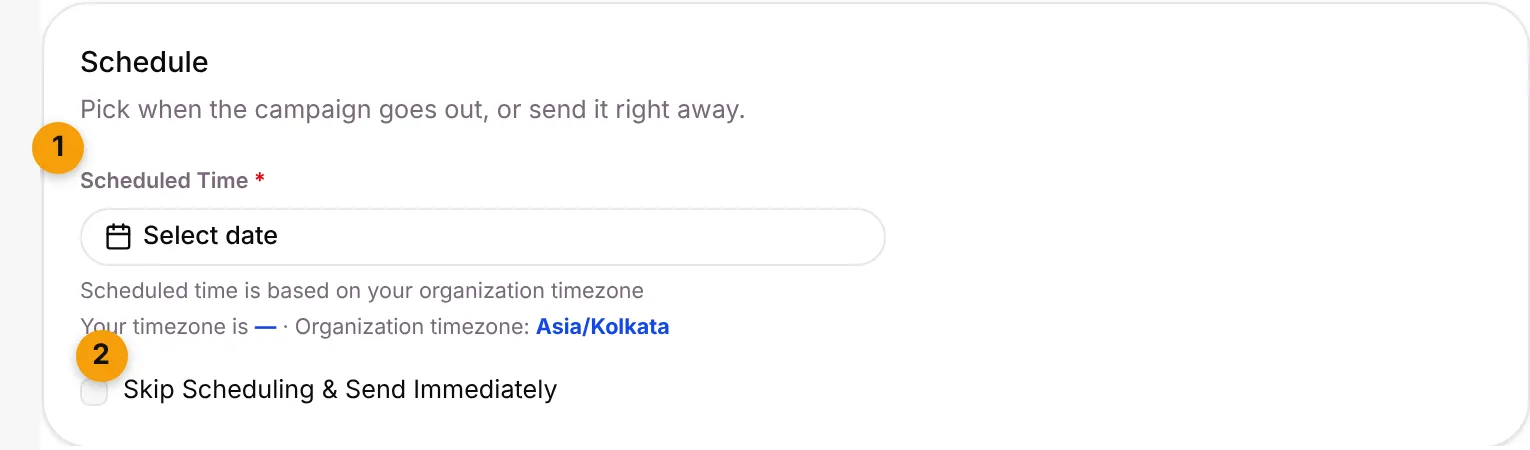
- Scheduled Time: pick the date and time. Times are in your organisation’s timezone.
- Skip Scheduling & Send Immediately: tick this to send as soon as you save.
Below the card, you can turn on Retry failed messages. Setaflow then resends to contacts whose message failed for a temporary WhatsApp reason, up to 3 times. We recommend 12 hours between retries. Wrong numbers, blocked contacts and contacts who opted out are never retried.
Click Save.
The campaigns list
Section titled “The campaigns list”| Column | What it shows |
|---|---|
| Campaign Name | The name you gave it |
| Type | The kind of campaign |
| Channel | WhatsApp or Email |
| Template | The template it sends |
| Delivery Rate, Read Rate, Reply Rate | How many messages were delivered, read and replied to. Rates above zero show in green. Opens aren’t tracked for email. |
| Status | Scheduled, Ongoing, Completed, Failed or Cancelled |
| Scheduled at | When it goes out |
From a row you can:
- Edit a campaign that hasn’t gone out yet.
- Cancel a scheduled campaign. It won’t be sent. To send it later, create a new one.
- Retry a campaign whose messages failed. It resends only to the contacts whose messages failed, and counts as one retry.
- Click the eye (View details) to open its report.
Campaign details
Section titled “Campaign details”The details page shows how the campaign did.
- Tiles: Total messages, Sent, Delivered, Read, Failed and Replied, with the rates.
- All Status: every recipient and what happened to their message. Export downloads the list.
- Failed: each error reason and how many contacts it hit. View contacts lists them.
- Replies: who replied and what they said, including button taps and list choices.
- Retries: each retry round, and the delivery rate before and after it.
Good to know
Section titled “Good to know”- Email campaigns show how many contacts in the audience have an email address, and warn you if a large send will take several days.
- Duplicates are removed. A contact who is in two of your chosen lists gets the message once.
What’s next?
Section titled “What’s next?”Related articles
Section titled “Related articles”Was this article helpful?
Thanks for letting us know.