

Every piece of work for your team and technicians, from site surveys to AMC visits and breakdown calls. Technicians get each job on WhatsApp and close it from there.
Field jobs lists every job your team and technicians need to do: site surveys, installations, AMC visits and breakdown calls. Each job has a code such as T-1002. Technicians don’t need a login. They get the job on WhatsApp and close it there with a reply and photos.
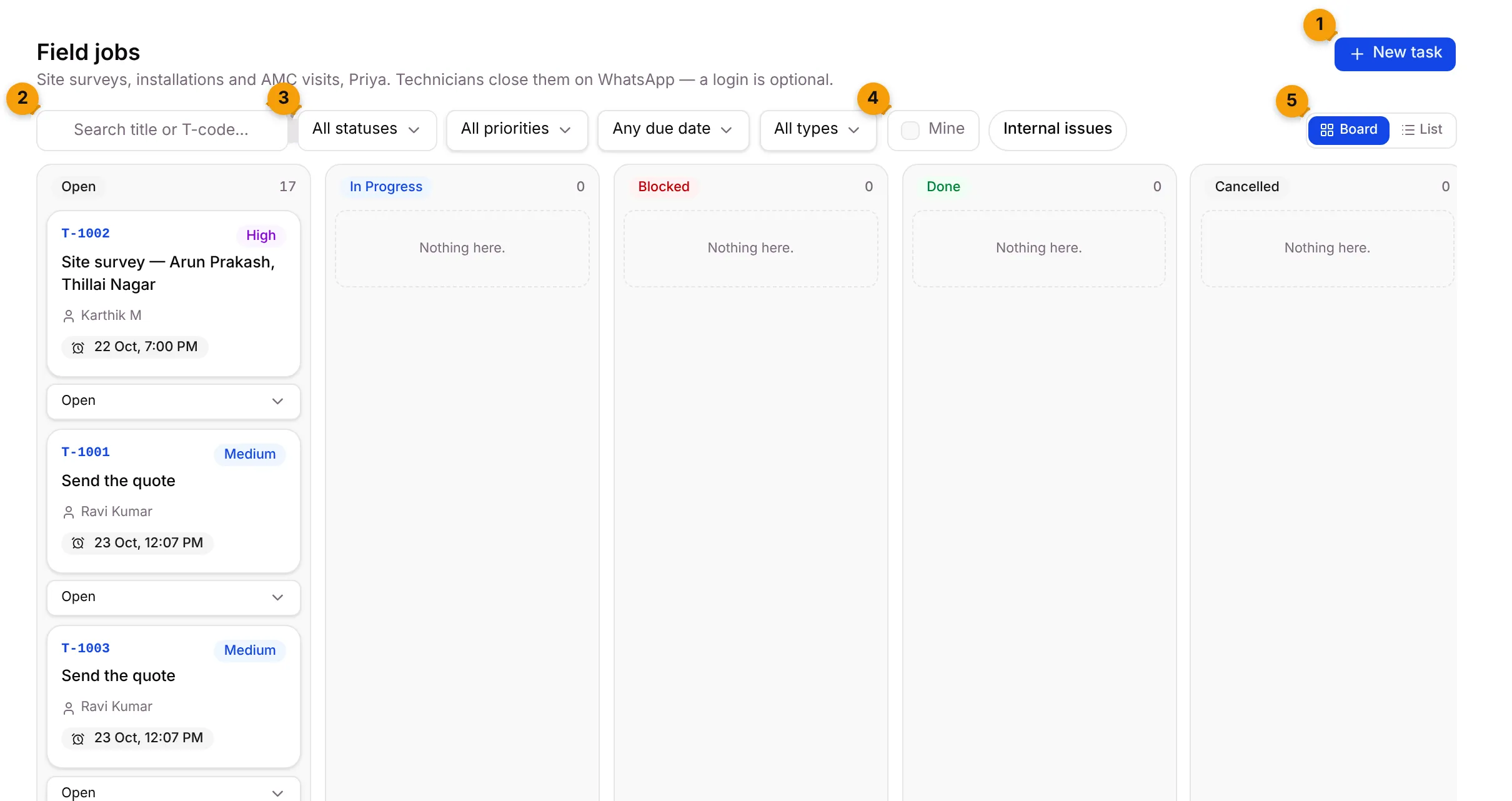
- New task: create a job by hand and assign it.
- Search: find a job by its title or code, for example T-1002.
- Filters: narrow the list by Status, Priority, Due date (Overdue, Due today, Due this week, No due date) and Type.
- Mine: show only the jobs assigned to you. Next to it, Internal issues shows only internal-issue jobs.
- Board / List: switch between the board (one column per status) and a plain list.
Board and List
Section titled “Board and List”The Board has five columns: Open, In Progress, Blocked, Done and Cancelled, each with a count. Each card shows the job code, priority, title, who it’s assigned to (or Unassigned) and the due date. The due date turns red when the job is overdue.
To move a job, drag its card to another column, or pick a new status from the drop-down under the card.
The List shows the same jobs as rows.
| Column | What it shows |
|---|---|
| Code | The job code, such as T-1002. |
| Title | What the job is, for example Service visit 2 of 4 · CON-2026-0001. |
| Assignee | The teammate or technician doing it, or Unassigned. |
| Priority | Low, Medium, High or Urgent. |
| Due | When it’s due. |
| Checklist | How many steps are done, for example 2/5. |
| Status | The current status. Change it from this drop-down. |
Job statuses
Section titled “Job statuses”| Status | What it means |
|---|---|
| Open | Not started yet. |
| In Progress | Someone is working on it, or the technician has reached the site. |
| Blocked | Waiting on something. A blocked job always has a reason. |
| Done | Finished. You can reopen it if needed. |
| Cancelled | Stopped for good. A cancelled job can’t be reopened and its reminders stop. |
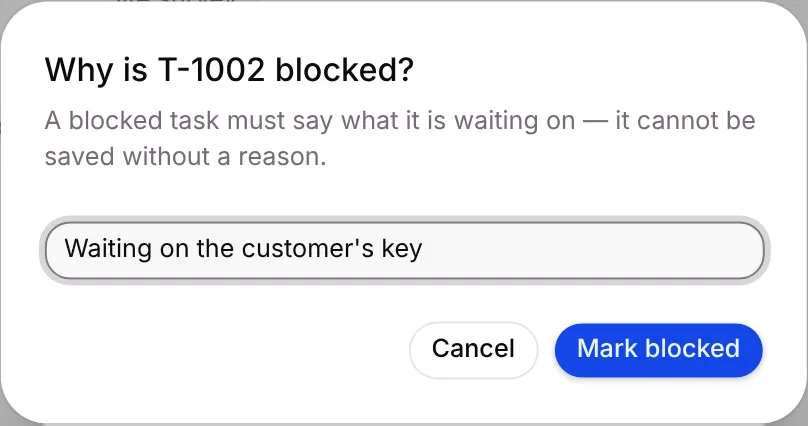
When you move a job to Blocked, Setaflow asks Why is T-… blocked? Type what it’s waiting on and click Mark blocked.
Create a job
Section titled “Create a job”- Go to Field jobs and click New task.
- Fill in the form:
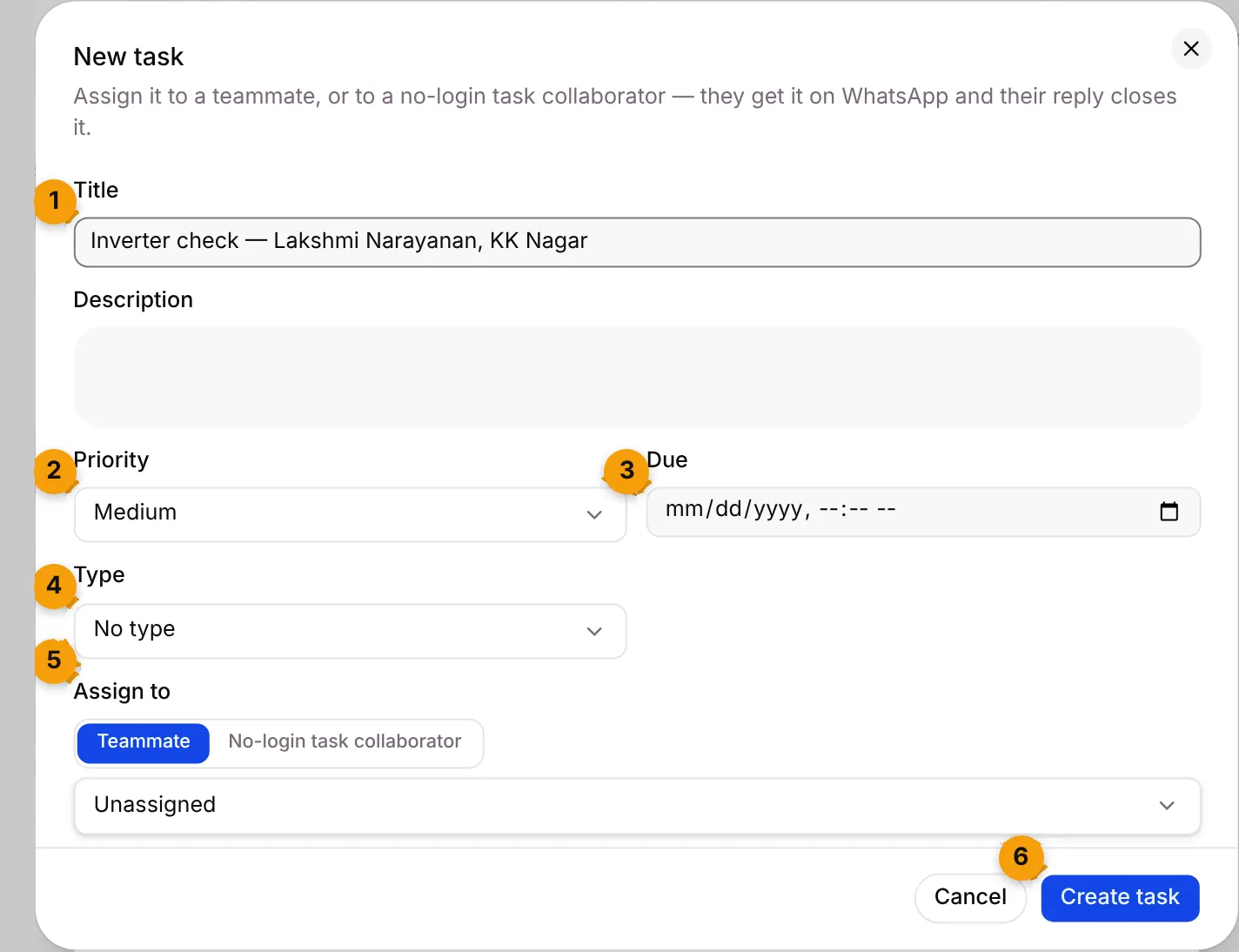
- Title: what needs doing, for example Inverter check — Lakshmi Narayanan, KK Nagar. This is the only field you must fill in.
- Priority: Medium unless you change it.
- Due: the date and time. Reminders are based on this, so set it whenever you can.
- Type: the kind of job, such as Site survey. Leave it as No type if none fits.
- Assign to: choose Teammate to pick someone from your team, or No-login task collaborator to pick a technician who works on WhatsApp.
- Click Create task.
The job appears in the Open column with its new code.
Open a job
Section titled “Open a job”Click a card or a row. The job opens in a panel.
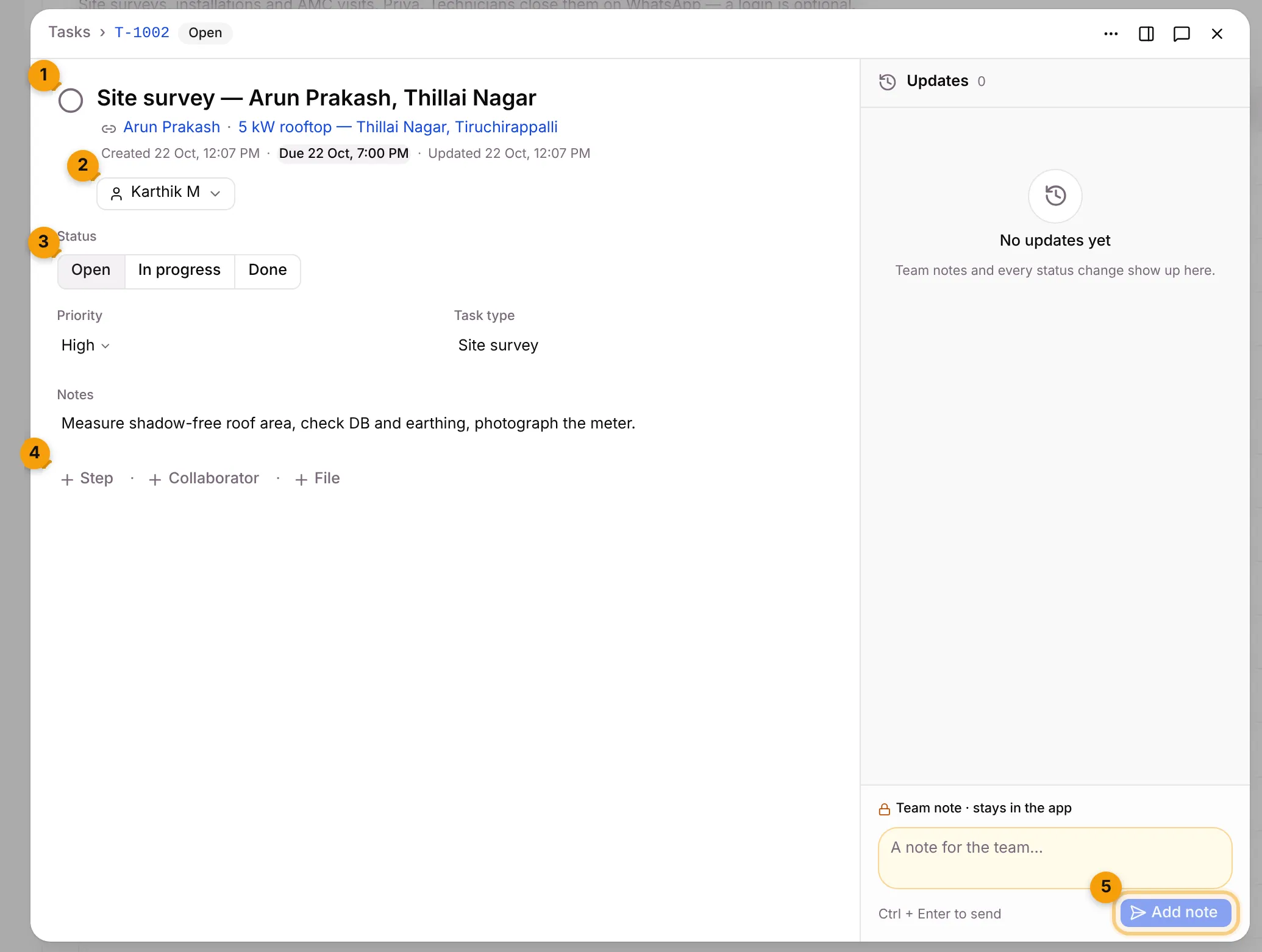
- Done circle: click it to mark the job done.
- Assignee: click to hand the job to someone else. The list has your Teammates and your WhatsApp collaborators.
- Status: switch between Open, In progress and Done.
- + Step · + Collaborator · + File: add a checklist step, an extra technician on the job, or a file. Photos the technician sends on WhatsApp are attached by themselves.
- Updates: every status change, team note and WhatsApp message about the job. A Team note stays in the app and is never sent to the technician.
Click the job title, the due date or the priority to change them. When you edit, a bar with Discard and Save appears at the bottom.
When the job is assigned to a technician, a line under the assignee shows whether the job reached them: Sent to name with the time, or Not sent to name with the reason, such as No WhatsApp number on this contact.
The ⋯ menu at the top of the panel has more actions.
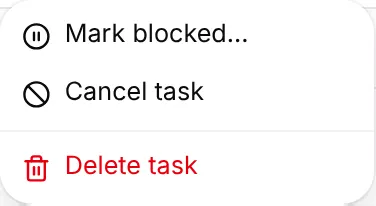
- Mark blocked… asks for the reason and moves the job to Blocked.
- Cancel task stops the job for good. It stays in the history but can’t be reopened.
- Delete task removes the job from the board and every list, with its checklist and any pending reminder.
How technicians get and close jobs on WhatsApp
Section titled “How technicians get and close jobs on WhatsApp”When you assign a job to a technician, Setaflow sends it to their WhatsApp. The message has the job code, what to do, when and where, and two buttons: Done and Can’t do.
| The technician… | What happens |
|---|---|
| Taps Done, or replies done, completed, finished or T-1042 done | The job is marked done. They get “T-1042 marked done. Thank you.” |
| Taps Can’t do, or replies can’t do, customer not home, part missing | The job moves to Blocked with their words as the reason. The office follows up. |
| Replies reached, started or on the way | The job moves to In Progress. |
| Sends a photo | The photo is saved to the job. They get “Photo saved to T-1042.” |
| Sends any other message | It’s added to the job’s Updates as a note. |
Replies work in English, Hindi and Tamil, for example ho gaya or mudinjiduchu. A thumbs-up on its own is saved as a note, not as done. Not done yet is a note too.
If a technician has more than one open job, Setaflow sends a list (Which job is done?) so they can pick the right one, or they can reply with the job code.
Reminders. When a job has a due date, the technician gets a reminder 1 hour before it’s due and an Overdue message 1 hour after, if it’s still open.
Mark done or ask for more
Section titled “Mark done or ask for more”When a technician says the job is done, the job panel shows Says the work is done: with two buttons:
- Mark done closes the job.
- Ask for more fills the WhatsApp box with a message asking for photos of the finished work and anything still pending. Edit it if you like, then send.
You can also message the technician from the Updates box by choosing WhatsApp. WhatsApp only allows this within 24 hours of their last message. Otherwise, add a team note or ask them to message you first.
Add a technician
Section titled “Add a technician”Technicians are no-login task collaborators. They never log in, get every job on WhatsApp, and don’t take a team seat. Only the Owner can add them.
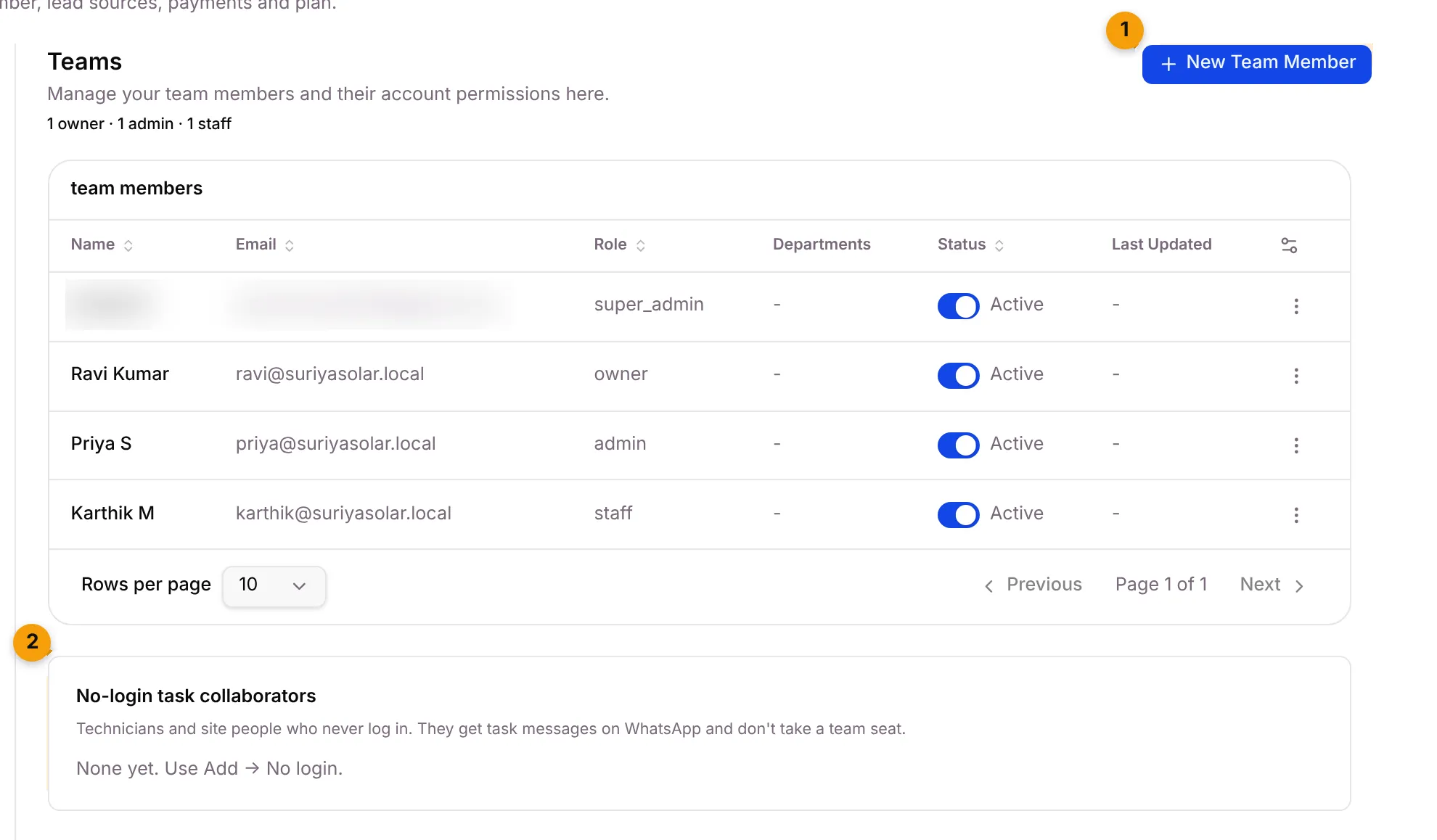
- Go to Settings › Teams.
-
New Team Member: opens the form for a new person.
-
No-login task collaborators: the technicians you’ve added. Until you add one, it says None yet. Use Add → No login.
-
Click New Team Member.
-
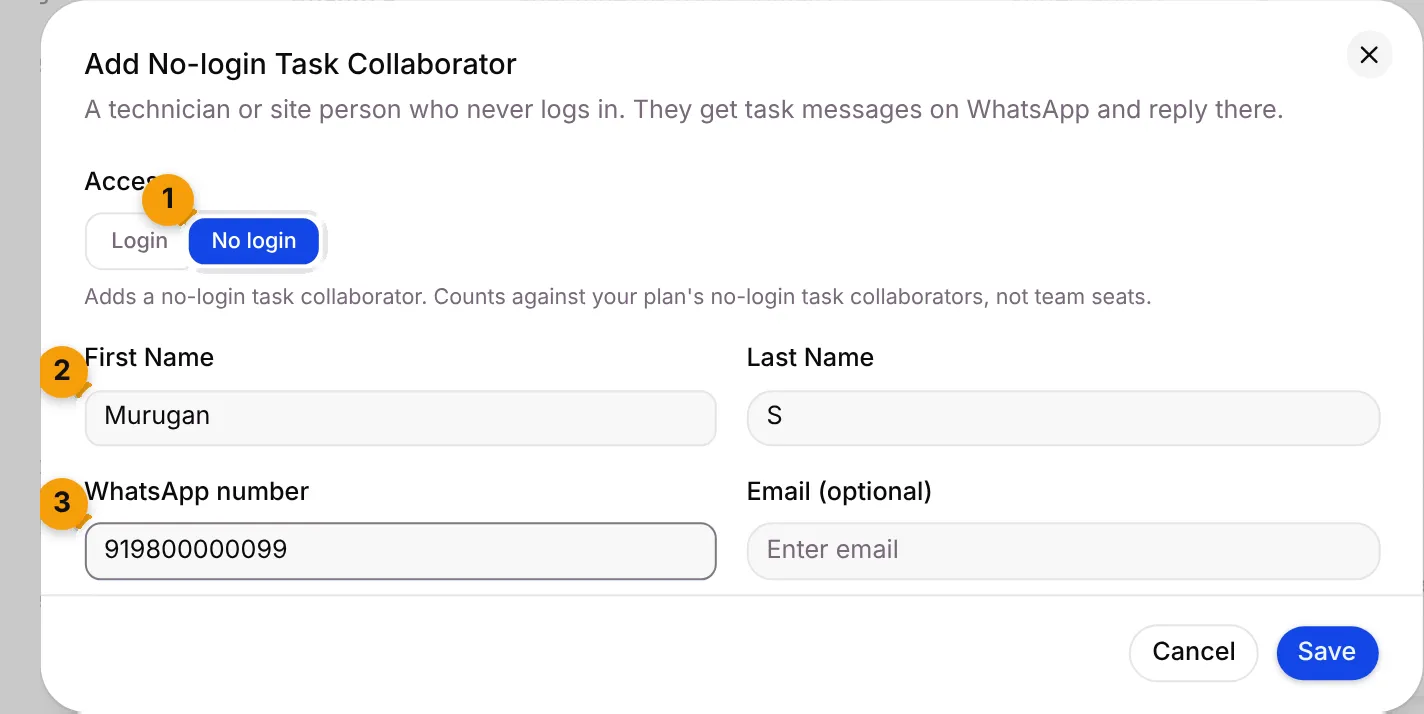
Fill in the form:
-
Under Access, choose No login. The form changes to Add No-login Task Collaborator.
-
First Name is required. Last Name is optional.
-
WhatsApp number with the country code, for example 919876543210. Email (optional) is used if WhatsApp can’t reach them.
-
Click Save.
The technician appears under No-login task collaborators, and you can pick them in Assign to when you create a job.
Good to know
Section titled “Good to know”- Who can do what depends on your role. Staff who can’t create jobs don’t see New task. See Roles and access.
- Only the assignee closes the job. A collaborator’s done is saved as a note. Their photos still attach.
- Jobs sync to calendars. If the assignee has connected Google Calendar or Outlook, the job appears there too.
- Job types such as Site survey and Breakdown call come from Task types.
What’s next?
Section titled “What’s next?”- Raise a complaint and send a technician
- Plan AMC visits and jobs
- See the certificate sent after a visit
Related articles
Section titled “Related articles”Was this article helpful?
Thanks for letting us know.