

Move an enquiry or job along your pipeline, see what Setaflow moves and starts on its own, and close a record as lost with a reason.
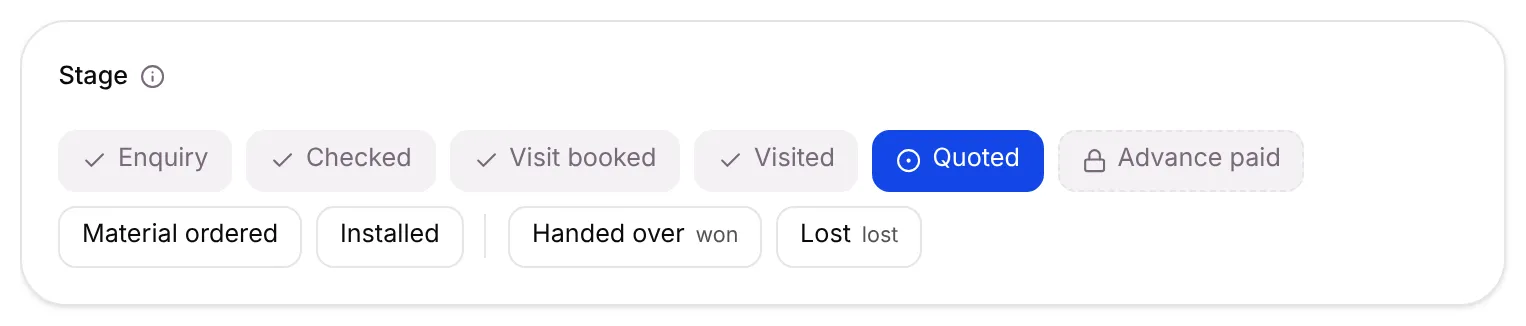
A record’s stage tells your team where the work stands. You move it by clicking a stage on the record page. Many moves also happen on their own, for example when a quote is sent or an advance is paid.
Move a record
Section titled “Move a record”- Open the record from Records.
- On the Stage card, click the stage you want.
- Type a Reason (optional), for example Roof and bill checked on the call.
- Click Move to and the stage name, for example Move to Checked.
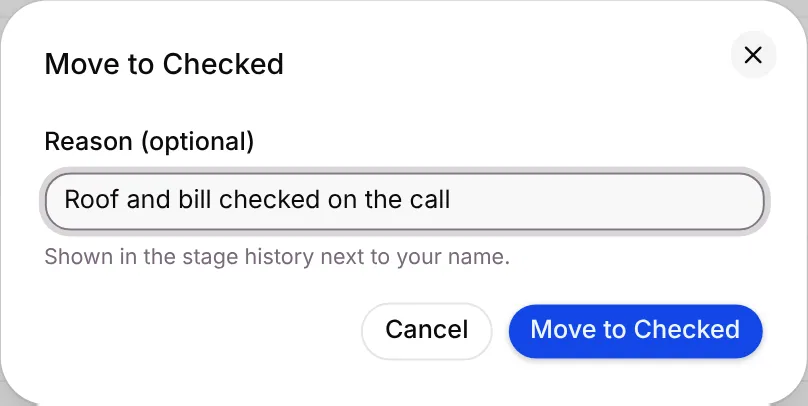
Setaflow shows Moved to Checked, and the move appears on the Activity card.
Stages locked until the advance is in
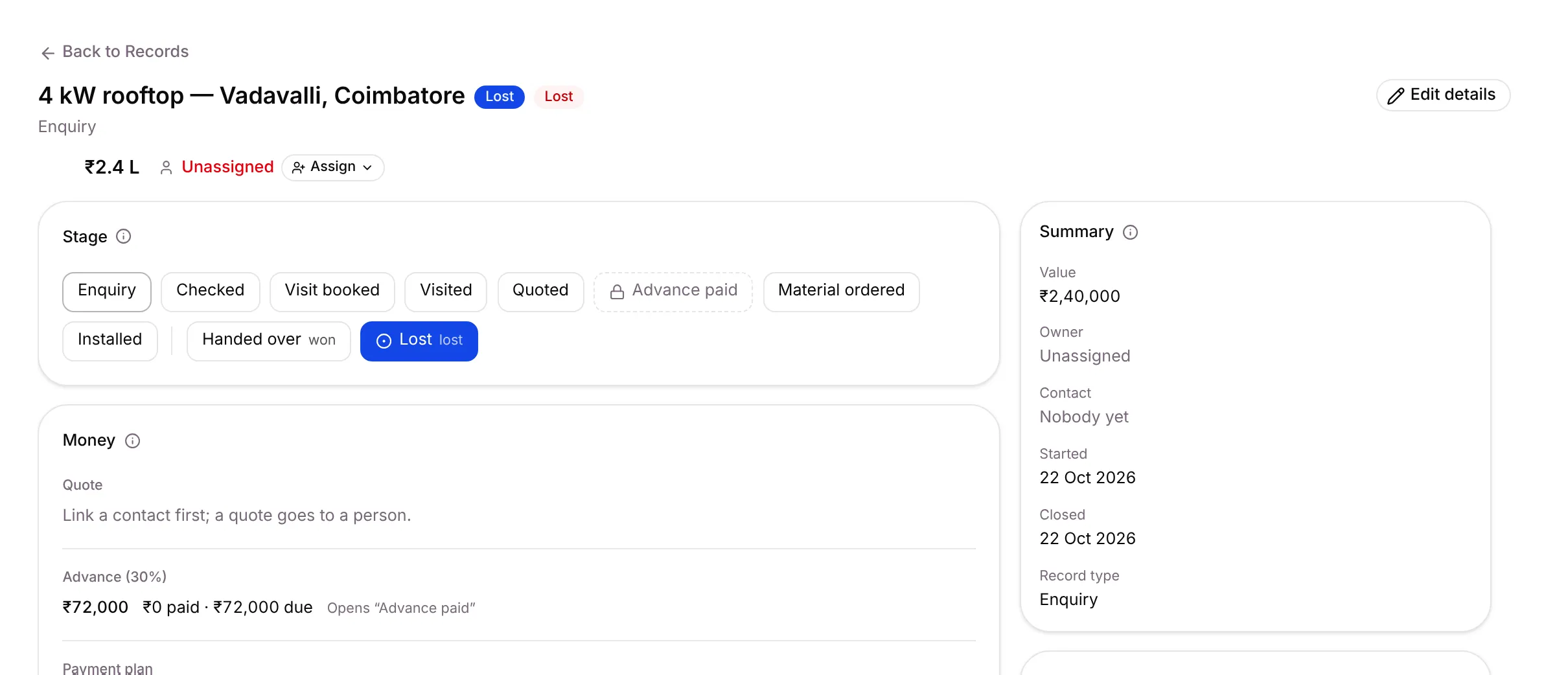
Section titled “Stages locked until the advance is in”A stage can be locked until the customer’s advance is confirmed. In the solar example, Advance paid stays locked until 30% of the value is confirmed. A locked stage shows a lock and a dashed border.
If you try to move a record into a locked stage, Setaflow stops you and shows what’s missing:
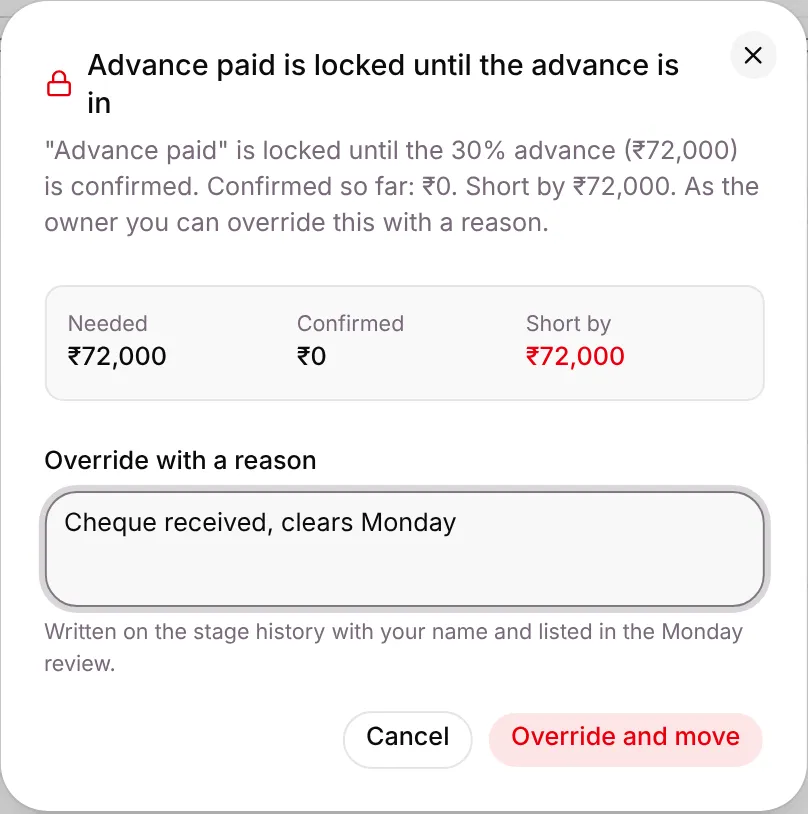
- Needed: the advance the stage asks for.
- Confirmed: what’s been confirmed so far.
- Short by: what’s still missing.
To open the stage the normal way, confirm the advance. See Advances to confirm.
Override the lock (Owner only)
Section titled “Override the lock (Owner only)”Sometimes you know the money is coming, for example a cheque that clears on Monday. The business Owner can move the record anyway:
- Type a reason under Override with a reason, for example Cheque received, clears Monday.
- Click Override and move.
Everyone else sees the same dialog with only an OK button.
What moves on its own
Section titled “What moves on its own”Setaflow moves records for you when something happens elsewhere. The stage history shows these with the reason, for example Moved to Quoted by Ravi Kumar · quote sent, or automatically when no person did it.
| When this happens | The record moves |
|---|---|
| A lead passes the WhatsApp check as Real | To your Checked stage, if your pipeline has one |
| A quote is sent | To your quoted stage |
| A quote is accepted | To the stage set for an accepted quote |
| An appointment is booked, completed or cancelled | To the matching stage |
| An advance is paid | To the stage the advance opens, such as Advance paid |
| An AMC contract changes status | To the matching stage, for example Expiring or Renewed |
| An order changes status | To the matching stage, for example Dispatched or Delivered |
Which stages these are depends on how your record types are set up. See Record types and stages.
What starts on its own
Section titled “What starts on its own”A stage can also start work when a record enters it. Your stages decide which:
- Create the AMC contract: for example on Handed over. The contract starts that day, with its visits planned and renewal reminders set. It needs a customer on the record.
- Create a task: for the record’s owner, or the business owner if nobody owns it.
- Apply a payment plan: so the remaining money is split into lines with their due dates.
- Send the customer an update on WhatsApp.
If one of these fails, the move still goes through.
Close a record as lost
Section titled “Close a record as lost”- On the Stage card, click Lost (the stage tagged lost).
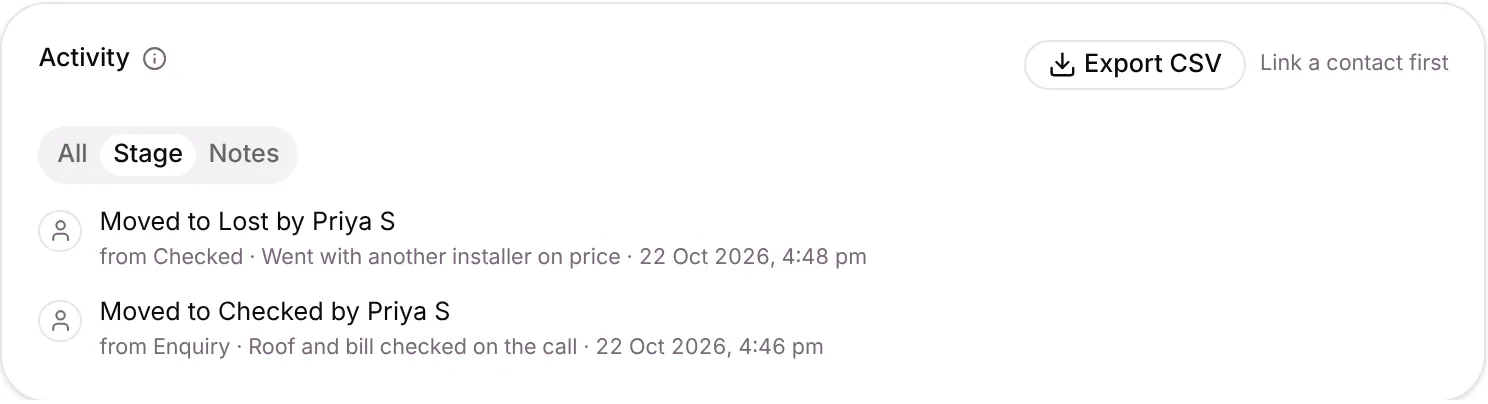
- Type why under Reason (optional), for example Went with another installer on price.
- Click Move to Lost.
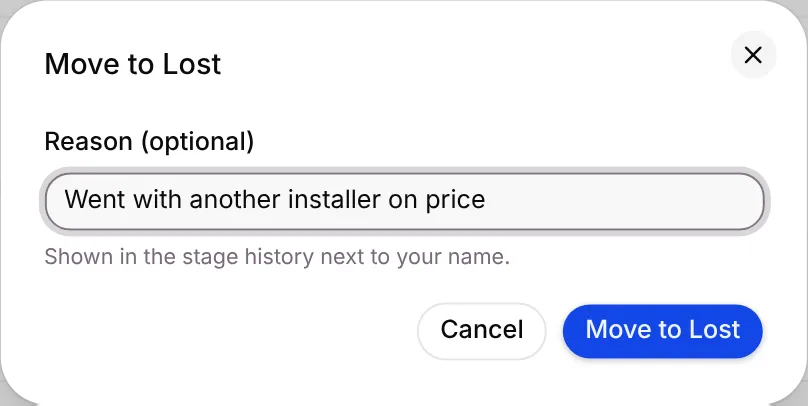
The record now shows Lost, and the Next step line disappears.
The reason is kept on the Stage tab of the Activity card.
Good to know
Section titled “Good to know”- Moving to a lost stage stops quote nudges, and so does moving to a won stage.
- The history can’t be edited. Moves made before stage history was switched on for your business were not recorded.
- Hot leads: a stage can be set to mark the customer Hot when a record enters it.
What’s next?
Section titled “What’s next?”Related articles
Section titled “Related articles”Was this article helpful?
Thanks for letting us know.