

Group contacts by hand into fixed lists, such as a festival offer or an event's visitors, and send them a campaign.
A list is a group of contacts you pick yourself. It only changes when someone adds or removes a contact, so it’s right for fixed groups: Diwali offer 2026, Solar expo visitors, or customers from an old Excel sheet.
If you want a group that keeps itself up to date, use a segment instead.
See your lists
Section titled “See your lists”Go to Contacts and open the Lists tab.
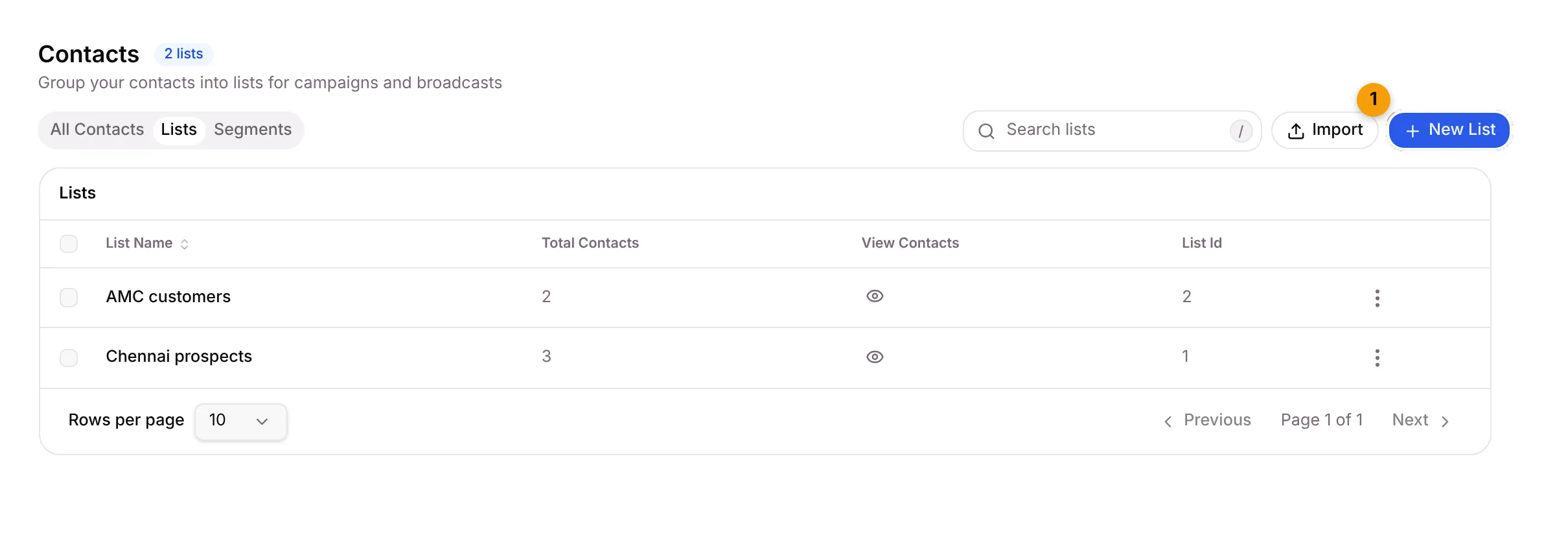
| Column | What it shows |
|---|---|
| List Name | The name you gave it |
| Total Contacts | How many contacts are in it |
| View Contacts | Click the eye to see who’s in the list |
| List Id | The list’s number |
Create a list
Section titled “Create a list”- On the Lists tab, click New List.
- Type a List name, for example Diwali offer 2026. Up to 100 characters.
- Tick the contacts to put in it. Use the search box to find them by name, phone or email.
- Click Save.
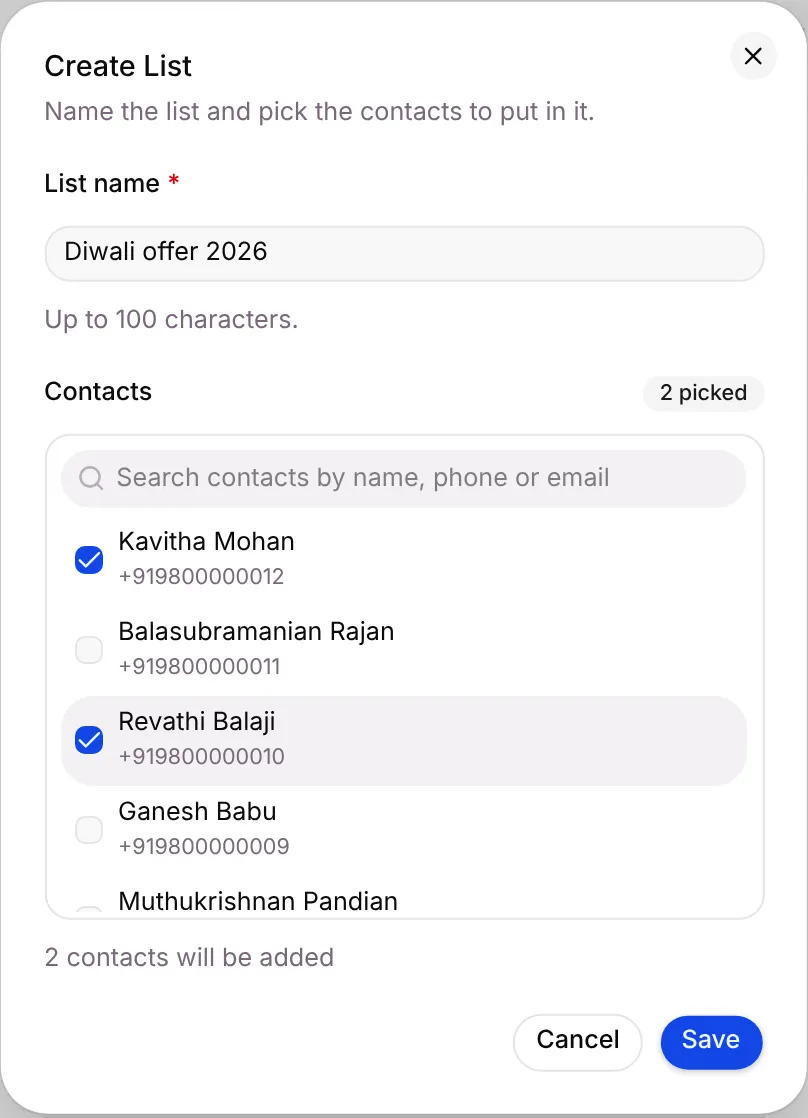
You can save a list with no contacts and fill it later.
Add contacts to a list later
Section titled “Add contacts to a list later”Any of these works:
- On the contact: open the contact’s Edit form and add the list under Lists & tags.
- While importing: put the list name in the sheet’s list column. See Import contacts from Excel.
Edit or delete a list
Section titled “Edit or delete a list”On the Lists tab, click ⋮ on the list’s row and choose Edit or Delete.
Deleting a list doesn’t delete any contacts. They stay in All Contacts.
Related articles
Section titled “Related articles”Was this article helpful?
Thanks for letting us know.