

See one enquiry's payment plan, what's due, when, what's paid, and remind the customer or waive a line.
Invoices and dues shows one enquiry’s payment plan: each part of the price as a line, when it falls due, what’s paid, and the link the customer pays on. Pick an enquiry at the top to see its plan.
Until you pick an enquiry, the page shows Pick an enquiry to see its dues.
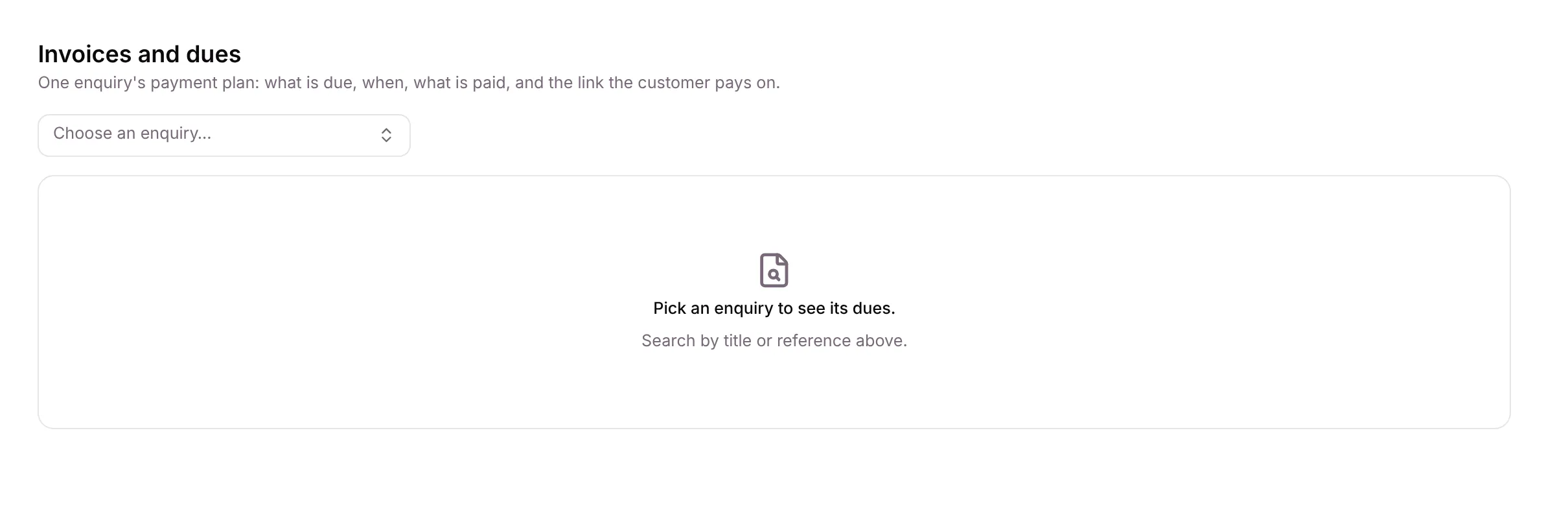
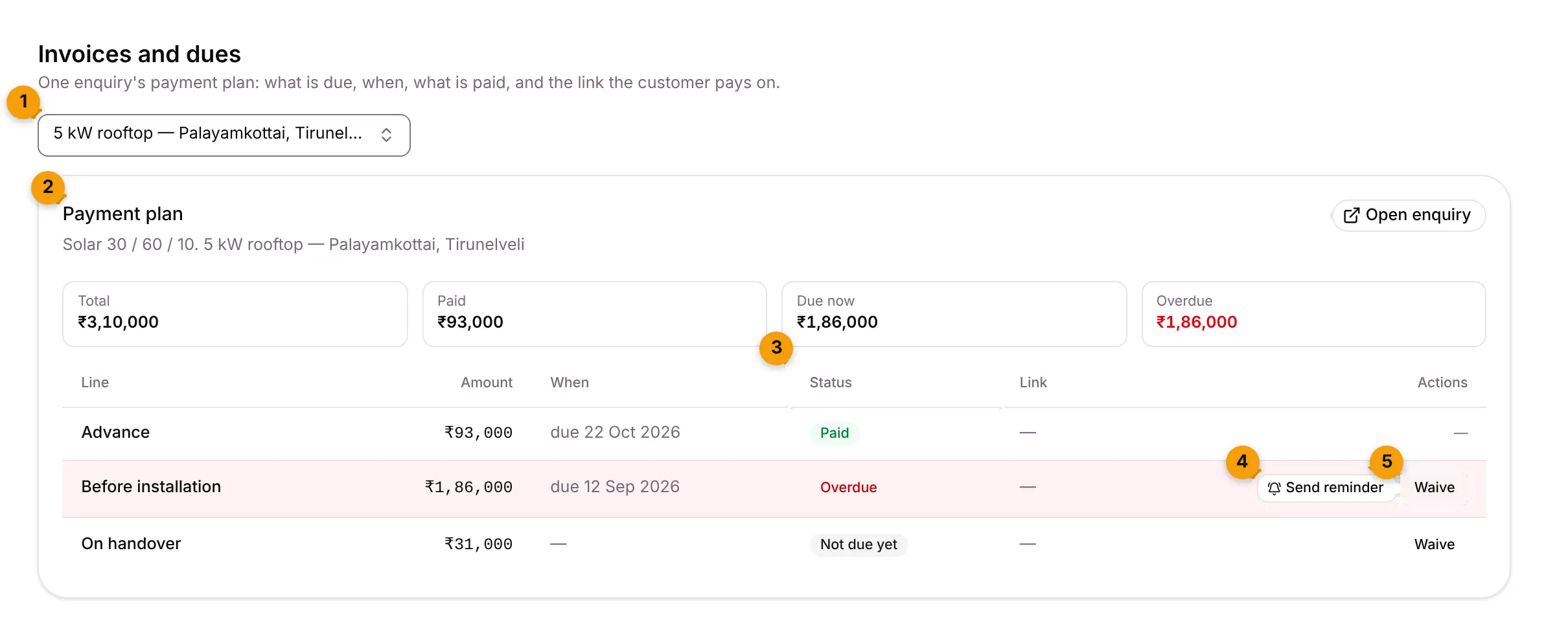
- Choose an enquiry…: search by title or reference to pick the enquiry.
- Payment plan card: the plan name, the enquiry, Open enquiry, and the totals: Total, Paid, Due now and Overdue (in red when anything is late).
- Status: where each line is now.
- Send reminder: message the customer about this line now.
- Waive: stop asking for this line.
What each column shows
Section titled “What each column shows”| Column | What it shows |
|---|---|
| Line | The name of the plan line, for example Before installation. |
| Amount | How much this line asks for. |
| When | When it falls due: due 12 Oct 2026, on apply, N days after apply or at stage …. |
| Status | Where the line is now (see below). |
| Link | Payment link ↗ when the line has a Razorpay link. |
| Actions | Send reminder and Waive, or — when neither applies. |
Line statuses
Section titled “Line statuses”| Status | Meaning |
|---|---|
| Not due yet | Its trigger hasn’t happened yet. |
| Due | The customer has been asked to pay. |
| Invoiced | An invoice has been made for it. |
| Paid | The payment is in and confirmed. |
| Waived | You decided not to ask for it. |
| Overdue | Still unpaid after its due date plus the plan’s grace days. |
Apply a payment plan to an enquiry
Section titled “Apply a payment plan to an enquiry”Plans are applied on the enquiry itself, on its Payment plan card.
- Open the enquiry.
- On the Payment plan card, pick a Payment plan template. The usual one for this kind of enquiry is already chosen.
- Click Apply plan.
You see Payment plan applied. Lines fall due on their own triggers.
How the amounts are worked out:
- The plan total is the enquiry’s value, or else its accepted quote’s total.
- Percent lines are worked out once, in whole rupees. The last line absorbs any rounding.
- An advance already paid is taken off the first line. An advance still waiting becomes the first line’s payment, so confirming it settles line 1.
If there are no templates yet, you’re asked to add one in Payment plans. Editing a template later doesn’t change plans already applied.
When a line falls due
Section titled “When a line falls due”A line falls due on its trigger: at once (on apply), a number of days after the plan was applied (at 9 am), or when the enquiry reaches a stage, such as Installation done. Then Setaflow:
- Creates the payment: a Razorpay link if it’s connected, otherwise a manual payment with your UPI or bank details.
- Messages the customer on WhatsApp that the payment is due, with the link or your details.
- Reminds the customer 3, 7 and 15 days after the due date.
- After the last reminder, creates a task Follow up: … overdue for the enquiry’s owner.
A line becomes Overdue once the due date plus the grace days (7 by default) has passed. It then shows on Overdue.
Send a reminder now
Section titled “Send a reminder now”- Pick the enquiry.
- Click Send reminder on a Due or Invoiced line.
You see Reminder sent to the customer.
Waive a line
Section titled “Waive a line”- Pick the enquiry.
- Click Waive on the line.
- Confirm with Waive, or click Cancel to keep the line. The dialog says the amount will no longer be asked for, and this can’t be undone from here.
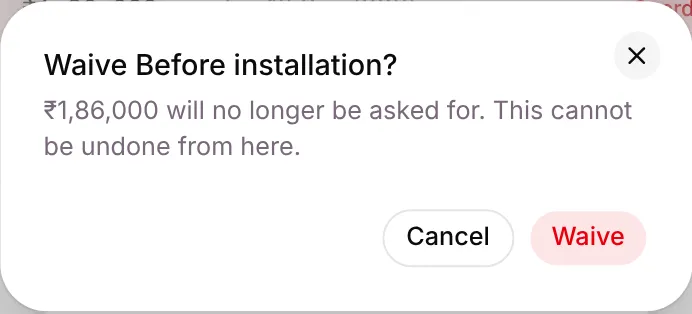
You see Line waived. It no longer counts as due.
Auto-pay
Section titled “Auto-pay”If your plan includes UPI AutoPay and it’s switched on in Settings › Payments, the enquiry’s Payment plan card has an Auto-pay section.
- Click Set up auto-pay.
- Optionally set The most one debit may take (₹). Leave it blank to use the contract price or the largest line.
- Click Send the link.
The customer gets a link on WhatsApp to approve the mandate once. Each payment is then debited two days before it’s due, after a notice the day before. Up to ₹99,999 a debit uses UPI AutoPay; more uses e-NACH, which takes 1 to 7 days to become active.
The status shows as Link sent, Auto-pay on, Paused, Declined, Cancelled, Link expired or Failed. Use Cancel auto-pay to stop it.
Good to know
Section titled “Good to know”- “Invoices” here means Zoho Books invoices. Setaflow doesn’t number invoices itself. With Zoho Books connected, the enquiry’s plan card can Create invoice in Zoho Books for a line.
- If you see “No payment plan for this enquiry.”, apply one from the enquiry’s Payment plan card.
- If you don’t see Invoices and dues, your plan doesn’t include payment schedules.
What’s next?
Section titled “What’s next?”Related articles
Section titled “Related articles”Was this article helpful?
Thanks for letting us know.