

The WhatsApp and email templates Setaflow sends, how to write and submit them, and which messages go out on their own.
Templates are the pre-written messages Setaflow sends your customers: the check questions, the visit confirmation, the quote with the advance, the service certificate, the renewal reminder and more. WhatsApp templates are in English and Tamil, and Meta must approve each one before it can be sent. Open them from Settings › Templates.
Once a channel is connected, the Templates tab shows:
- WhatsApp | Email: switch between your WhatsApp templates and your email templates. You see the switch only when both channels are connected.
- New Template: write a new WhatsApp template.
- Search, Sync Template (fetch the latest status from Meta) and Start from sample (begin from a ready-made template).
- The list: Template name with the message underneath, Category, Language, Status and Last edited. Click the eye under View to see a template as the customer sees it.
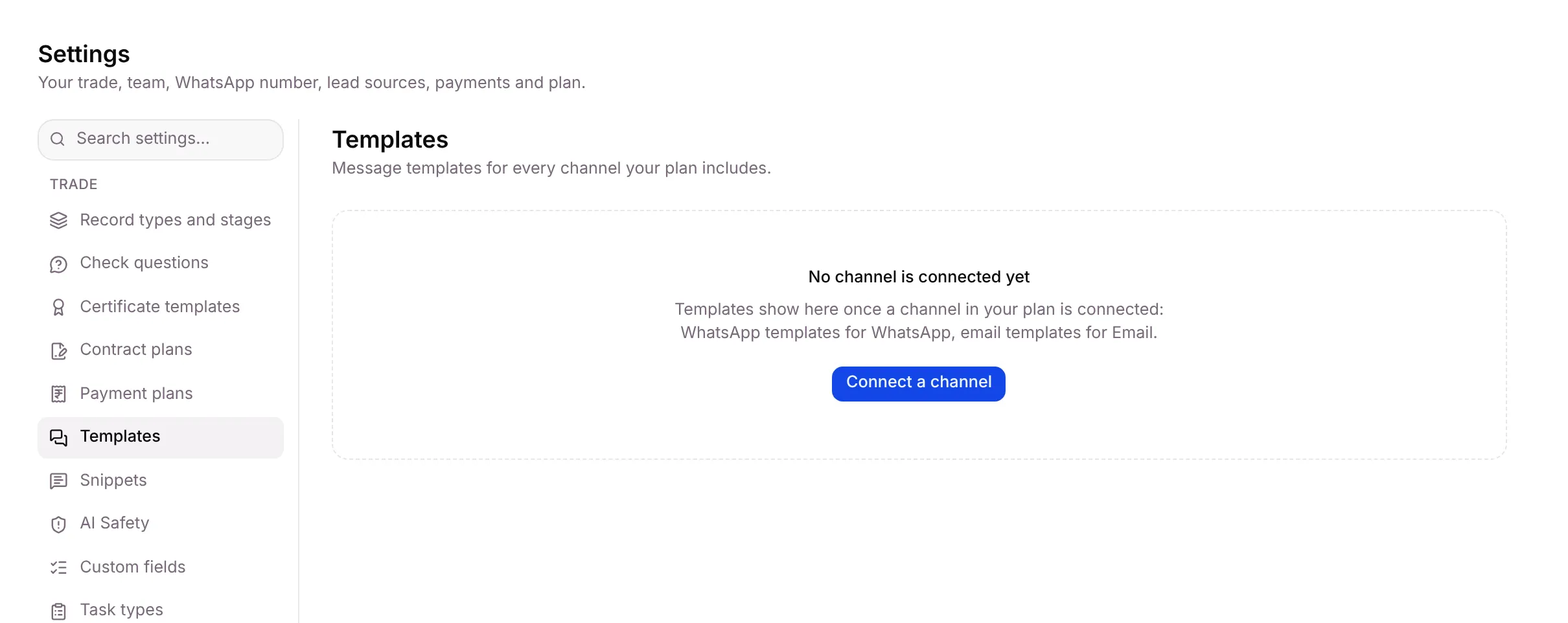
If you see “No channel is connected yet”
Section titled “If you see “No channel is connected yet””Templates belong to a channel. Until your WhatsApp number or your email is connected, the tab says No channel is connected yet. Click Connect a channel, or see WhatsApp number.
WhatsApp template statuses
Section titled “WhatsApp template statuses”| Status | What it means |
|---|---|
| Draft | Saved in Setaflow, not sent to Meta yet |
| Pending | Meta is reviewing it. You can’t edit it until Meta answers. |
| Approved | Ready to send |
| Rejected | Meta said no. Edit it and submit it again. |
| Paused | Meta paused it, usually because customers blocked or reported it |
Write a WhatsApp template
Section titled “Write a WhatsApp template”-
Go to Settings › Templates and click New Template.
-
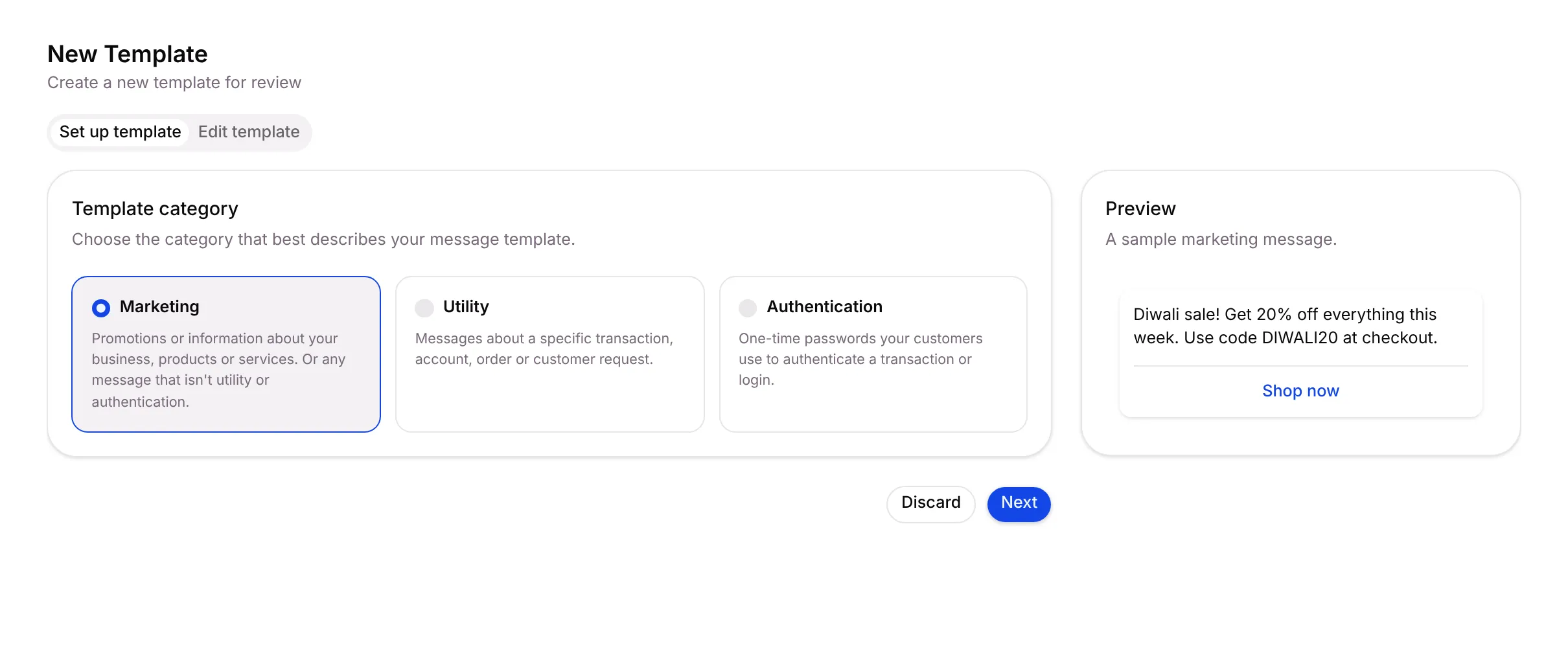
Under Template category, choose one:
- Marketing: offers and news about your business, or anything that isn’t utility or authentication.
- Utility: a message about a specific job, order or customer request, such as a visit confirmation.
- Authentication: one-time passwords.
-
Click Next.
-
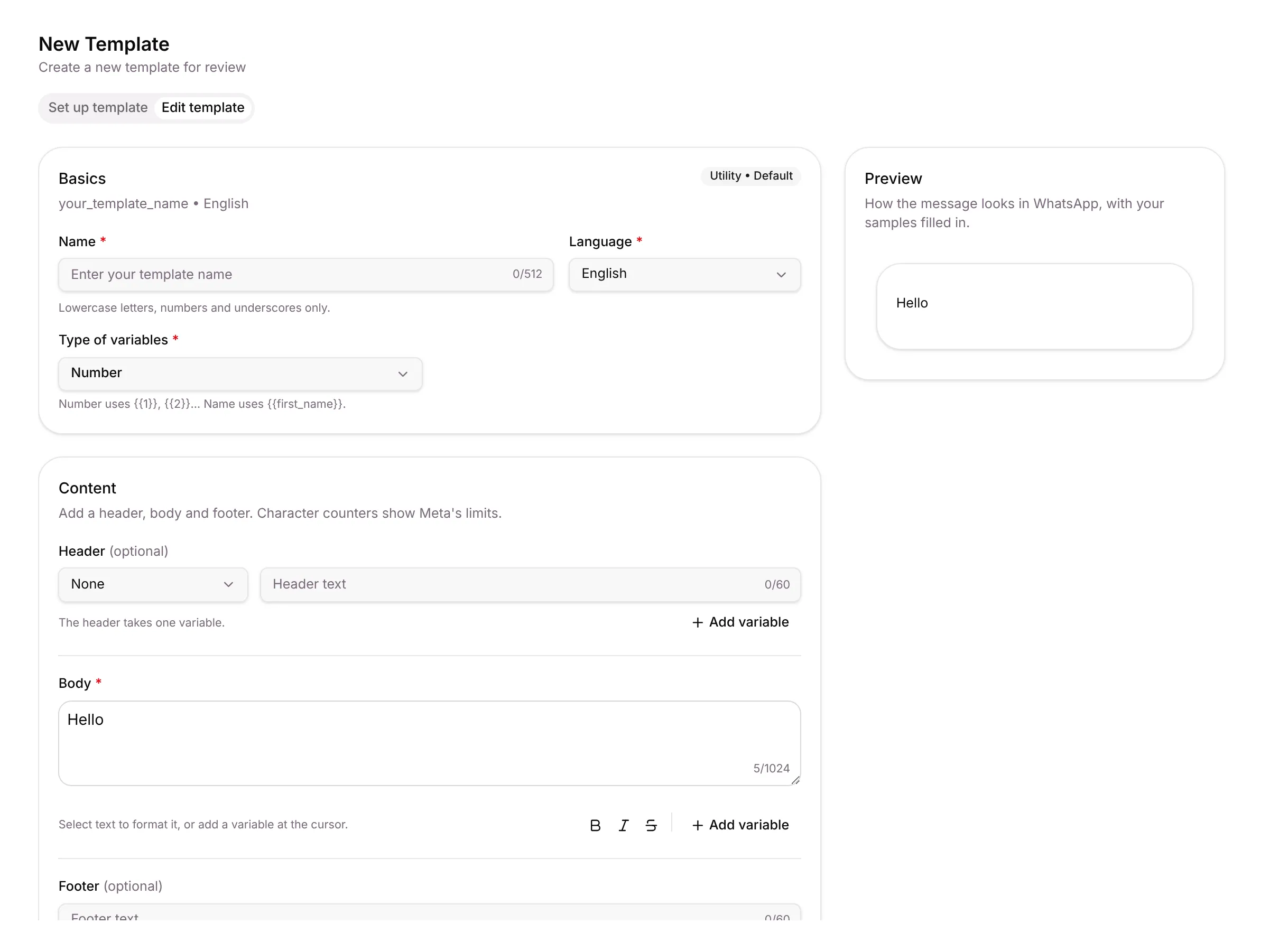
Under Basics, type a Name (lowercase letters, numbers and underscores only), pick the Language and the Type of variables: Number uses {{1}}, {{2}}…, Name uses {{first_name}}.
-
Under Content, write the Body. Add a Header and a Footer if you want. Character counters show Meta’s limits. Select text to make it bold or italic, or click Add variable to insert a blank Setaflow fills in, such as the customer’s name.
-
Give each variable a sample under Variable samples, for example Lakshmi. Meta uses the samples to review the template.
-
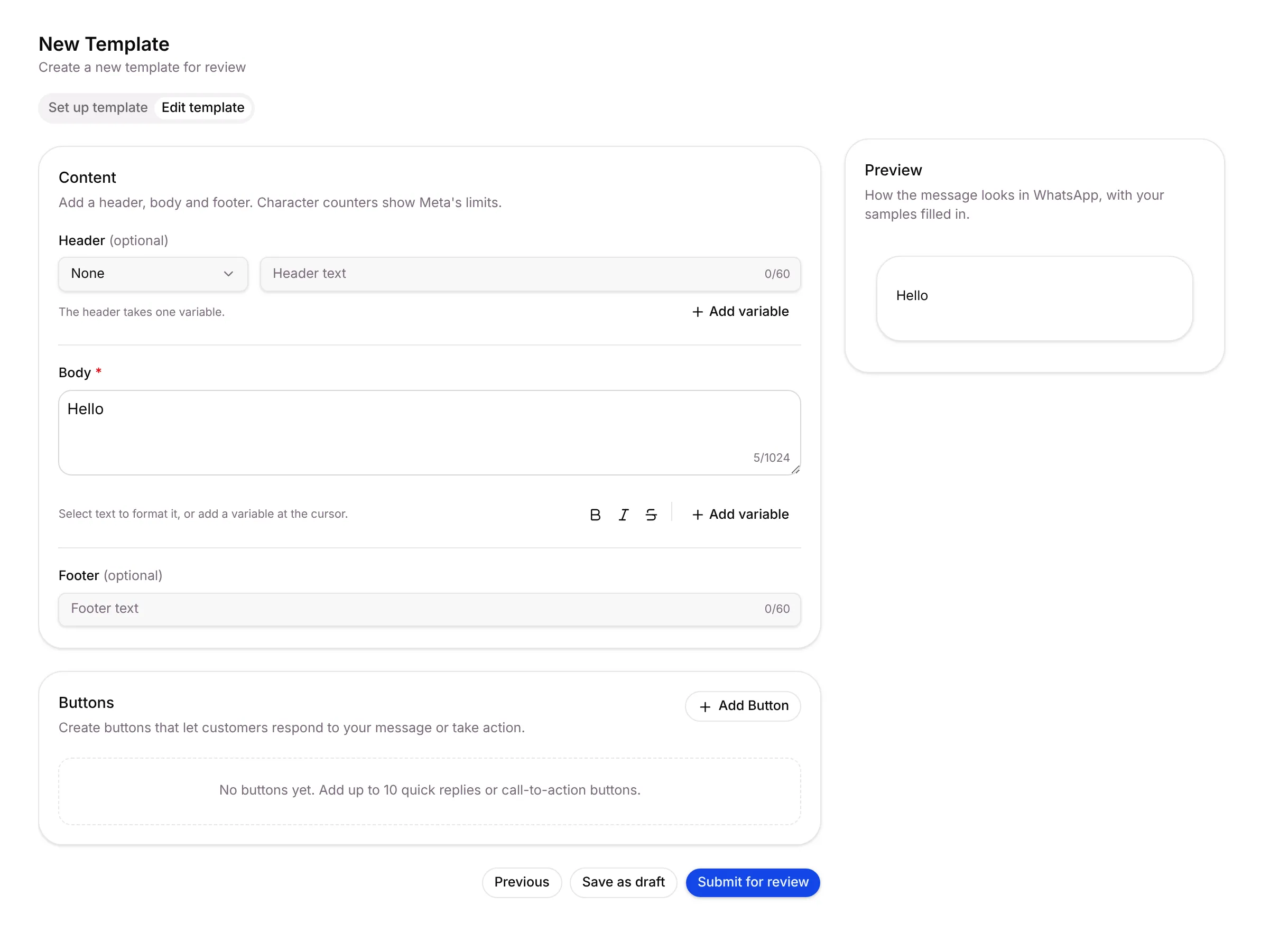
Under Buttons, click Add Button to add buttons the customer can tap: Quick reply, Visit website, Call phone number or Copy offer code. You can add up to 10, and each needs its own label.
-
Check the Preview, then click Submit for review. Or click Save as draft to finish later, or Previous to change the category.
Change a template
Section titled “Change a template”- Click the ⋮ menu at the end of the row and choose Edit. You can edit a template that is Draft, Approved, Rejected or Paused.
- Change the text and click Save changes.
- Do the same for the Tamil version, which has the same name ending in _ta.
Email templates
Section titled “Email templates”Switch to Email to see your email templates. Each has a Name, Subject, Category (Transactional or Marketing), Status, where it is Used in, and Last edited.
| Status | What it means |
|---|---|
| Draft | Being written. Not offered in campaigns and drips. |
| Active | Published. It can be used in campaigns, drips, automations and stages. |
| Archived | Put away. You can’t archive a template an active campaign or drip uses. |
To write one:
-
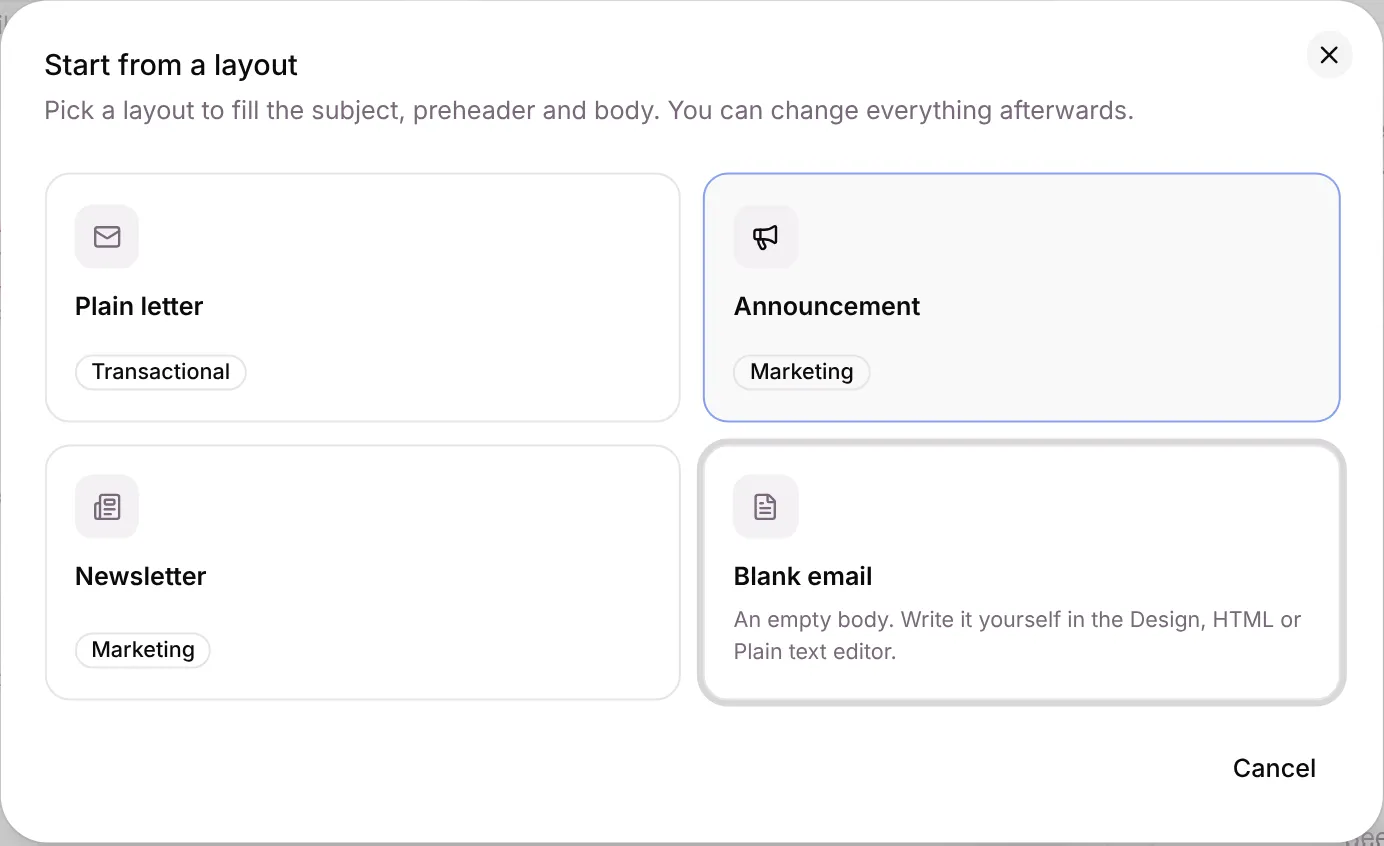
Click New template. Pick a layout under Start from a layout, such as Plain letter or Newsletter, or choose Blank email.
-
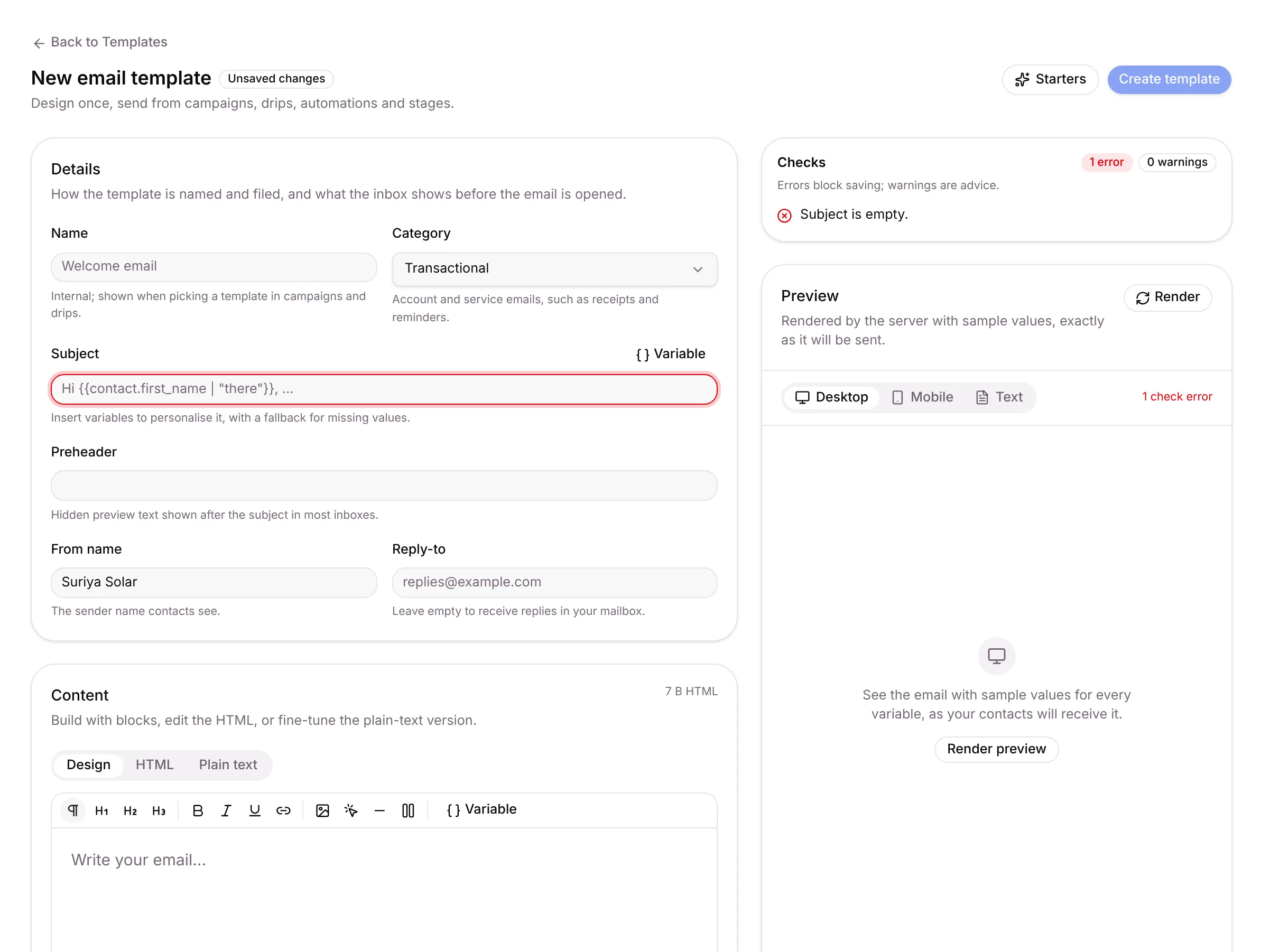
Under Details, fill in Name, Category, Subject, Preheader, From name and Reply-to.
-
Under Content, build the email with Design blocks, or edit the HTML or Plain text.
-
Add Attachments if every email should carry a file (PDF, image, DOCX or XLSX, 10 MB in total).
-
Fix anything listed under Checks. Errors block saving; warnings are advice.
-
Click Render preview to see it with sample values, then Create template.
-
Click Publish to make it Active. Send test to me emails you a copy first.
Every save that changes the content creates a new version. Open Versions to restore an older one.
What Setaflow sends on its own
Section titled “What Setaflow sends on its own”Your starter pack adds these WhatsApp templates. Each has an English version and a Tamil version ending in _ta; a customer who reads Tamil gets the Tamil one.
| When this happens… | …Setaflow sends |
|---|---|
| A new enquiry comes in | The check questions (for Solar, solar_enquiry_check) |
| A site visit is booked | site_visit_confirm |
| A quote is sent | quote_with_advance, with the advance and how to pay |
| The quote is still open after 2, 5 and 9 days | quote_nudge, until the customer replies, decides or pays |
| An installation is booked | installation_scheduled |
| An instalment falls due, or is late | instalment_due, then instalment_reminder |
| An AMC visit is closed | amc_visit_certificate, with the service certificate |
| An AMC ends in 60, 30 and 7 days | amc_renewal_due |
| A complaint is closed | complaint_closed |
| Auto-pay is set up, or a debit is due tomorrow | autopay_setup, predebit_notice |
| It’s Monday morning | seta_monday_review to the owner |
A stage can also send a template when a record reaches it. You choose that in Record types and stages.
Good to know
Section titled “Good to know”- Who sees Templates: anyone whose role can view templates. Someone who can see templates but not the rest of Settings sees only this tab.
- Only approved templates appear in the template picker in Campaigns.
- WhatsApp charges are billed by Meta to your own WhatsApp account, not by Setaflow.
What’s next?
Section titled “What’s next?”Related articles
Section titled “Related articles”Was this article helpful?
Thanks for letting us know.