

Book site visits and other appointments in free slots from each person's working hours, and let the customer confirm with one tap.
The Calendar shows every appointment your team has with customers, such as a site visit to check the roof and power bill before a quote. Each slot comes from the assignee’s working hours, so nobody is double-booked, and the customer can confirm the time themselves from a link.
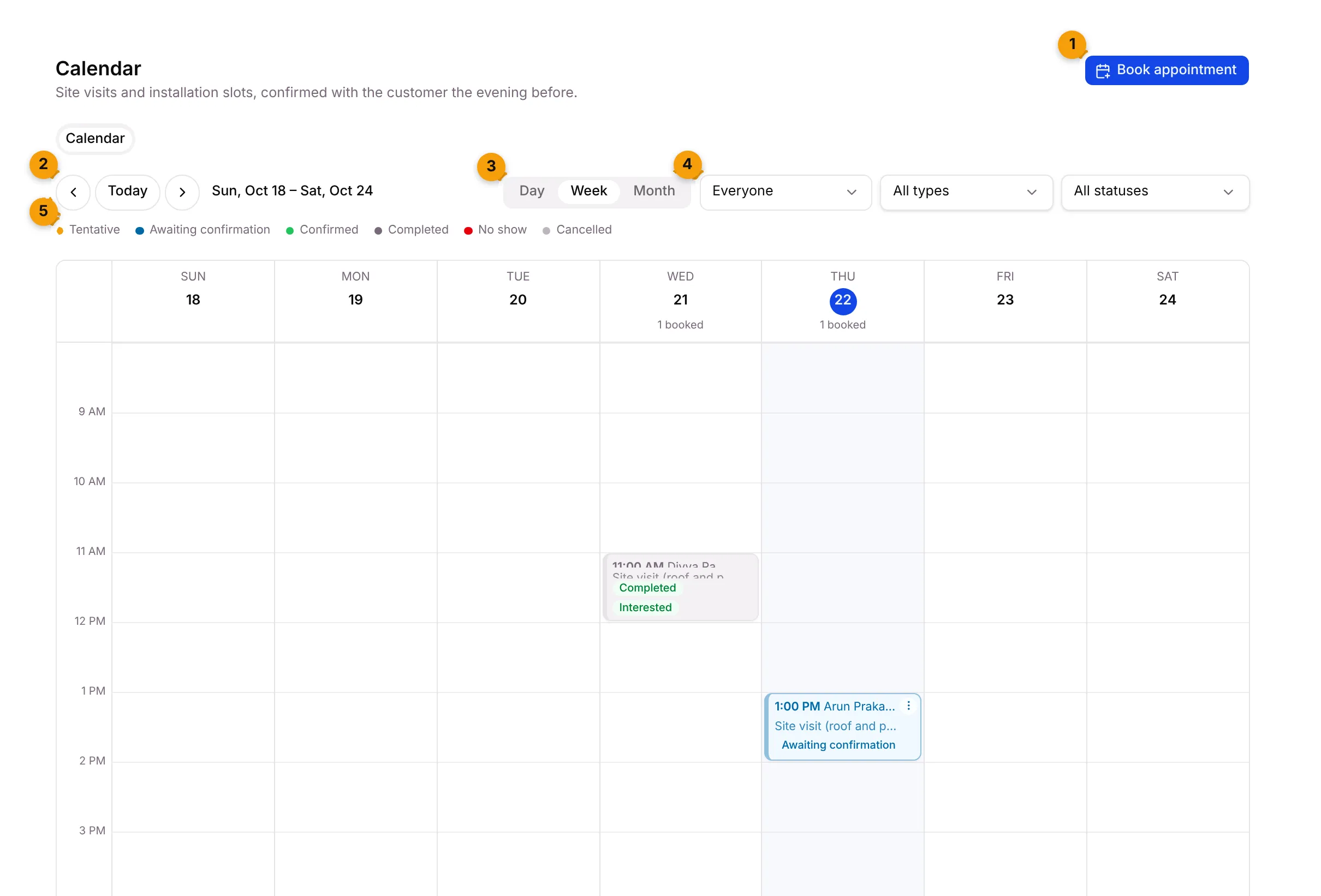
- Book appointment: book a new slot.
- Previous / Today / Next: move through the calendar, or jump back to today.
- Day / Week / Month: change how much you see at once.
- Filters: show one person’s appointments (Everyone at first), one appointment type (All types) or one status (All statuses).
- Status colours: what each colour on a card means. See Appointment statuses.
The three views
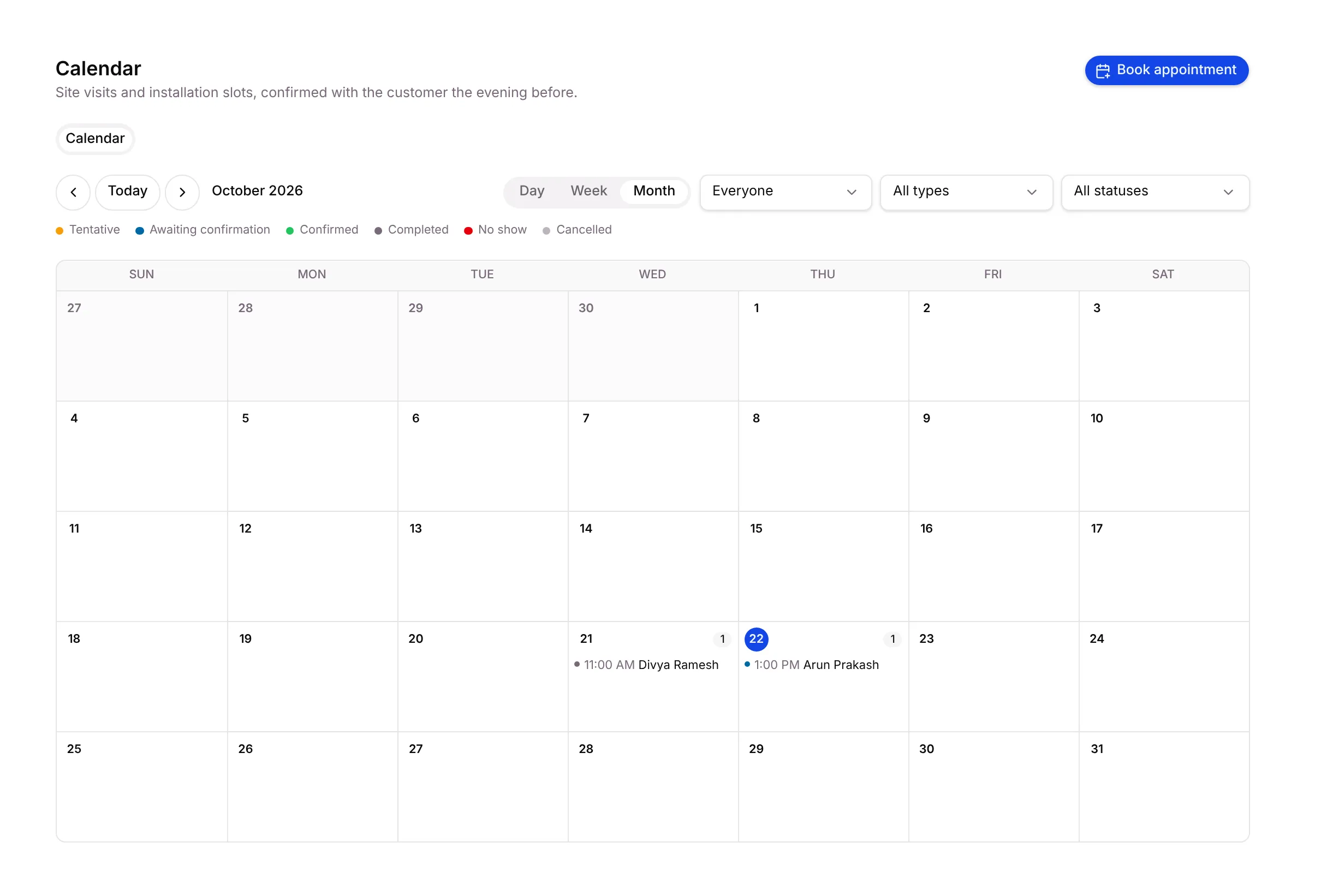
Section titled “The three views”Week shows each day as a column with the appointments as cards. The day header shows how many are booked. Day shows one day in more detail. Month shows the whole month with each appointment as one line.
Times shown crossed out are busy in the assignee’s own connected calendar (Google Calendar or Outlook).
Book an appointment
Section titled “Book an appointment”- Click Book appointment.
- Fill in the form:
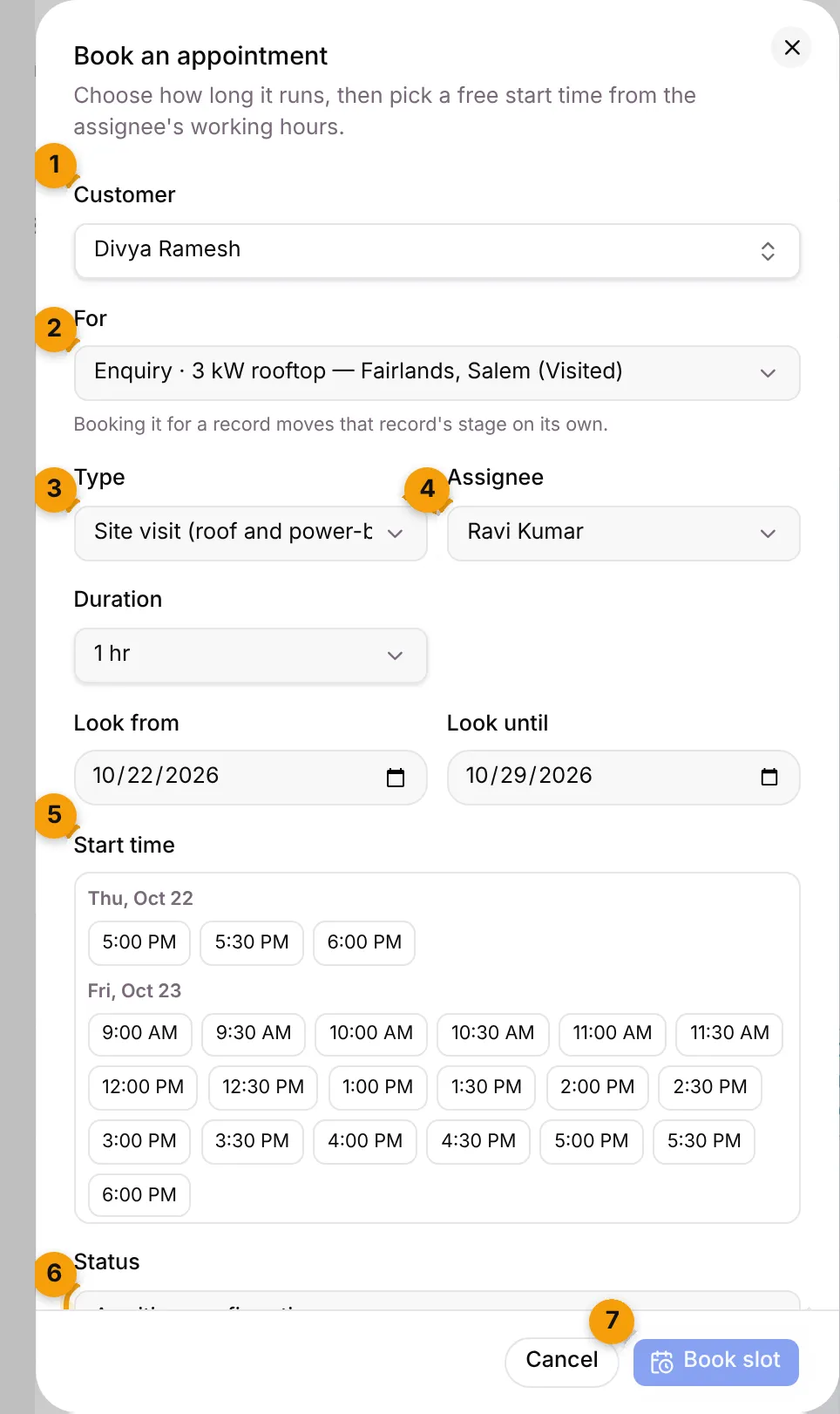
- Customer: choose the contact.
- For: if the customer has an open record, pick it, or leave Not for a record. Booking for a record moves that record’s stage on its own.
- Type: the kind of appointment, such as a site visit. It sets the usual length.
- Assignee: who will go.
- Start time: pick one of the free times. They come from the assignee’s working hours between Look from and Look until. Change Duration first if the visit needs longer.
- Scroll down to choose the Status (Awaiting confirmation at first, see below) and add a Location if it helps. Then click Book slot.
When the appointment is booked, Setaflow shows a Customer confirmation link. Copy it and send it to the customer. It works once and then expires.
Which status to book with
Section titled “Which status to book with”| Status | When to use it |
|---|---|
| Tentative | Pencilled in. Holds the slot, but you haven’t offered it to the customer yet. |
| Awaiting confirmation | Booked. The customer still has to confirm. |
| Confirmed | The customer already said yes. No confirmation link is made. |
How the customer confirms
Section titled “How the customer confirms”The customer opens the link and sees Please confirm your appointment. They tap Yes, I’ll be there and see Thank you — you are confirmed. The appointment turns Confirmed on your calendar.
The link works once. It also stops working after 14 days. If a customer says the link doesn’t work, send them a new one with Confirm link (see below).
Change an appointment
Section titled “Change an appointment”Click ⋮ on an appointment card. The menu shows only for appointments that are Tentative, Awaiting confirmation or Confirmed.
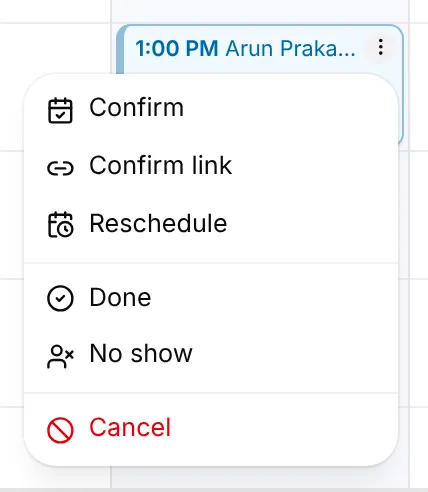
- Confirm: mark it confirmed when the customer said yes on the phone.
- Confirm link: copy a new confirmation link. The old link stops working.
- Reschedule: pick a New start and length, and add a Reason (optional). The time is checked against the assignee’s other appointments, and the reminders move with it.
- Done: record How did it go? with the Outcome, Notes, Next step and a Follow-up date. A follow-up date adds a task for the owner at 10:00 that day. You can also Book the next visit from here.
- No show: the customer wasn’t there.
- Cancel: cancels the appointment and its reminders.
Appointment statuses
Section titled “Appointment statuses”| Status | What it means |
|---|---|
| Tentative | Holding the slot. Shown with a dashed amber border. |
| Awaiting confirmation | Booked, waiting for the customer to confirm. |
| Confirmed | The customer said yes. |
| Completed | Marked Done. |
| No show | The customer wasn’t there. |
| Cancelled | Cancelled. Its reminders are cancelled too. |
Good to know
Section titled “Good to know”- Reminders go out to the customer before each appointment. When they go out is set per type in Appointment types.
- Is this date free? If your plan includes resource booking, a second tab lets you check whether equipment or a team is free for a date range and hold those dates for a customer. If you don’t see the tab, your plan doesn’t include it.
- Buttons depend on your role. Staff who can’t book don’t see Book appointment. See Roles and access.
What’s next?
Section titled “What’s next?”Related articles
Section titled “Related articles”Was this article helpful?
Thanks for letting us know.