

See your Setaflow plan, pay for it, check how much of it you use, and choose where Seta AI runs.
The Plan group in Settings has four tabs about your Setaflow subscription: Billing, Usage, Plan payments and AI providers & credits. This is about what you pay Setaflow. For how your customers pay you, see Collect payments.
On Settings › Billing you see:
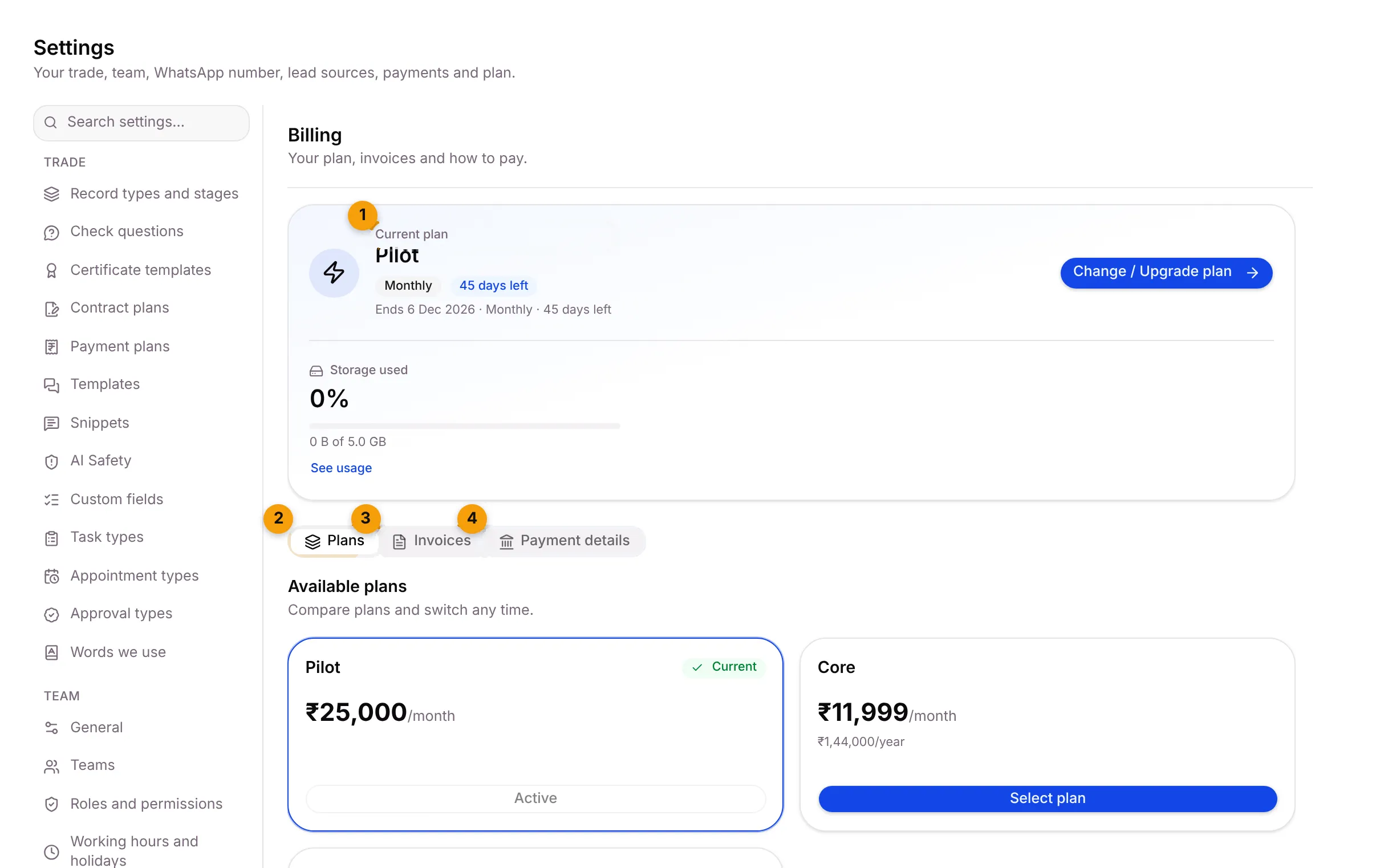
- Current plan: your plan, such as Pilot, the billing cycle, the end date and the days left, with Change / Upgrade plan. Below it, Storage used, with See usage.
- Plans: the plans you can switch to.
- Invoices: every payment, with its invoice.
- Payment details: Setaflow’s bank and UPI details.
Change your plan
Section titled “Change your plan”- Go to Settings › Billing. The Plans tab shows Available plans: “Compare plans and switch any time.”
- Your plan is marked Current. On another plan, click Select plan.
- For a plan priced on request, click Contact us. The button changes to Request sent and the Setaflow team gets in touch.
| Tab | What it shows |
|---|---|
| Plans | Every plan with its monthly and yearly price |
| Invoices | Every payment, with Invoice, Billing date, Status (Paid or Unpaid), Amount and Plan. Preview or download each invoice. |
| Payment details | Setaflow’s bank and UPI details, if you pay by bank transfer or UPI |
Auto-renewal
Section titled “Auto-renewal”If the Setaflow team has switched on recurring billing, an Auto-renewal (Razorpay) card appears: “Your plan renews on its own; add-on tiers are billed with it.”
- Choose the plan, the Billing cycle and, if you want one, an Add-on tier (optional).
- Click Subscribe with auto-renewal and pay in the Razorpay window.
Once it’s live, the card shows Next charge, Current period and Subscription. To stop it, choose Cancel at cycle end. Your plan runs to the end of the period you paid for.
Check your usage
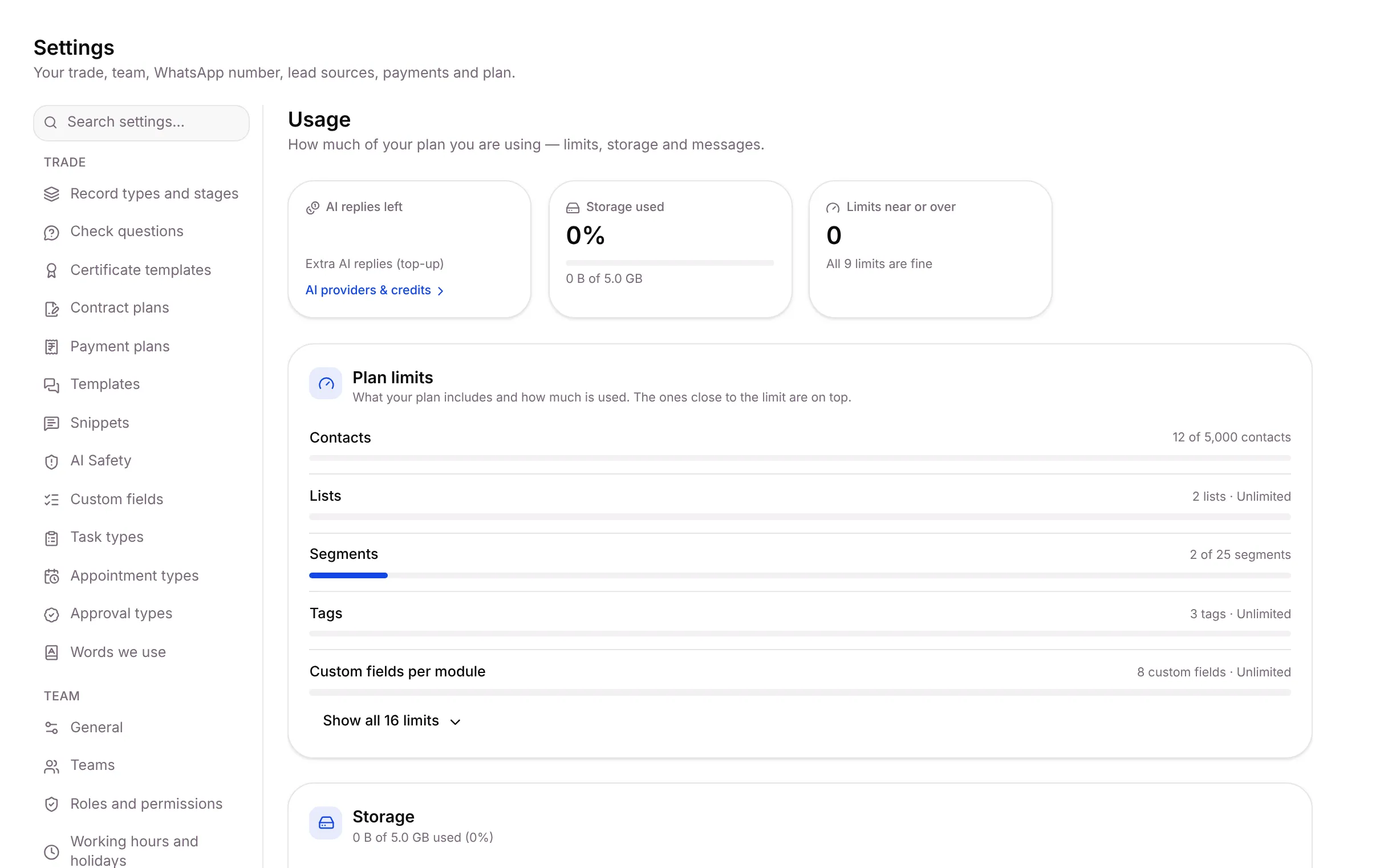
Section titled “Check your usage”Settings › Usage shows “How much of your plan you are using — limits, storage and messages.”
| Section | What it shows |
|---|---|
| Tiles at the top | AI replies left, Storage used and Limits near or over |
| Plan limits | Each limit and how much is used, such as 12 of 5,000 contacts. The ones close to the limit are on top. Click Show all to see every limit. |
| Storage | Space used by your data and files |
| Conversation analytics | Messages sent and received, by channel |
| WhatsApp usage | Messages Setaflow sent for you, by Meta’s category, and what Meta is likely to bill your WhatsApp account |
| WhatsApp messaging limit | Meta’s daily sending limit: Current tier, Used (24h) and Remaining |
A limit can show Fair use, Near limit, At limit or Over limit.
WhatsApp usage
Section titled “WhatsApp usage”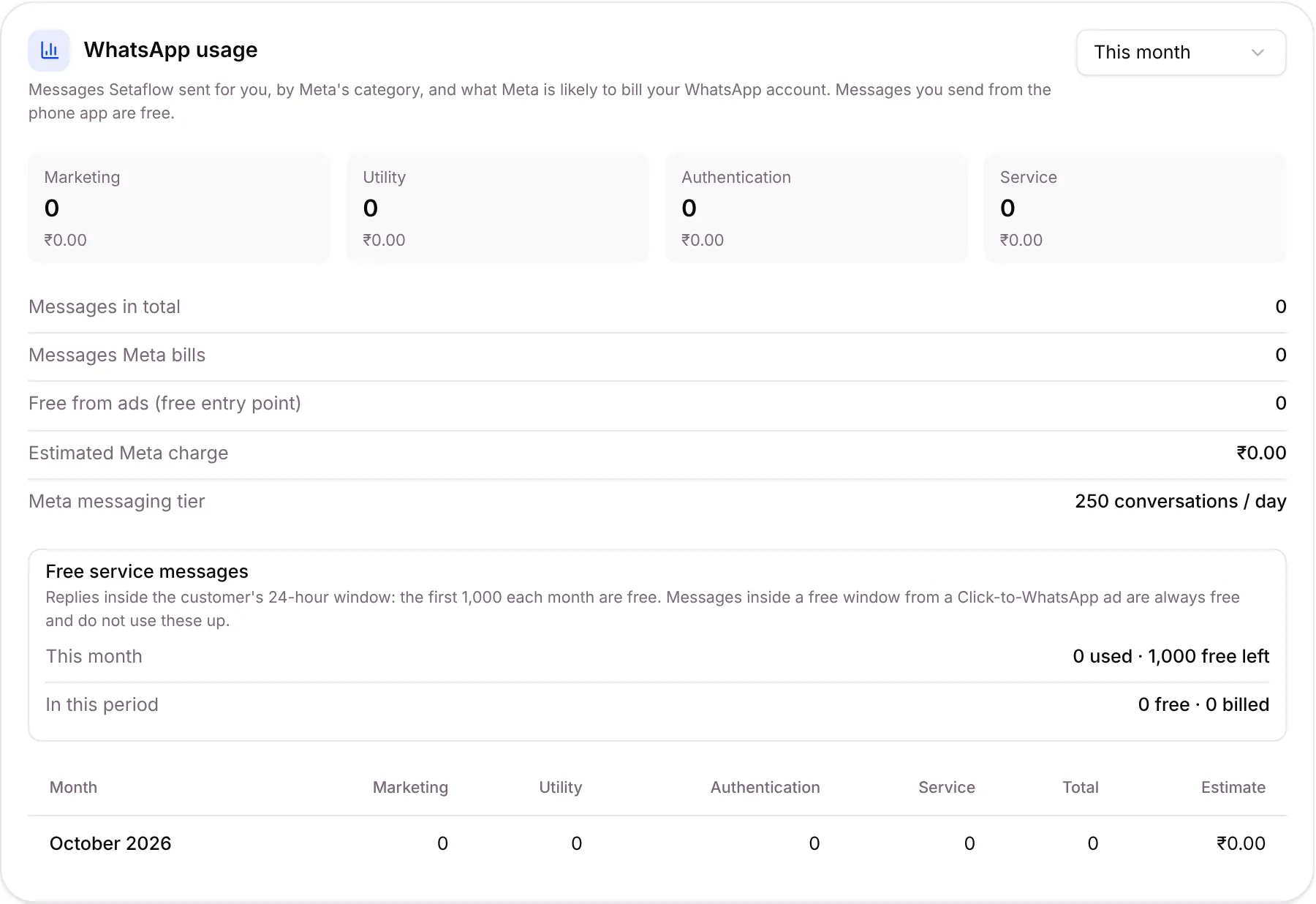
Pick This month, Last month or Last 3 months. You see messages in Marketing, Utility, Authentication and Service, plus Messages in total, Messages Meta bills, Free from ads (free entry point), Estimated Meta charge and your Meta messaging tier.
The WhatsApp cards appear only when your WhatsApp number is connected.
Pay for your plan
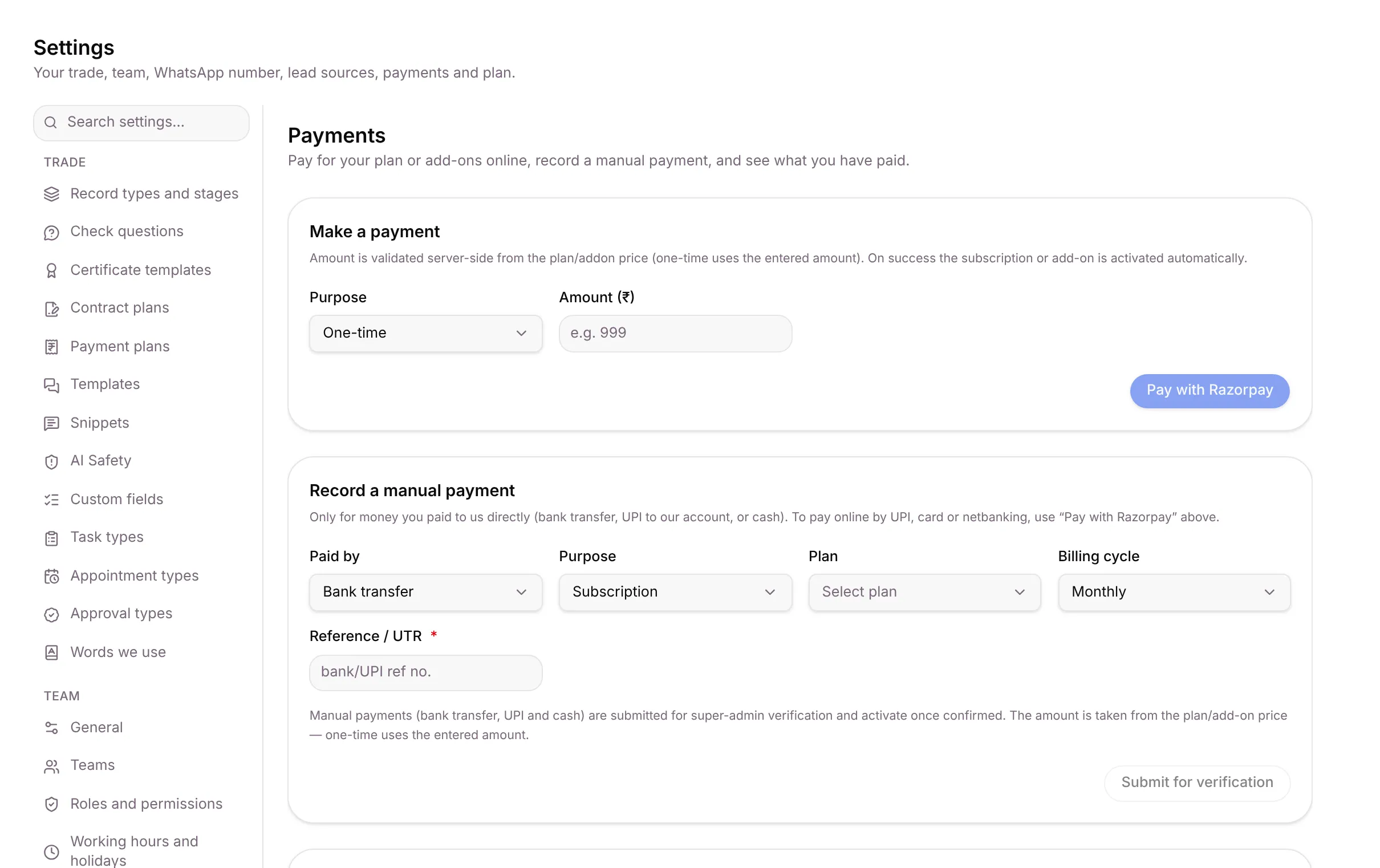
Section titled “Pay for your plan”Settings › Plan payments is where you “Pay for your plan or add-ons online, record a manual payment, and see what you have paid.”
Pay online
Section titled “Pay online”- Under Make a payment, choose the Purpose: One-time, Subscription or Add-on.
- Pick the plan or add-on and the Billing cycle. The amount comes from the price.
- Click Pay with Razorpay and pay by UPI, card or netbanking.
The plan or add-on is activated as soon as the payment goes through.
Record a payment you made by bank transfer, UPI or cash
Section titled “Record a payment you made by bank transfer, UPI or cash”- Under Record a manual payment, choose Paid by, the Purpose, the Plan and the Billing cycle.
- Type the Reference / UTR.
- Click Submit for verification.
The Setaflow team checks the payment and then activates it. Payment history shows each payment, with a status such as awaiting verification, being activated or rejected.
Choose where Seta AI runs
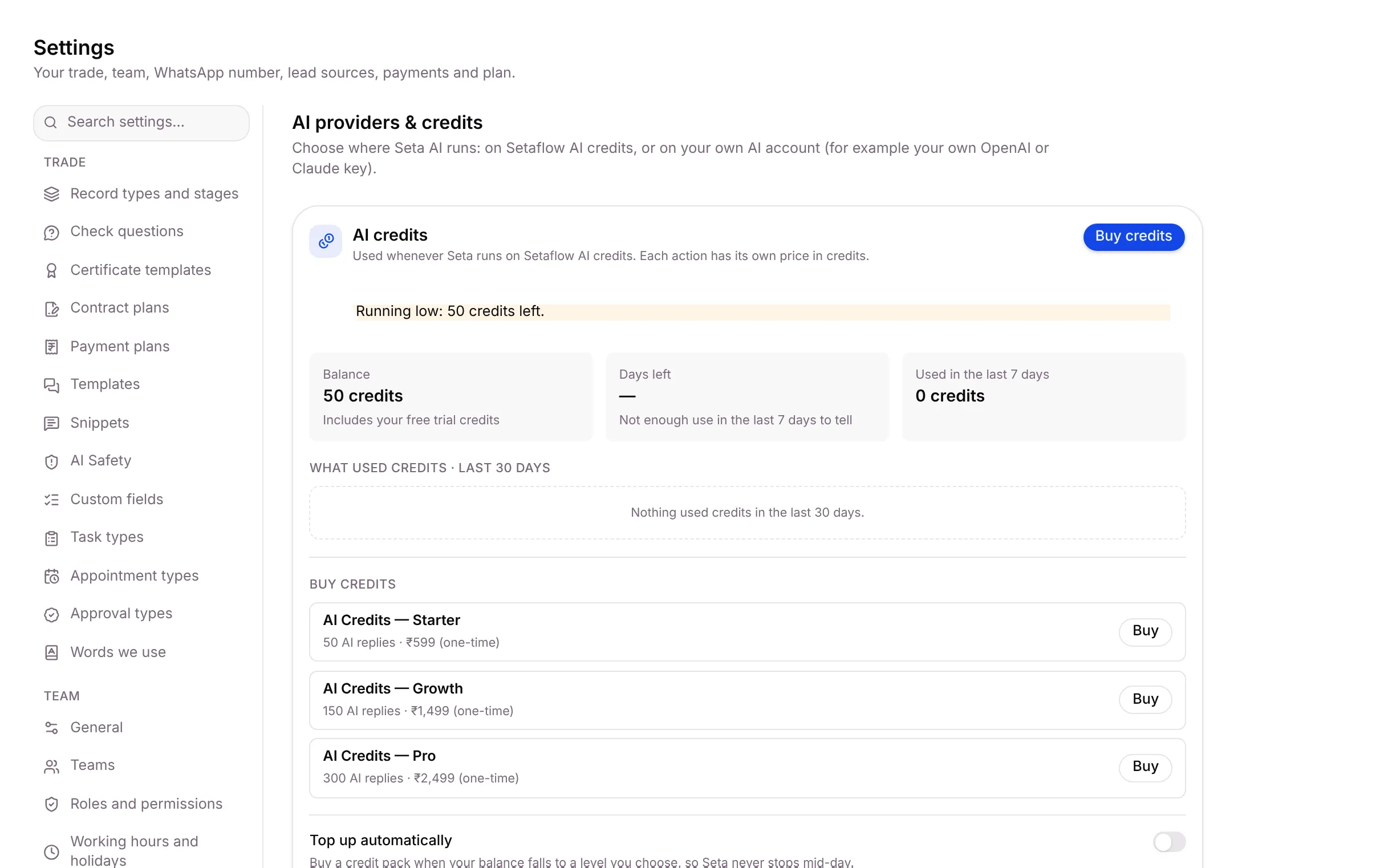
Section titled “Choose where Seta AI runs”Settings › AI providers & credits lets you “Choose where Seta AI runs: on Setaflow AI credits, or on your own AI account (for example your own OpenAI or Claude key).”
AI credits
Section titled “AI credits”The AI credits card shows your Balance, Days left, Used in the last 7 days and what used credits in the last 30 days.
- Under Buy credits, pick a pack, such as AI Credits — Starter, and click Buy.
- To never run out, set Top up automatically: choose the balance at which a pack is bought, and click Save top-up setting.
Use your own AI key
Section titled “Use your own AI key”Under Where Seta AI runs, each kind of AI work has its own setting: Chat (replies, suggestions, summaries and Seta on WhatsApp) and Embeddings (searching your knowledge base). For each, choose:
| Option | What it means |
|---|---|
| Setaflow AI credits | Nothing to set up. Each AI action uses credits from your balance. |
| Your own key | Uses your own AI account. No credits are used; your provider bills you. |
| Your own key, credits as backup | Uses your key first. If your provider is down or busy, Seta switches to credits so customers still get an answer. |
Click Test to check it works (tests are free), then Save. The Usage card shows what Seta AI did and what it used.
Good to know
Section titled “Good to know”- Who sees these tabs: Billing, Usage and Plan payments need billing access. AI providers & credits needs AI agent access. The Owner has both.
- Only the Owner can buy plans, add-ons and credit packs.
- When a screen says it isn’t included in your plan, click See plans to open Billing.
What’s next?
Section titled “What’s next?”Related articles
Section titled “Related articles”Was this article helpful?
Thanks for letting us know.