

Add team members who log in to Setaflow, and technicians who never log in and get their tasks on WhatsApp.
Settings › Teams is where you add the people who work in your business. There are two kinds:
- Team members log in to Setaflow with their email. Each one has a role (Admin or Staff) and takes a seat on your plan.
- No-login task collaborators are technicians and site people who never log in. They get task messages on WhatsApp and reply there. They don’t take a team seat.
Go to Settings › Teams. The top line counts your people by role, for example 1 owner · 1 admin · 1 staff.
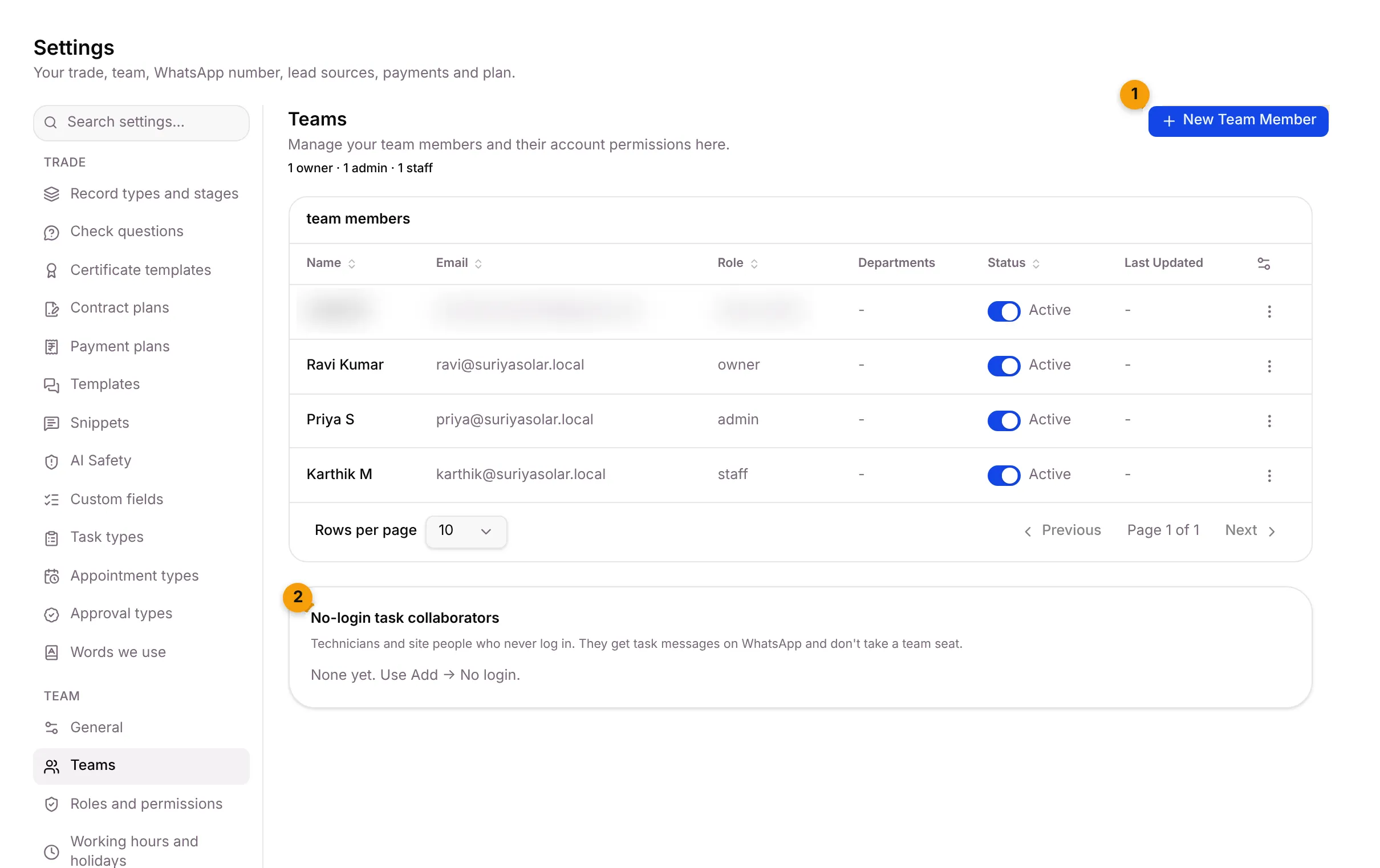
- New Team Member: add a person who logs in, or a technician with no login.
- No-login task collaborators: technicians who work on WhatsApp only.
The Team Members table
Section titled “The Team Members table”| Column | What it shows |
|---|---|
| Name | The member’s name |
| The email they log in with | |
| Role | Owner, Admin or Staff |
| Departments | The departments they belong to |
| Status | A switch: Active, or Deactive if they can no longer log in |
| Last Updated | When the member was last changed |
Use Filter by department to show one department only. The ⋮ menu at the end of a row has Edit and Delete member (not on your own row).
Add a team member who logs in
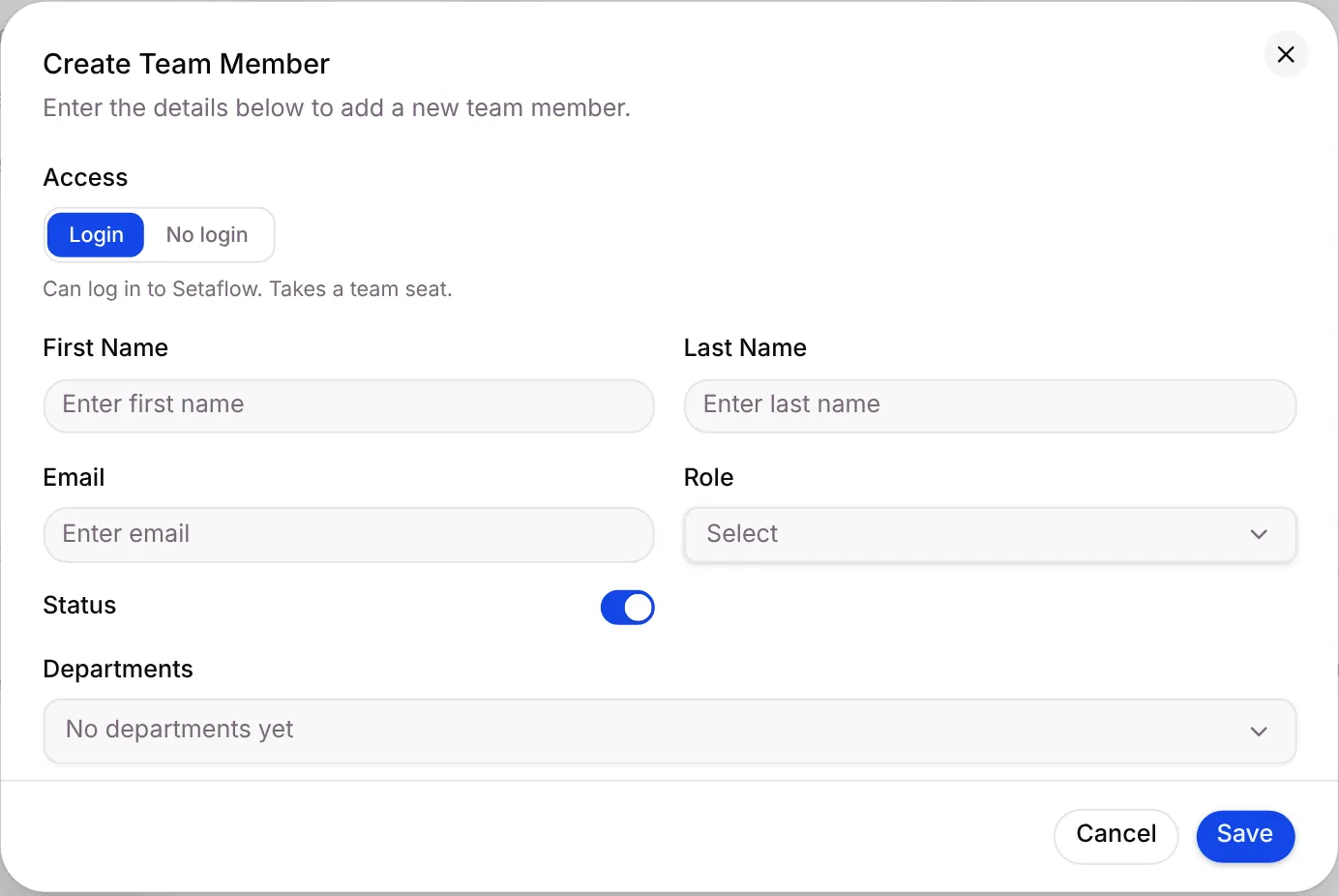
Section titled “Add a team member who logs in”- Click New Team Member. The Create Team Member dialog opens.
- Under Access, choose Login.
- Fill in First Name, Last Name and Email.
- Pick a Role, such as Admin or Staff, and the Status.
- Pick Departments if you use them. Add departments in Settings › Tags › Department.
- Click Save, or Cancel.
Add a technician with no login
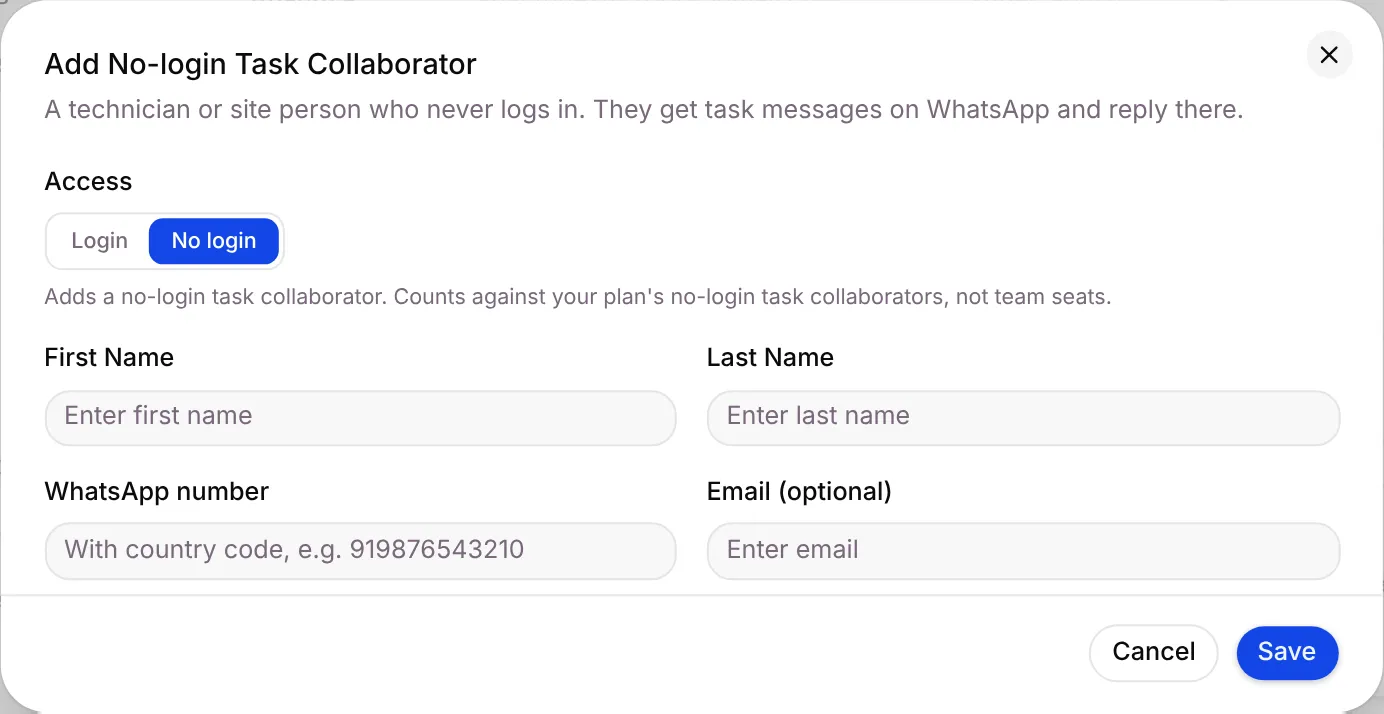
Section titled “Add a technician with no login”- Click New Team Member.
- Under Access, choose No login. It adds a no-login task collaborator, which counts against your plan’s no-login task collaborators, not team seats. The dialog becomes Add No-login Task Collaborator: A technician or site person who never logs in. They get task messages on WhatsApp and reply there.
- Fill in First Name and Last Name.
- Type the WhatsApp number with the country code, for example 919876543210.
- Add an Email (optional).
- Click Save, or Cancel.
They now appear under No-login task collaborators. If your plan has a limit, the card shows how many you’ve used.
To remove one, click remove on their row and confirm. They stop being a no-login task collaborator and can’t be given new tasks. The contact and its history are kept.
Deactivate a team member
Section titled “Deactivate a team member”- Turn off the Status switch on their row.
- If they still have open conversations, Setaflow asks you to Hand over open conversations:
- Give them all to one person: pick the team member who takes over.
- Department round-robin: share them out across the department.
- Confirm.
A deactivated member can’t log in. Their history stays.
Common errors
Section titled “Common errors”| Message | What to do |
|---|---|
| First name is required | Type a first name. |
| Email is required | A login member needs an email. |
| Enter the WhatsApp number with country code | Add the country code, for example 91. |
| Please select a role | Pick a role. |
| This number already belongs to a contact. | Use a different number, or check the existing contact. |
Where it shows up
Section titled “Where it shows up”- Team members can be assigned conversations, records and tasks.
- No-login collaborators can be picked as the assignee of a field job.
Good to know
Section titled “Good to know”- Roles decide what each team member can see and do. See Roles and permissions.
- Technicians have no login. They work on WhatsApp only.
What’s next?
Section titled “What’s next?”Related articles
Section titled “Related articles”Was this article helpful?
Thanks for letting us know.