

Add your trade's own fields to contacts, records, tickets and appointments, such as roof type or system size, and arrange how they show.
Every trade needs to note a few things Setaflow doesn’t ask for by default. A solar business needs the roof type and the system size kW. Custom fields add these to your contacts, records, tickets or appointments.
Go to Settings › Custom fields.
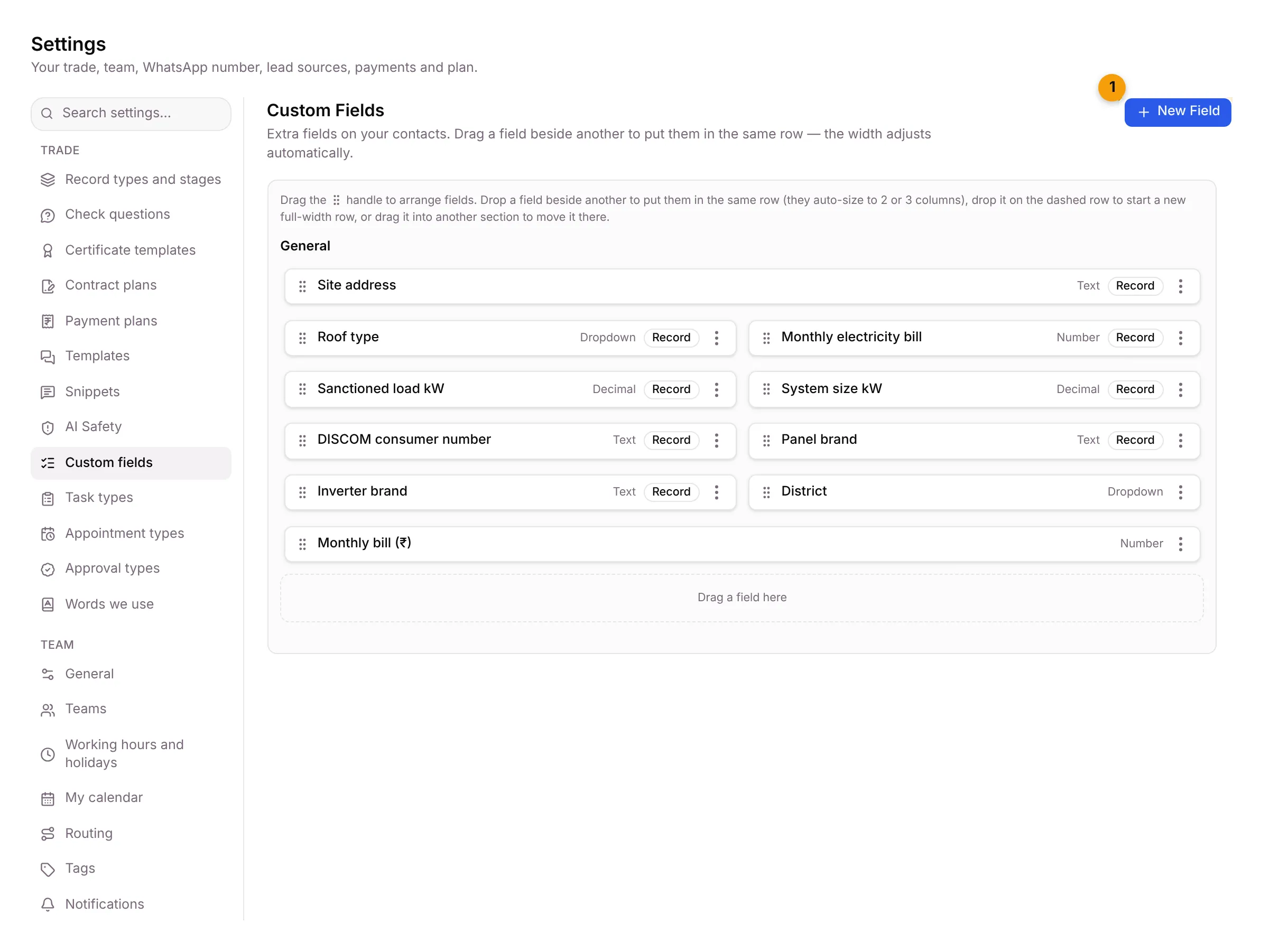
- New Field: add a field.
Below it is the field layout. Each field shows its name, its type (such as Text, Dropdown or Decimal) and, for fields that describe a record, a Record tag. Drag the handle on the left of a field to move it. Drop a field beside another to put them in the same row; the width adjusts automatically. The ⋮ menu on each field lets you edit it, delete it, set who can see it, or mark it active or inactive.
Add a custom field
Section titled “Add a custom field”- Click New Field. The Create Custom Field dialog opens.
- Under This field describes, choose:
- A contact: shows on the client card. It describes the person.
- A record: pick the Record type, or leave Every record type.
- A ticket.
- An appointment: asked in “How did it go?” when a visit is marked done.
- Type the Field Name, for example Roof type.
- Pick the Field Type: Text, Email, Phone, URL, Number, Decimal, Date, Checkbox, Dropdown, Multi-Select, Radio, or Separator (section divider).
- For a Dropdown, Multi-Select or Radio, add the choices under Field Options.
- If you want, pick a Section, add Help Text and a Default Value, and choose an Input Format such as Numbers only.
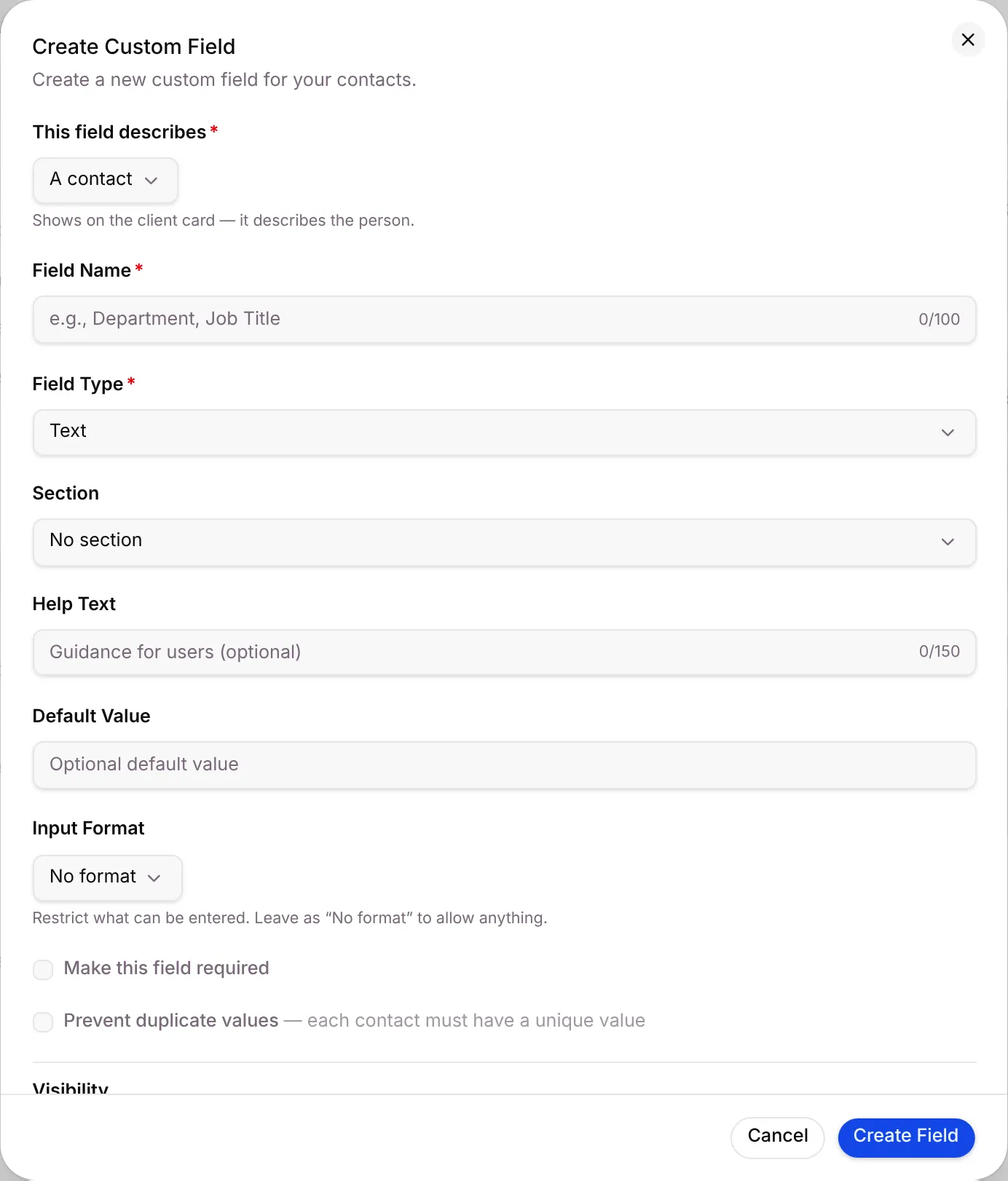
- Scroll down and tick what you need:
- Make this field required.
- Prevent duplicate values: each contact must have a unique value.
- Allow filtering: use this field to filter the list.
- Show on the create form: asked when adding a new enquiry.
- Show on the client card (or on the record, appointment or ticket).
- Show as a list column: a sortable column in list views.
- Let Seta AI read this field: off by default. Tick it only for fields the AI needs to answer with.
- Active: turn off to hide the field from forms.
- Under Field access by role, choose Read & Write, Read Only or Hidden for each role.
- Click Create Field, or Cancel.
Change or hide a field
Section titled “Change or hide a field”- Change: open the field’s ⋮ menu and edit it. Click Update Field to save.
- Hide without deleting: mark it inactive from the ⋮ menu. Its values are kept.
- Delete: choose delete from the ⋮ menu and confirm.
Where it shows up
Section titled “Where it shows up”- Contact fields show on the client card in Contacts.
- Record fields show on Records.
- Appointment fields are asked when a visit is marked done in the Calendar.
- Certificate templates can print a record field on the certificate, such as System size kW.
Good to know
Section titled “Good to know”- Owners and Admins can open this tab. Staff can’t.
- Your starter pack adds your trade’s fields, such as Site address, Roof type and Monthly electricity bill for solar.
- Sections group fields under a heading. Choose + New section… in the Section list to add one.
What’s next?
Section titled “What’s next?”Related articles
Section titled “Related articles”Was this article helpful?
Thanks for letting us know.