

See the roles in your business, and decide exactly what each role can see and change.
Roles and permissions decides what each role can see and change in Setaflow. A person’s role decides which screens appear in their sidebar and which buttons they can use. To add people, see Team and technicians.
Go to Settings › Roles and permissions. The page is titled Roles & permissions: Manage roles and what each one can access.
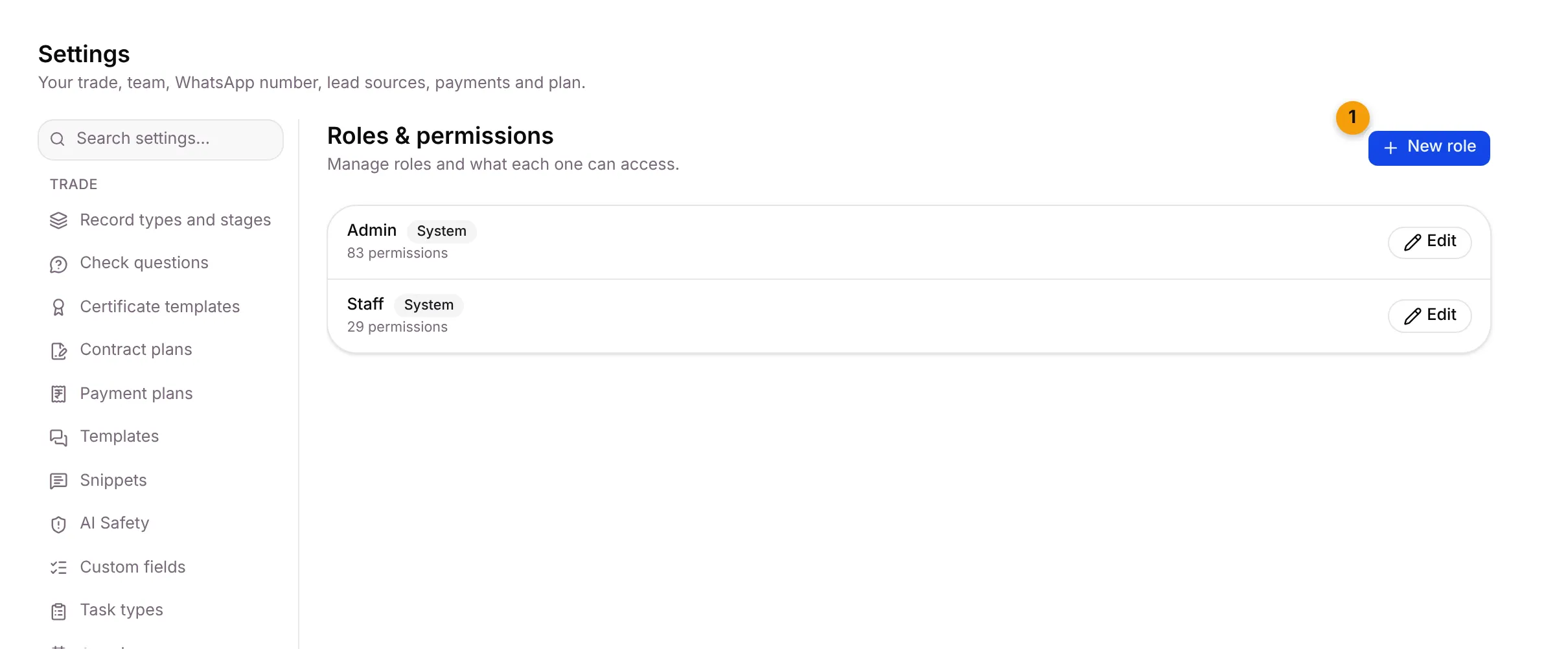
- New role: create a custom role.
Each role shows how many permissions it has, an Edit button, and a badge:
| Badge | Meaning |
|---|---|
| System | A built-in role, such as Admin or Staff. You can change what it can do, but not its name. |
| Custom | A role you created. |
The Owner always has full access, so there is nothing to tick for it.
The default roles
Section titled “The default roles”| Role | Who it’s for |
|---|---|
| Super Admin | The Setaflow team. Full access. |
| Owner | The business owner. Full access, including team, roles, billing and audit log. |
| Admin | A manager who runs the day. Sees the Trade settings and can confirm payments. |
| Staff | Your office team. Works on enquiries, chats and tasks. |
Technicians have no role and no login. They work on WhatsApp only.
Change what a role can do
Section titled “Change what a role can do”- Click Edit next to the role, for example Staff.
- Under Role details, check the Role name and Description. System role names can’t be changed.
- In the table, tick what this role can do for each row under Particulars. The actions are View, View all, Create, Edit, Assign and Delete. Tick Full to tick every action of a row.
- Rows are grouped: Overview, Engagement, Contacts, Work, Commerce, Marketing, System and Other.
- Click Save, or Cancel. Leaving with unsaved changes asks Discard changes? first.
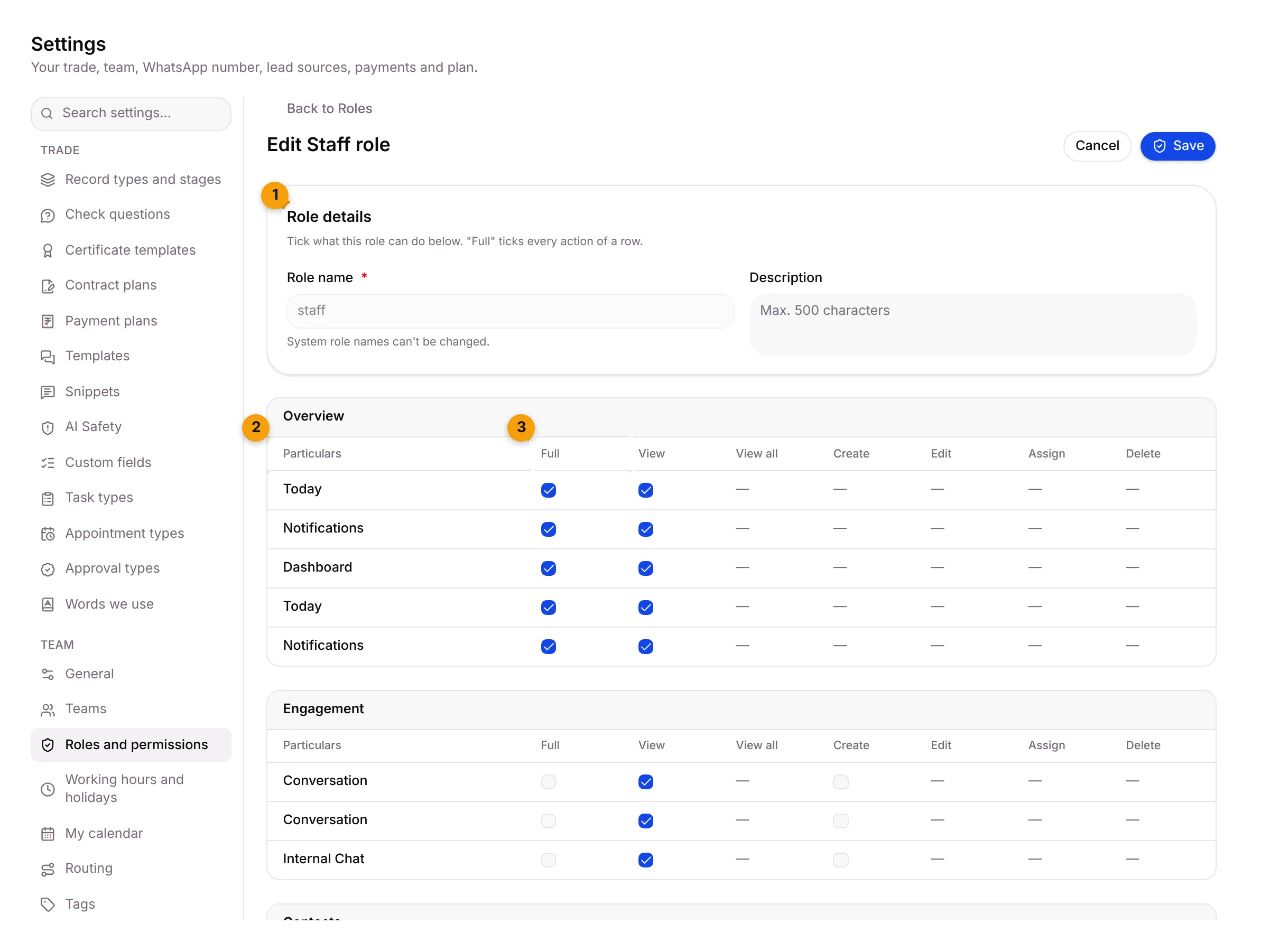
- Role details: the name and description.
- Particulars: each screen or feature, one row each.
- Full: ticks every action of the row.
Create a custom role
Section titled “Create a custom role”- Click New role.
- Type a Role name, for example Account Manager, and a Description (up to 500 characters).
- Tick what the role can do.
- Click Save.
To delete a custom role, click the bin next to it and confirm Delete role?. Built-in roles can’t be deleted.
Good to know
Section titled “Good to know”- Only the Owner (and the Setaflow team) can open this tab.
- Some rows are special, such as Settings: AI Safety, Settings: AI Agent and Agent approvals. They control those settings tabs.
- Only the Owner and Admin roles confirm payments. See Collect payments.
What’s next?
Section titled “What’s next?”Related articles
Section titled “Related articles”Was this article helpful?
Thanks for letting us know.