

Every enquiry from Meta ads, WhatsApp, IndiaMART, Justdial and your website in one list, with where it came from, its check result and how fast your team replied.
Lead sources lists every lead that came in, wherever it came from. For each one you see the source and campaign, whether it passed the three-question WhatsApp check, how long it has waited for a reply, and whether it became an enquiry.
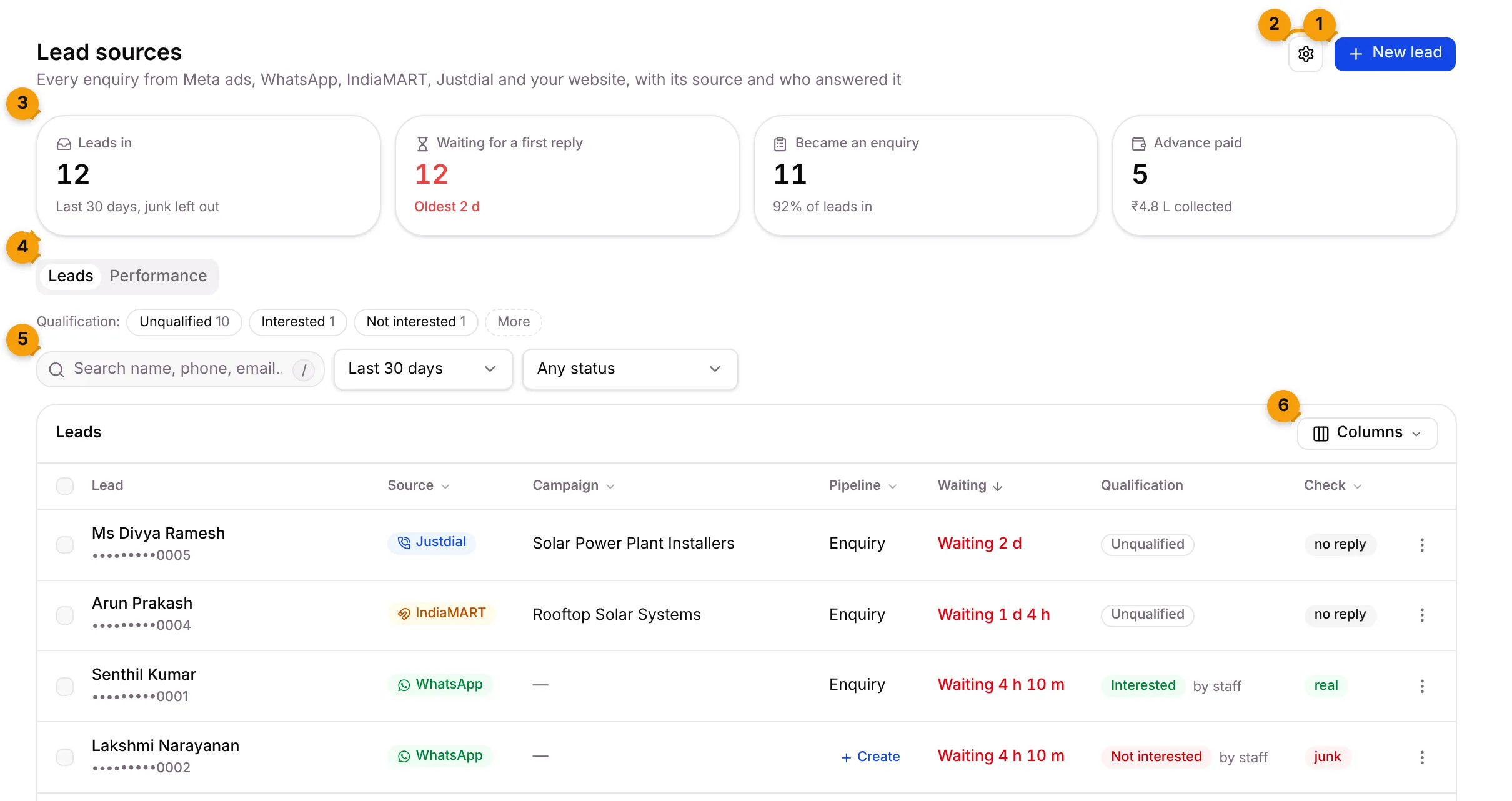
- New lead: add one lead by hand, or upload a sheet from a stall or agency.
- Lead settings (gear): alert time, pipeline rules and the Monday review.
- Stat tiles: leads in, leads waiting for a first reply, how many became an enquiry, and how many paid an advance.
- Tabs: Leads is the list; Performance shows rates and charts.
- Search: find a lead by name, phone or email. Next to it, pick the Period and the Status.
- Columns: choose which columns you see.
The stat tiles
Section titled “The stat tiles”| Tile | What it counts |
|---|---|
| Leads in | Leads in the period, junk left out |
| Waiting for a first reply | Leads nobody has replied to yet, with how long the oldest has waited |
| Became an enquiry | Leads that became a record, and what share of all leads that is |
| Advance paid | Leads whose advance is in, and how much was collected |
What each column shows
Section titled “What each column shows”| Column | What it shows |
|---|---|
| Lead | Name and masked phone number. Click it to see everything captured for the lead. |
| Source | Where it came from, such as Justdial, IndiaMART, WhatsApp, Facebook, Website or Referral |
| Campaign | The ad, campaign or category it came through, for example Rooftop Solar Systems |
| Pipeline | The record type it went into, such as Enquiry. Create starts a record for a lead that has none. |
| Waiting | Waiting 4 h until someone replies, then Replied in…. Red means it’s past your alert time. |
| Qualification | Unqualified, Interested, Call back, Maybe, Not interested, Not suitable, Do not call or Unreachable. Click to change it. by staff means a person set it. |
| Check | The result of the three-question check |
| Owner | Who is responsible, or Unassigned |
| Status | Not linked, Linked to a contact, Converted · auto (by the check), Converted · by staff, or Junk |
Use Columns to show or hide Source, Campaign, Pipeline, Waiting, Qualification, Check, Owner and Status.
The Source, Campaign, Pipeline and Check headers have a small arrow. Click it to filter by that column.
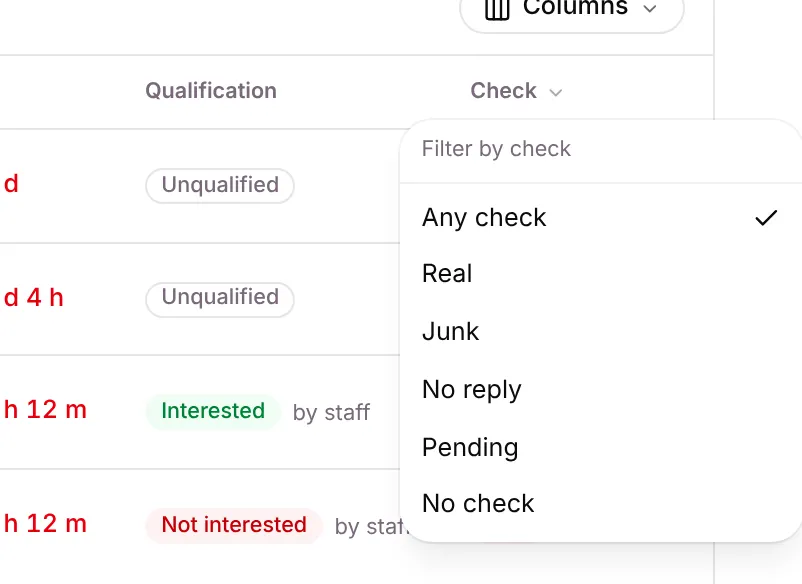
Check results
Section titled “Check results”When a real enquiry comes in, Setaflow asks the customer three short questions on WhatsApp, for example roof type, monthly bill and when they plan to install. The answers decide the check result.
| Result | What it means |
|---|---|
| pending | The questions are still going out, or the customer is still answering |
| real | The answers show a genuine buyer. By default the lead is converted to a contact and its record moves to your Checked stage. |
| junk | The answers rule it out, for example Just checking for when they plan to install |
| no reply | The customer didn’t answer in time (2 hours by default) |
The questions and the rules are set in Check questions.
Possible duplicate
Section titled “Possible duplicate”A lead shows a Possible duplicate badge when another lead has the same phone number, or two or more contacts share it. Setaflow treats +91 98765 43210, 09876543210 and 9876543210 as the same number. Hover over the badge to see why, and click Merge to combine the contacts.
Open a lead
Section titled “Open a lead”Click the lead’s name. You see its phone, email, campaign, city, pipeline, qualification and when it came in, plus the details the source sent, such as IndiaMART’s product and subject.
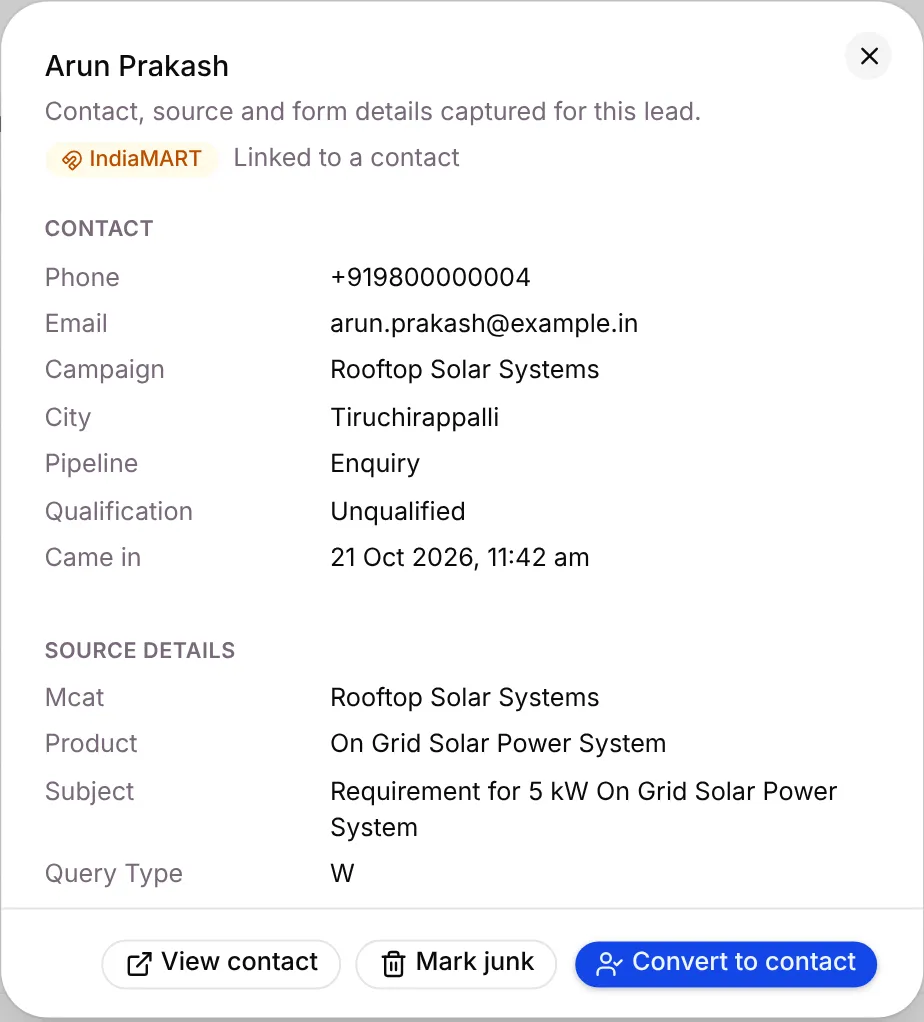
From here you can View contact, Mark junk or Convert to contact.
Act on one lead
Section titled “Act on one lead”Click ⋮ at the end of the row.
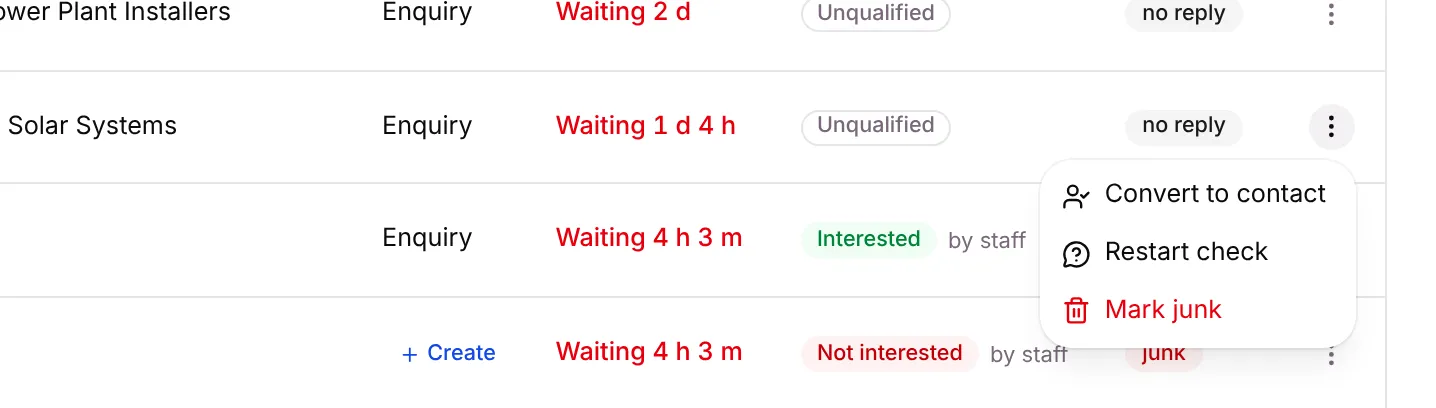
- Convert to contact saves the lead as a contact and can start its record.
- Restart check sends question 1 of the check again.
- Mark junk takes the lead out of the counts. You can Undo it straight away, or Restore it later from the same menu.
Convert a lead to a contact
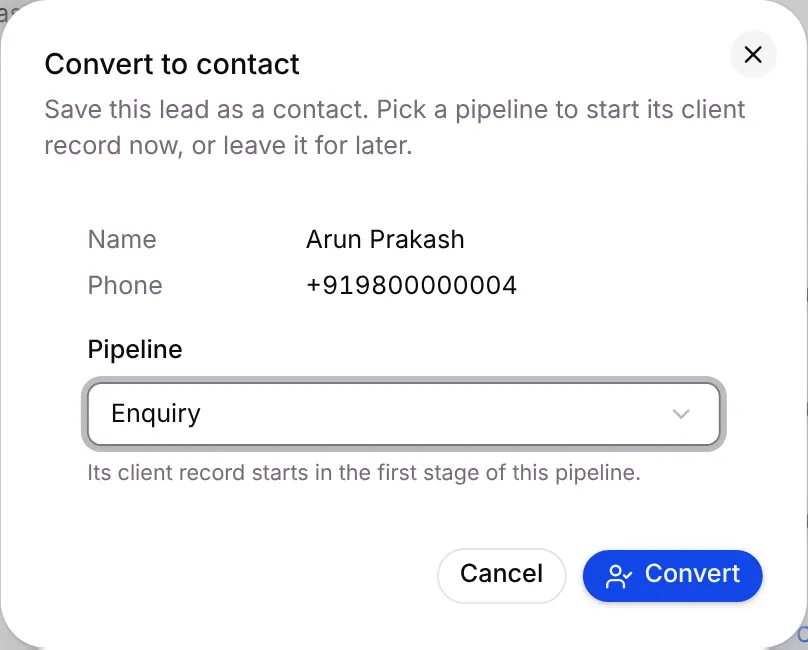
Section titled “Convert a lead to a contact”- Click ⋮ on the row and choose Convert to contact.
- Pick a Pipeline, for example Enquiry. Its record starts in the first stage. Choose No pipeline yet to start the record later.
- Click Convert.
Add a lead by hand
Section titled “Add a lead by hand”- Click New lead.
- On Single lead, fill in Name and Phone. Email and City are optional. Numbers without a country code get +91.
- Under Lead options, choose the Source (Manual, Referral, Walk-in or Other), an Event or agency name if any, what they’re Interested in (pipeline), and the Owner.
- Tick what should happen:
- Save to contacts saves the lead as a contact straight away.
- Create a record in the pipeline starts its record.
- Send to AI call queue queues an AI voice call.
- Click Save lead.
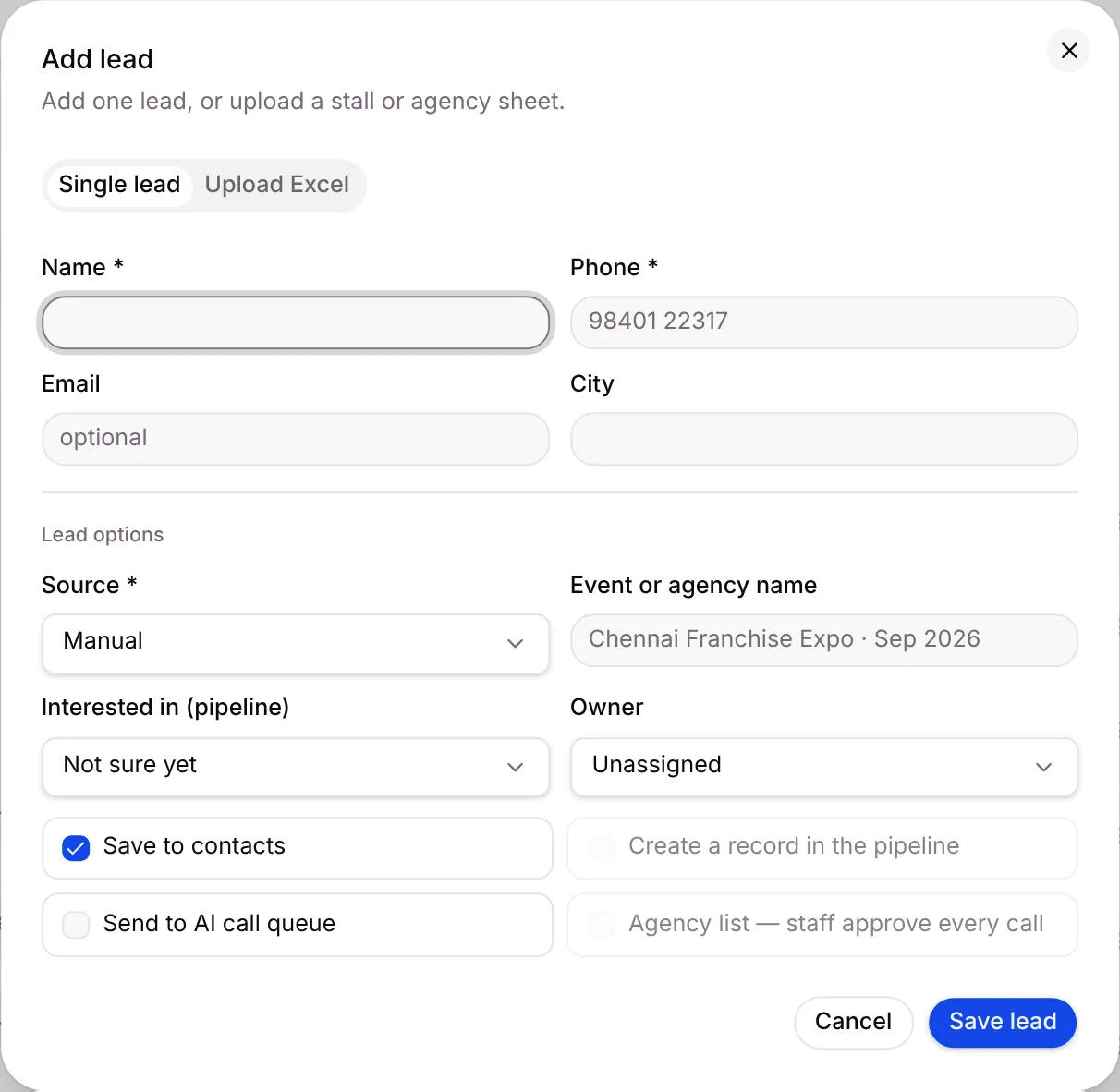
You’ll see Lead added, or Lead added and linked to an existing contact if the phone number is already in Setaflow.
Upload a stall or agency sheet
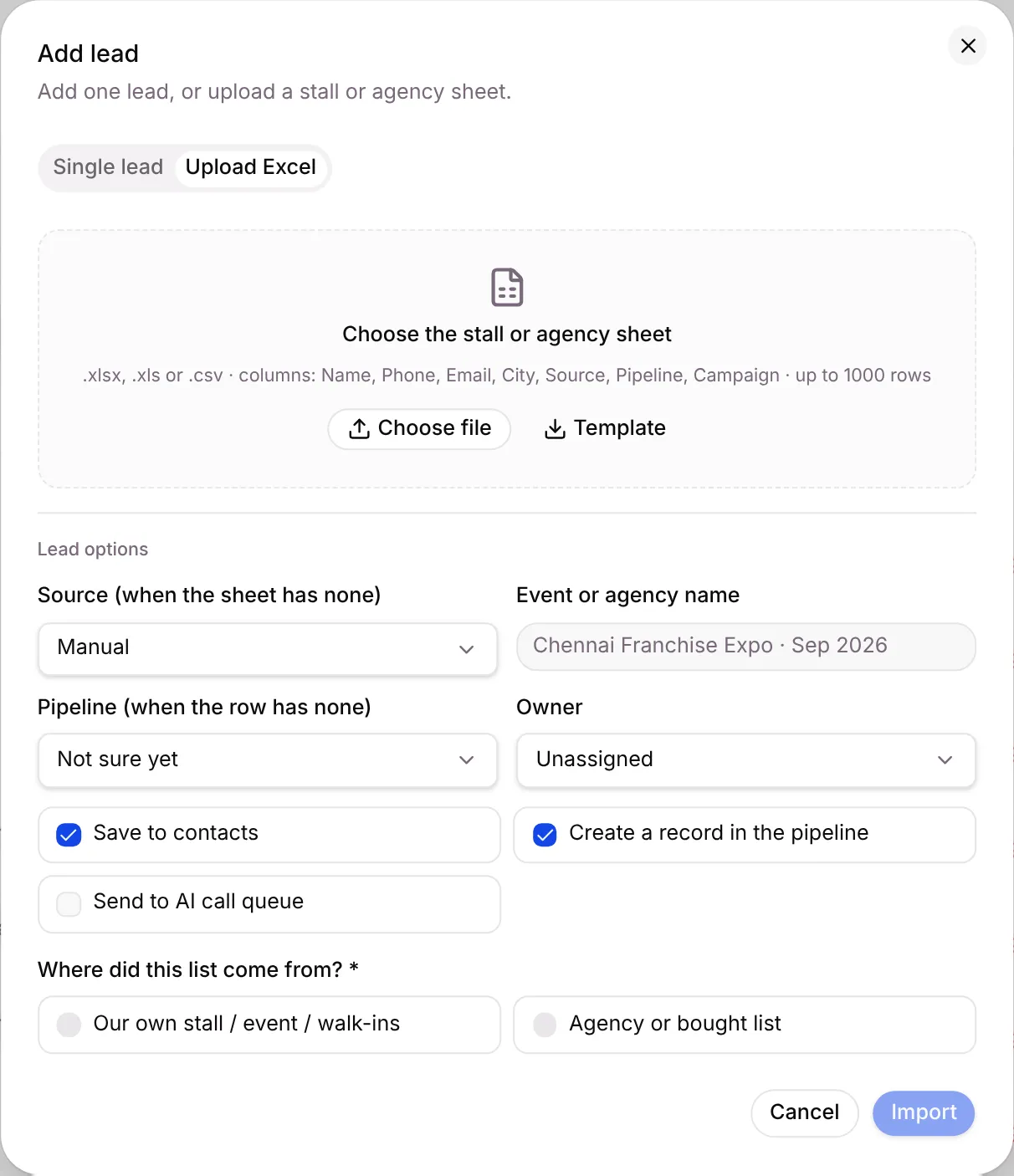
Section titled “Upload a stall or agency sheet”- Click New lead and open Upload Excel.
- Click Template for a sheet with the right columns, fill it in, then click Choose file. Use .xlsx, .xls or .csv, up to 1000 rows.
- Set the Lead options. They apply where the sheet leaves a cell empty.
- Answer Where did this list come from?: Our own stall / event / walk-ins or Agency or bought list.
- Click Import.
Send leads to the right pipeline
Section titled “Send leads to the right pipeline”Pipeline rules decide which pipeline an ad or form lead goes into.
-
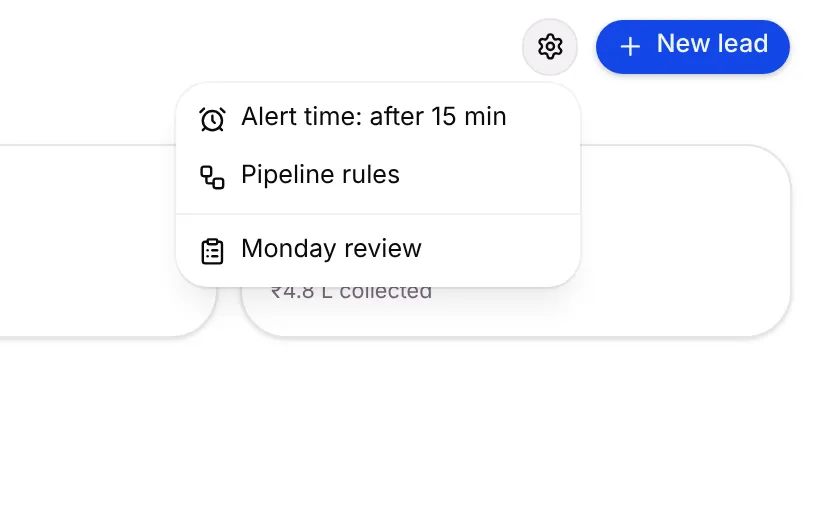
Click the gear and choose Pipeline rules.
-
Pick a Source, type a word under Campaign contains (for example Franchise), or both.
-
Pick the Pipeline.
-
Set the Priority. Lower numbers are checked first.
-
Click Add rule.
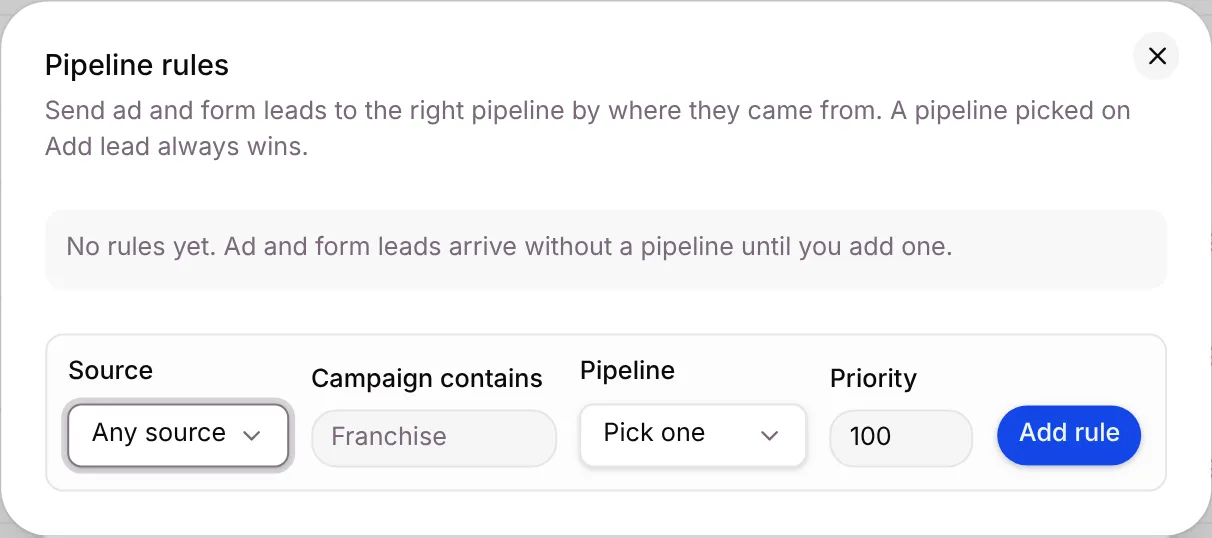
A pipeline picked on Add lead always wins over a rule.
Get alerted when a lead waits too long
Section titled “Get alerted when a lead waits too long”The gear menu shows your current alert time, for example Alert time: after 15 min. When a new lead waits longer than that for a reply from a person, Setaflow alerts its owner, then the admins. To change the time, see Lead sources settings.
The Performance tab
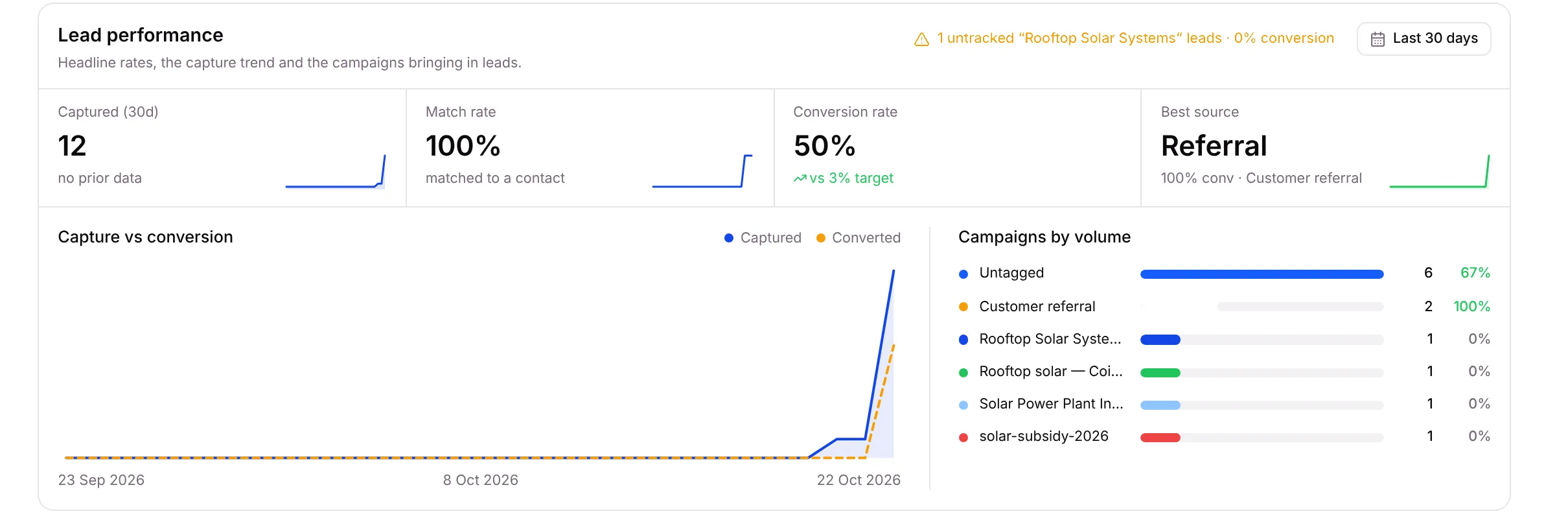
Section titled “The Performance tab”Performance shows how well leads turn into business: leads captured, how many matched a contact, the conversion rate, your best source, a capture-versus-conversion chart and your campaigns by volume.
Good to know
Section titled “Good to know”- The same person never becomes two contacts. A new lead from a number you already have is linked to that contact.
- Period defaults to Last 30 days. Choose All time to see older leads.
- The qualification chips above the search box count leads by qualification. Click one to filter.
- Monday review in the gear menu opens the weekly report of who leaked.
What’s next?
Section titled “What’s next?”Related articles
Section titled “Related articles”Was this article helpful?
Thanks for letting us know.