

Everything about one enquiry or job on one page, from its stage and next step to the quote, advance, payment plan, AMC and history.
Click a record’s title on Records to open its page. The left side is the work: stage, money, AMC and activity. The right side holds the facts: summary, source and your record type’s own details.
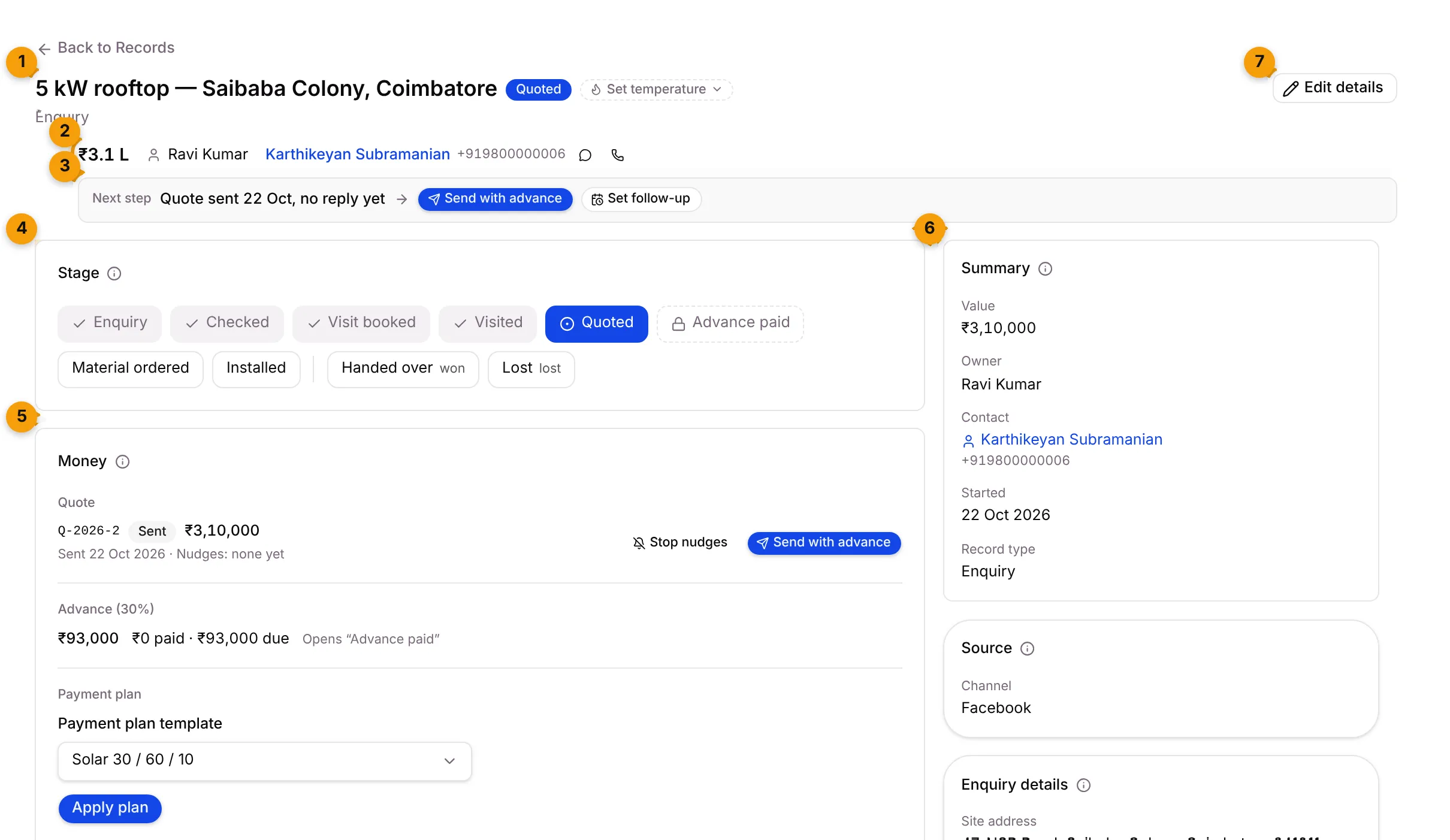
- Title and badges: the current stage, and the customer’s temperature (Set temperature to change it).
- Header facts: value, owner and contact. The chat icon opens the customer’s WhatsApp chat in the Inbox; the phone icon calls them.
- Next step: what this record needs now, with a button to do it.
- Stage: where the record is in your pipeline. Click a stage to move it there.
- Money: the quote and its nudges, the advance, the payment plan and what’s collected.
- Summary: value, owner, contact, start date and record type.
- Edit details: change the title, owner, value and other details.
The Next step line
Section titled “The Next step line”Setaflow checks these in order and shows the first one that applies. Nothing shows on a lost or cancelled record.
| You see | What it means | Buttons |
|---|---|---|
| Nobody owns this enquiry yet | No one is responsible | Assign owner |
| ₹x of dues overdue | A payment plan line is past its date | See dues |
| Enquiry won | The record reached a won stage | AMC and service |
| Advance paid, no payment plan yet | The advance is in but the rest isn’t planned | Apply plan |
| No quote yet | Nobody has quoted | Make a quote, Set follow-up |
| Quote Q-… is not sent yet | A draft quote is waiting | Send with advance |
| Quote sent 22 Oct, no reply yet | The customer has the quote | Send with advance, Set follow-up |
| Quote … rejected or expired | The quote is dead | Make a quote, Set follow-up |
| Quote accepted, advance of ₹x due | Waiting for the advance | Set follow-up |
| No next step set | Nobody has planned a follow-up | Set follow-up |
| Next follow-up and a day | All good. A follow-up is booked. |
The words in the line use your record type’s name, so a project business sees “Nobody owns this project yet”.
The Stage card
Section titled “The Stage card”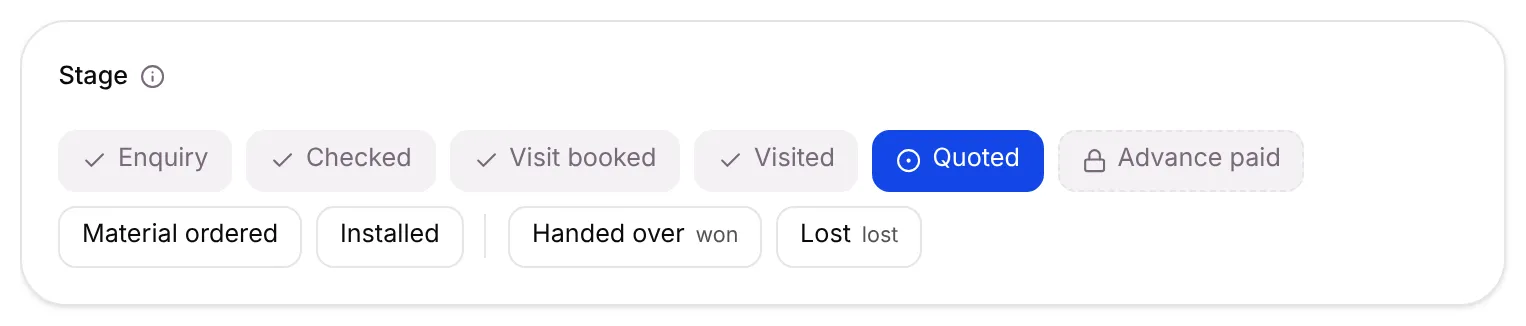
- Ticked stages are done.
- The filled stage is where the record is now.
- A lock with a dashed border means the stage opens only once the advance is confirmed. Hover over it to see how much, for example Locked until a 30% advance is confirmed.
- Won and lost stages sit apart at the end, tagged won or lost.
Click a stage to move the record. See Move a record.
The Money card
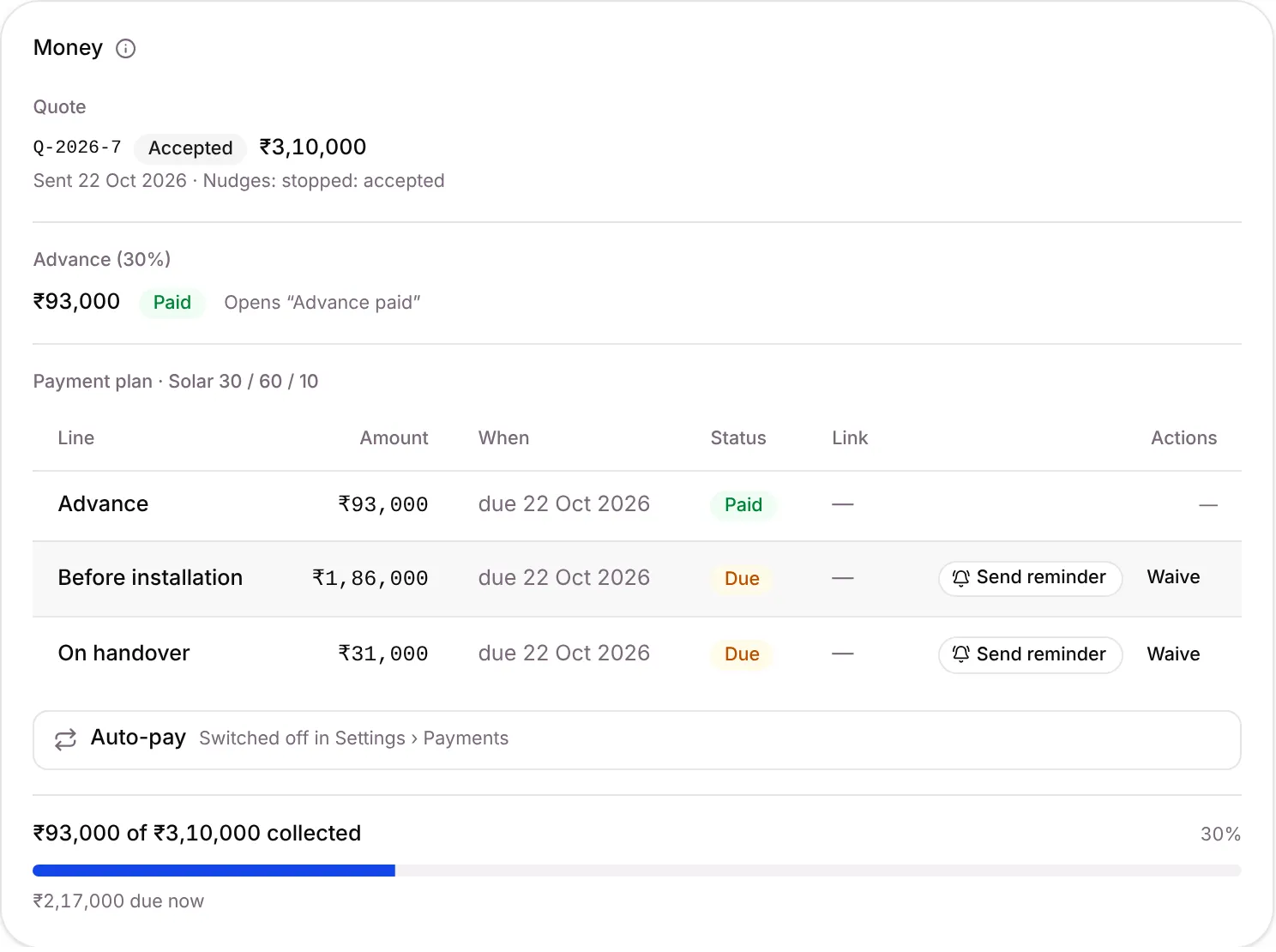
Section titled “The Money card”The Money card shows what the customer was quoted, what they owe and what they’ve paid.
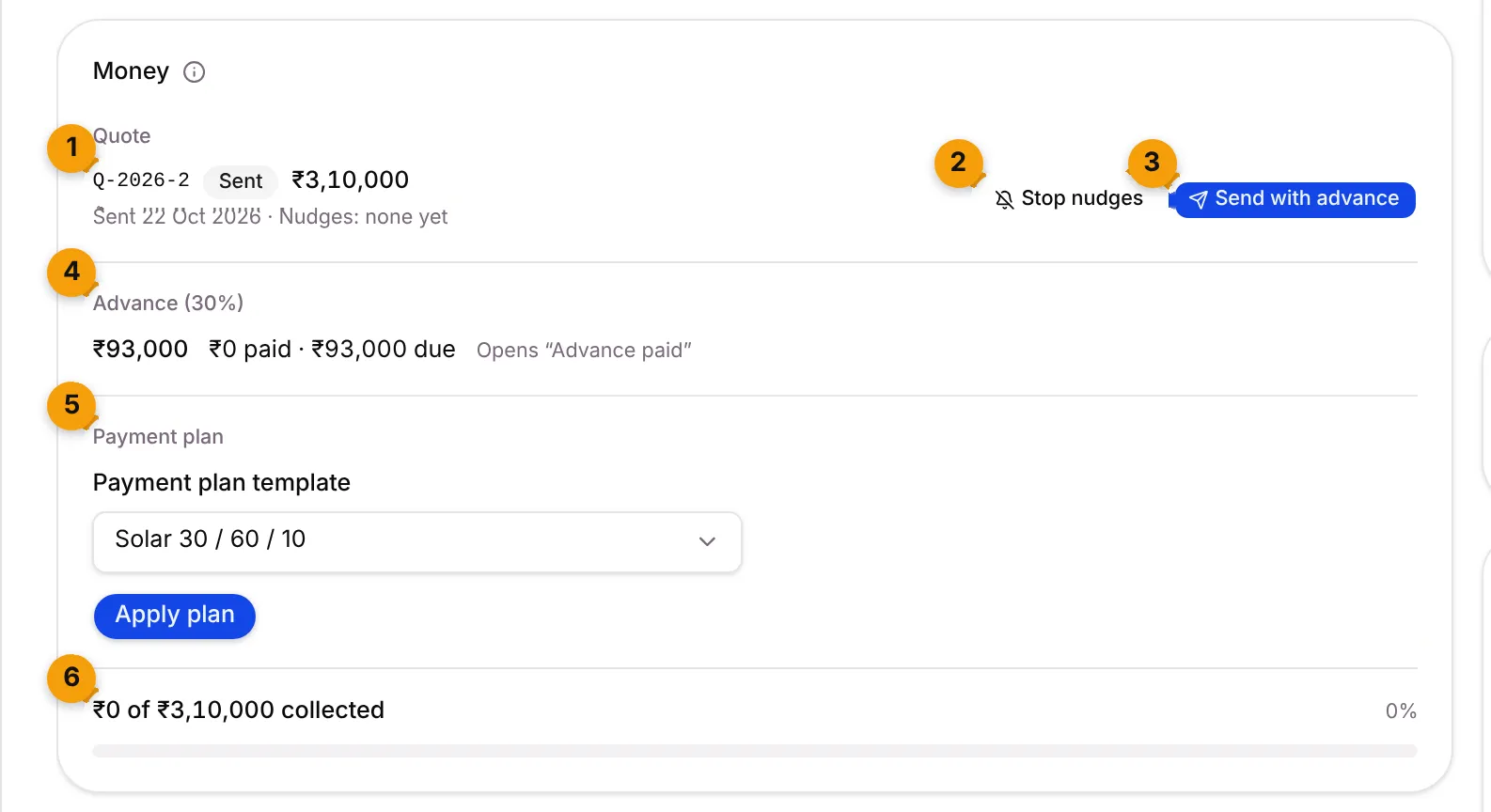
- Quote: quote number, status and total, when it was sent, and its nudges. Nudges: none yet means no reminder has gone yet; stopped: accepted means reminders ended because the customer accepted.
- Stop nudges: stops the automatic WhatsApp reminders for this quote.
- Send with advance: sends the quote and an advance request in one WhatsApp message.
- Advance: the amount needed (here 30%), what’s paid, and which stage it opens, such as Opens “Advance paid”.
- Payment plan: pick a Payment plan template and click Apply plan to split the rest of the money into lines.
- Collected: how much of the value has come in so far.
Quote nudges
Section titled “Quote nudges”After a quote is sent, Setaflow sends the customer a short WhatsApp reminder on day 2, 5 and 9. Nudges stop on their own when the customer replies, accepts or rejects, the quote expires, the advance is paid, or the record moves to a won or lost stage.
Send a quote with the advance
Section titled “Send a quote with the advance”- On the Money card, click Send with advance.
- Check the Advance percent. Setaflow shows the amount below, for example Advance: ₹93,000 of ₹3,10,000.
- Click Send with advance.
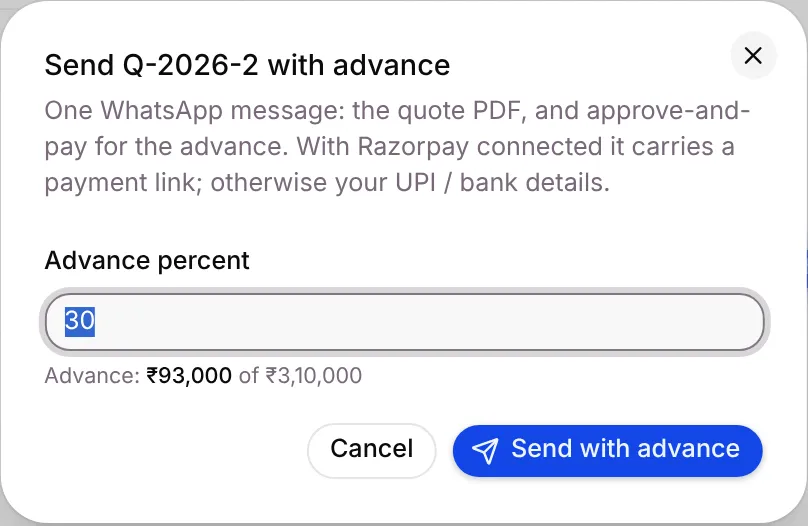
The customer gets one WhatsApp message with the quote PDF and a way to approve and pay. With Razorpay connected it carries a payment link; otherwise it carries your UPI or bank details.
The payment plan
Section titled “The payment plan”Once a plan is applied, the card lists every line with its Amount, When it’s due and its Status (Paid or Due). Click Send reminder to chase a line, or Waive to drop it.
See Payment plans and Invoices and dues.
The AMC and service card
Section titled “The AMC and service card”Once a record reaches a won stage, such as Handed over, the AMC contract and its visits show here. Before that, the right side says AMC and service shows here once this enquiry is won.
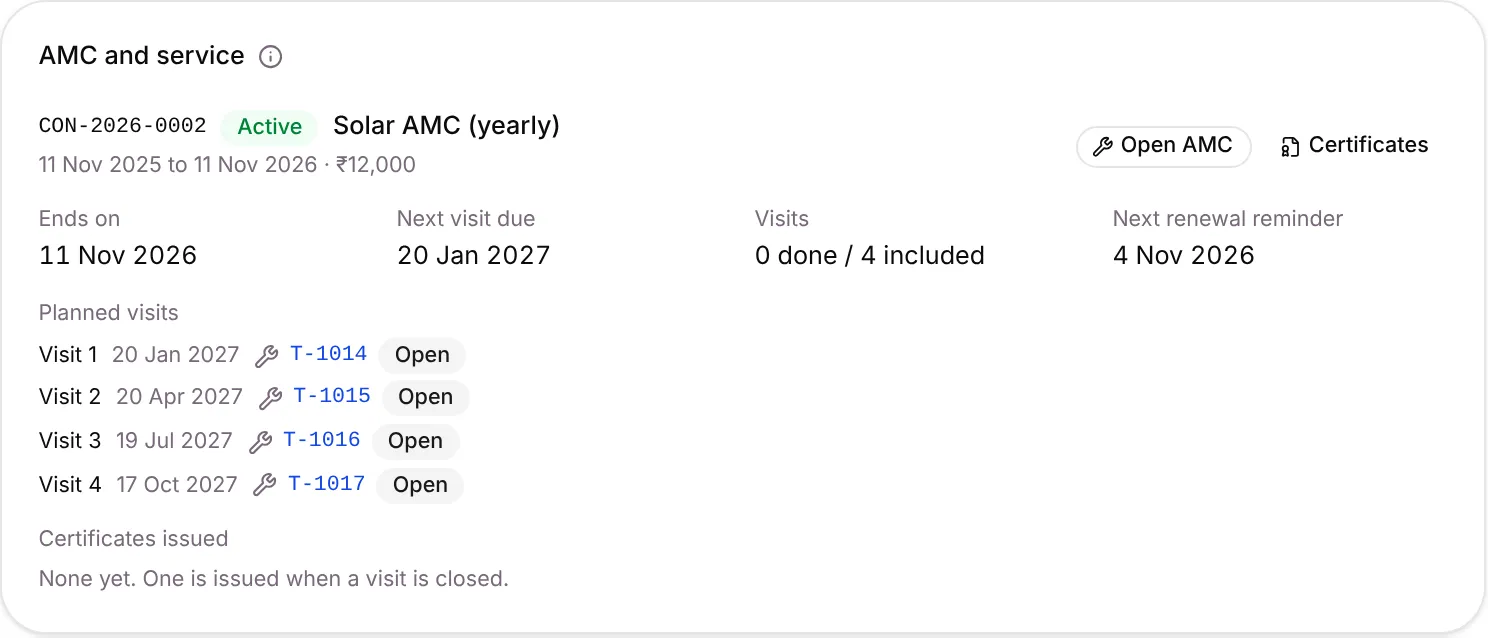
- The contract number, its status (such as Active), the plan, dates and price.
- Ends on, Next visit due, Visits (done out of included) and Next renewal reminder.
- Planned visits: each AMC visit, with its date and job number. Click the job number to open it.
- Certificates issued: None yet. One is issued when a visit is closed.
- Open AMC opens the contract; Certificates opens the certificates list.
See Contracts.
The Activity card
Section titled “The Activity card”The Activity card is the record’s history: every stage move and every decision your team logged.
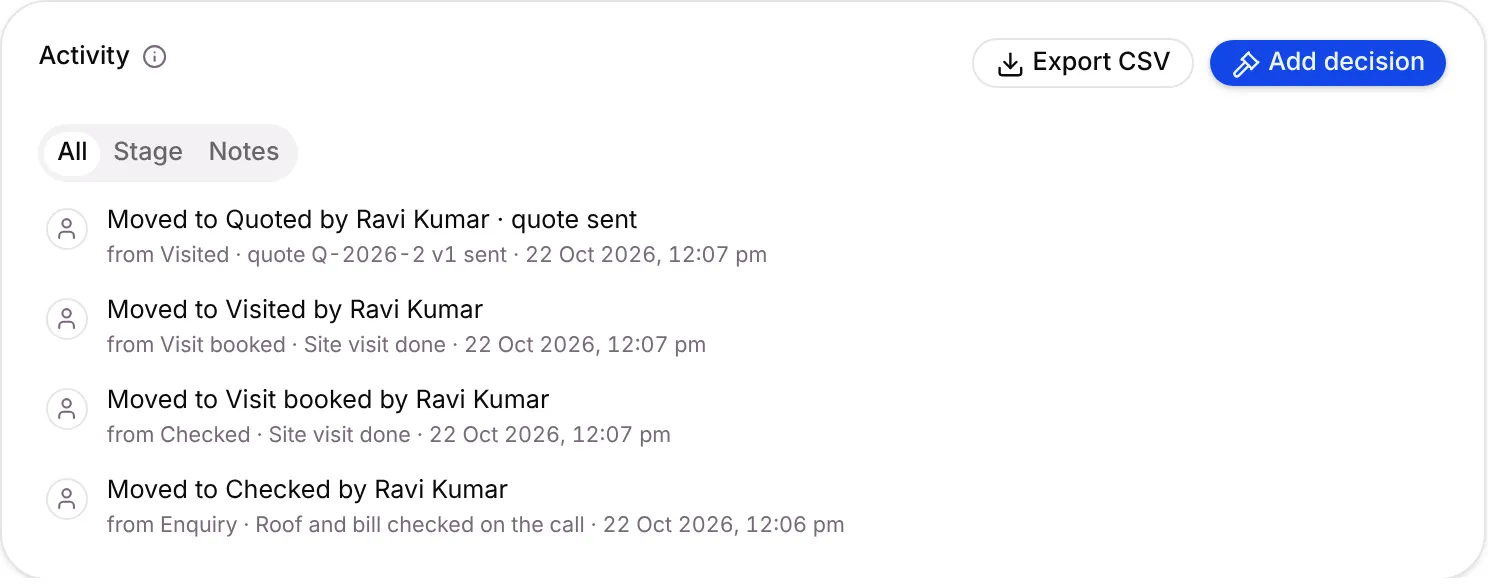
- All shows everything, newest first. Stage shows only the moves. Notes shows only notes and decisions.
- Each move says who moved it, from which stage, the reason, and when. Automatic moves say why, for example · quote sent.
- Add decision records what was decided and why. Decisions are never deleted or rewritten.
- Export CSV downloads the history.
Good to know
Section titled “Good to know”- The header shows Unassigned in red when nobody owns the record. Click Assign to pick someone.
- The right side also shows Source (channel, campaign, ad id) and your record type’s own details, such as Site address and Roof type. Only filled fields show.
- Records that sit under another record show the path above the title, and a parent shows a card for its child records.
What’s next?
Section titled “What’s next?”Related articles
Section titled “Related articles”Was this article helpful?
Thanks for letting us know.