

Where the money leaked this week, from enquiries to quotes, visits, renewals and dues, with a name and a date against each one.
The Monday review shows where money leaked this week: enquiries nobody answered, quotes with no decision, visits with no advance, renewals coming up and dues running late. Every problem gets a person’s name and a date. Open it from Review › Monday review in the sidebar. The Owner also gets it every Monday morning on WhatsApp, by email and in the app.
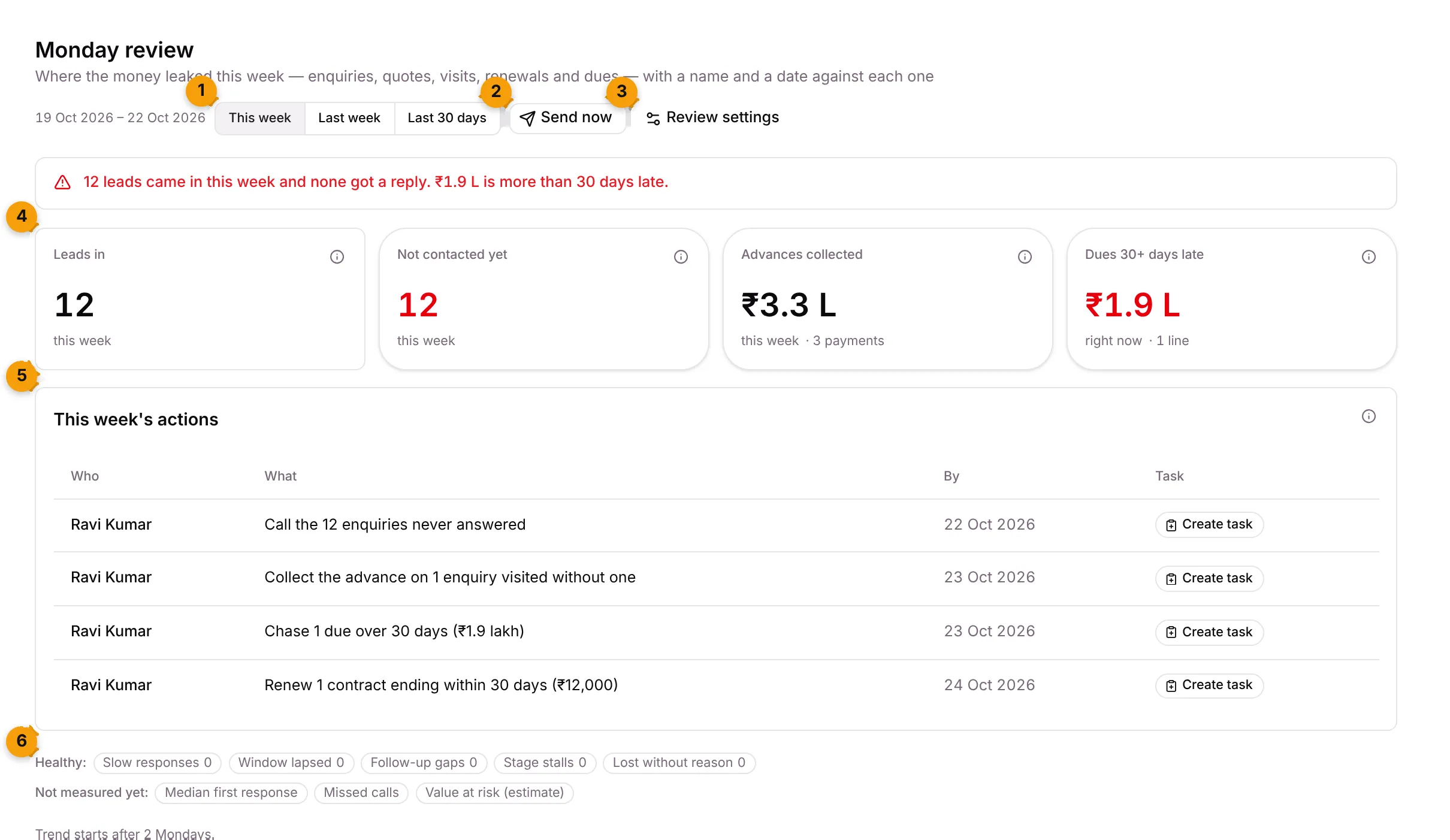
- Period: This week, Last week or Last 30 days.
- Send now: sends last week’s review to the Owner right away.
- Review settings: opens the Monday review settings.
- Headline tiles: Leads in, Not contacted yet, Advances collected and Dues 30+ days late, each compared with the period before.
- This week’s actions: one line per problem, with who owns it and by when.
- Healthy / Not measured yet: checks with nothing wrong, and checks that need more setup or history.
The verdict line
Section titled “The verdict line”Above the tiles, one sentence sums up the period, for example 12 leads came in this week and none got a reply. ₹1.9 L is more than 30 days late. It turns red when any lead is not contacted or any dues are more than 30 days late.
This week’s actions
Section titled “This week’s actions”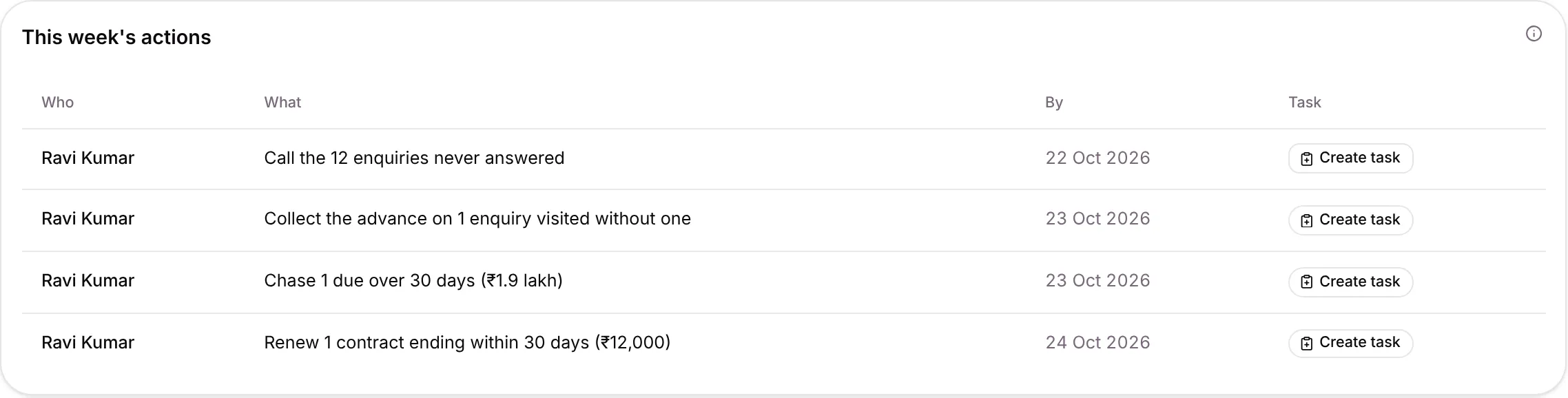
| Column | What it shows |
|---|---|
| Who | The person who owns the problem |
| What | The problem in plain words, such as Call the 12 enquiries never answered |
| By | The date to fix it by |
| Task | Create task, or the task code and status once created |
The lines you can see:
| Line | Due |
|---|---|
| Call the N enquiries never answered | Today |
| Chase N quotes open 7+ days | In 2 days |
| Collect the advance on N enquiries visited without one | In 1 day |
| Chase N dues over 30 days | In 1 day |
| Renew N contracts ending within 30 days | In 2 days |
When nothing needs chasing, you’ll see Nothing to chase this week.
Make an action a task
Section titled “Make an action a task”- Find the line in This week’s actions.
- Click Create task.
- The task is created for the person in Who, due at 6 pm on the By date, with high priority. The button changes to the task code, which opens the task.
Enquiry numbers
Section titled “Enquiry numbers”Below the actions, small tiles show how well enquiries were handled. A tile only appears when it has something to show; a zero folds into Healthy.
| Check | What it counts |
|---|---|
| Median first response | Typical time to the first reply, in working hours |
| Slow responses | Leads answered after your alert time |
| Window lapsed | WhatsApp’s 24-hour window closed with no reply |
| Missed calls | Calls not returned in time |
| Follow-up gaps | Open leads quiet for too many days |
| Stage stalls | Records in a stage longer than its Max days in this stage |
| Lost without reason | Records lost with no reason given |
| Value at risk (estimate) | Leaked leads times your average won value and win rate |
Click How this is counted on any tile to see the rule. Not measured yet tells you what to set up first. The trend chart starts after two Mondays.
By source and by team member
Section titled “By source and by team member”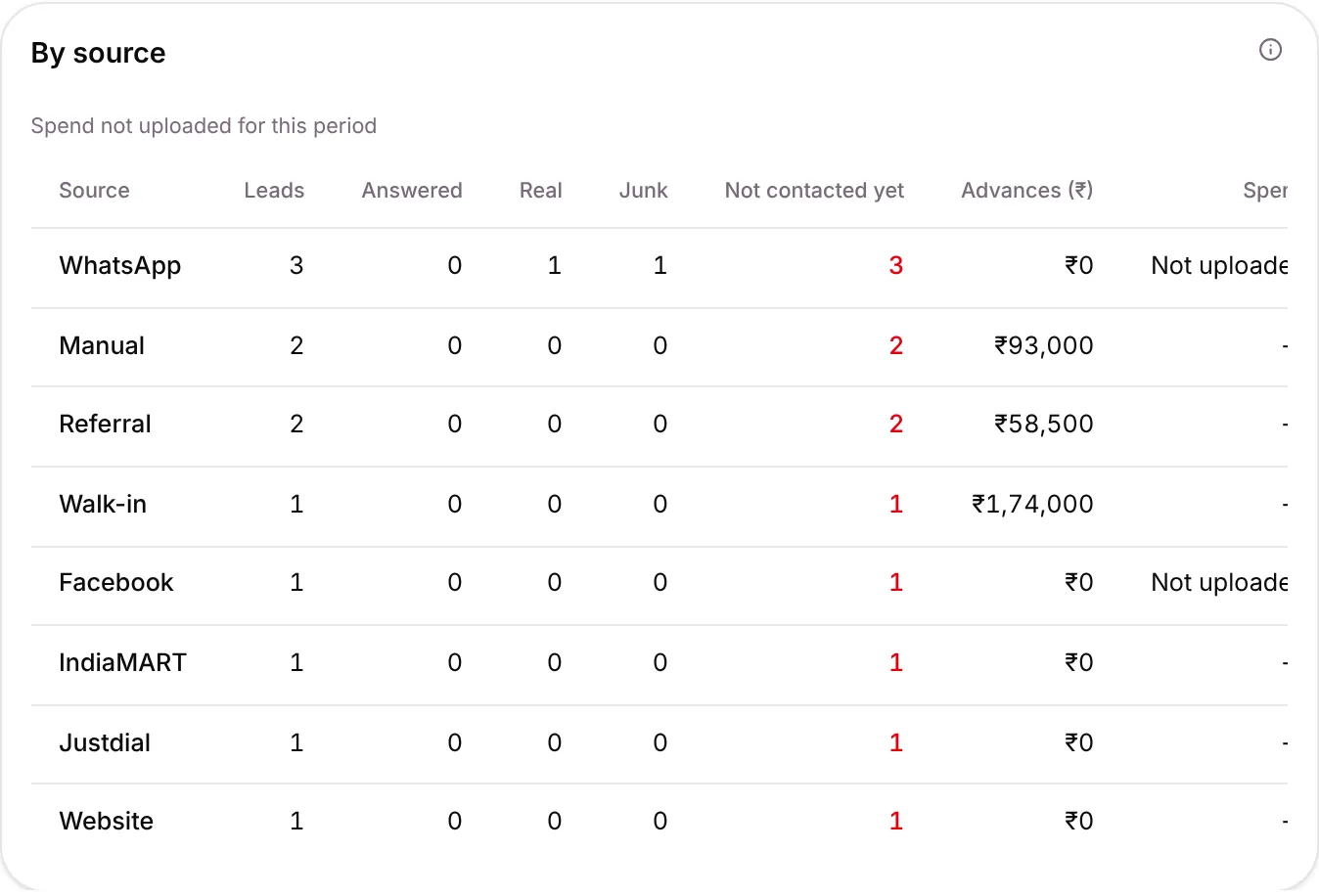
By source shows each lead source: Leads, Answered, Real, Junk, Not contacted yet and Advances (₹). If you upload ad spend, Spend, Cost per real lead and Advance per ₹1 fill in too. Scroll the table sideways to see them.
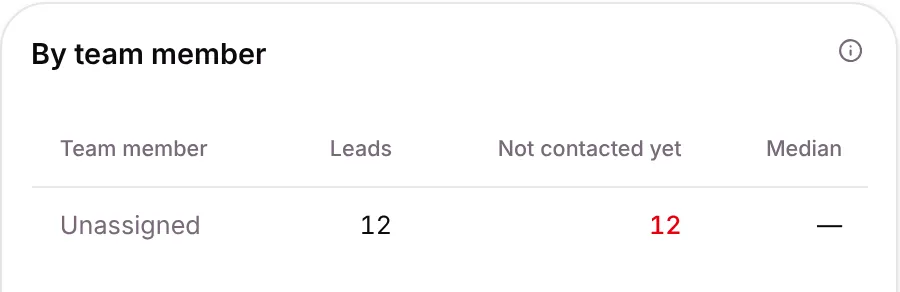
By team member shows each person’s Leads, Not contacted yet and Median reply time. Click a row in either table to filter the leaked list below.
Give a leaked lead an owner
Section titled “Give a leaked lead an owner”The Leaked leads list shows each lead that slipped, what went wrong, its source, owner and since when.
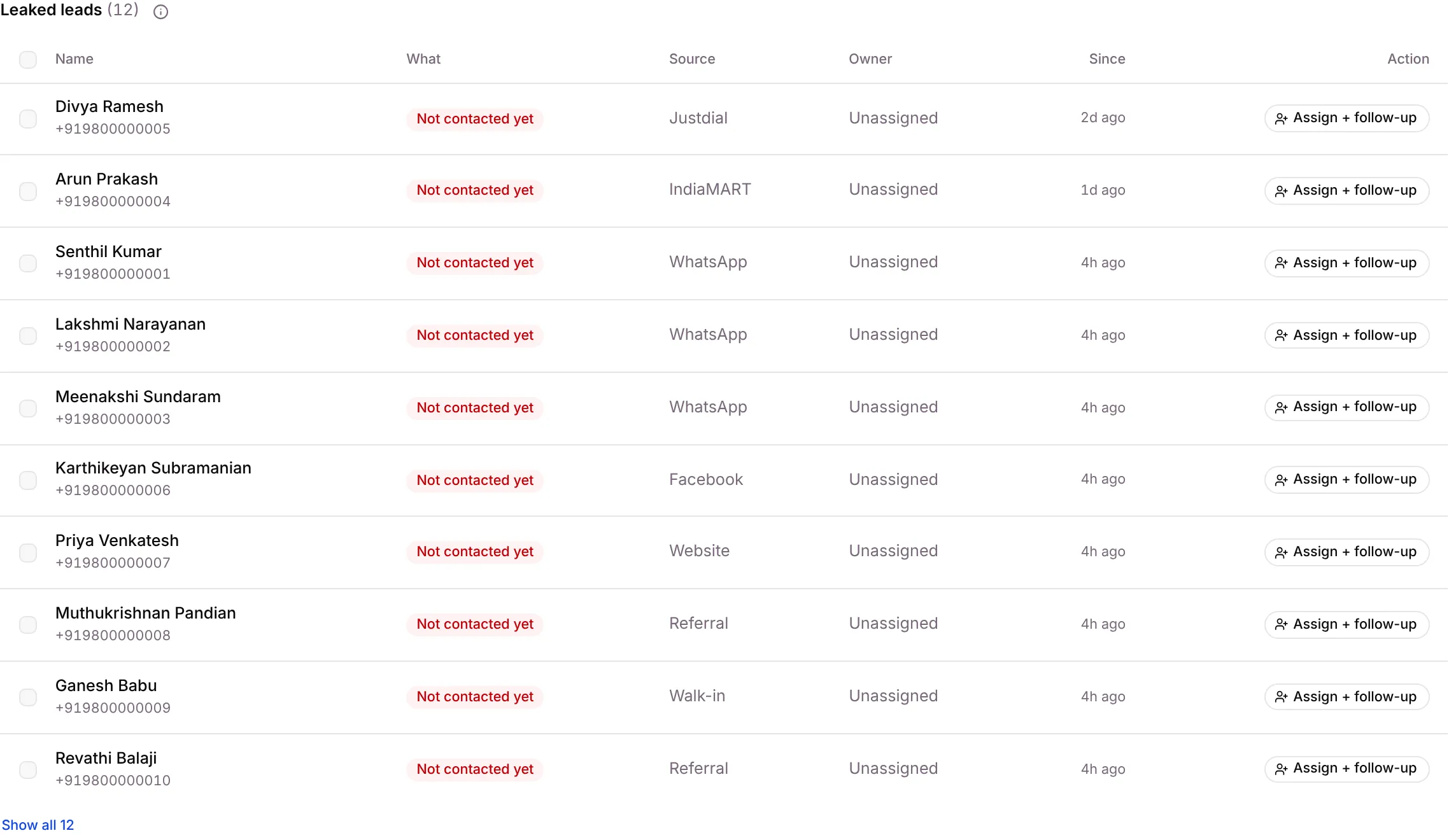
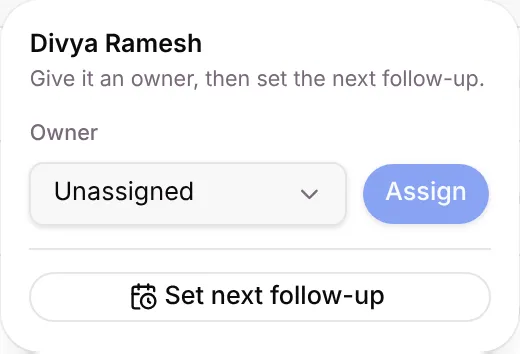
- Click Assign + follow-up on the row.
- Pick an Owner and click Assign.
- Click Set next follow-up and choose a date.
To do several at once, tick the rows and use the bar that appears.
Lead to cash and Service
Section titled “Lead to cash and Service”These sections are for the Owner and Admins.
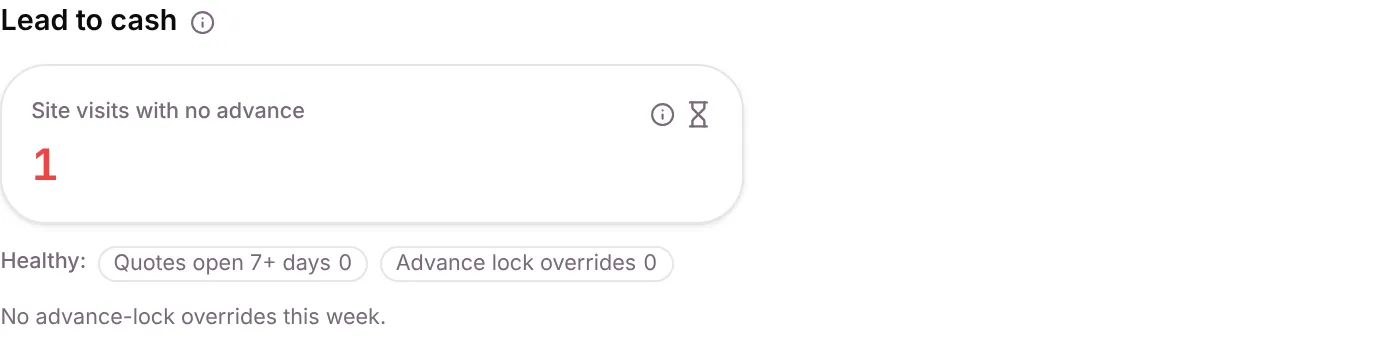
Lead to cash shows what is stuck between a yes and the money: Quotes open 7+ days, Site visits with no advance and Advance lock overrides. Each override is listed with the record, the stage, who overrode it, the reason and the date. With none, you’ll see No advance-lock overrides this week.
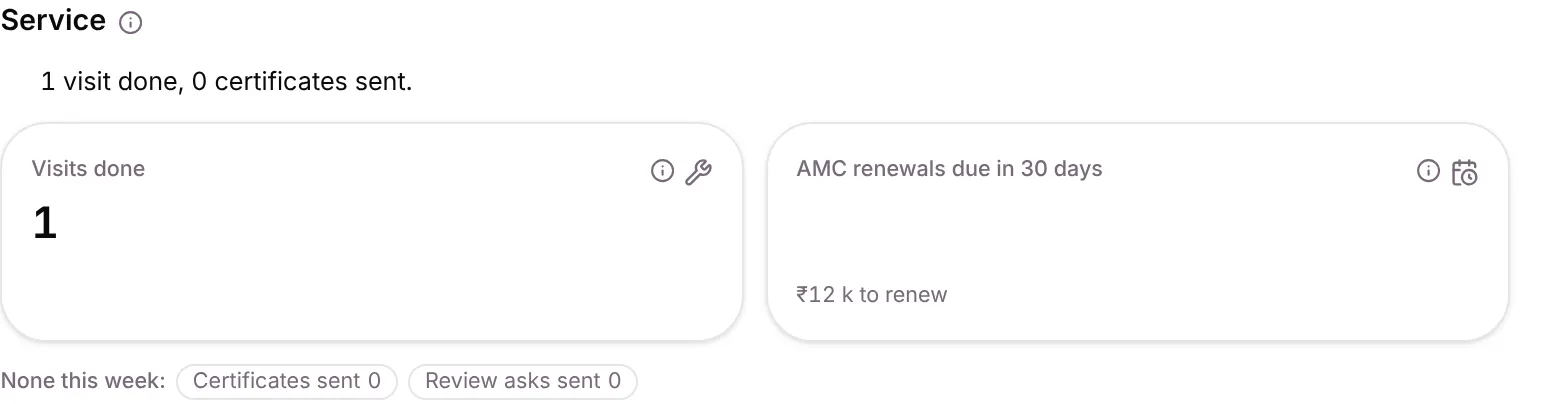
Service shows Visits done, Certificates sent, Review asks sent and AMC renewals due in 30 days. A warning appears when the numbers don’t match, for example 1 visit done, 0 certificates sent.
Send the review now
Section titled “Send the review now”- Click Send now at the top.
- Last week’s review goes to the Owner on WhatsApp, by email and in the app.
- A task is created for each action line, without duplicates.
Change when the review is sent
Section titled “Change when the review is sent”- Click Review settings. It opens Settings › Notifications.
- Find the Monday review card and click Edit.
- Change the settings and save.
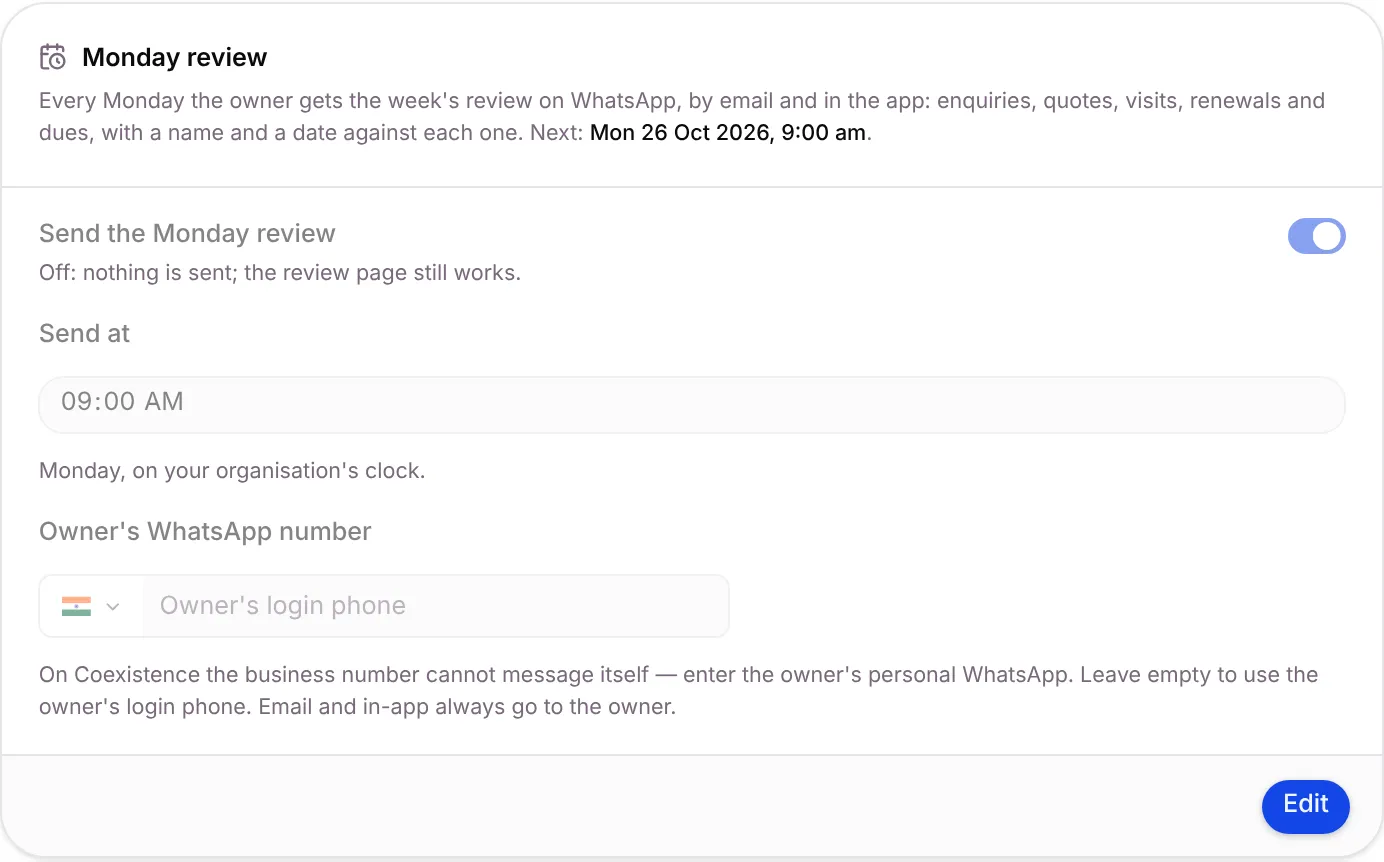
| Setting | Default | What it does |
|---|---|---|
| Send the Monday review | On | Off: nothing is sent; the review page still works |
| Send at | 9:00 am | The time on Monday, on your organisation’s clock |
| Owner’s WhatsApp number | Owner’s login phone | Where the WhatsApp copy goes. If your business number uses WhatsApp Coexistence, enter the owner’s personal WhatsApp, because the business number can’t message itself |
Good to know
Section titled “Good to know”- Staff see only the enquiry part. The Lead to cash, Service and Money sections are for the Owner and Admins.
- The WhatsApp copy needs an approved template when the owner hasn’t messaged the business in the last 24 hours. Email and in-app always arrive.
- The numbers match what the owner received. The list says which weekly snapshot it comes from.
- Junk leads are left out of Leads in.
What’s next?
Section titled “What’s next?”Related articles
Section titled “Related articles”Was this article helpful?
Thanks for letting us know.