

Connect the places your enquiries come from, and set how fast your team must reply and follow up.
Settings › Lead sources is where you connect the places your enquiries come from, so every new enquiry lands in Setaflow on its own with its source stamped on it. It’s also where you set how fast a new lead must be contacted, when a lead becomes a contact, and when the weekly leak report goes out. To see the leads themselves, go to Lead sources in the Lead desk.
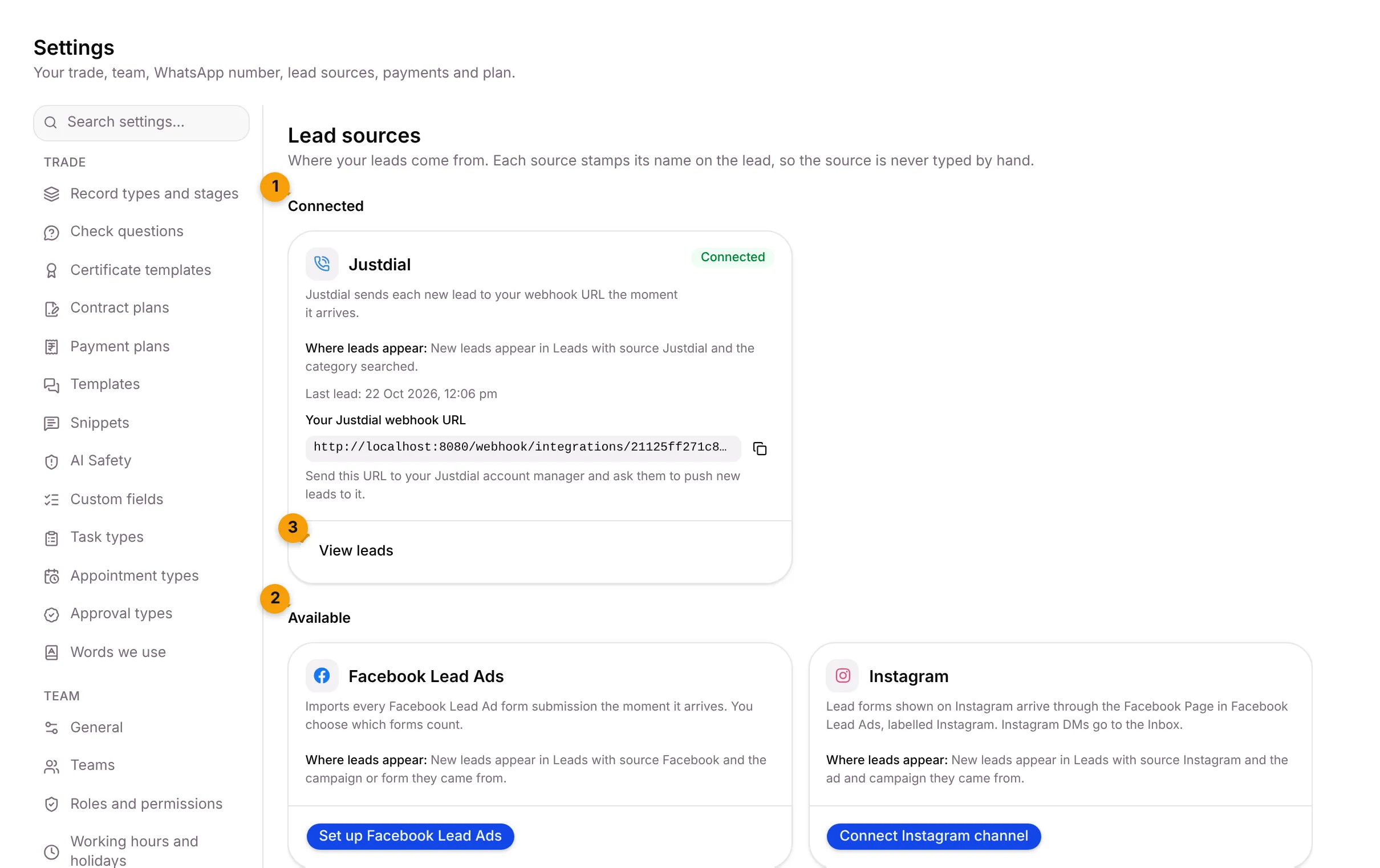
- Connected: the sources already sending you leads, here Justdial, with the time of the last lead.
- Available: sources you can still connect. Each card says what it does and Where leads appear.
- View leads: opens the leads list.
The sources
Section titled “The sources”| Source | How leads arrive | What you do |
|---|---|---|
| Facebook Lead Ads | Every Lead Ad form submission, the moment it arrives | Set up Facebook Lead Ads, connect your Page and choose which forms count |
| Lead forms shown on Instagram arrive through the Facebook Page, labelled Instagram. Instagram DMs go to the Inbox. | Connect Instagram channel | |
| The first message in a new WhatsApp conversation creates a lead | Nothing else to switch on once your WhatsApp number is connected | |
| IndiaMART | Setaflow pulls your buy leads and enquiries every 15 minutes | Paste your IndiaMART CRM key |
| Justdial | Justdial sends each new lead to your webhook URL | Send the URL to your Justdial account manager |
| LinkedIn Lead Gen | Through Zapier or Make, using your webhook URL and secret | Set up webhook |
| Website | Your own site’s form posts to your webhook URL. UTM tags are kept. | Set up webhook |
| Google Ads lead form | Search, Performance Max, YouTube and Display lead forms, sent to your webhook URL | Set up webhook |
Under Phone, email and ad spend you can also forward portal alert emails to your lead address (Email leads), and upload what you spent on Meta and Google ads (Ad spend) so the Monday review shows cost per real lead.
Connect Facebook Lead Ads
Section titled “Connect Facebook Lead Ads”- On the Facebook Lead Ads card, click Set up Facebook Lead Ads.
- Click Connect Page and sign in with Facebook.
- Pick your Page, then choose which lead forms create contacts.
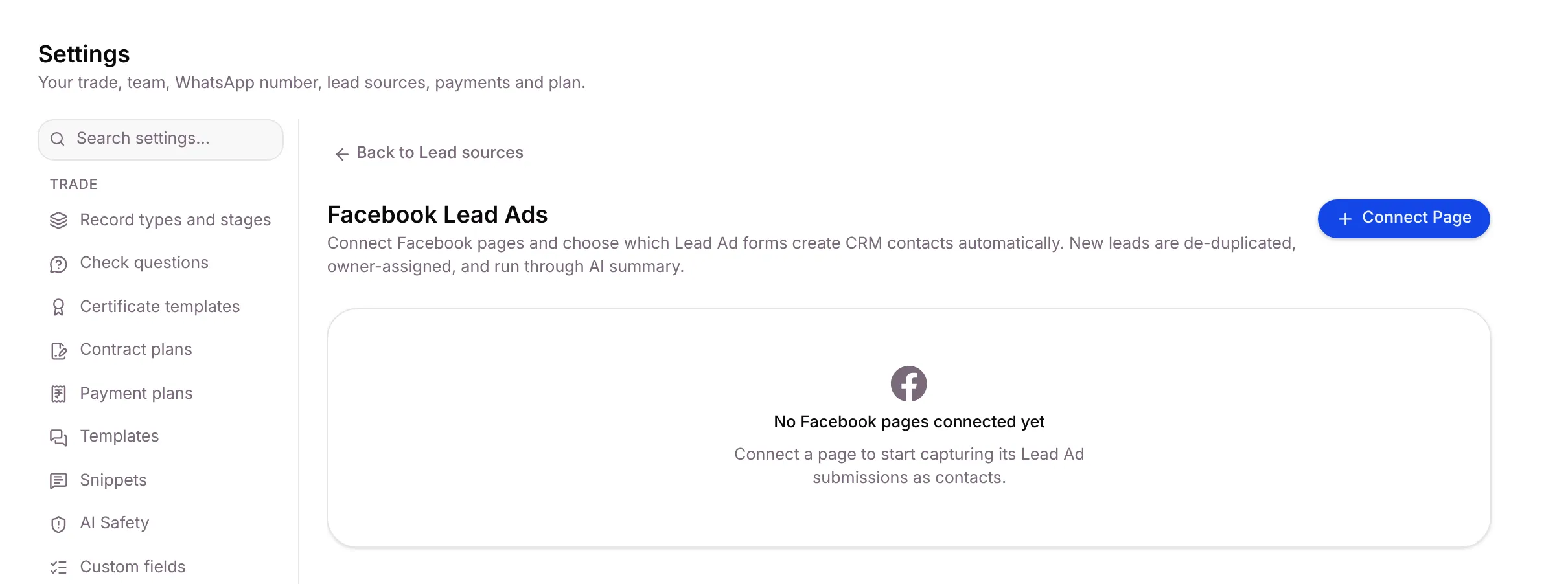
Click Back to Lead sources to return.
Connect IndiaMART
Section titled “Connect IndiaMART”- On the IndiaMART card, click Connect IndiaMART.
- In IndiaMART, open Lead Manager › Import/Export › CRM API and copy your CRM key.
- Paste it into IndiaMART CRM key and click Save key.
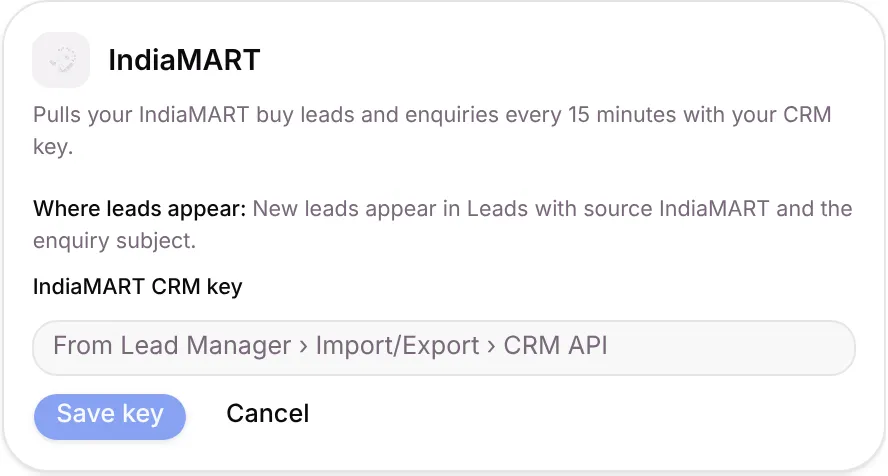
New leads arrive within 15 minutes. Later you can Replace key or Disconnect.
Connect Justdial
Section titled “Connect Justdial”- On the Justdial card, click Get webhook URL.
- Copy Your Justdial webhook URL.
- Send it to your Justdial account manager and ask them to push new leads to it.
Once leads arrive, Justdial moves to Connected, as in the picture at the top.
Connect your website, LinkedIn or Google Ads
Section titled “Connect your website, LinkedIn or Google Ads”These three use a webhook.
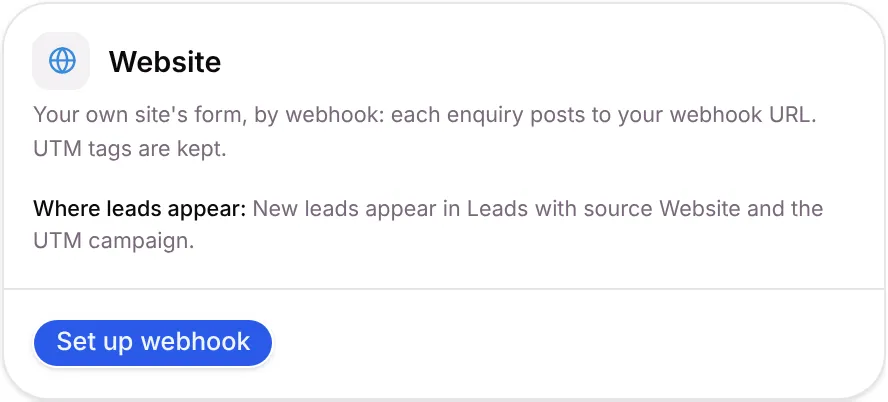
- On the card, click Set up webhook.
- Copy the Webhook URL and the secret.
- Give both to whoever looks after your website form, your Zapier or Make account, or your Google Ads lead form.
Set speed to lead
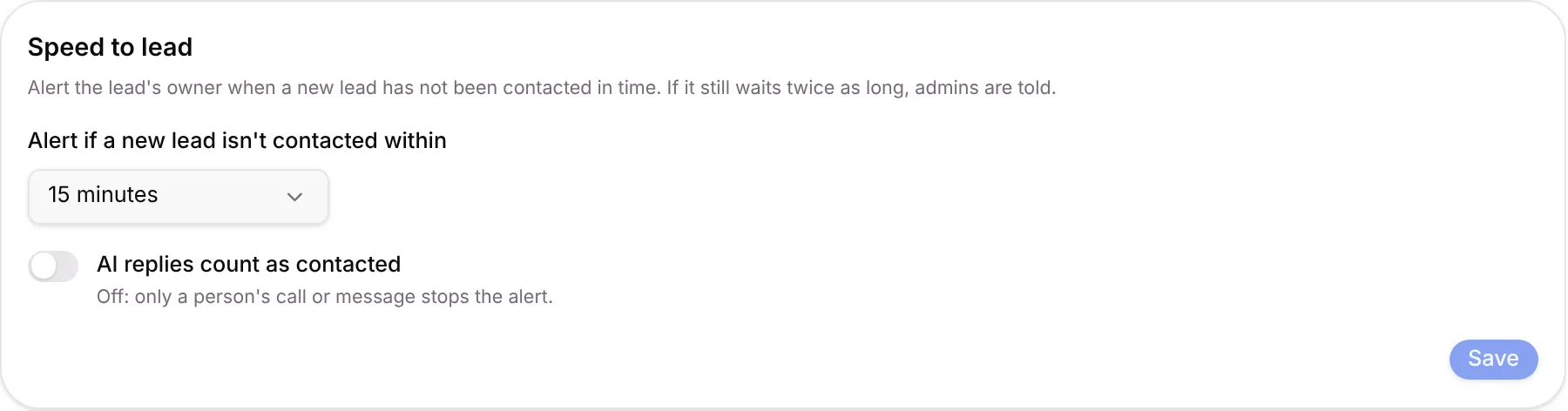
Section titled “Set speed to lead”Setaflow alerts the lead’s owner when a new lead hasn’t been contacted in time. If it still waits twice as long, admins are told.
- Under Speed to lead, pick a time in Alert if a new lead isn’t contacted within: Off, 15, 30, 60 or 120 minutes, or a custom time.
- Leave AI replies count as contacted off if only a person’s call or message should stop the alert.
- Click Save.
Turn auto-convert on or off
Section titled “Turn auto-convert on or off”A new lead can chat straight away. It becomes a contact, with a client record, once it is converted.
With Auto-convert leads the check marks real on, a lead that passes the three check questions becomes a contact on its own. Staff can always convert by hand. It is on by default.

Set follow-up timing
Section titled “Set follow-up timing”These numbers decide when a contact shows as waiting or going cold on Today, and when an open enquiry counts as a missed follow-up in the Monday review.
| Setting | What it means |
|---|---|
| “Waiting” after (days) | You sent the last message and the customer hasn’t replied |
| “Cold” after (days) | An open deal with no contact. Must be more than Waiting. |
| “No follow-up” after (days) | When an open enquiry counts as a missed follow-up. Empty uses your starter pack’s number. |
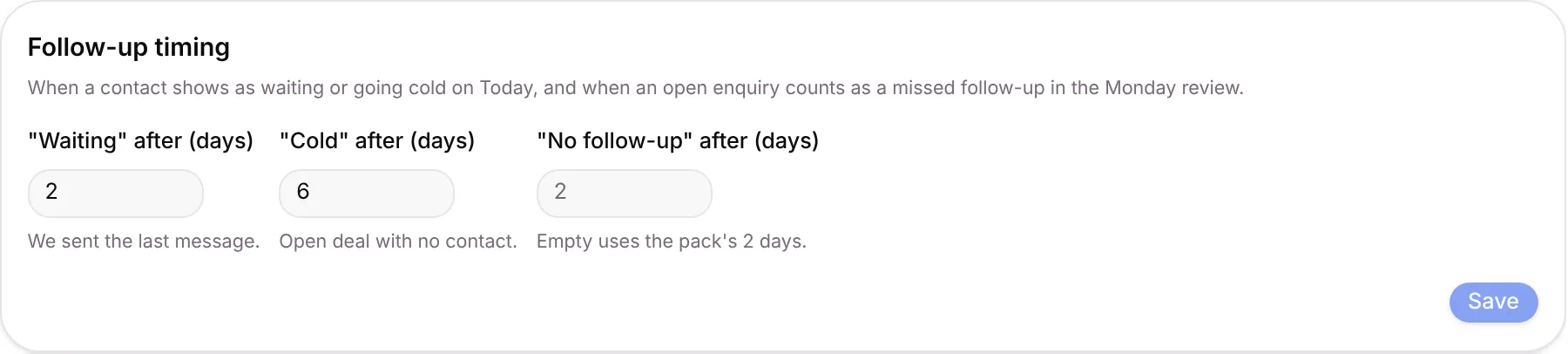
Change the numbers and click Save.
Get the weekly lead leak report
Section titled “Get the weekly lead leak report”Every Monday at 09:00 the owner gets a WhatsApp message and an email: leads received, how fast they were answered, and who leaked.
- Turn on Send the weekly report. The live report stays on the Dashboard either way.
- Leave Count automated acknowledgements as replies off, so a “Thanks, we’ll call you” auto-reply can’t hide a real leak.

Good to know
Section titled “Good to know”- Your plan decides what you see. With only Facebook Lead Ads in your plan, the tab shows just that card. A source marked Not in your plan needs an upgrade.
- A card marked Needs attention has stopped receiving leads. Open it and reconnect.
- The same sources also appear in Integrations under Partners.
What’s next?
Section titled “What’s next?”Related articles
Section titled “Related articles”Was this article helpful?
Thanks for letting us know.