

Set what goes on the service certificate a customer gets as a PDF on WhatsApp after each maintenance visit, and the review ask that follows it.
When a maintenance visit is completed, the customer gets a service certificate as a PDF on WhatsApp. This tab decides what that certificate shows, and what happens after it is sent.
Go to Settings › Certificate templates.
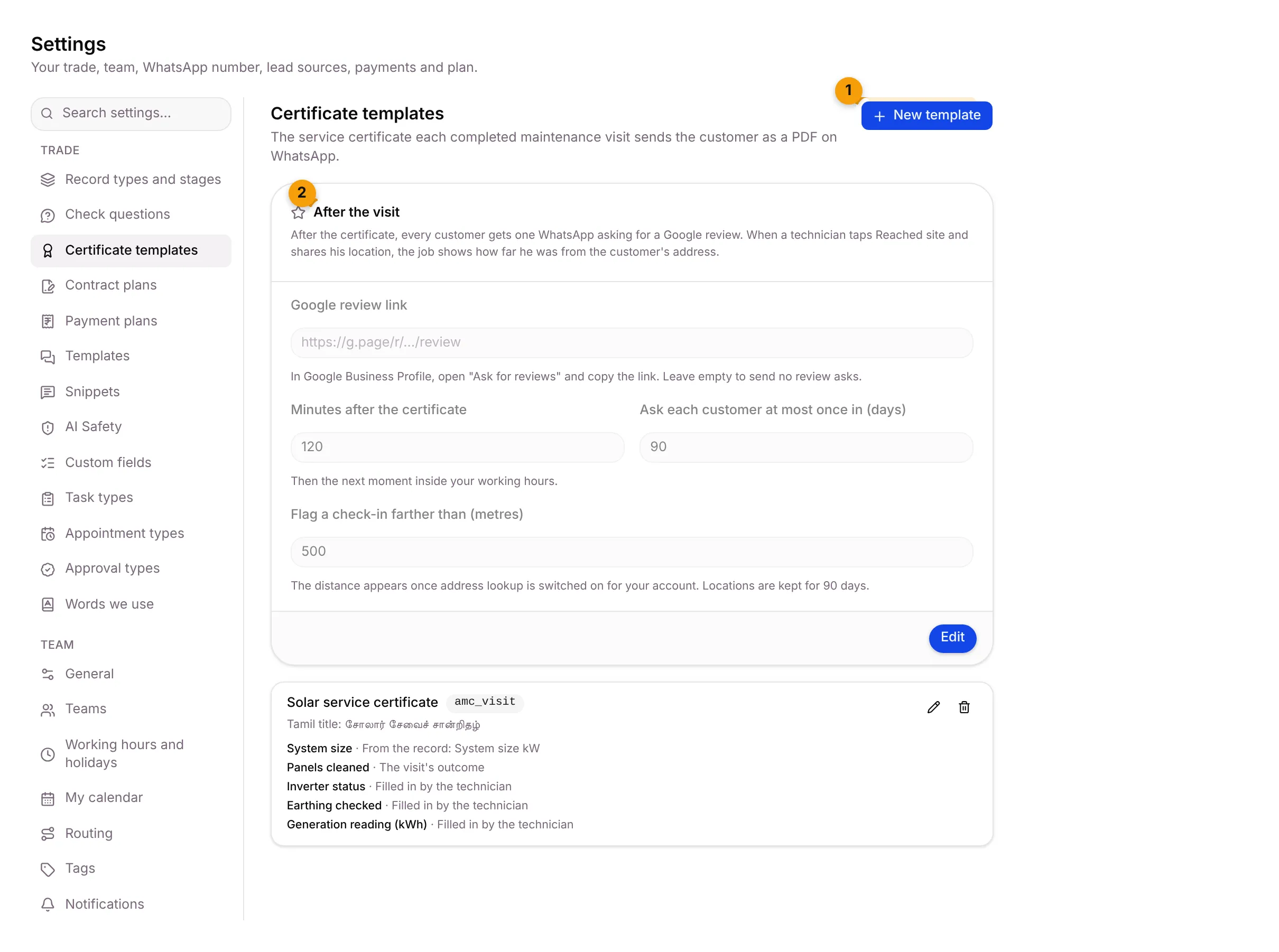
- New template: add a certificate template.
- After the visit: the Google review ask and the check-in distance, which apply to every certificate.
Below these is each template, such as Suriya Solar’s Solar service certificate, with its lines and where each value comes from. Use the pencil to edit it and the bin to delete it.
Create a certificate template
Section titled “Create a certificate template”- Click New template.
- Fill in Title (English), for example Service certificate, and Title (Tamil).
- Give it a Reference, for example amc_visit. The reference can’t change once created.
- Under Lines on the certificate, set each line: its English label, its Tamil label, and where the value comes from:
- A field on the record: type the field label, for example System size kW.
- The visit’s outcome: what the technician reported.
- Filled in by the technician.
- Click Add line for more lines.
- Add Footer (English) and Footer (Tamil) if you want.
- Turn Show the visit photos, Show the parts used and Show the next visit date on or off. All three start on.
- Click Create template, or Cancel.
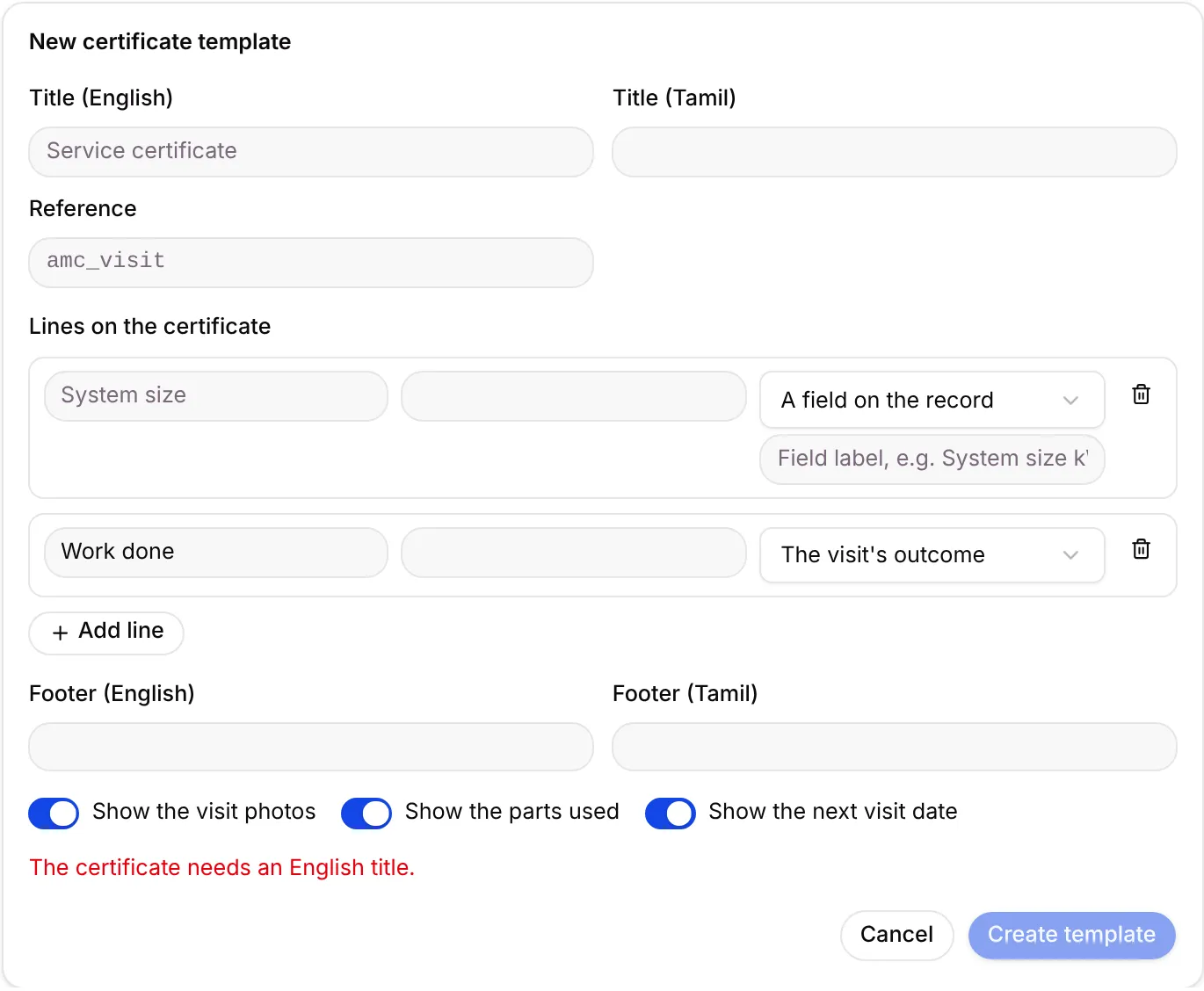
A new template starts with two lines: a blank record field, and Work done from the visit’s outcome.
Set the review ask and check-in distance
Section titled “Set the review ask and check-in distance”The After the visit card applies to every certificate.
- Click Edit on the card.
- Fill in:
- Google review link: in Google Business Profile, open “Ask for reviews” and copy the link. Leave it empty to send no review asks.
- Minutes after the certificate: how long after the certificate the review ask goes, then the next moment inside your working hours.
- Ask each customer at most once in (days): from 30 to 365.
- Flag a check-in farther than (metres): when a technician taps Reached site and shares his location, the job shows how far he was from the customer’s address.
- Click Save, or Cancel.
Delete a template
Section titled “Delete a template”- Click the bin on the template.
- Confirm Delete certificate template.
Certificates already sent keep their PDF. New visits stop using this template.
Where it shows up
Section titled “Where it shows up”- Certificates lists every certificate sent.
- Each contract plan chooses which certificate its visits close with.
Good to know
Section titled “Good to know”- Owners and Admins can open this tab, if your plan includes contracts.
- No templates yet? Add one with New template, or ask Setaflow to install your trade’s starter pack.
What’s next?
Section titled “What’s next?”Related articles
Section titled “Related articles”Was this article helpful?
Thanks for letting us know.