

Message many customers at once on WhatsApp or email. One-time campaigns, recurring campaigns on a date every year, and drip campaigns that send a short series.
Campaigns send an approved WhatsApp or email template to many customers at once, for example a festival offer, a monsoon service reminder or an AMC renewal offer. Replies land in the Inbox like any other chat.
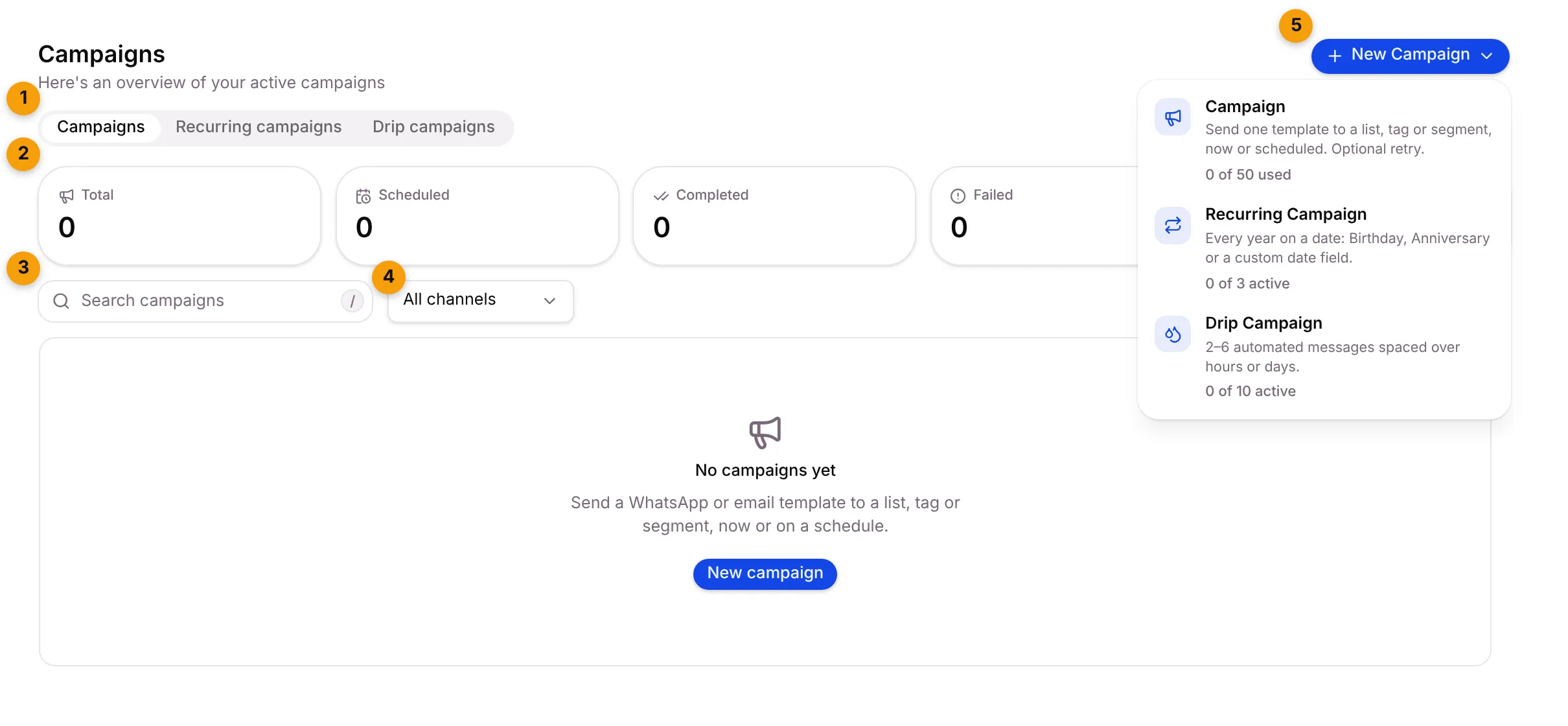
- Tabs: switch between Campaigns, Recurring campaigns and Drip campaigns. A tab only shows if your plan includes it.
- Stat tiles: Total, Scheduled, Completed, Failed and Cancelled. Each tab has its own tiles.
- Search campaigns: find a campaign by name, or a recipient by their WhatsApp @username.
- All channels: show only WhatsApp or only Email campaigns.
- New Campaign: pick the kind of campaign to create. Each option shows how much of your plan you’ve used, for example 0 of 50 used.
The three kinds of campaign
Section titled “The three kinds of campaign”| Kind | What it does | Use it for |
|---|---|---|
| Campaign | Sends one template to a list, tag or segment, now or at a time you choose. Can retry failed messages. | A Diwali offer, a price change, a service camp in one area |
| Recurring campaign | Sends every year on each contact’s date, such as their birthday or the day their system was installed. | Birthday wishes, installation anniversaries, a yearly service reminder |
| Drip campaign | Sends 2 to 6 messages to each contact, spaced over hours or days, after something brings them in. Stops when they reply. | Following up a new enquiry, nurturing a lead who hasn’t booked a visit |
Before you start
Section titled “Before you start”- Connect a channel. Until WhatsApp or email is connected, the new campaign page says No channel is ready to send a campaign on yet. See WhatsApp number.
- Have an approved template. WhatsApp only lets a business start a conversation with a template Meta has approved. See Templates.
- Only message people who agreed. Send campaigns to contacts who opted in to WhatsApp.
Good to know
Section titled “Good to know”- Replies go to the Inbox and open a fresh 24-hour reply window for that customer.
- Plan limits: the New Campaign menu shows how many campaigns your plan allows. When you reach the limit, that option is greyed out with the reason.
- Who can do what: creating, editing and deleting campaigns follow your role’s permissions. See Roles and permissions.
What’s next?
Section titled “What’s next?”Related articles
Section titled “Related articles”Was this article helpful?
Thanks for letting us know.