

Every enquiry, job and contract you are working on, with its stage, quote, advance and owner, in one list.
Records is the list of everything your business sells and delivers. One record follows one enquiry from the first message to handover, with its quote, advance, job and AMC on the same page. Your record types give the screen its words, so in a solar business you see Enquiries and Contracts, never “deals”.
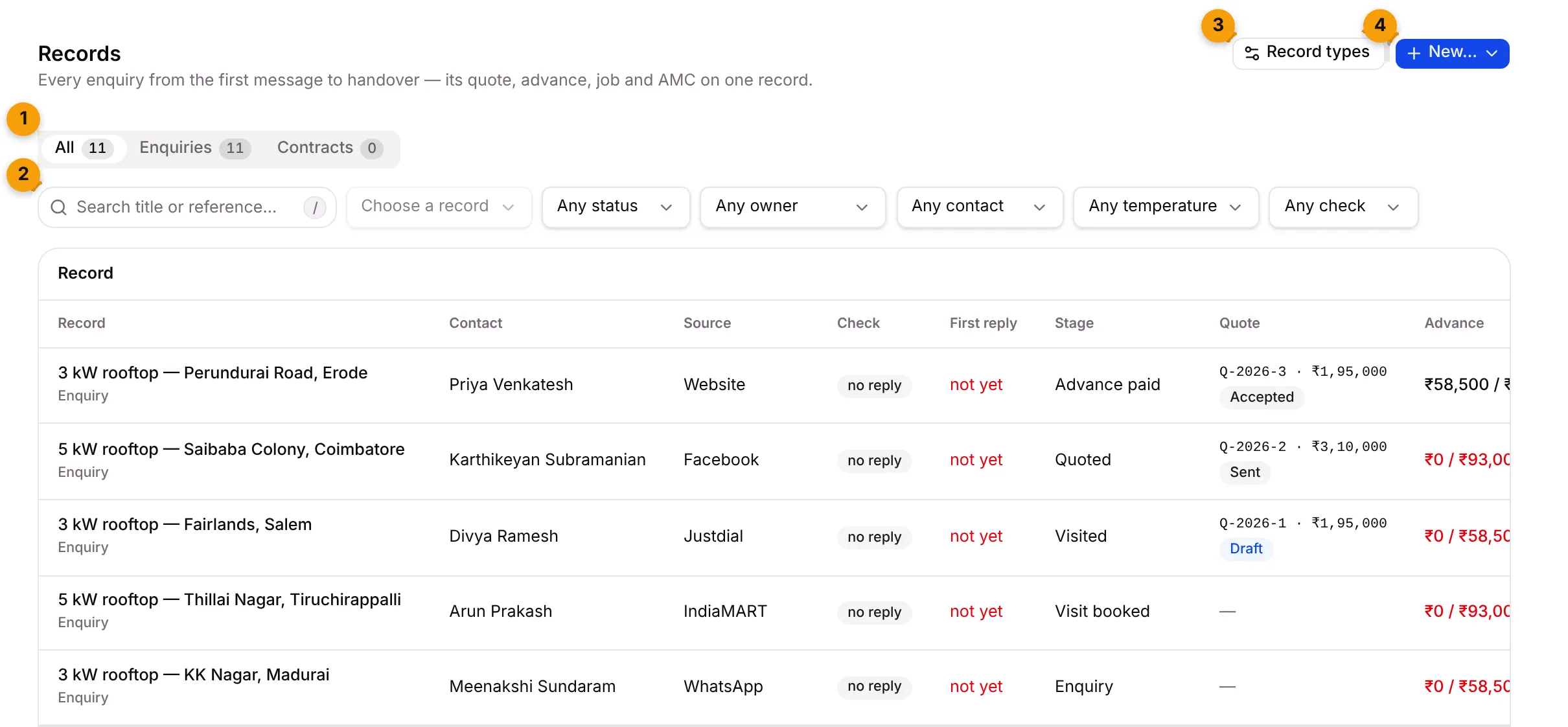
- Tabs: All, then one tab per record type, such as Enquiries and Contracts. The number on each tab is how many records of that type you have.
- Search and filters: find a record by title or reference, and narrow the list by stage, status, owner, contact, temperature or check result.
- Record types: opens the settings where you set up your record types and their stages.
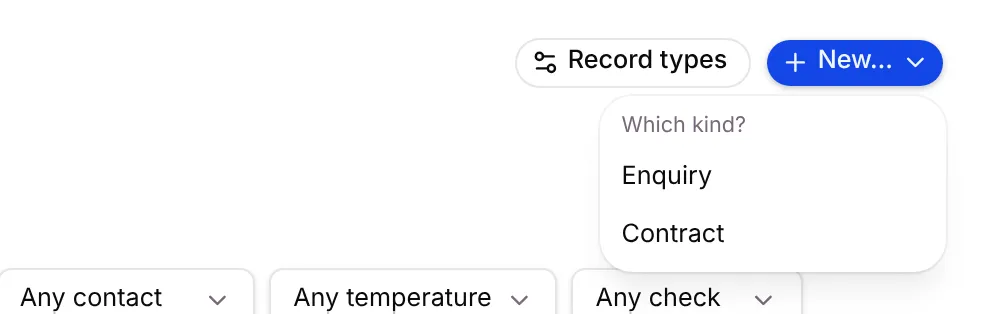
- New…: start a new record. On the All tab, Setaflow asks Which kind? first.
Records and contacts
Section titled “Records and contacts”A contact is a person. A record is one piece of work for that person. One contact can hold many records, for example a 5 kW rooftop installation this year and an AMC contract next year. Each record keeps its own value, stage and owner.
You can open a contact’s records from their client record, on the Records tab.
Find a record
Section titled “Find a record”- Type in Search title or reference… Press / to jump to the search box.
- Pick filters. Each filter starts at “Any”:
| Filter | Choices |
|---|---|
| Stage | Every stage of the record type. Won and lost stages are marked, such as Handed over · won and Lost · lost. Only on a type’s own tab. |
| Status | Any status, Open, Won, Lost, Delivered, Cancelled |
| Owner | Any owner, Mine, or a team member |
| Contact | Any contact, or No contact yet |
| Temperature | Hot, Warm or Cold |
| Check | Any check, Pending, Real, Junk, No reply |
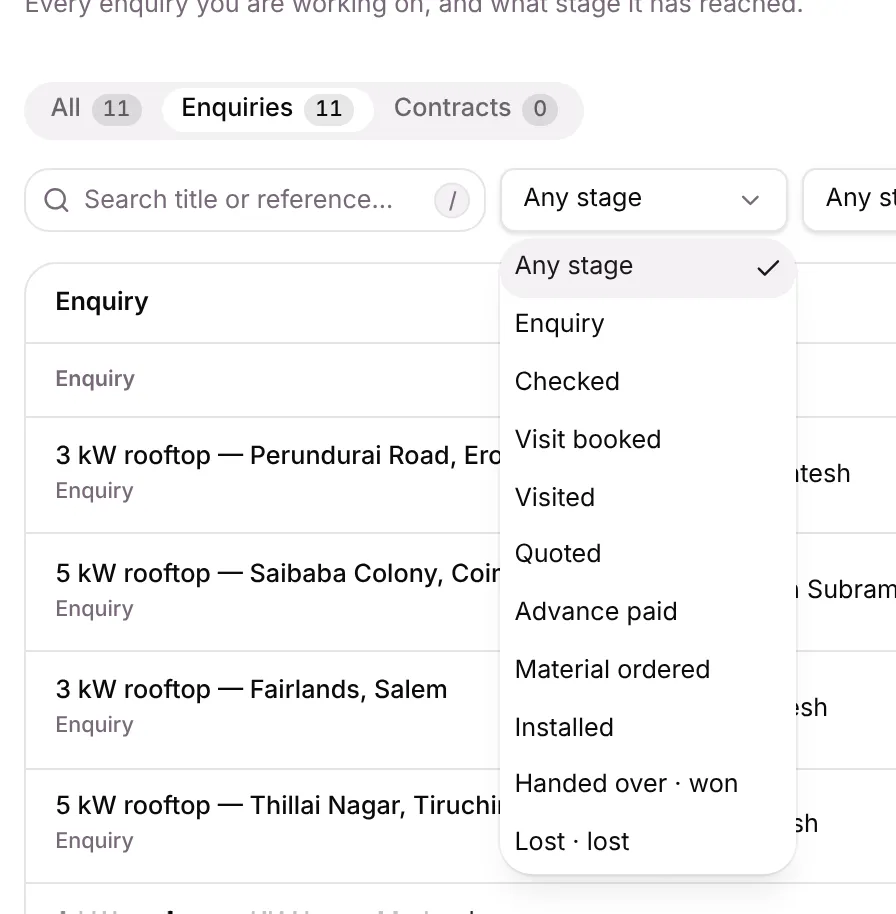
- Click a record’s title to open it.
What each column shows
Section titled “What each column shows”| Column | What it shows |
|---|---|
| Record | The title, with the record type or your reference below it |
| Contact | The customer. Click the name to open their client record. |
| Source | Where the enquiry came from, such as Website, Facebook, Justdial or Referral, with the campaign below |
| Check | The result of the three-question WhatsApp check: pending, real, junk or no reply |
| First reply | How long your team took to reply first. not yet in red means nobody has replied. |
| Stage | Where the record is now, such as Visit booked or Quoted |
| Quote | The latest quote number and total, with its status: Draft, Sent, Accepted, Rejected |
| Advance | Advance paid against advance needed, for example ₹0 / ₹93,000. Red means it’s short. |
| Owner | The team member responsible, or Unassigned |
| Started | When the record was created |
On a type’s own tab, you also see that type’s extra fields that are set to show in the list, for example Site address, Roof type, Monthly electricity bill (₹) and System size (kW).
Start a new record
Section titled “Start a new record”Click New… and choose the kind of record. On a type’s own tab the button already carries the type’s name, such as New enquiry.
See Create a record for every field.
Good to know
Section titled “Good to know”- Most records start on their own. When a lead is converted to a contact, Setaflow starts its record in the right pipeline. See Lead sources.
- Buttons depend on your role. If you don’t see New…, your role can’t create records. See Roles and access.
- The list shows 15 records a page. Use Previous and Next at the bottom.
- No record types yet? The page shows Set up record types instead of a list.
What’s next?
Section titled “What’s next?”Related articles
Section titled “Related articles”Was this article helpful?
Thanks for letting us know.