

Set how a job's money is collected, such as 30% advance, 60% before installation and 10% on handover, and when each part falls due.
A payment plan splits the price of a job into parts and says when each part falls due. For example: 30% advance, 60% before installation, 10% on handover. A job keeps the plan it was given, so changes here apply to the next job.
Go to Settings › Payment plans.
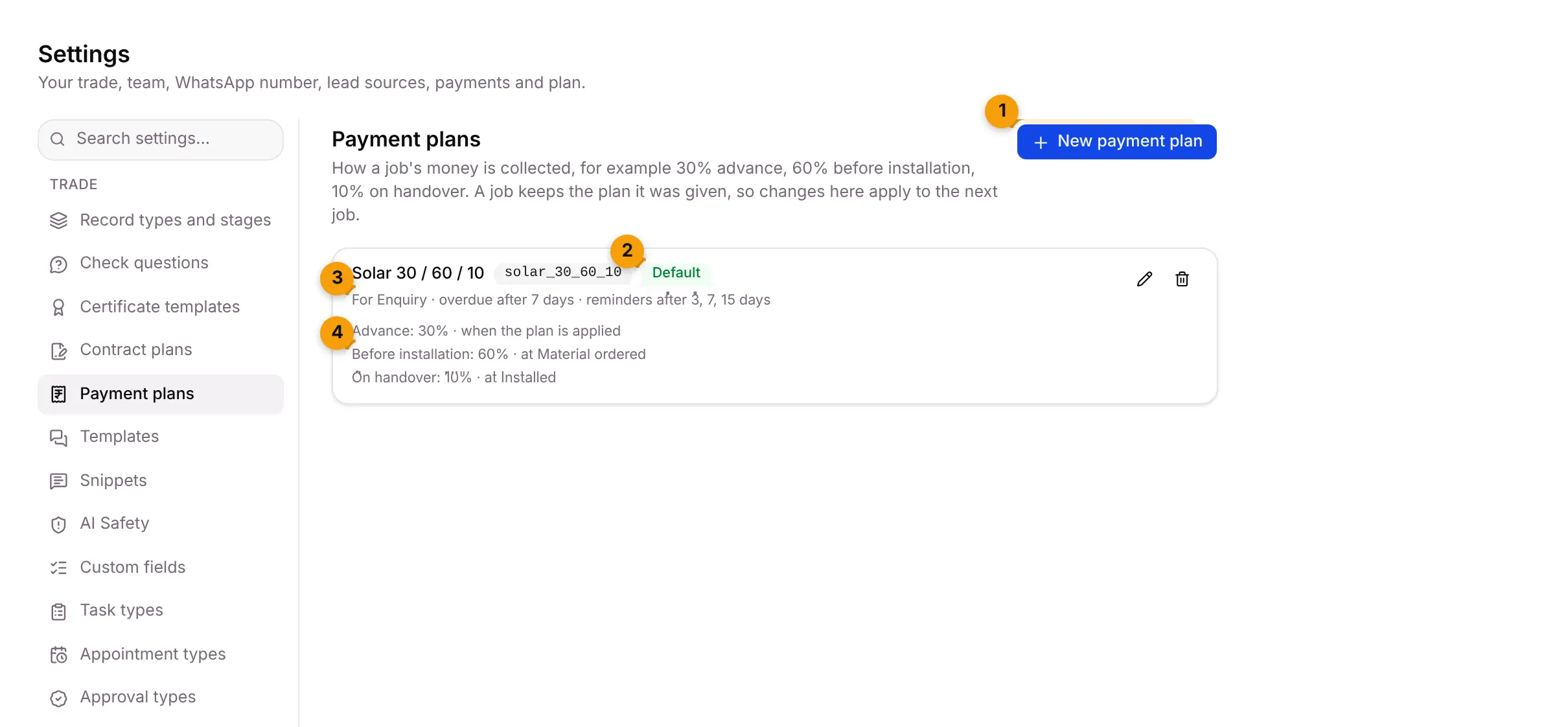
- New payment plan: add a plan.
- Default: this plan is used for this kind of job unless you pick another.
- Plan summary: which record type it’s for, when a payment counts as overdue, and when reminders go.
- Payment lines: each part, its share and when it falls due, for example Before installation: 60% · at Material ordered.
Create a payment plan
Section titled “Create a payment plan”- Click New payment plan.
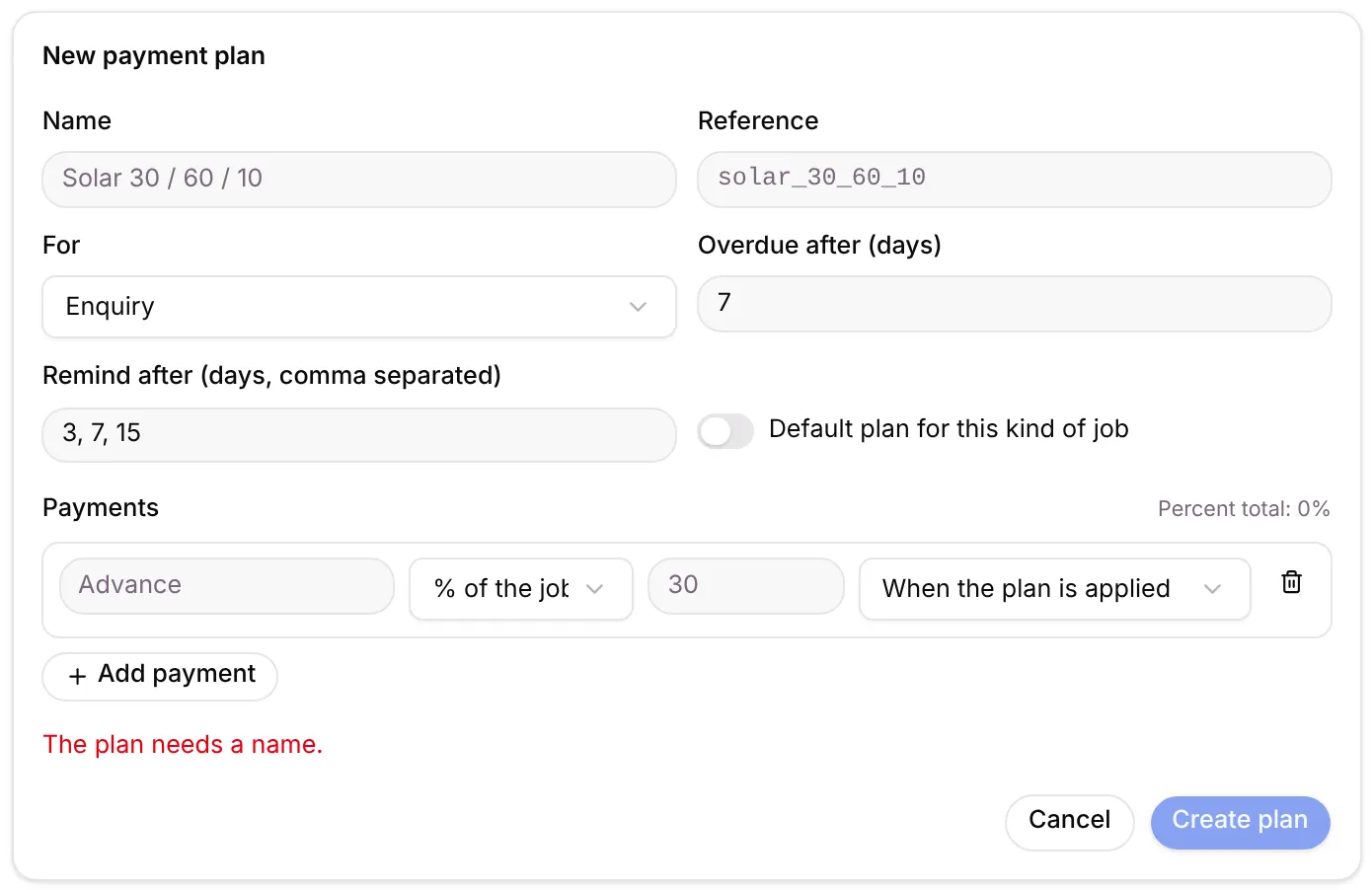
- Fill in the top of the form:
- Name: for example Solar 30 / 60 / 10.
- Reference: a short internal name.
- For: the kind of job the plan is for.
- Overdue after (days): starts at 7.
- Remind after (days, comma separated): starts at 3, 7, 15.
- Default plan for this kind of job: turn on to make this the default.
- Under Payments, set each part:
- A name, such as Advance.
- % of the job or Fixed ₹, and the amount.
- When it falls due: When the plan is applied, Some days after it is applied (with the days), or When the job reaches a stage (with the stage).
- Click Add payment for the next part. Check Percent total reaches 100%. It turns red above 100%.
- Click Create plan, or Cancel.
Apply the plan automatically
Section titled “Apply the plan automatically”A plan does nothing until it is applied to a job. To apply it on its own:
- Go to Record types and stages.
- Open the stage where money starts, for example Advance paid.
- Add the step Apply a payment plan and pick the plan.
The advance and the stage payments of the plan then become due on that job.
Common errors
Section titled “Common errors”| Message | What to do |
|---|---|
| The plan needs a name. | Type a name. |
| Percent total in red | The parts add up to more than 100%. Lower one. |
Where it shows up
Section titled “Where it shows up”- Dues appear in Invoices and dues, and late ones in Overdue.
- The advance lock on a stage (Requires payment) works with the advance from this plan.
Good to know
Section titled “Good to know”- Owners and Admins can open this tab.
- Your starter pack adds one plan, for example Solar 30 / 60 / 10.
- Changing a plan doesn’t change jobs that already have it.
What’s next?
Section titled “What’s next?”Related articles
Section titled “Related articles”Was this article helpful?
Thanks for letting us know.