

Build a quote from your catalogue, send it on WhatsApp with the advance, and track every quote until the customer says yes or no.
Quotes lists every quote your business has made, with its status, its total and how the follow-up is going. Build a quote from your Catalogue, send it to the customer on WhatsApp with the advance, and Setaflow nudges them until they decide.
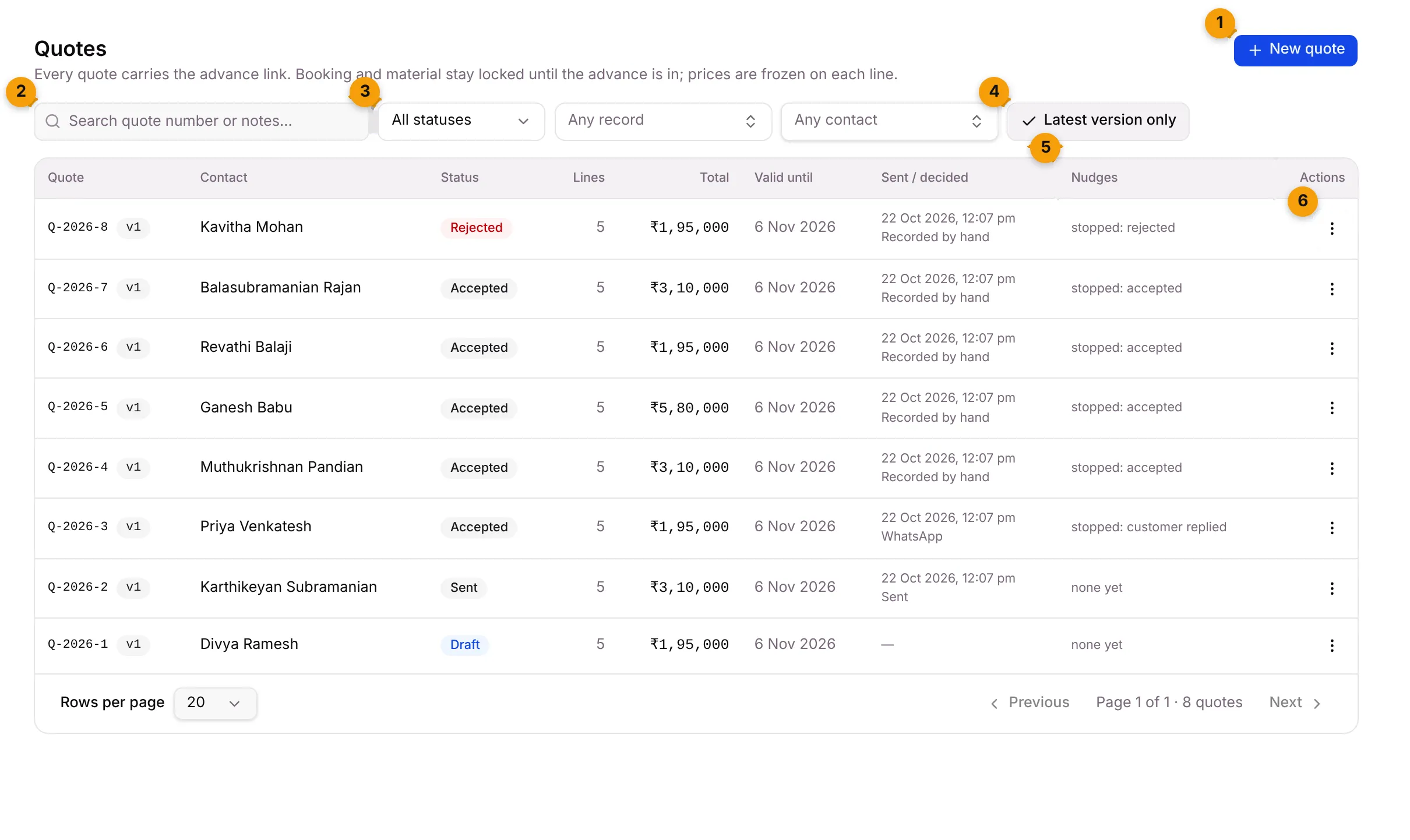
- New quote: build a new quote.
- Search: find a quote by its number or by words in its notes.
- Status: show only Draft, Sent, Viewed, Accepted, Rejected or Expired quotes. Next to it, Any record and Any contact narrow the list to one enquiry or one customer.
- Latest version only: on by default. Each quote number shows once, at its newest version. Turn it off to see every revision.
- Nudges: the WhatsApp reminders sent for this quote, for example none yet, 2 sent · last 10 Oct 2026 or stopped: customer replied.
- Actions (⋮): what you can do with this quote. The choices depend on its status.
What each column shows
Section titled “What each column shows”| Column | What it shows |
|---|---|
| Quote | The quote number, such as Q-2026-2, and its version (v1, v2…). Numbers are given automatically. |
| Contact | The customer the quote is for. |
| Status | Where the quote is now (see below). |
| Lines | How many line items it has. |
| Total | The total, worked out by Setaflow from the saved lines. |
| Valid until | The last day the customer can accept it. |
| Sent / decided | When it went out, and how the decision came in: WhatsApp, Quote link or Recorded by hand. |
| Nudges | The follow-up reminders (see Nudges). |
| Actions | The ⋮ menu. |
Click a row to open the quote’s details. Rows per page at the bottom switches between 10, 20 and 50 quotes.
Quote statuses
Section titled “Quote statuses”| Status | Meaning |
|---|---|
| Draft | Saved but not sent. You can still edit it. |
| Sent | Marked as sent. It can no longer be edited, only revised. |
| Viewed | The customer opened the quote link. |
| Accepted | The customer said yes. Final. |
| Rejected | The customer said no. Final. |
| Expired | Valid until passed without a decision, or a newer version replaced it. Final. |
A sent or viewed quote becomes Expired at the end of its Valid until day. A quote with no Valid until date never expires.
Build a quote
Section titled “Build a quote”- Go to Quotes and click New quote.
- Under Contact, pick the customer, for example Divya Ramesh. A quote always goes to a person.
- Optionally pick the Linked record (the enquiry) and a Valid until date.
- Under Line items, pick a product from your catalogue in the Item column, or choose Free-text line and type a Description. Use Filter the catalogue… to find a product fast.
- Set the Qty, and a Disc % if you give a discount. Click Add line for more lines.
- Add Notes and Terms if you need them. The customer sees both.
- Check the preview of Subtotal, Discount, Tax and Total, then click Save quote.
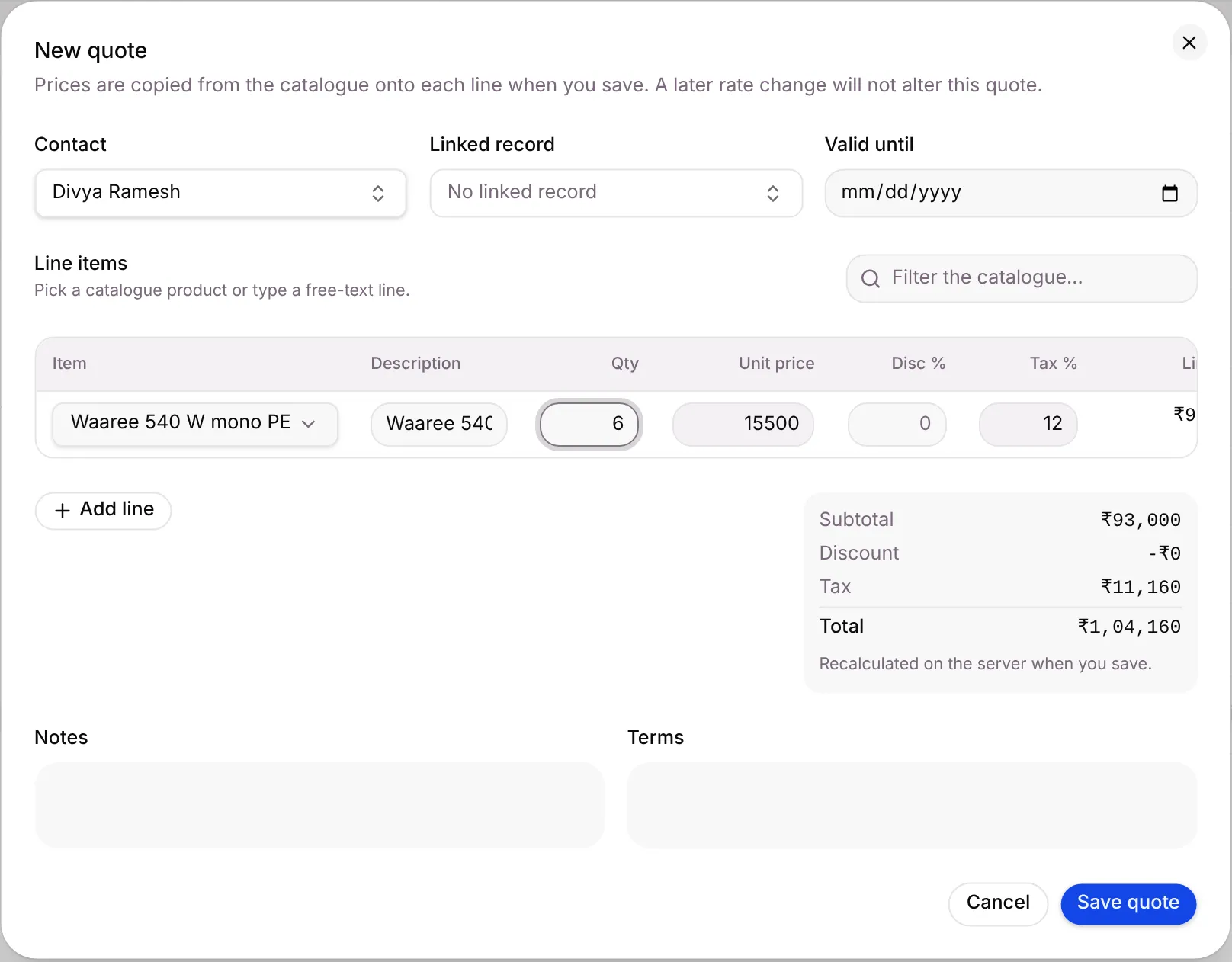
The quote is saved as a Draft.
Send a quote to the customer
Section titled “Send a quote to the customer”Click ⋮ on a draft quote. You see View, Edit, Send, Send with advance and Delete.
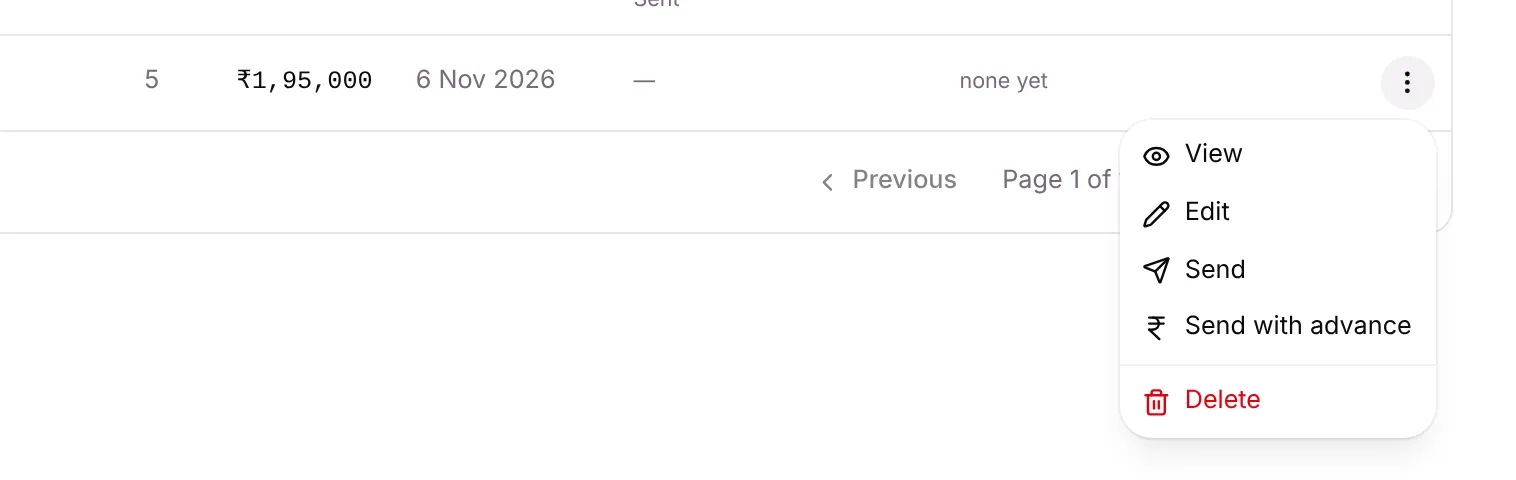
Send with advance (the usual way)
Section titled “Send with advance (the usual way)”- Click ⋮ on the quote and choose Send with advance.
- Type the Advance percent, from 1 to 100. Leave it empty to use the percent set on the enquiry’s locked stage, or 30% if none is set. The dialog shows the amount, for example Advance: ₹58,500 of ₹1,95,000.
- Click Send with advance.
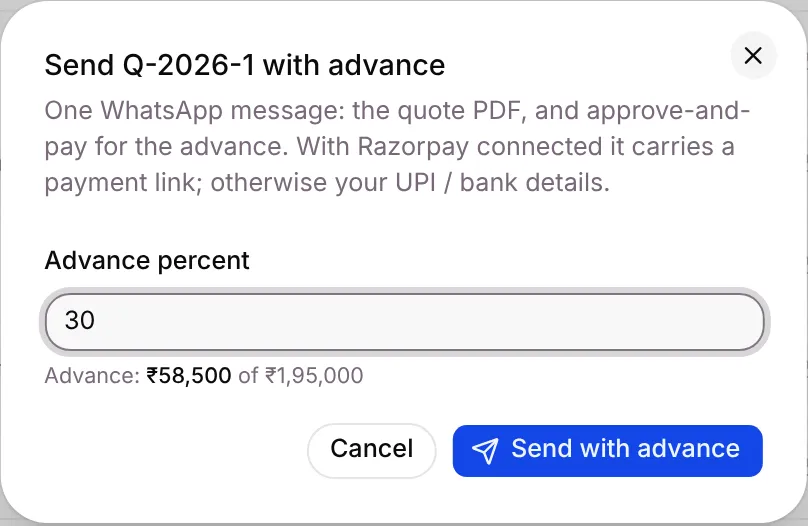
The customer gets one WhatsApp message with:
- the quote PDF and the total;
- the advance amount and how to pay it: a payment link if Razorpay is connected, otherwise your UPI or bank details;
- two buttons, Approve quote and Need changes;
- a link to view the quote online.
The quote is marked Sent, its expiry starts, and the nudges are scheduled. The advance also appears in Advances to confirm when it is paid by UPI or bank transfer.
Send (mark as sent only)
Section titled “Send (mark as sent only)”Send asks Send Q-… v1? and marks the quote sent. It does not send anything to the customer. Use it when you’ve already shared the quote another way, for example by hand on WhatsApp or by email.
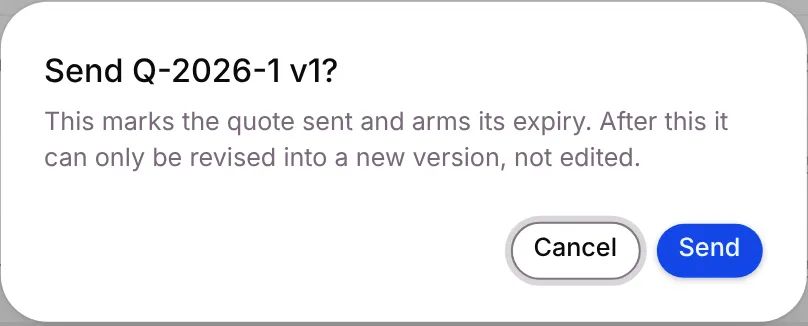
After either kind of send, the quote can’t be edited. Use Revise instead.
When the customer replies
Section titled “When the customer replies”| The customer… | What happens |
|---|---|
| Taps Approve quote | The quote becomes Accepted. The customer gets a thank-you message with the advance link or your payment details. |
| Taps Need changes | A note “customer asked for changes” is added to the contact’s timeline, and the customer is told you’ll call. The quote stays as it is: make a new version with Revise. |
| Accepts on the quote link | The quote becomes Accepted and the owner gets an alert. |
| Says yes or no another way | Record it yourself with Mark accepted or Mark rejected. |
When a quote is accepted, the linked enquiry moves to its “quote accepted” stage if your stages have one. When a quote is rejected, its pending advance request is cancelled.
Act on a sent quote
Section titled “Act on a sent quote”Click ⋮ on a sent or viewed quote.
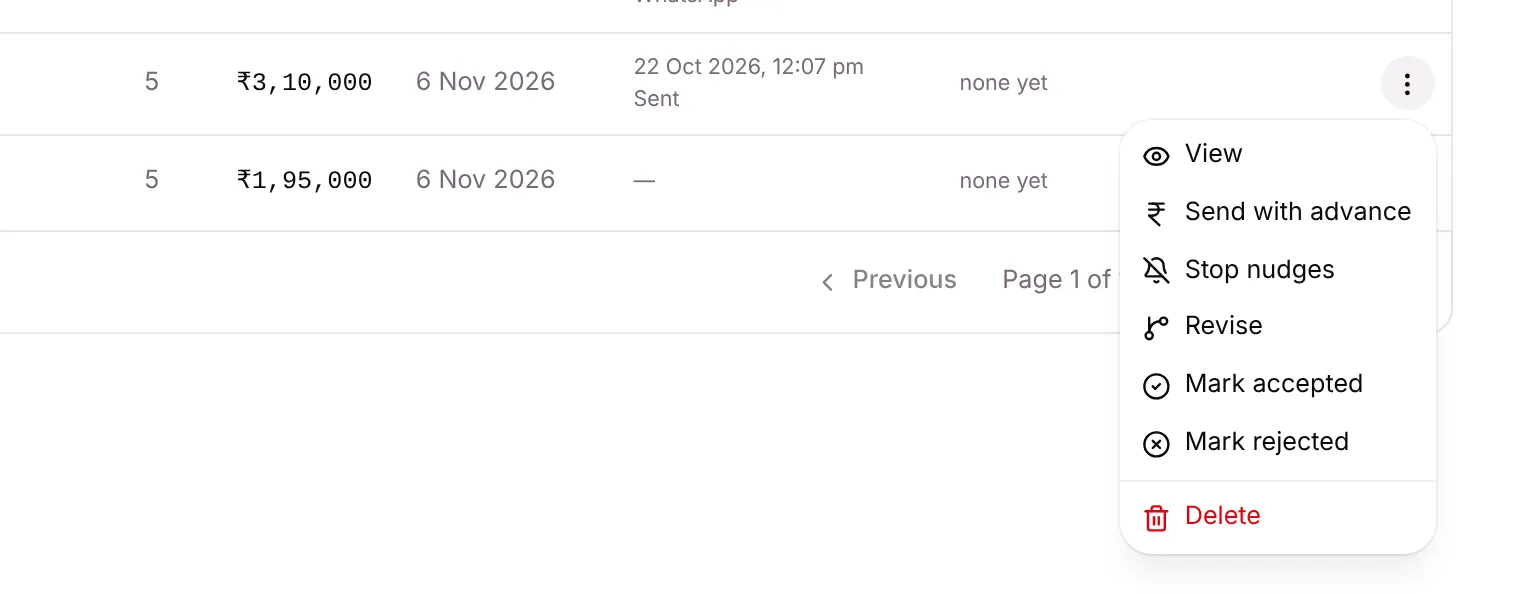
- Send with advance sends the WhatsApp message with the advance (or sends it again).
- Stop nudges stops the follow-up reminders for this quote. It only shows while nudges are still running.
- Revise makes the next version under the same quote number. The current version becomes Expired, and its prices carry across unless you change the lines.
- Mark accepted / Mark rejected records a decision that came in off-channel, for example on a phone call. A decided quote is final.
- Delete removes the quote and its lines. An accepted quote can’t be deleted.
Look at one quote
Section titled “Look at one quote”Click a quote’s row to open its details.
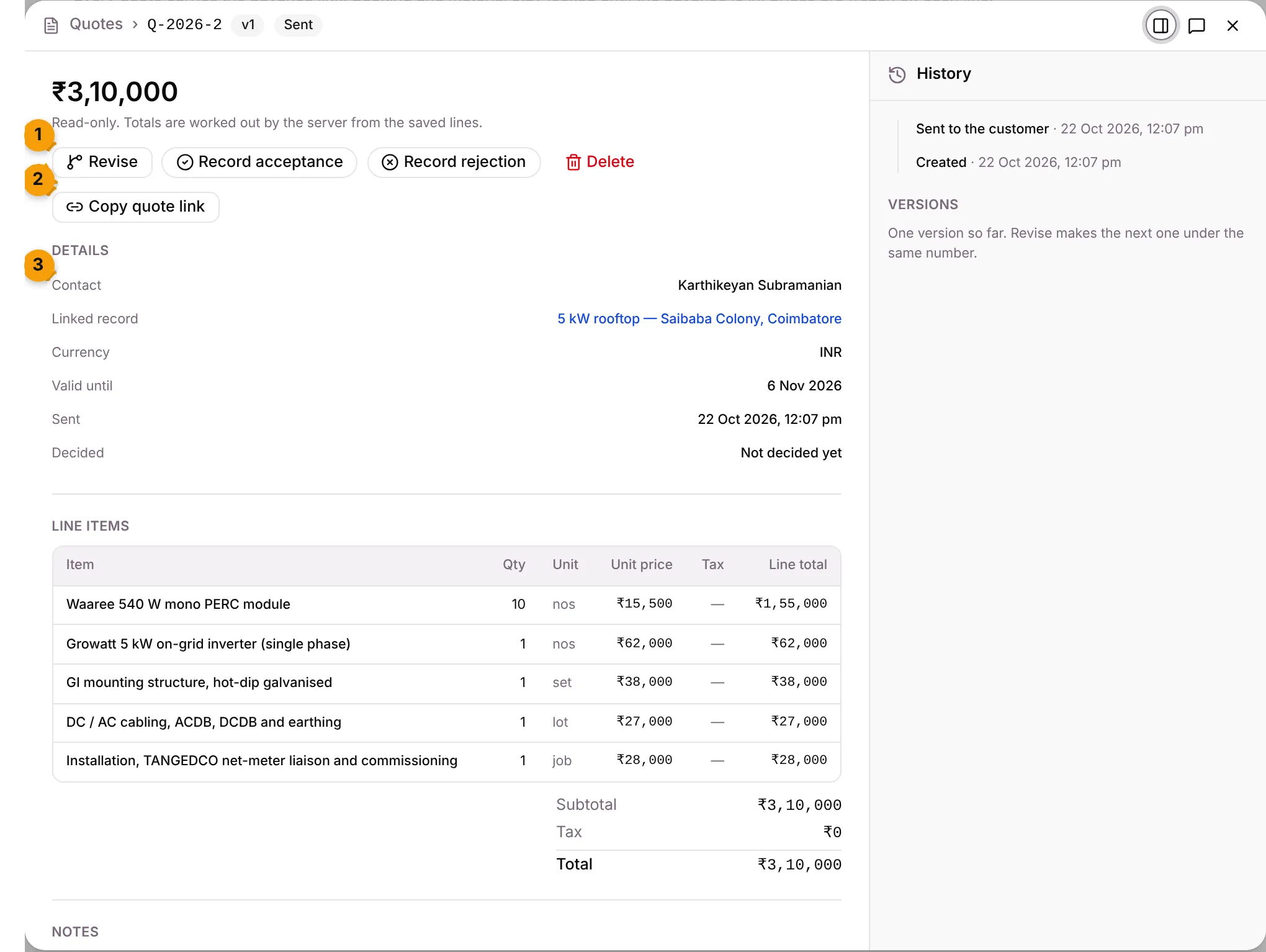
- Status buttons: what you can do now. A sent quote has Revise, Record acceptance, Record rejection and Delete; a draft has Edit and Send.
- Copy quote link: copies the customer’s quote link (see below).
- Details: who the quote is for and where it stands.
The panel shows:
- Details: contact, linked record, currency, valid until, when it was sent and how it was decided, and the decision reference (the WhatsApp message id when the customer tapped Approve quote).
- Line items and the totals.
- Notes and Terms.
- History: created, sent to the customer, reminders sent, reminders stopped (with the reason), accepted or rejected.
- Versions: every version of this quote number. Click one to open it.
Copy quote link copies the customer’s quote link, and tells you how many times the customer has opened it. It shows on quotes that have been sent, if your plan includes tracked quote links.
What the customer sees on the quote link
Section titled “What the customer sees on the quote link”The quote link opens a simple page in the customer’s browser. No login is needed.
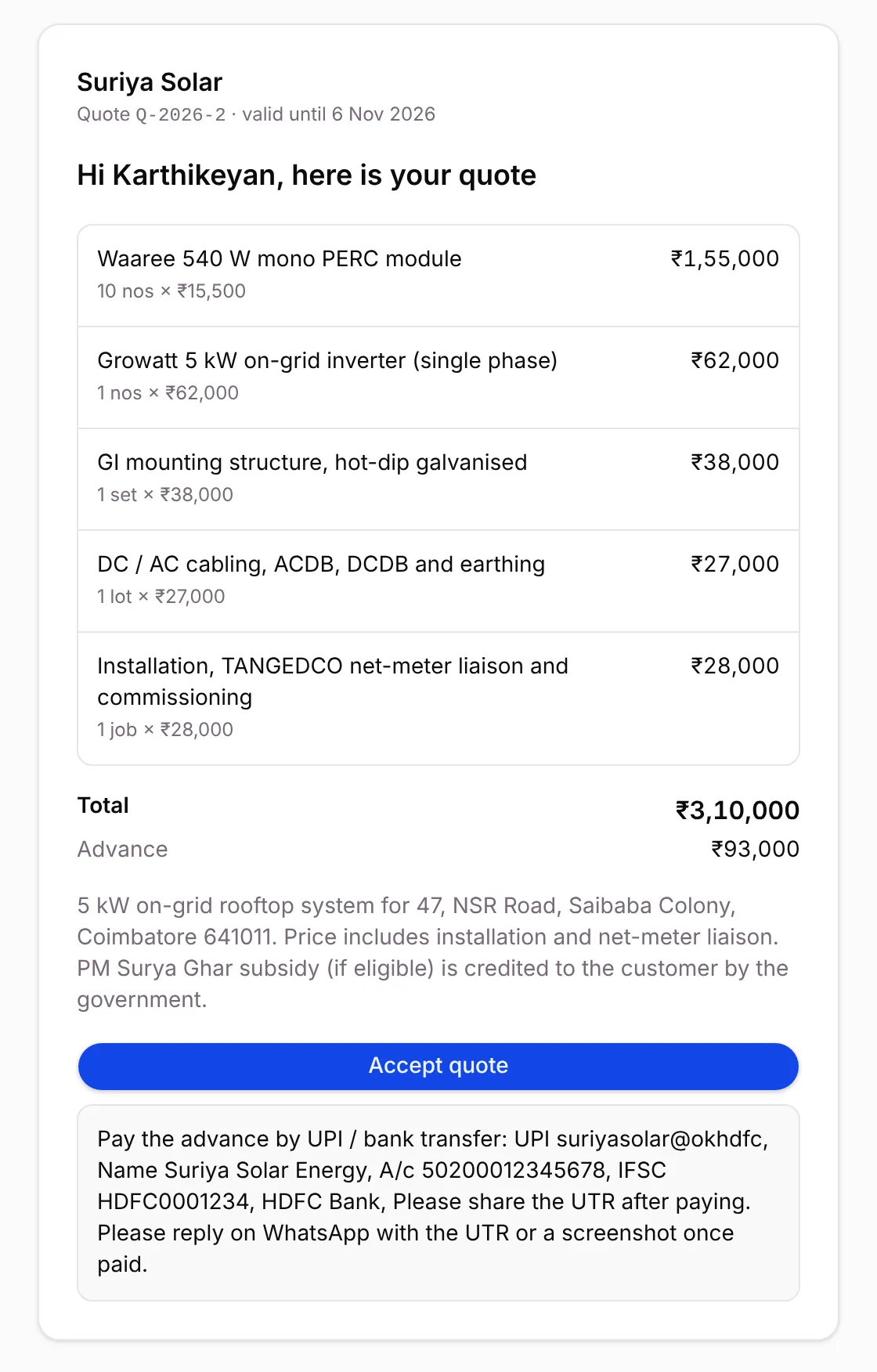
- Your logo and business name, the quote number and the valid-until date.
- Hi Karthikeyan, here is your quote, then each line with quantity, price and tax.
- The Total and the Advance amount (marked (paid) once it’s paid).
- Your notes and terms.
- View PDF, Accept quote, and Pay advance ₹… when there’s a payment link. Without one, the page shows your UPI or bank details and asks the customer to reply on WhatsApp with the UTR or a screenshot.
When the customer opens the link, the quote moves from Sent to Viewed, and the owner gets an alert such as Quote Q-2026-2 opened. Opens by WhatsApp’s link preview, and repeat opens within 30 minutes, aren’t counted.
If the link no longer works, the customer sees We could not open that quote and is asked to reply on WhatsApp for a fresh link.
Nudges on day 2, 5 and 9
Section titled “Nudges on day 2, 5 and 9”When a quote is marked sent, Setaflow schedules WhatsApp reminders 2, 5 and 9 days later. Each reminder checks first, and stops instead of sending if:
| Reason shown | When |
|---|---|
| customer replied | The customer sent any message after the quote went out. |
| accepted / rejected / expired | The quote was decided or expired. |
| stopped by hand | Someone clicked Stop nudges. |
| all nudges sent | The last reminder has gone. |
Nudges also stop when the advance is confirmed paid, or when the enquiry is moved to a won or lost stage.
Renewal quotes for AMC contracts
Section titled “Renewal quotes for AMC contracts”For each contract, Setaflow sends renewal reminders 60, 30 and 7 days before it ends. With the first reminder it creates one renewal quote on its own: one line, “plan name renewal”, at the contract’s agreed price, with a PDF and a payment request. The reminders carry the quote. When the renewal is paid, the next contract term is created.
Renewal quotes have no nudges; the 60/30/7-day reminders are their follow-up. A contract with no price gets no renewal quote.
Good to know
Section titled “Good to know”- Buttons depend on your role. You need permission to create or edit quotes to see New quote, Edit, Send and the other actions. See Roles and access.
- On the enquiry, too. An enquiry’s Money card lists its quotes with Stop nudges and Send with advance.
- Today shows Quotes open 7+ days and Opened quote, no reply so nobody forgets a quote. See Today.
What’s next?
Section titled “What’s next?”Related articles
Section titled “Related articles”Was this article helpful?
Thanks for letting us know.