

Connect the apps and channels you already use, check that they are working, and set how your email leaves Setaflow.
Integrations is where you connect Setaflow to the tools you use every day: your lead sources, Razorpay, your calendar, your CRM, WhatsApp and email. Open it from Settings › Integrations. The page is called Integrations and connected apps.
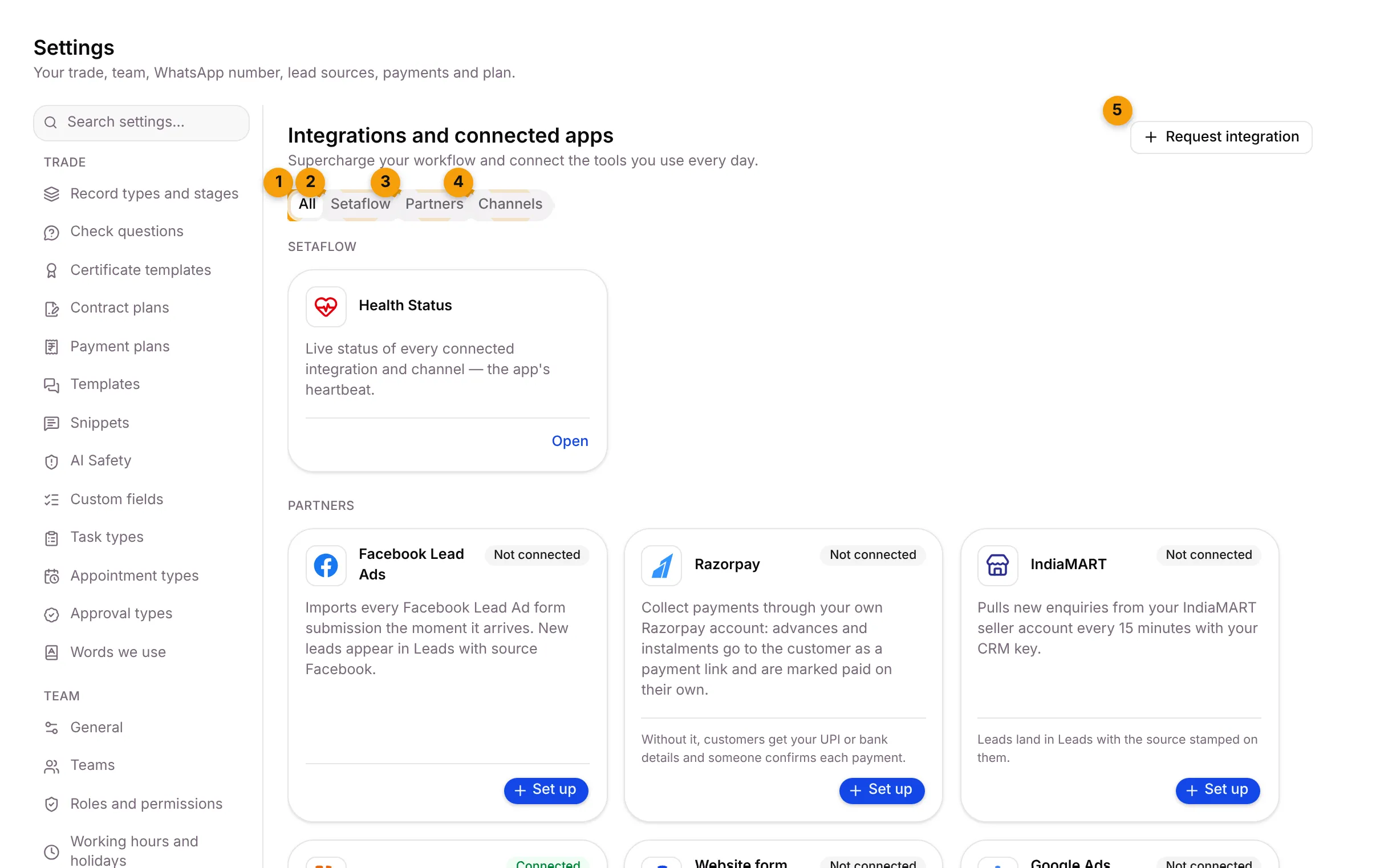
- All: every tile.
- Setaflow: the Health Status tile, the live status of everything you have connected.
- Partners: apps such as Facebook Lead Ads, Razorpay, IndiaMART, Justdial, your website form, Google Ads lead forms and TidyCal. Each tile has Set up, or Manage once it is connected.
- Channels: WhatsApp Business and Email (your own mailbox).
- Request integration: ask the Setaflow team for an app that isn’t listed.
What each tile can show
Section titled “What each tile can show”| Tile | What it means |
|---|---|
| A connected badge with Manage | It’s working. Click Manage to see details or disconnect. |
| Set up or Connect | Not connected yet |
| A lock, Not in your plan | Your plan doesn’t include it |
| Coming soon | Not available yet |
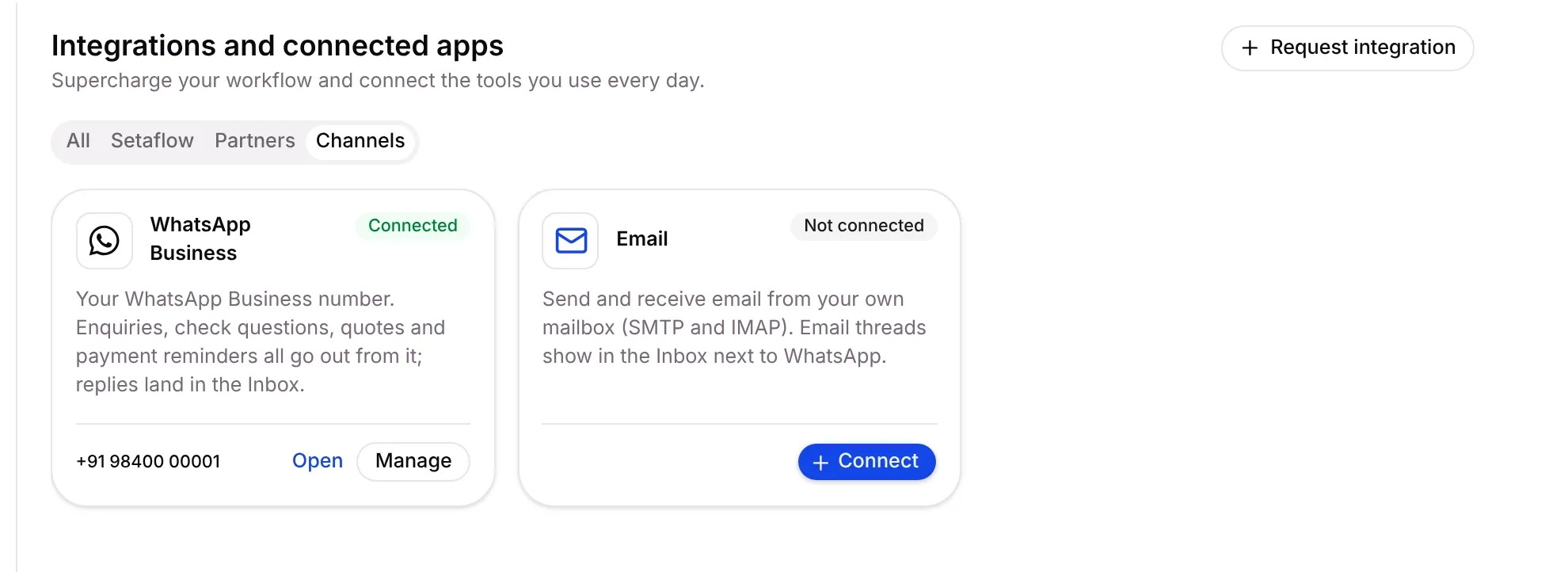
The lead tiles (Facebook Lead Ads, IndiaMART, Justdial, Website form webhook, Google Ads lead form) open Lead sources. The Razorpay tile opens Collect payments. The WhatsApp Business tile opens WhatsApp number.
Check Health Status
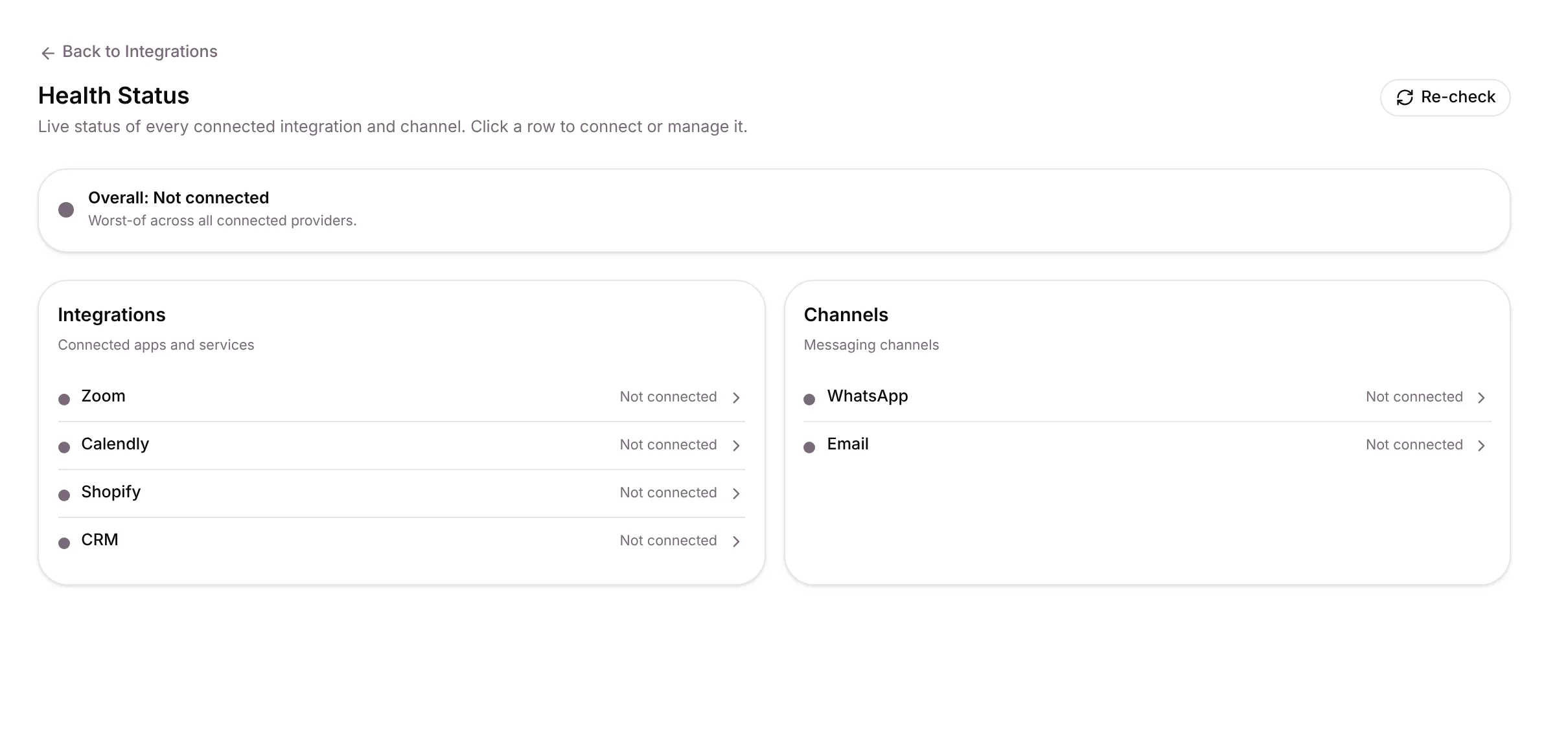
Section titled “Check Health Status”- On the Setaflow tile Health Status, click Open.
- Read the status of each connection, under Integrations and Channels.
- Click Re-check to test them again now. Click a row to connect or manage it.
| Status | What it means |
|---|---|
| Operational | Working |
| Degraded | Working, with problems |
| Down | Not working |
| Not connected | Never connected |
The overall status at the top is the worst status of anything you have connected.
Connect your CRM
Section titled “Connect your CRM”If your plan includes CRM sync (Scale and above), you can connect HubSpot, Zoho CRM or Zoho Bigin under Partners. Only the Owner or an Admin can connect one.
- On the CRM tile, click Set up. For Zoho, choose Which Zoho product?
- Follow 1. Create the API client in your CRM’s developer console, and paste the Redirect URI exactly as shown.
- Under 2. Paste the client details, paste the Client ID and Client Secret.
- Click the connect button, for example Connect Zoho CRM, and sign in to your CRM.
The CRM Integrations page then lists your Connected CRMs. Until you connect one, it says No CRM connected yet.
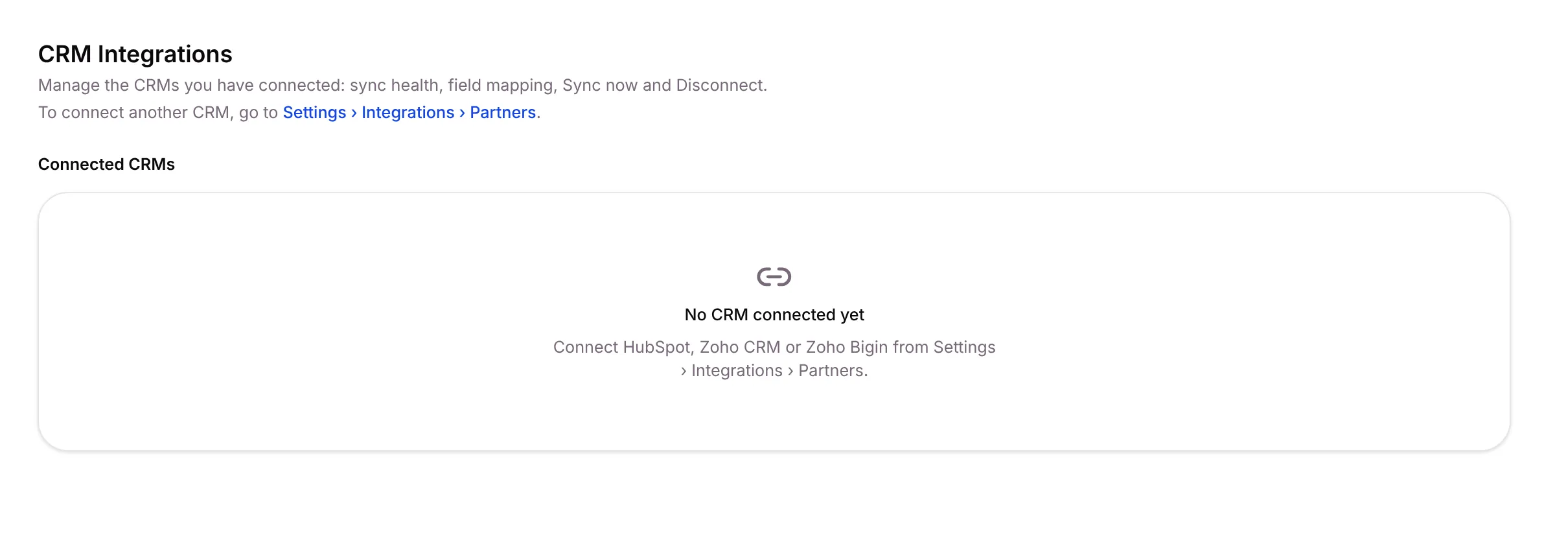
For each one you can Sync now, set which Setaflow field matches which CRM field, and Disconnect.
Settle records in Sync review
Section titled “Settle records in Sync review”Settings › Sync review lists records the sync could not settle on its own: two matching contacts, a value the CRM refused, or a record that kept flipping. For each row:
- Choose a contact under Link to contact and click Link, or
- Click Dismiss.
| Reason | What to do |
|---|---|
| Two contacts share this phone number | Link the right contact |
| Two contacts share this email | Link the right contact |
| Record kept flipping between two values, frozen | Fix the value in one place, then dismiss |
| Contact limit of your plan reached, import stopped | Upgrade, or remove contacts you don’t need |
When everything is settled, the tab says Nothing needs review. If you don’t see Sync review, CRM and calendar sync is switched off for your business. Ask Setaflow support to switch it on.
Set how your email leaves Setaflow
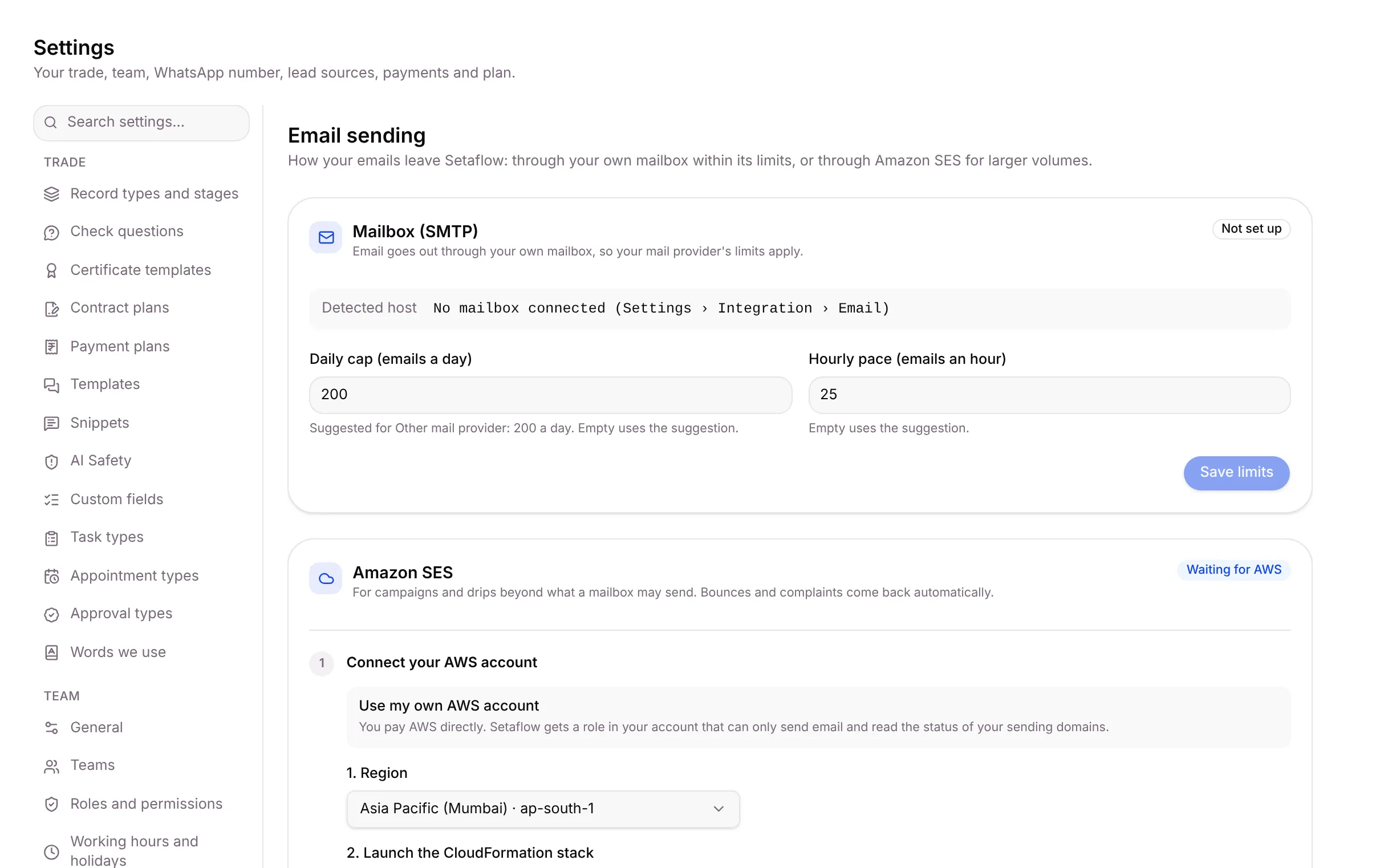
Section titled “Set how your email leaves Setaflow”Settings › Email sending decides how your emails go out: through your own mailbox, within its limits, or through Amazon SES for larger volumes.
-
Mailbox (SMTP): the mailbox you connected under Integrations › Channels › Email. Set a Daily cap (emails a day) and an Hourly pace (emails an hour), or leave them empty to use the suggestion for your mail provider. Click Save limits.
-
Amazon SES: for campaigns and drips beyond what a mailbox may send. Connect your AWS account, add your sending domain, send a test email, then choose what sends through SES: Automations, Campaigns and Drip campaigns.
Connect your own system with the Developer API
Section titled “Connect your own system with the Developer API”If your plan includes it, Settings › Developer API lets your own software talk to Setaflow.
| Sub-tab | What it’s for |
|---|---|
| Access & keys | Create API keys. Give each a Key name and click Generate key. |
| Webhooks | Turn on Send webhooks, enter a Webhook URL, pick Events to send and use Send test. Works with Zapier, Make or Pabbly. |
| Usage & health | How much the API is used, and whether webhooks are being delivered |
| API reference | The full list of calls |
Good to know
Section titled “Good to know”- Who sees Integrations: everyone with access to Settings. Connecting needs edit rights, and a CRM needs the Owner or an Admin.
- Sync review, Email sending and Developer API appear only if your plan includes them.
What’s next?
Section titled “What’s next?”Related articles
Section titled “Related articles”Was this article helpful?
Thanks for letting us know.