

Start a new enquiry, job or contract by hand, for example for a walk-in or a phone call.
Most records start on their own when a lead is converted to a contact. Create one by hand when the work didn’t come through a lead, for example a customer who walks in, or a second job for a customer you already have.
Create a new record
Section titled “Create a new record”-
Go to Records and click New…. Choose the kind of record, for example Enquiry.
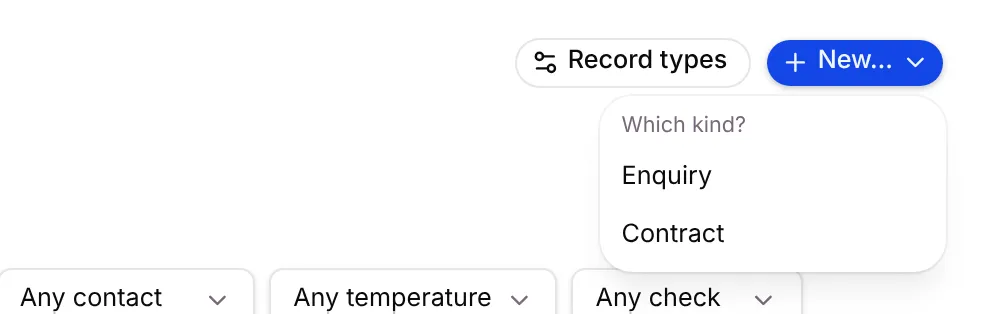
On a type’s own tab, the button already says what you’ll create, such as New enquiry.
-
Fill in the dialog:
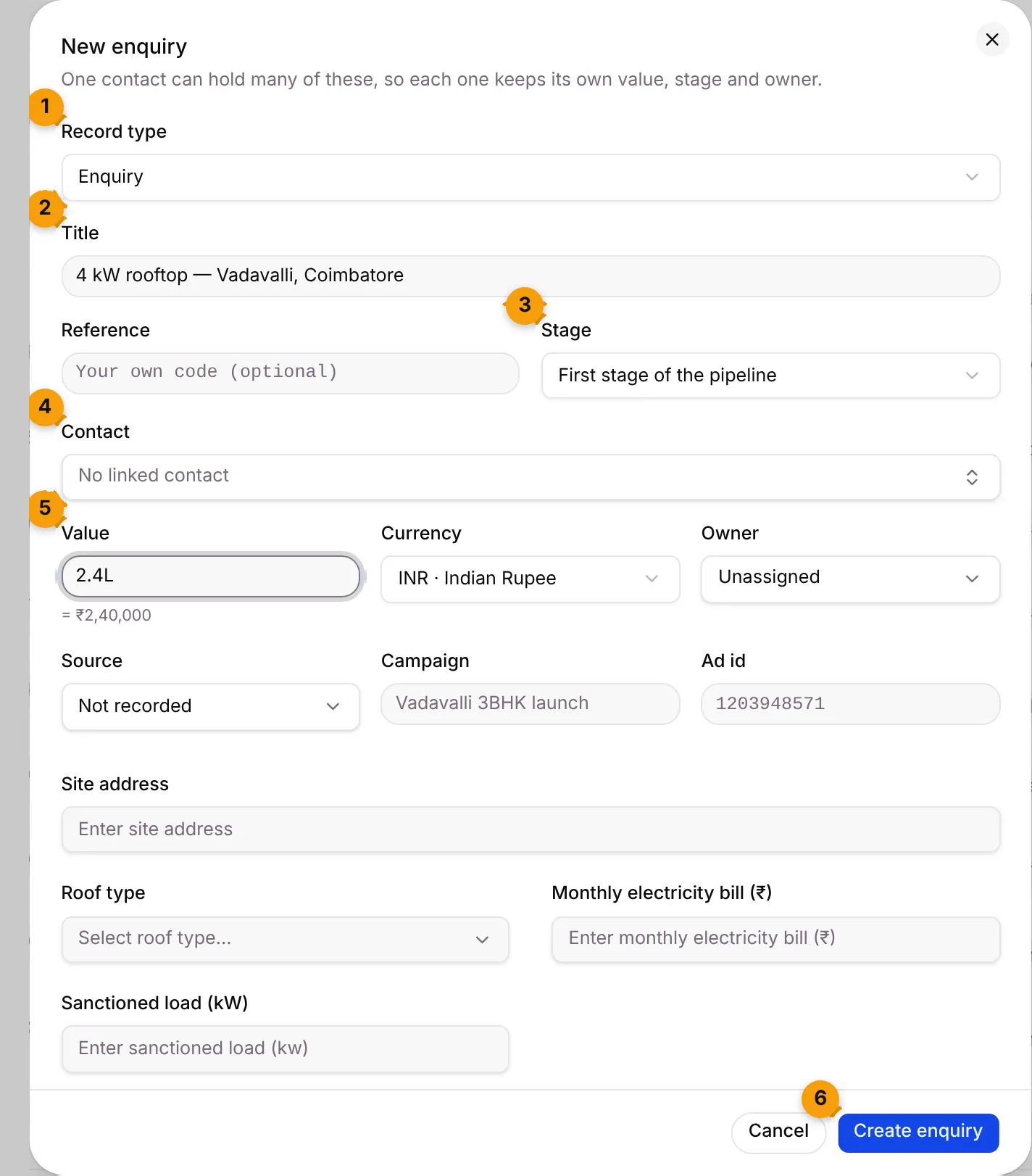
- Record type: already set from your choice. Change it here if you picked the wrong one.
- Title: the only field you must fill in. Use something your team will recognise, for example 4 kW rooftop — Vadavalli, Coimbatore.
- Stage: leave First stage of the pipeline, or pick a later stage if the work is already under way.
- Contact: pick the customer. Leave No linked contact if you don’t know who it is yet.
- Value: type the amount. Short forms work: 2.4L becomes = ₹2,40,000 below the box.
- Create enquiry: saves the record. The button stays grey until the title is filled in.
-
Fill in the rest if you have it:
- Reference: your own code (optional).
- Currency: INR · Indian Rupee unless you sell in another currency.
- Owner: the team member responsible. Unassigned if you’ll decide later.
- Source, Campaign and Ad id: where the work came from. Leave Not recorded if you don’t know.
- Your type’s own fields, such as Site address, Roof type, Monthly electricity bill (₹) and Sanctioned load (kW).
-
Click Create enquiry (the button carries your record type’s name).
The record opens, at the stage you chose.
Common errors
Section titled “Common errors”| Message | What to do |
|---|---|
| Not a valid amount | Type a number, such as 240000 or 2.4L. |
| Value cannot be negative | Remove the minus sign. |
| Convert this lead to a contact first. | Click Convert to contact in the message, then try again. |
Change a record’s details later
Section titled “Change a record’s details later”Open the record and click Edit details. You can change the title, reference, owner, value, currency, campaign, ad id and your type’s own fields. Click Save changes.
What’s next?
Section titled “What’s next?”Related articles
Section titled “Related articles”Was this article helpful?
Thanks for letting us know.