

Bring your existing customer list into Setaflow from an Excel sheet, check it, and import only the rows that are correct.
If you already keep customers in Excel, you can import them in three steps: Upload File, Validation and Import. Setaflow checks every row first, so a few bad rows never block the rest.
Before you start
Section titled “Before you start”- Use an .xls or .xlsx file, up to 5 MB.
- Put one contact per row.
- Write phone numbers with the country code, for example 919840011122.
- Start from Setaflow’s sample file. It has every column the import reads, including your custom fields, and a How to fill sheet.
Step 1: Upload your file
Section titled “Step 1: Upload your file”- Go to Contacts and click Import.
- Click Choose File, or drag your file into the box.
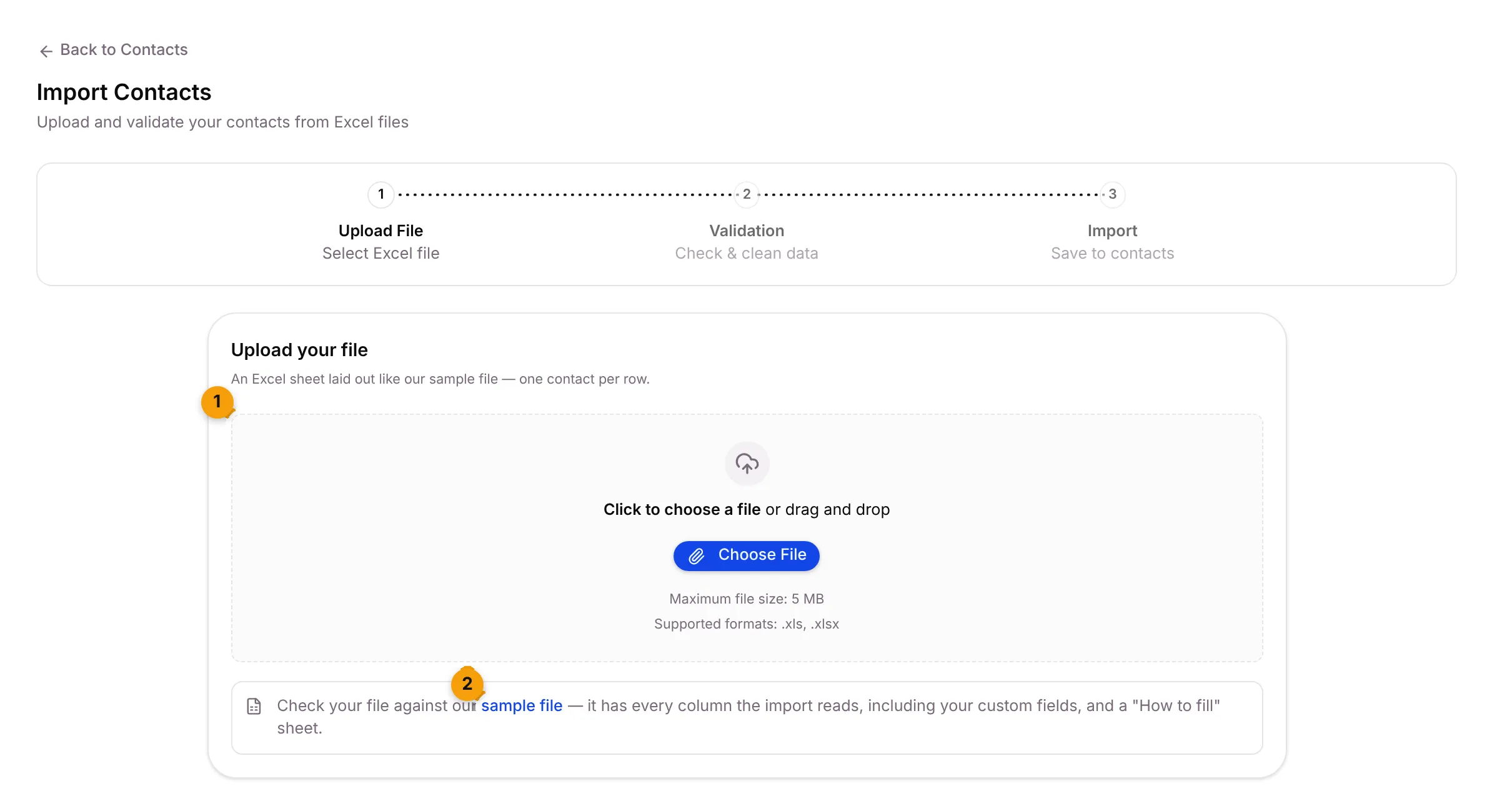
If you don’t have a file ready, click sample file, fill it in, and come back.
Click Next.
Step 2: Check the results
Section titled “Step 2: Check the results”Setaflow checks every row and shows two groups:
- Valid Contacts: the rows that will be imported.
- Validation Issues: the rows that will be left out, with the row number and the problem.
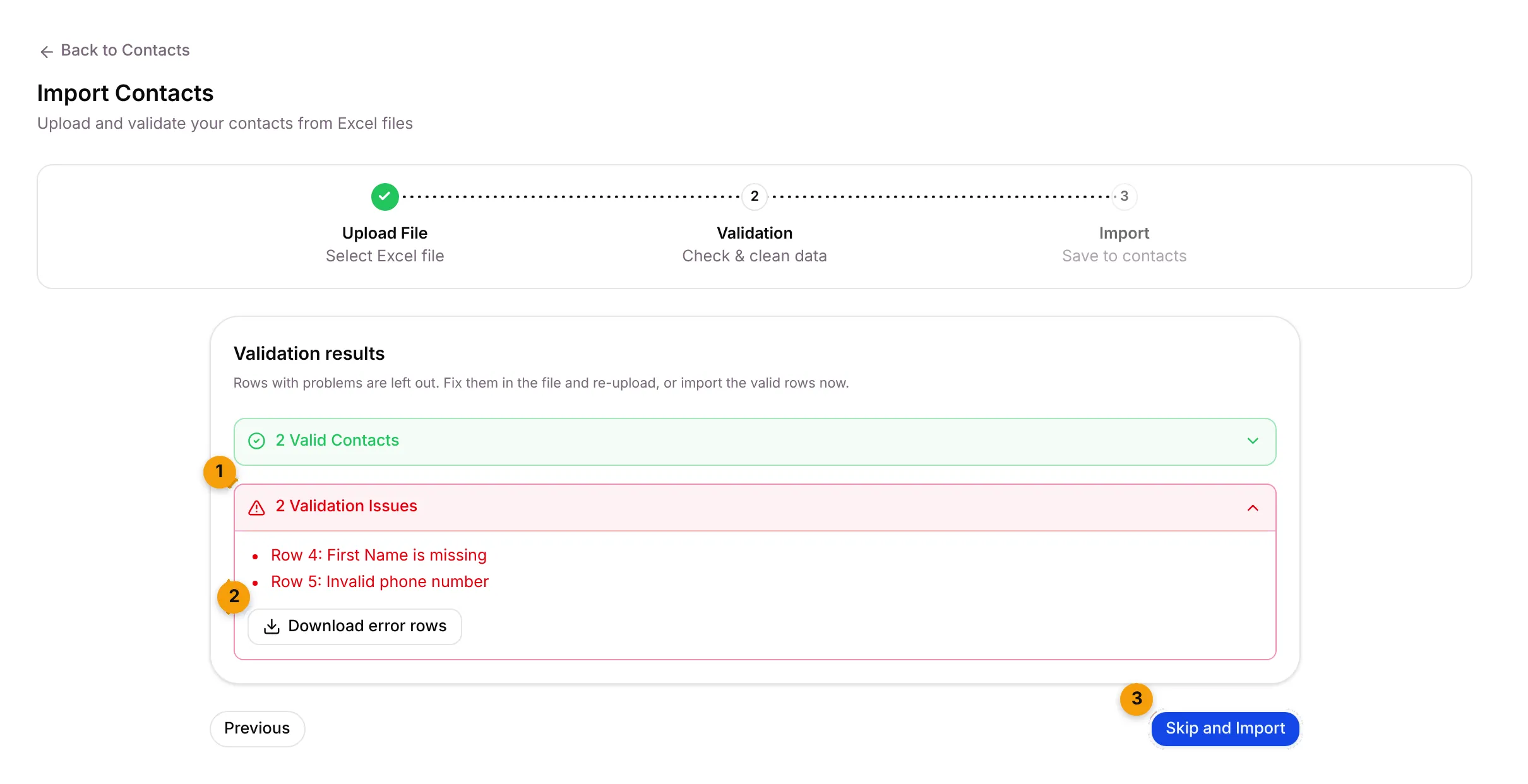
- Read the issues.
- To fix them, click Download error rows. You get an Excel file with an Error Details column. Fix the rows and import that file again later.
- Click Skip and Import to go ahead with the valid rows now.
Step 3: Import
Section titled “Step 3: Import”Setaflow shows what the import will do: how many contacts it will insert (new) and how many it will update (already in Setaflow).
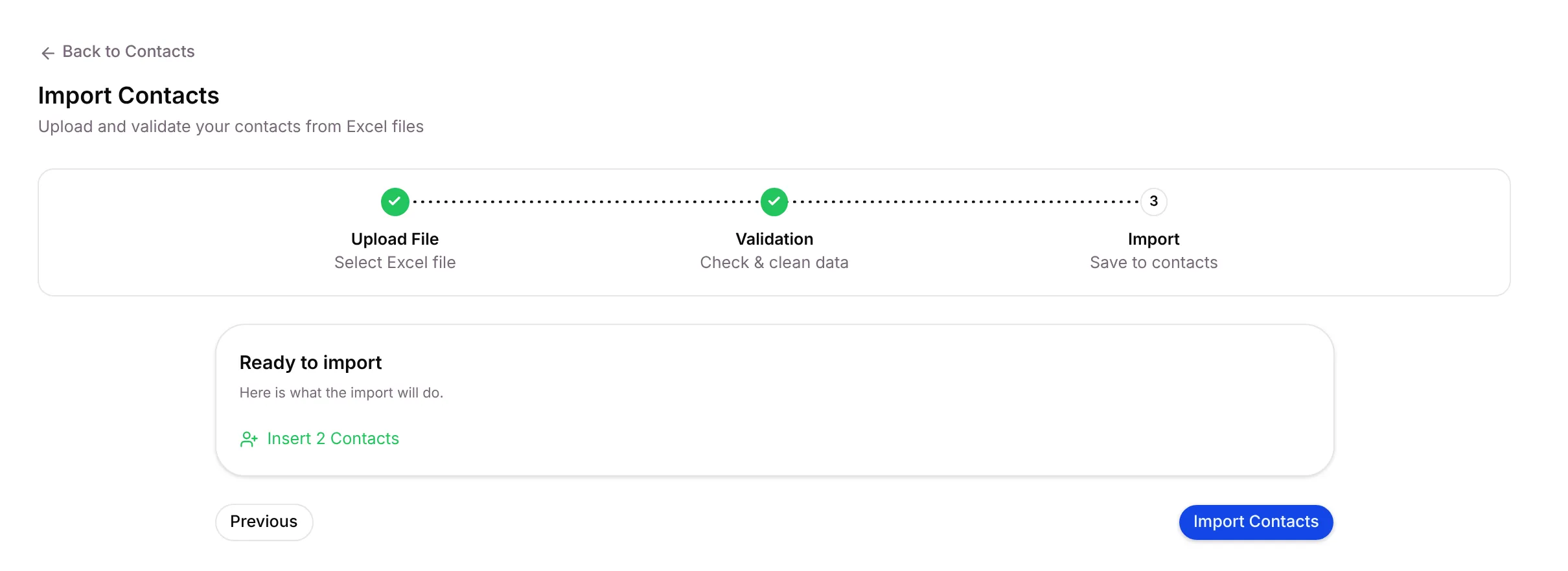
Click Import Contacts. When it’s done, you’ll see Contacts imported.
How Setaflow matches existing contacts
Section titled “How Setaflow matches existing contacts”| In your file | What happens |
|---|---|
| Email and phone both match the same contact | That contact is updated |
| Only the email or only the phone matches | That contact is updated |
| Email and phone match different contacts | The row is left out, with an error |
| Nothing matches | A new contact is created |
Common issues
Section titled “Common issues”| Issue | What to do |
|---|---|
| First Name is missing | Add a first name in that row. |
| Invalid phone number | Add the country code and check the digits. |
| Invalid Birthday Date (use DD-MM-YYYY) | Write dates like 25-12-1990. |
| List not found / Tag not found | Create the list or tag in Setaflow first, or fix the spelling. |
| Duplicate email / Duplicate phone number found in Excel file | The same contact appears twice in your sheet. Keep one row. |
| Some new contacts won’t be added | Your plan’s contact limit is reached. The extra rows are skipped. |
Related articles
Section titled “Related articles”Was this article helpful?
Thanks for letting us know.