

Every AMC with its term, planned service visits, the technician job for each visit, and the renewal reminders that go out before it ends.
Contracts holds every maintenance contract (AMC) you’ve sold: the plan, the term, the service visits and when it renews. Each visit gets its own technician job, every closed visit sends the customer a service certificate, and renewal reminders go out on their own at 60, 30 and 7 days before the end.
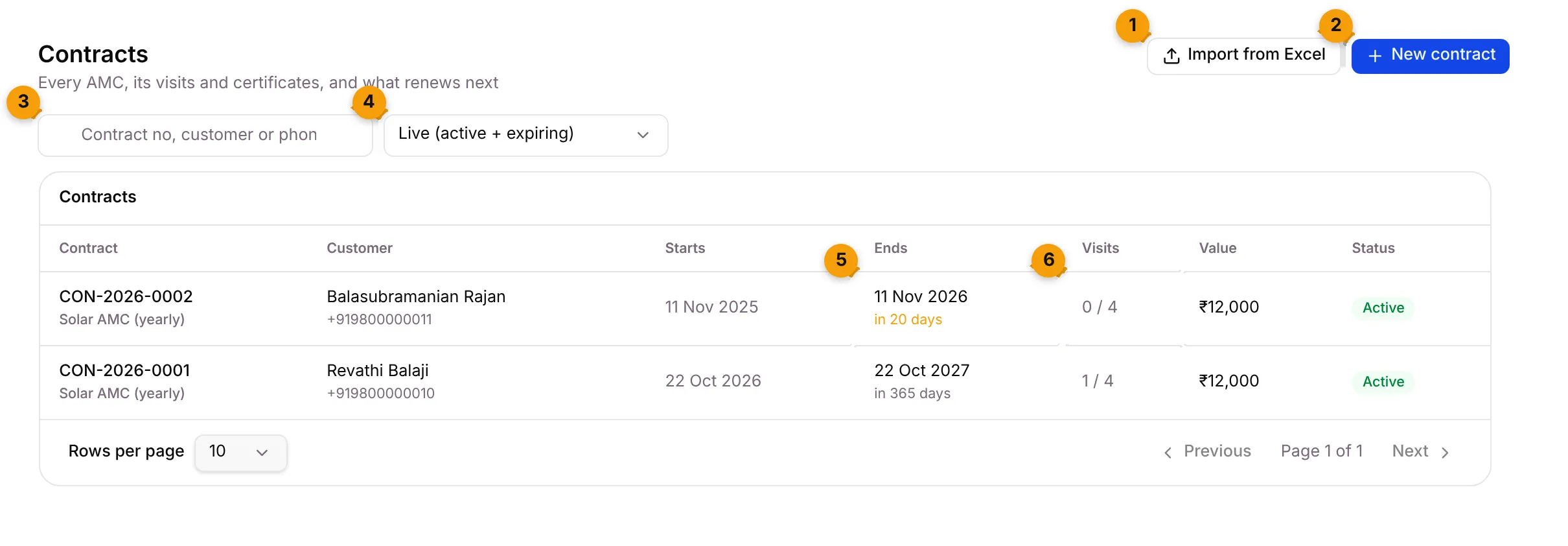
- Import from Excel: bring in the contracts you already have.
- New contract: add one contract by hand.
- Search: find a contract by its number, the customer’s name or phone.
- Status: Live (active + expiring) at first. Pick Active, Expiring, Expired, Renewed, Cancelled or All statuses.
- Ends: the end date, with how far away it is. It turns amber within 30 days and red once it has passed.
- Visits: visits used out of visits included, for example 1 / 4.
Contract statuses
Section titled “Contract statuses”| Status | What it means |
|---|---|
| Active | The term is running. |
| Expiring | The end date is within the plan’s renewal notice (30 days unless the plan says otherwise). |
| Expired | The end date has passed and it wasn’t renewed. |
| Renewed | A new term replaced this one. |
| Cancelled | Stopped early. It stays on the book. |
Setaflow moves contracts between Active, Expiring and Expired by itself, once a day.
Add a contract
Section titled “Add a contract”Most contracts start by themselves: when a job reaches its handover stage, your trade’s AMC plan starts for that customer. Add one by hand for a contract sold outside that flow.
- Go to Contracts and click New contract.
- Pick the Plan. It fills in the term, the price and the number of included visits. These are copied onto the contract, so a later change to the plan never changes this contract.
- Pick the Customer and, if there is one, the Linked record.
- Set Starts on. Leave Ends on, Agreed price and Included visits empty to use the plan’s values, or type your own.
- Leave Contract number empty and Setaflow numbers it, for example CON-2026-0003.
- Click Create contract.
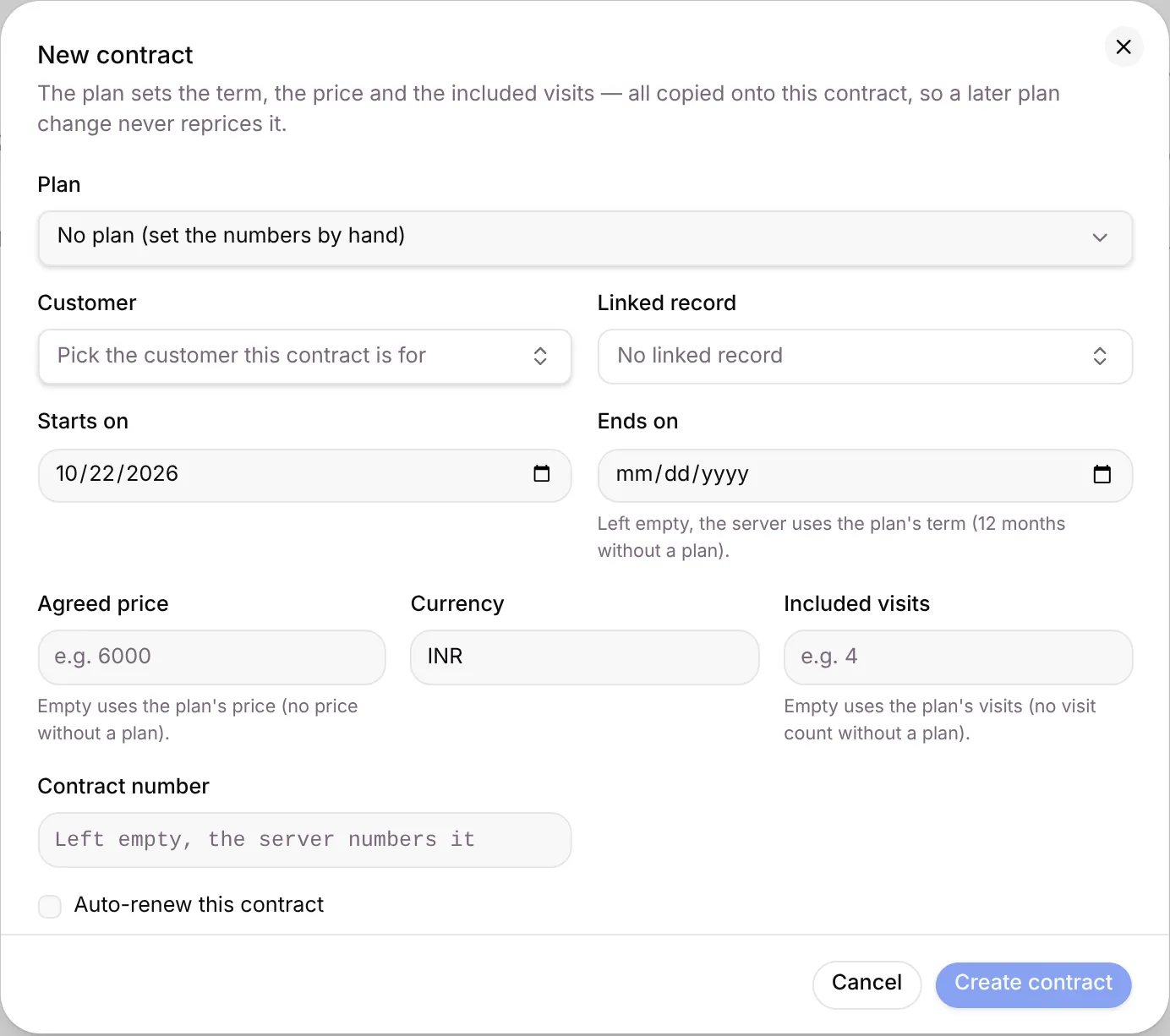
The contract is created with its renewal reminder armed, and its visits and jobs are planned straight away.
Open a contract
Section titled “Open a contract”Click a row. The contract page opens.
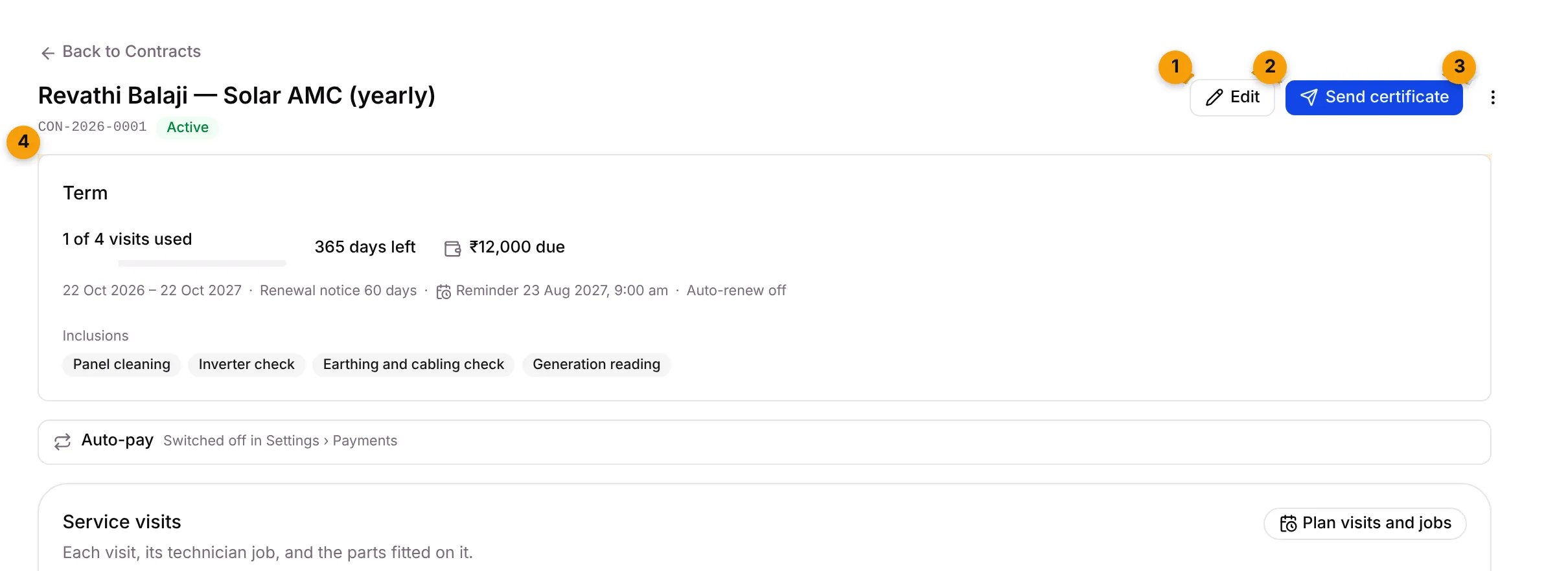
- Edit: change the dates, price or visits. Moving the end date or the price re-arms the renewal reminder.
- The main button shows the next thing to do: Renew when the contract is in its renewal window, Send certificate when a certificate didn’t go out, Plan visit N when a visit is missing, or Assign visit N when the next job has no technician.
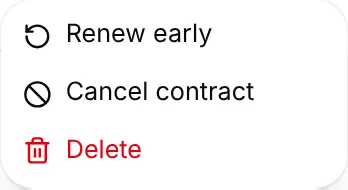
- ⋯: Renew early, Cancel contract and Delete.
- Term: visits used, days left, the payment for this term, the dates, the renewal notice, when the next reminder goes out, and what the plan includes.
Service visits
Section titled “Service visits”The Service visits card lists every visit, its technician job and any parts fitted.
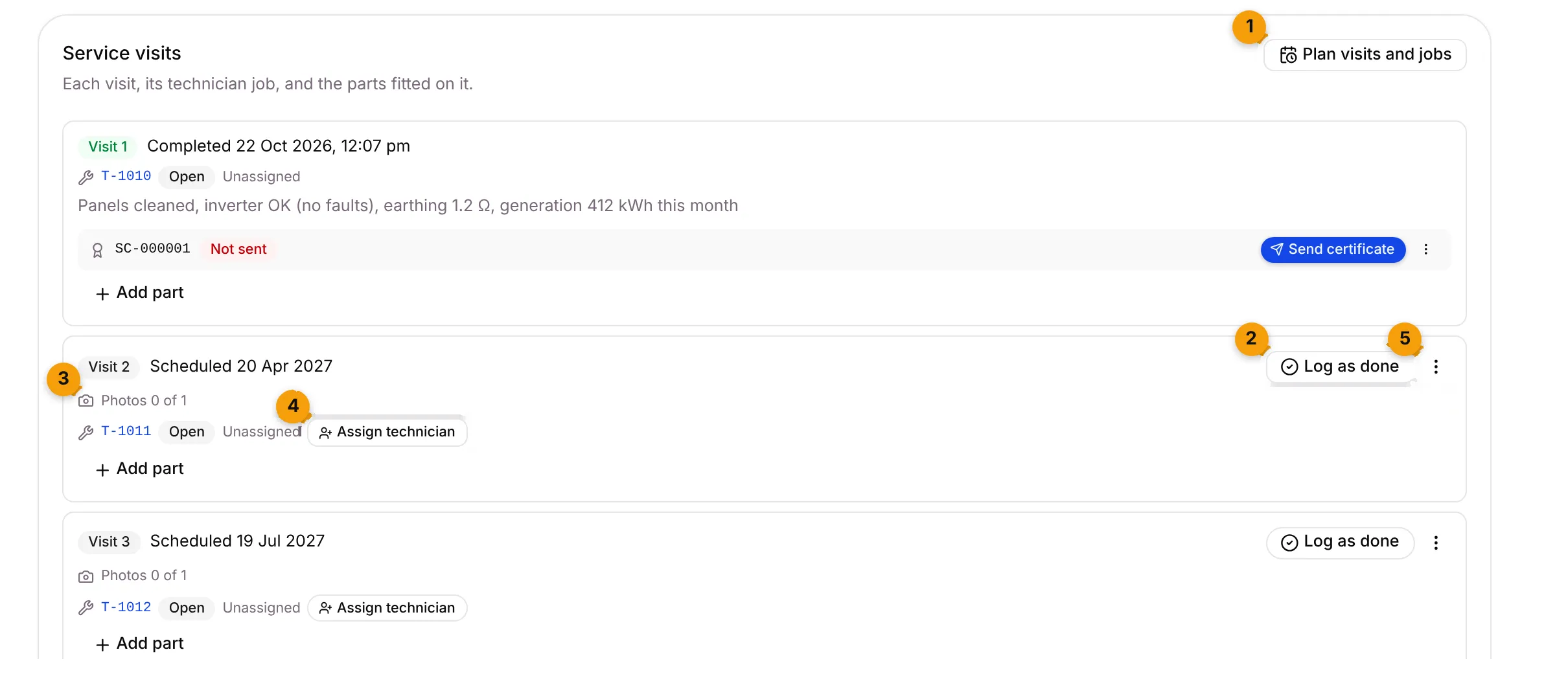
- Plan visits and jobs: plans any missing visits and creates one job for each.
- Log as done: closes the visit from the office.
- Photos: how many site photos are attached, out of how many the visit needs.
- Assign technician: picks who does the visit. A technician on WhatsApp gets the job straight away.
- ⋯: more visit actions.
Each visit shows its job code (for example T-1011), the job’s status and who it’s assigned to. A finished visit shows what was done and its certificate, such as SC-000001, with Sent or Not sent.
How visits are planned
Section titled “How visits are planned”When a contract is created or renewed, Setaflow plans its visits:
- If the plan has Visit every (days), visits fall at that interval from the start date. Otherwise they’re spread evenly across the term.
- A visit that lands on a holiday or a closed day moves to the next working day.
- Each visit gets a job due at 10:00 on the visit day. The job is Unassigned until you pick a technician.
Click Plan visits and jobs at any time. It only adds what’s missing, so pressing it twice does nothing extra.
Close a visit
Section titled “Close a visit”The technician usually closes the visit from WhatsApp by sending photos and replying Done. To close it from the office:
- Click Log as done on the visit.
- Check Photos, then write the Outcome, for example Panels cleaned, inverter OK, generation 412 kWh this month.
- Click Log as done.
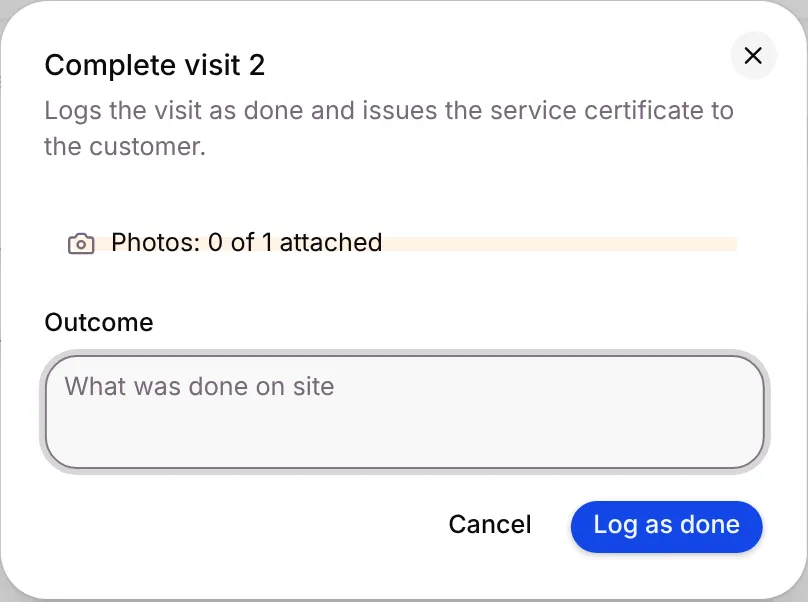
The visit is marked done and the service certificate goes to the customer.
The visit ⋯ menu has:
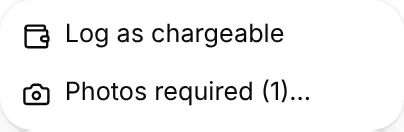
- Log as chargeable: log a paid, out-of-contract call. It doesn’t use up an included visit.
- Photos required (n)…: change how many photos this visit needs, from 0 to 20.
When all included visits are used, the next visit must be logged as chargeable.
Renewals: 60, 30 and 7 days
Section titled “Renewals: 60, 30 and 7 days”Setaflow reminds the customer before the contract ends, with no work from you:
- At 60, 30 and 7 days before the end date, at 9:00 am, the customer gets a renewal message on WhatsApp.
- At the first reminder, Setaflow makes a renewal quote at the contract’s agreed price, with a payment link if you collect payments online.
- When the renewal payment is marked paid, the next term is created, the old contract becomes Renewed, next year’s reminders are set and the new visits and jobs are planned.
If the customer paid another way, open the contract and click Renew (or Renew early in ⋯). Check Next term starts, Months and Renewal price, then click Renew contract.
The Renewal chain card on the contract page links each term to the one before and after it.
Licence and NOC expiry
Section titled “Licence and NOC expiry”For lifts and fire safety, the job record can hold a Licence valid till or NOC valid till date. Setaflow reminds you at 60, 30 and 7 days before that date, with a notification for the owner and the record owner. The customer also gets a WhatsApp reminder if your reminder template is approved. The date shows on the contract’s Term card.
Import contracts from Excel
Section titled “Import contracts from Excel”- Click Import from Excel.
- Click Download template and fill in one contract per row.
- Click Choose a file and pick your sheet (.xlsx, .xls or .csv).
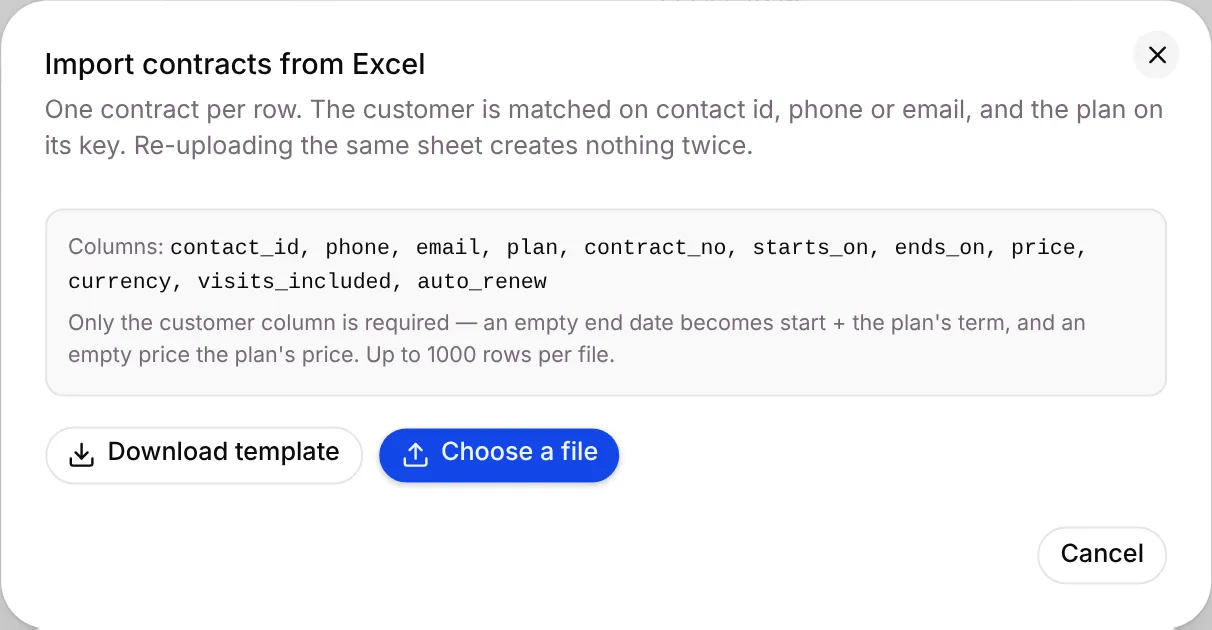
Only the customer column is required. The customer is matched on contact id, phone or email, and the plan on its key. An empty end date becomes the start date plus the plan’s term, and an empty price becomes the plan’s price. You can upload up to 1,000 rows at a time. Uploading the same sheet again creates nothing twice.
The result shows how many rows were created, skipped or failed, with a reason for each row.
Good to know
Section titled “Good to know”- Contracts depend on your plan. If you don’t see Contracts in the sidebar, your plan doesn’t include it.
- Buttons depend on your role. Staff who can’t create contracts don’t see Import from Excel or New contract. See Roles and access.
- Cancelling or deleting a contract cancels its unfinished visit jobs.
What’s next?
Section titled “What’s next?”Related articles
Section titled “Related articles”Was this article helpful?
Thanks for letting us know.