

Keep your products, services and prices in price lists that your quotes and Seta AI use.
The Catalogue holds your price lists: the products and services you sell, with their prices and tax. When you build a quote, you pick lines from here, and Seta AI uses the same prices when it answers a customer.
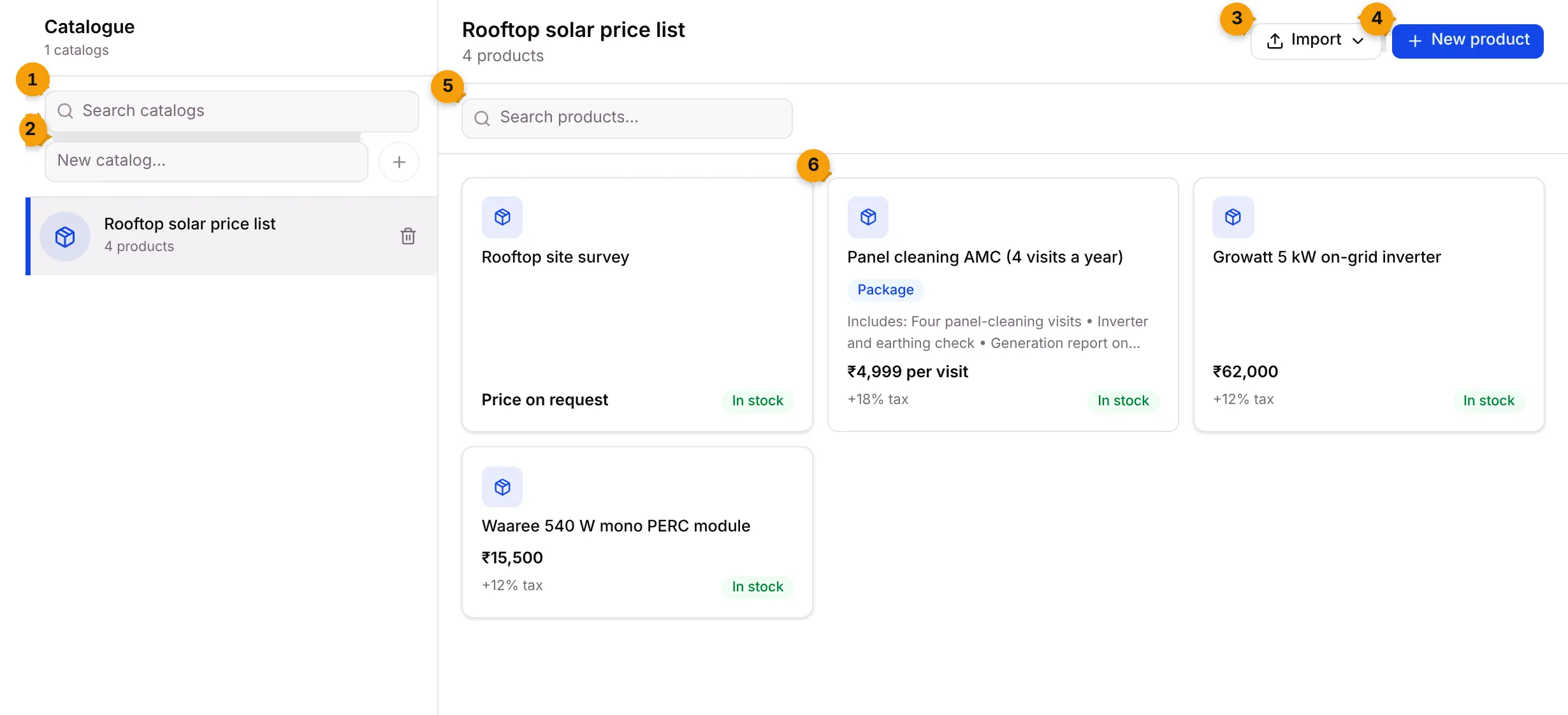
- Search catalogs: find a price list by name.
- New catalog…: type a name and click + to make a new price list.
- Import: add many products at once from an Excel sheet.
- New product: add one product by hand.
- Search products…: find a product in this price list by name or SKU.
- Product card: the name, its shape (such as Package), its price and tax, and whether it’s In stock or Out of stock.
Make a price list
Section titled “Make a price list”- Go to Catalogue.
- Type a name in New catalog…, for example Rooftop solar price list.
- Click + (or press Enter).
The new price list appears on the left. Click it to see its products.
Add a product
Section titled “Add a product”- Pick the price list on the left.
- Click New product.
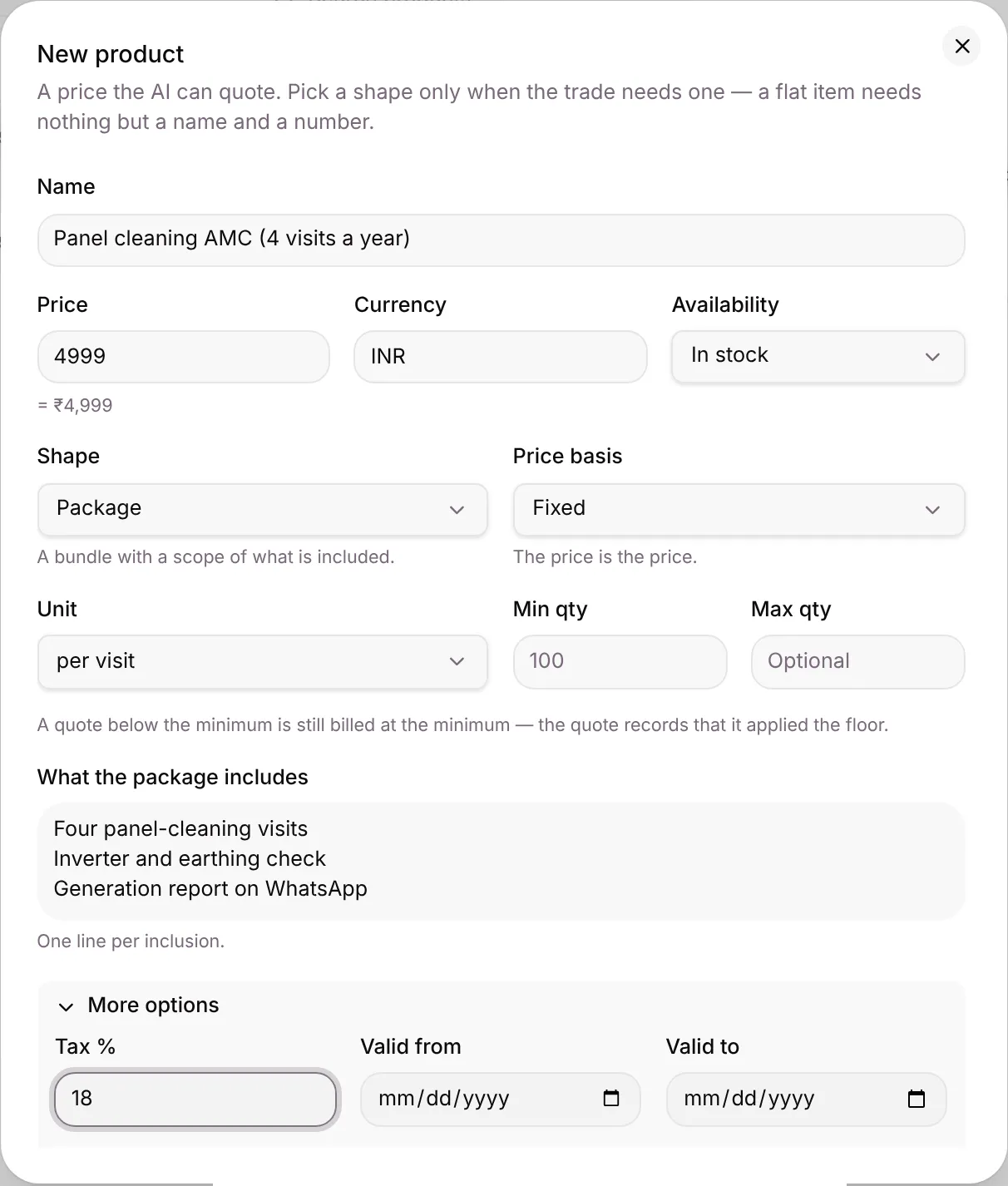
- Fill in Name and Price. You can type short forms such as 68.5L; the dialog shows the amount it understood, for example = ₹4,999.
- Check Currency (INR by default) and Availability.
- Choose a Shape and a Price basis if you need them (see the tables below).
- Open More options for Tax %, Valid from / Valid to, SKU, Add-on of and Description.
- Check the Customers will see line at the bottom, then click Create product.
Shapes
Section titled “Shapes”| Shape | Use it for |
|---|---|
| Item | One thing at one price, such as an inverter or a service call. |
| Package | A bundle. List What the package includes, one line per inclusion. |
| Unit rate | A rate times a quantity, such as per sq ft, per visit or per day. |
A package or unit rate also has a Unit, a Min qty and a Max qty. A quote below the minimum is still billed at the minimum.
Price basis
Section titled “Price basis”| Price basis | What it means |
|---|---|
| Fixed | The price is the price. |
| From (starts at) | The AI says “from ₹…”, never a firm number. |
| On request | No price is shown. You type the price on each quote. |
To change a product, hover over its card and click the pencil. Changing a price doesn’t change quotes you’ve already saved; their prices were copied when you saved them.
Import products from Excel
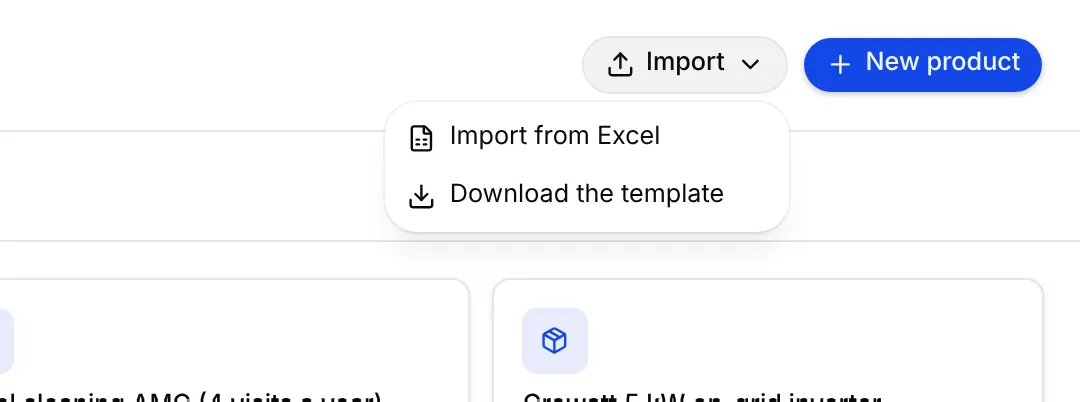
Section titled “Import products from Excel”- Pick the price list and click Import.
- Choose Download the template to get a sheet with the right columns: Name, SKU, Price, Currency, Unit, Availability, Image URL and Description.
- Fill it in, then click Import › Import from Excel and choose your file.
An Import result box shows how many products were created, updated and failed, with a reason for each failed row.
Delete a product or a price list
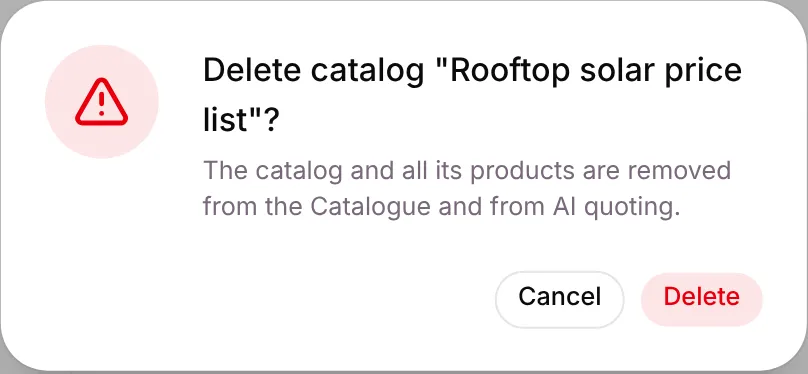
Section titled “Delete a product or a price list”Hover over a product card or a price list and click the bin. Setaflow asks first.
Good to know
Section titled “Good to know”- Products synced from Meta are read-only. They show Managed by Meta — read-only, WhatsApp only. Edit them in Meta Commerce Manager and sync again. They can only be quoted on WhatsApp.
- Buttons depend on your role. Without permission to create or delete catalogue items, you don’t see New product, Import or the bin. See Roles and access.
- If you don’t see Catalogue, your plan doesn’t include it.
What’s next?
Section titled “What’s next?”Related articles
Section titled “Related articles”Was this article helpful?
Thanks for letting us know.