

Your team's shared WhatsApp inbox. Every customer chat in one place, replied to from your one business number.
The Inbox is where your team talks to customers. Every chat from WhatsApp (and any other channel you connect) lands here, and everyone replies from the same business number. You can also see who the customer is and raise a complaint without leaving the chat.
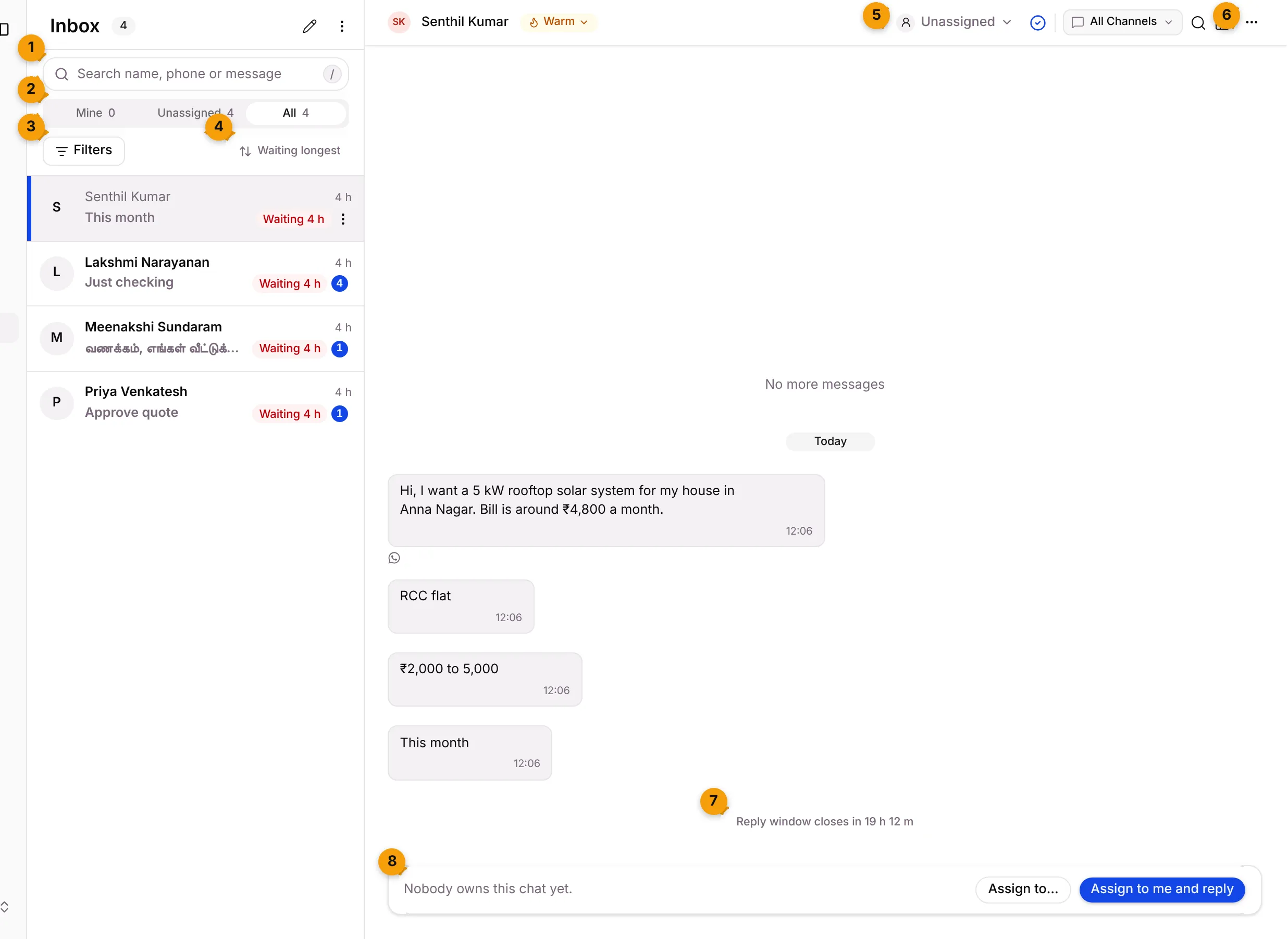
- Search: find a chat by name, phone or message. Press / to jump to it.
- Tabs: Mine, Unassigned and All, each with a count.
- Filters: narrow the list by status, owner, time, temperature and more.
- Sort: Waiting longest puts the customers who have waited longest at the top.
- Owner: who owns this chat. Click to assign it.
- More conversation actions: shared media, logs, edit or block the contact.
- Reply window: how long you can still send a normal WhatsApp message.
- Composer: where you reply. If nobody owns the chat, you assign it first.
The three tabs
Section titled “The three tabs”| Tab | What it shows |
|---|---|
| Mine | Chats assigned to you |
| Unassigned | Chats nobody owns yet. Pick these up first. |
| All | Every chat in the business |
Find a chat
Section titled “Find a chat”Click Filters to narrow the list. Active filters show as chips you can remove one by one.
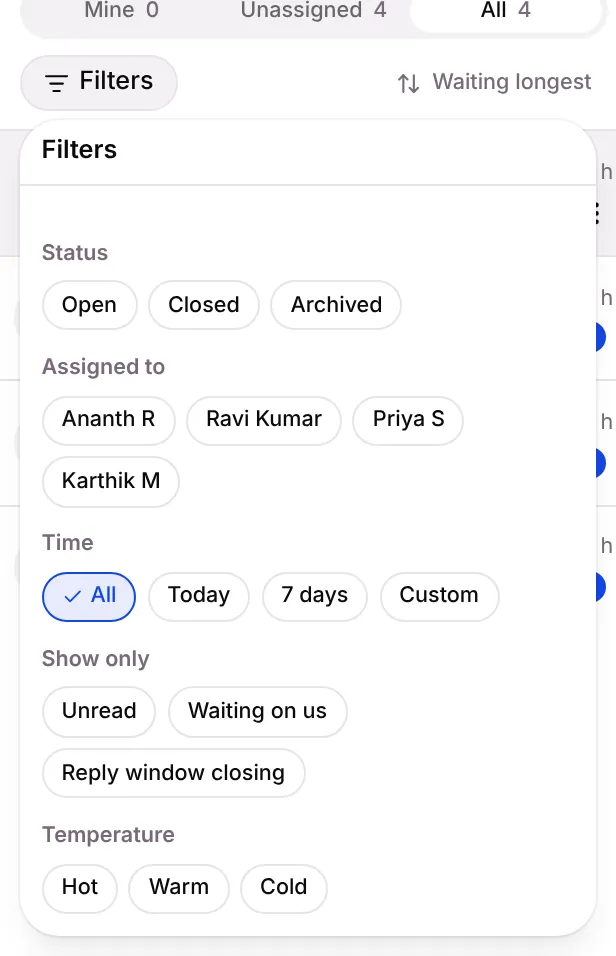
| Filter | Choices |
|---|---|
| Status | Open, Closed, Archived |
| Assigned to | Any team member |
| Time | All, Today, 7 days, Custom |
| Show only | Unread, Waiting on us, Reply window closing |
| Temperature | Hot, Warm, Cold |
Click the sort button to switch between Waiting longest, Newest message and Unread first.
Reply to a customer
Section titled “Reply to a customer”- Click the chat in the list.
- If you see Nobody owns this chat yet., click Assign to me and reply, or Assign to… to give it to someone else.
- Type your message and click Send (or press Ctrl + Enter).
Use + in the composer to Attach files (up to 100 MB each), Send Template, or send a product from your catalogue.
The 24-hour reply window
Section titled “The 24-hour reply window”WhatsApp lets you send normal messages only within 24 hours of the customer’s last message. The chat shows how long is left, for example Reply window closes in 19 h 12 m.
When the window has closed:
- The composer shows Templates only.
- You can send only an approved WhatsApp template. Click Send to pick one, fill in its values, check the preview and send.
- As soon as the customer replies, the window opens again.
Leads from Click-to-WhatsApp ads get a free window: the chat shows Ad lead: reply within a time to open a free window. Reply in time and templates stay free until the date shown.
Act on a chat
Section titled “Act on a chat”The list menu (the ⋮ next to the pencil at the top):
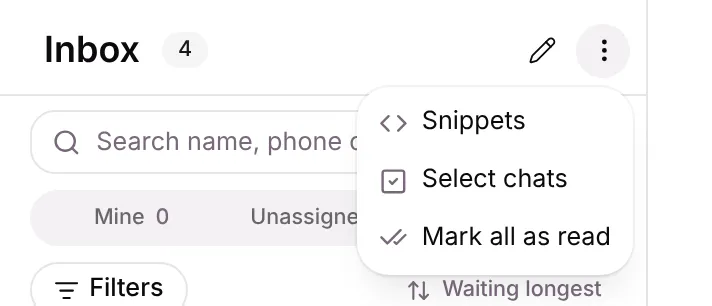
- Snippets: saved replies your team uses often.
- Select chats: pick several chats to mark them read or unread together.
- Mark all as read.
The pencil (New message) starts a chat with any contact.
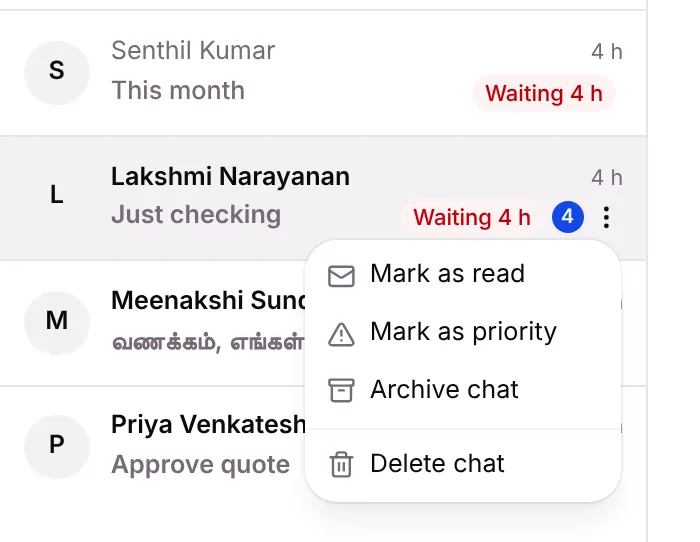
A chat’s own menu (the ⋮ on the row):
The conversation menu (the ⋯ at the top right of the chat):
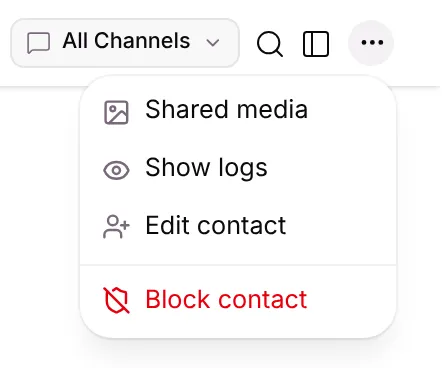
- Shared media: photos and files from this chat.
- Show logs: the chat’s history of assignments and changes.
- Edit contact: change the contact’s details.
- Block contact: you stop getting their messages and can’t message them until you unblock them. The chat history stays.
The contact panel and Raise complaint
Section titled “The contact panel and Raise complaint”Open the contact panel with the panel icon at the top right of the chat. It shows who you’re talking to: name, phone, last reply and channel, Contact info, WhatsApp opt-in, Notes, Voice notes, Social handles, User Tags and Contact Lists.
Click Raise complaint to log a service complaint for this customer straight from the chat. The customer is filled in for you, and Setaflow shows the new complaint’s number. See Complaints.
Good to know
Section titled “Good to know”- Messages sent from the WhatsApp Business app on your phone show Sent from WhatsApp app. They count as a reply for speed-to-lead and the Monday review.
- Imported marks old chats brought in when your number was connected.
- Seta AI: if Seta AI is replying to a contact, a banner says so. Click Take over to reply yourself.
- Chats open from anywhere. The Chat column in Contacts, Message on a client record and the chat icon on a record all open the right chat here.
What’s next?
Section titled “What’s next?”Related articles
Section titled “Related articles”Was this article helpful?
Thanks for letting us know.