

Send each contact a short series of 2 to 6 messages, spaced over hours or days, that starts on its own and stops when they reply.
A drip campaign sends a series of 2 to 6 WhatsApp or email templates to each contact, spaced over hours or days. It starts on its own when something brings the contact in, such as a new lead or a tag, and by default it stops as soon as they reply.
For example: a new IndiaMART lead gets a welcome message straight away, a customer story the next day, and a Book a free site visit message three days later.
This is the Drip campaigns tab on the Campaigns page. If you don’t see the tab, your plan doesn’t include drip campaigns.
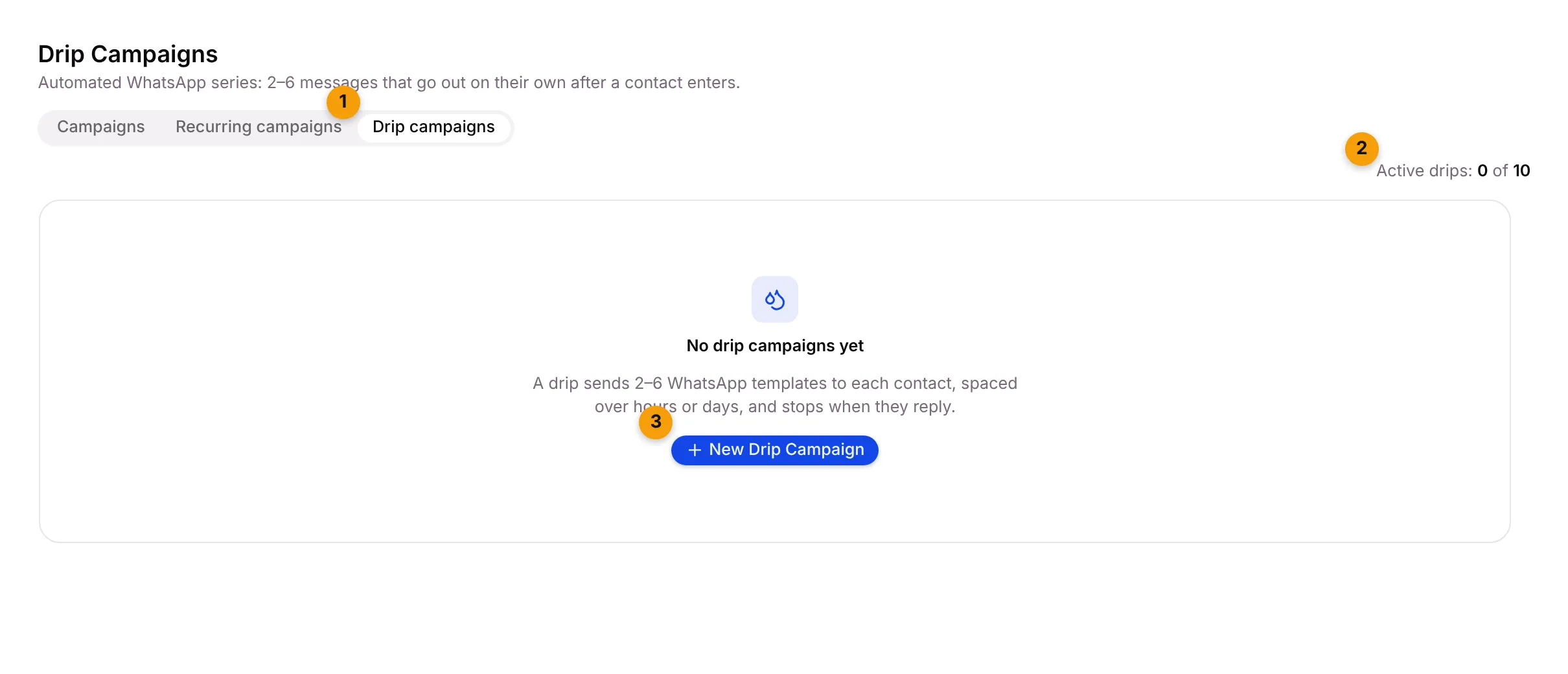
- Drip campaigns tab.
- Active drips: how many drips are running, out of what your plan allows.
- New Drip Campaign: opens the drip builder.
Build a drip
Section titled “Build a drip”1. Name it and choose the trigger
Section titled “1. Name it and choose the trigger”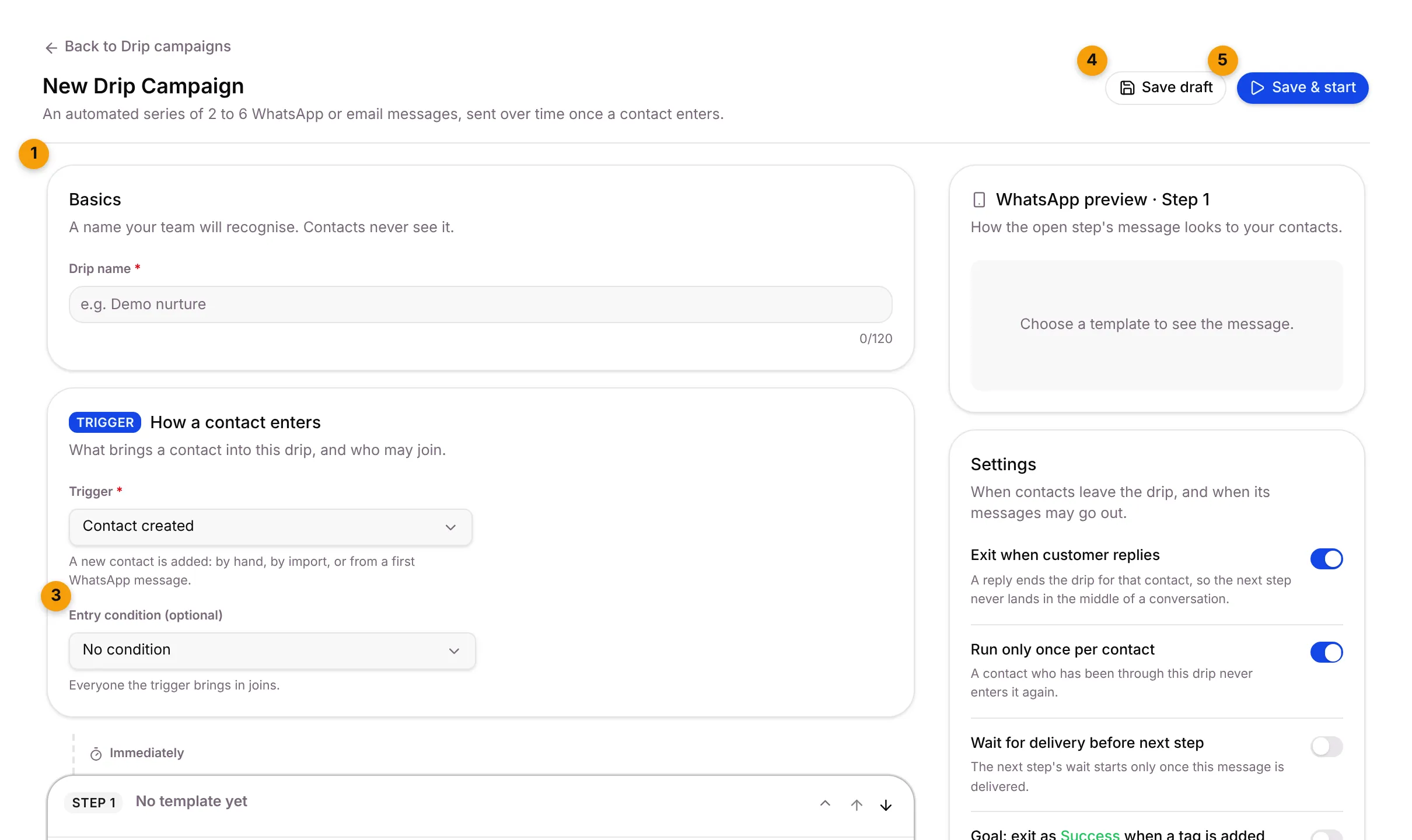
- Basics: a Drip name your team will recognise. Contacts never see it.
- Trigger: what brings a contact into the drip:
- Contact created: by hand, by import, or from a first WhatsApp message
- Tag added, Added to list or Enters segment
- Lead received: tick the lead sources, or tick none for every source
- Record created, or Record stage changed to a stage you pick
- Appointment booked
- Manual / bulk enroll: you add contacts yourself
- Entry condition (optional): only let in contacts who Have tag, Do not have tag, or are In list.
- Save draft: saves without starting it.
- Save & start: saves and starts the drip.
2. Add the steps
Section titled “2. Add the steps”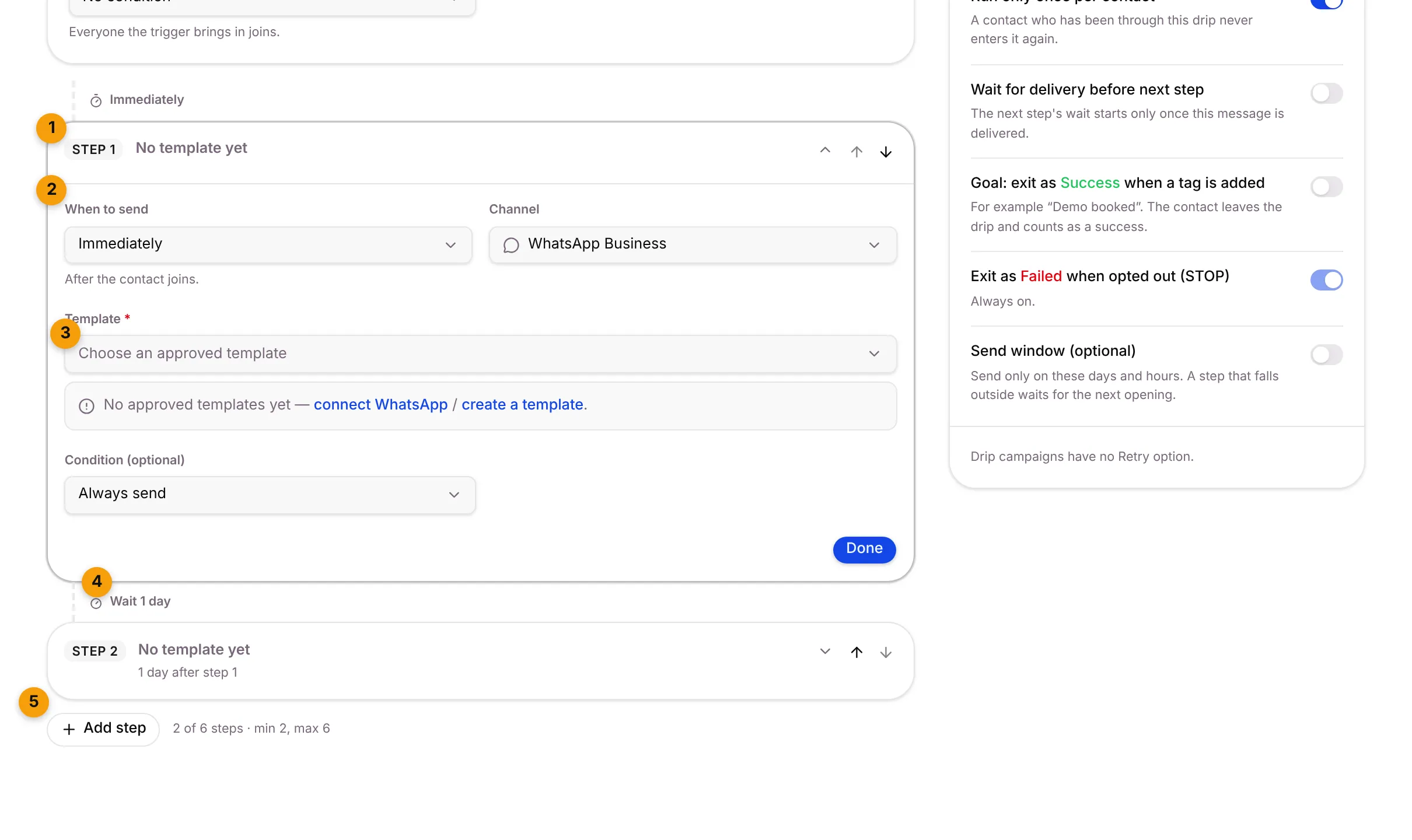
- Step 1: each step is one message. Open a step to edit it.
- When to send: step 1 goes Immediately or After a wait once the contact joins. Later steps wait a number of minutes, hours or days after the step before.
- Template: pick an approved template and fill in its variables. Each step also has an optional Condition.
- Wait: the gap before the next step, for example Wait 1 day.
- Add step: a drip has at least 2 and at most 6 steps. Use the arrows on a step to move it up or down.
3. Choose when contacts leave
Section titled “3. Choose when contacts leave”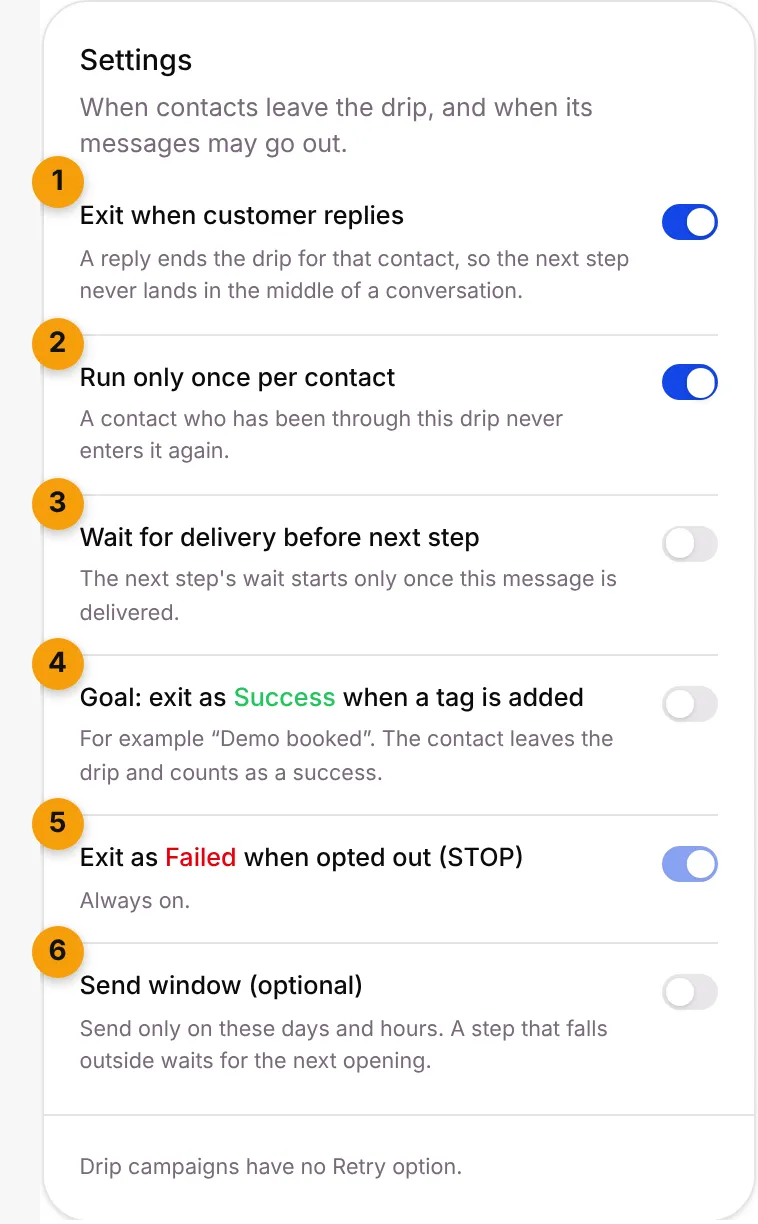
- Exit when customer replies: on by default, so the next step never lands in the middle of a conversation.
- Run only once per contact: a contact who has been through the drip never enters it again. Turn it off to let them re-enter after a number of days.
- Wait for delivery before next step: the next wait starts only once this message is delivered.
- Goal: exit as Success when a tag is added: for example Visit booked. The contact leaves the drip and counts as a success.
- Exit as Failed when opted out (STOP): always on.
- Send window (optional): send only on certain days and hours. A step that falls outside waits for the next opening.
Click Save & start.
The drip list and details
Section titled “The drip list and details”The list shows each drip’s Trigger, Steps, Status (Draft, Active, Paused or Archived), and how many contacts are Enrolled, In progress, reached Success or Replied. From a row you can View, Edit, Start, Pause, Resume, Archive or Delete it.
The details page shows a funnel for each step and every contact on the drip, with their status: In progress, Completed, Success, Exited or Failed. Enroll contacts adds contacts by hand.
Good to know
Section titled “Good to know”- Editing a live drip: new contacts get the new steps; contacts already on the way finish the old ones.
- Plan limit: when you reach your plan’s active drip limit, a new drip is saved as a draft until you pause or archive another.
- No retry. Drip campaigns don’t retry failed messages.
What’s next?
Section titled “What’s next?”Related articles
Section titled “Related articles”Was this article helpful?
Thanks for letting us know.