

Raise, assign and close breakdown calls against a response clock, with each complaint marked covered by the AMC or chargeable.
Complaints is where you handle breakdown calls, for example “Inverter showing an error since this morning.” Each complaint gets a number such as CMP-000001, is checked against the customer’s AMC, goes to a technician as a job, and is closed with a short report. A response clock shows how long the customer has waited for your first response.
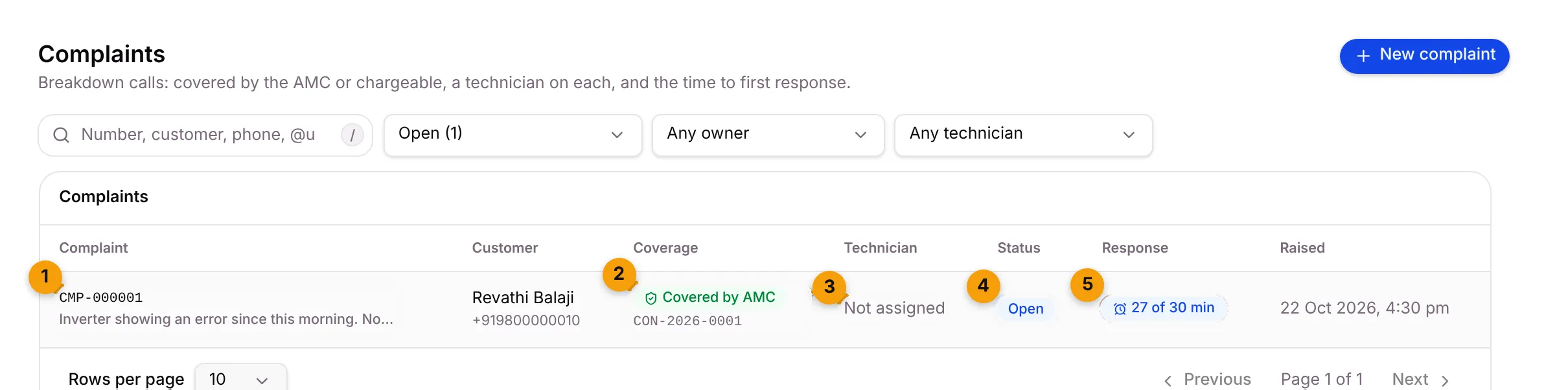
- Complaint: the number and the problem.
- Coverage: Covered by AMC (green) with the contract number, or Chargeable (amber).
- Technician: who is on it and their job code, or Not assigned.
- Status: where the complaint stands. See Complaint statuses.
- Response: the response clock. See The response clock.
Find a complaint
Section titled “Find a complaint”Use the bar above the list:
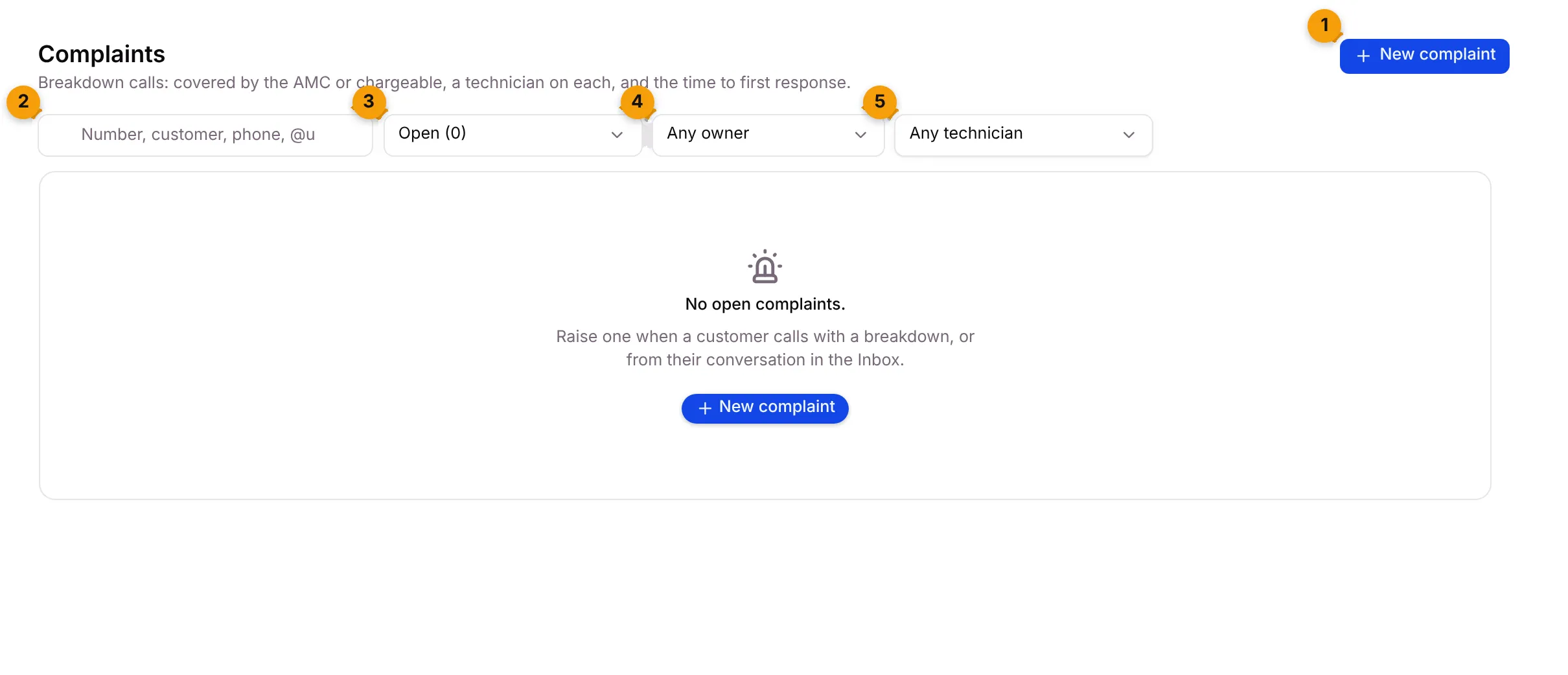
- New complaint: raise a complaint by hand.
- Search: type a complaint number, customer name, phone, WhatsApp username or words from the problem.
- Show: pick Open (the default), Late, Covered by AMC, Chargeable, Closed or All. Each option shows a count. Late, Covered by AMC and Chargeable only count open complaints.
- Owner: show complaints owned by one person in the office.
- Technician: show complaints assigned to one technician or teammate.
Raise a complaint
Section titled “Raise a complaint”- Go to Complaints and click New complaint.
- Fill in the form:
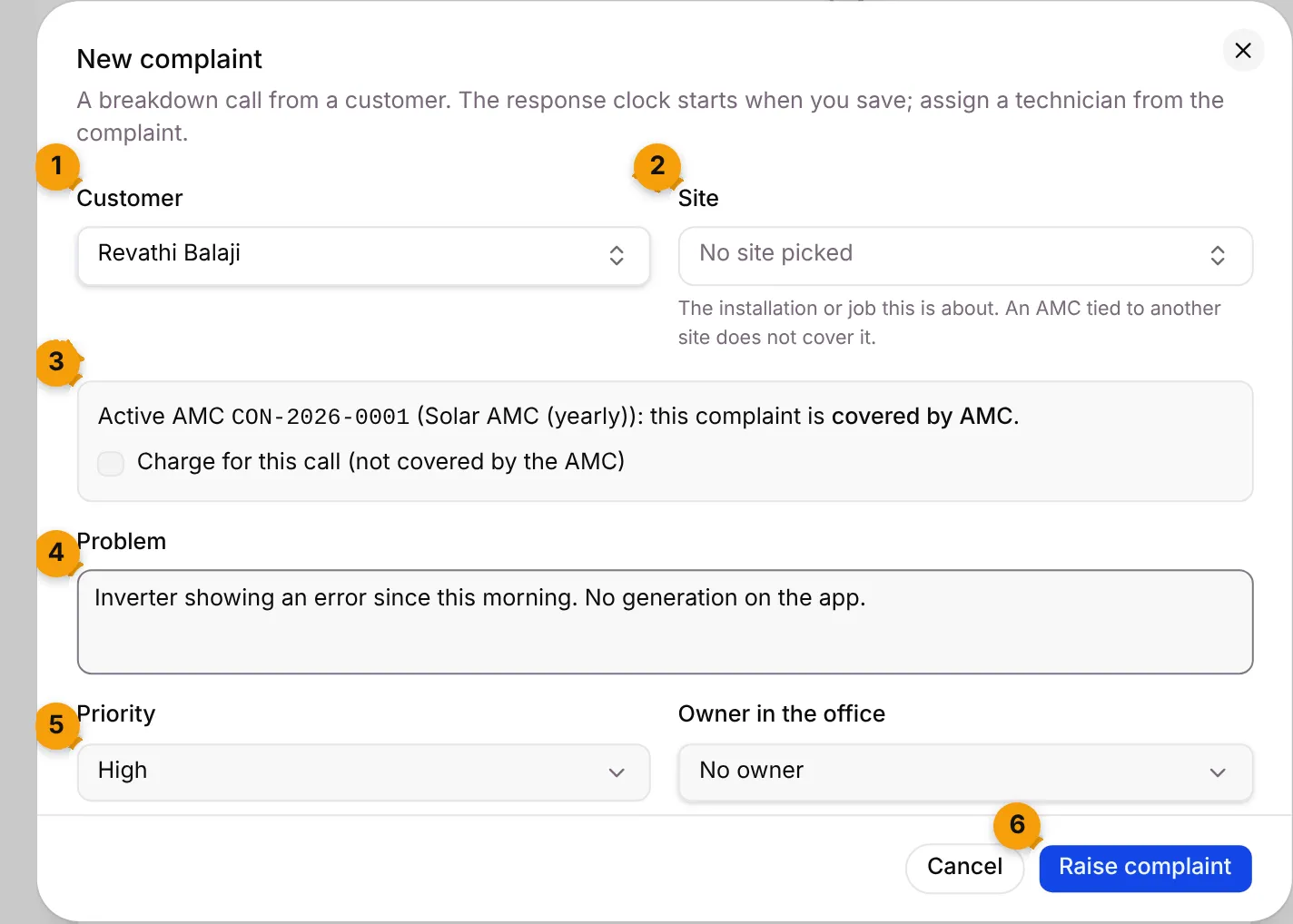
- Customer: pick the customer who called.
- Site: the installation the complaint is about. An AMC tied to another site doesn’t cover it.
- Coverage: Setaflow checks the customer’s AMC. If they have a live one, the complaint is covered by AMC. Tick Charge for this call (not covered by the AMC) if this call should be paid. With no active AMC, the complaint is chargeable.
- Problem: what’s wrong, in the customer’s words.
- Priority: High at first. Change it if needed. You can also pick an Owner in the office.
- Click Raise complaint.
The complaint appears at the top of the list and the response clock starts.
Open a complaint
Section titled “Open a complaint”Click a row. The complaint opens in a panel.
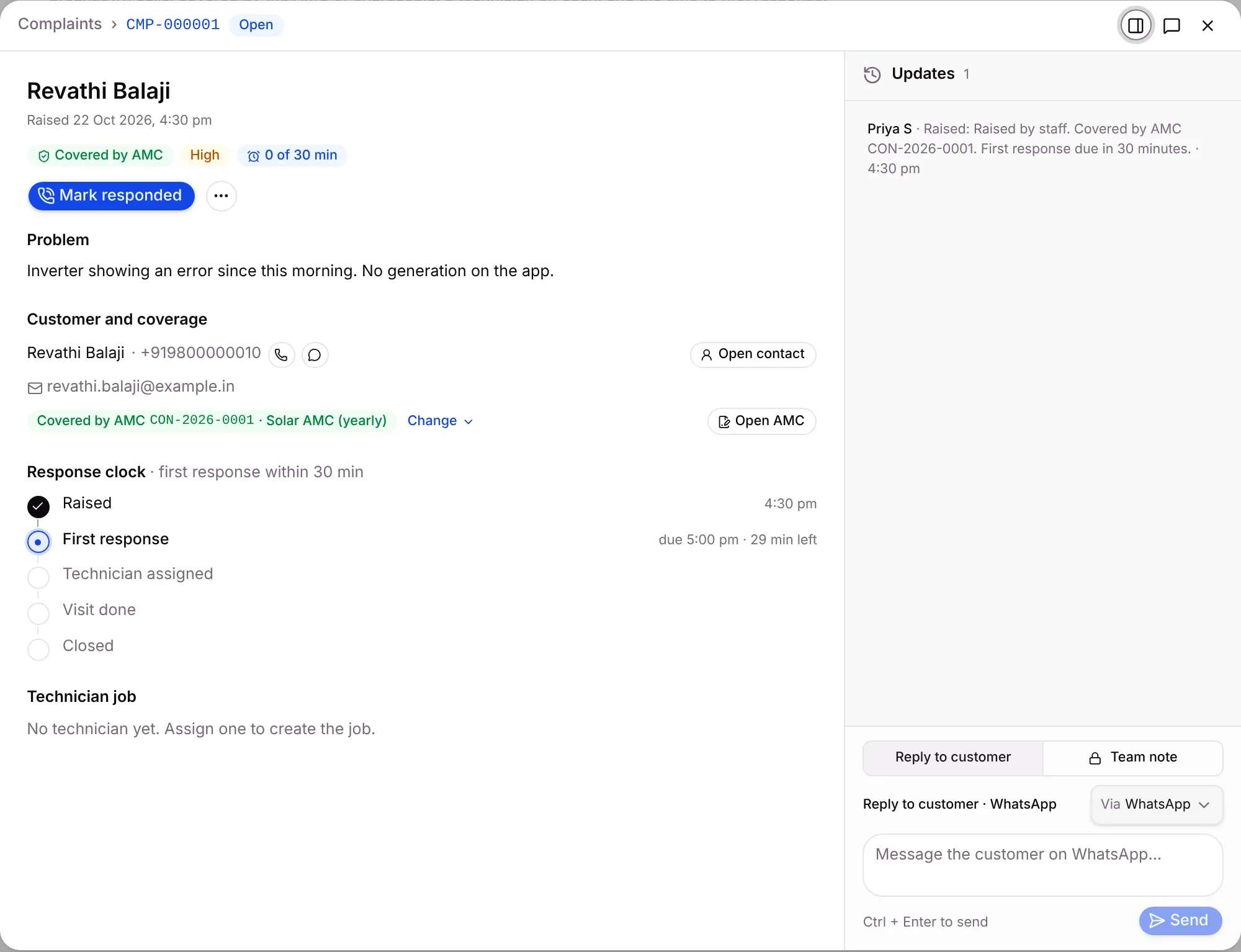
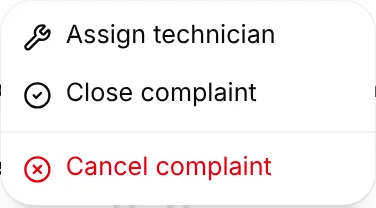
- The main button changes as the complaint moves on: Mark responded, then Assign technician (or Reassign technician), then Close complaint. The ⋯ next to it has the other actions.
- Problem: what the customer reported.
- Customer and coverage: call or WhatsApp the customer, Open contact, or Open AMC. Click Change to switch the coverage. For a chargeable complaint, you can send the customer an AMC offer from here.
- Response clock: each step, from Raised to First response, Technician assigned, Visit done and Closed, with the time it happened.
- Technician job: the job code, its photos and updates once a technician is assigned.
- Updates: every step and message. Choose Reply to customer to message them on WhatsApp or email, or Team note for a note that stays in the app.
Send a technician
Section titled “Send a technician”Assigning a technician creates their job on the Field jobs screen, as a Breakdown call when your trade has that job type.
- Open the complaint.
- Click Assign technician (on the main button, or from ⋯).
- Pick the Technician. Technicians who work on WhatsApp are listed first, then your team.
- Set Visit by (optional) to give the job a due time and reminders.
- Click Assign.
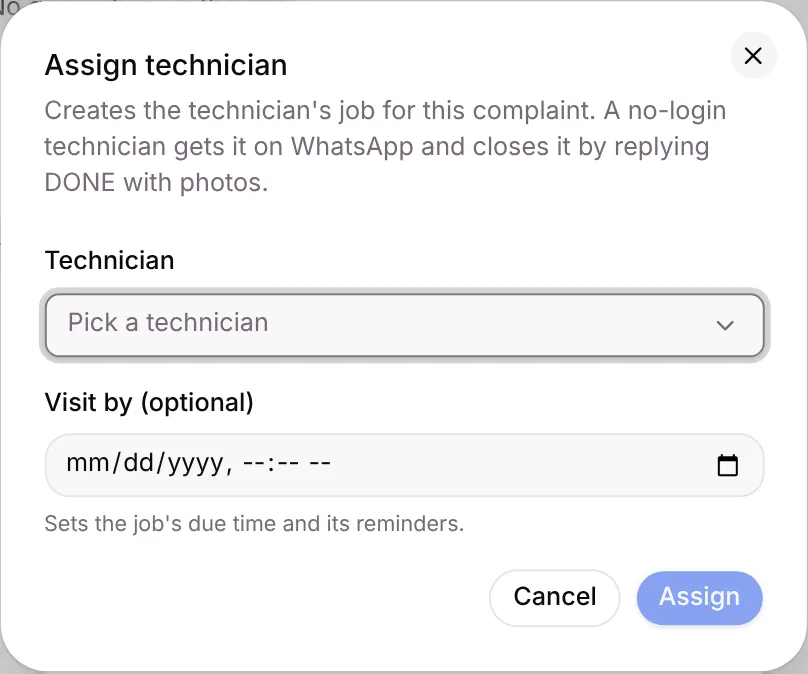
A no-login technician gets the job on WhatsApp and closes it by replying DONE with photos. When they do, the complaint shows Visit done.
To hand the job to someone else, click Reassign technician. The new technician gets the job on WhatsApp again.
Close a complaint
Section titled “Close a complaint”- Open the complaint and click Close complaint.
- Under What was done, write a short report, for example Inverter reset, DC isolator contacts cleaned, generation back to normal.
- Leave Send the customer a closing message on WhatsApp ticked to let the customer know.
- Click Close complaint.
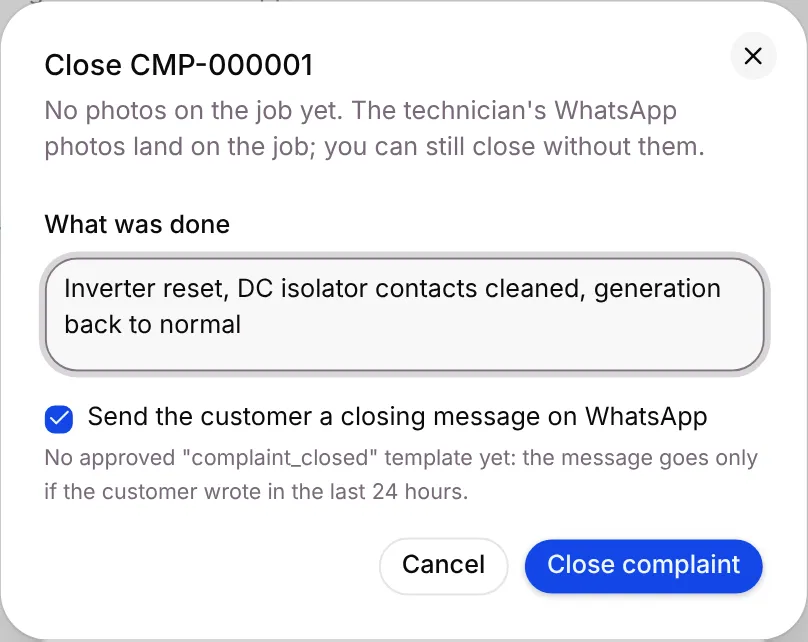
If the technician’s job is still open, it’s marked done too. Their photos stay on the job.
Cancel complaint (in ⋯) is for a duplicate or a complaint raised by mistake. It asks for a reason, cancels the technician’s job too, and can’t be undone.
Complaint statuses
Section titled “Complaint statuses”| Status | What it means |
|---|---|
| Open | Raised. No technician yet. |
| Technician assigned | A technician has the job. |
| Visit done | The technician finished the job. |
| Closed | Closed with a report. |
| Cancelled | Cancelled as a duplicate or a mistake. |
The response clock
Section titled “The response clock”| Badge | What it means |
|---|---|
| 18 of 30 min (blue) | Still waiting for a first response. 18 minutes have passed of a 30-minute target. |
| Within target (green) | You responded in time. |
| Late (red) | The first response came after the target, or hasn’t come yet and the target has passed. |
The target is 30 minutes unless you change it. You can set a different target for chargeable customers.
Customers can raise complaints themselves
Section titled “Customers can raise complaints themselves”These are switched on in Settings › Task types, on the Complaints card:
- Raise from WhatsApp: an AMC customer raises a complaint by tapping Report a problem (on the certificate message) or by sending exactly one of your trigger words, such as report a problem. Other messages never become complaints. The customer is told their complaint number. This is off at first.
- Complaints by email: a copyable email address. Customers can write to it, or you can forward your support mailbox to it. Each new email becomes a complaint, and replies stay on it. If it says Complaints by email are not set up on this server yet, ask the Setaflow team.
The same card sets the first-response targets and the closing message.
Good to know
Section titled “Good to know”- Staff who can’t create jobs don’t see New complaint. See Roles and access.
- Open complaints also appear on Today, under Open complaints.
- Only customers with a live AMC can raise complaints on WhatsApp. If a customer already has an open complaint, they’re told its number instead of getting a second one.
What’s next?
Section titled “What’s next?”Related articles
Section titled “Related articles”Was this article helpful?
Thanks for letting us know.